XXX Website Cemetery / Graveyard

Using the Group Bar in Vista Grids
By Susan Hanly - Associate Consultant
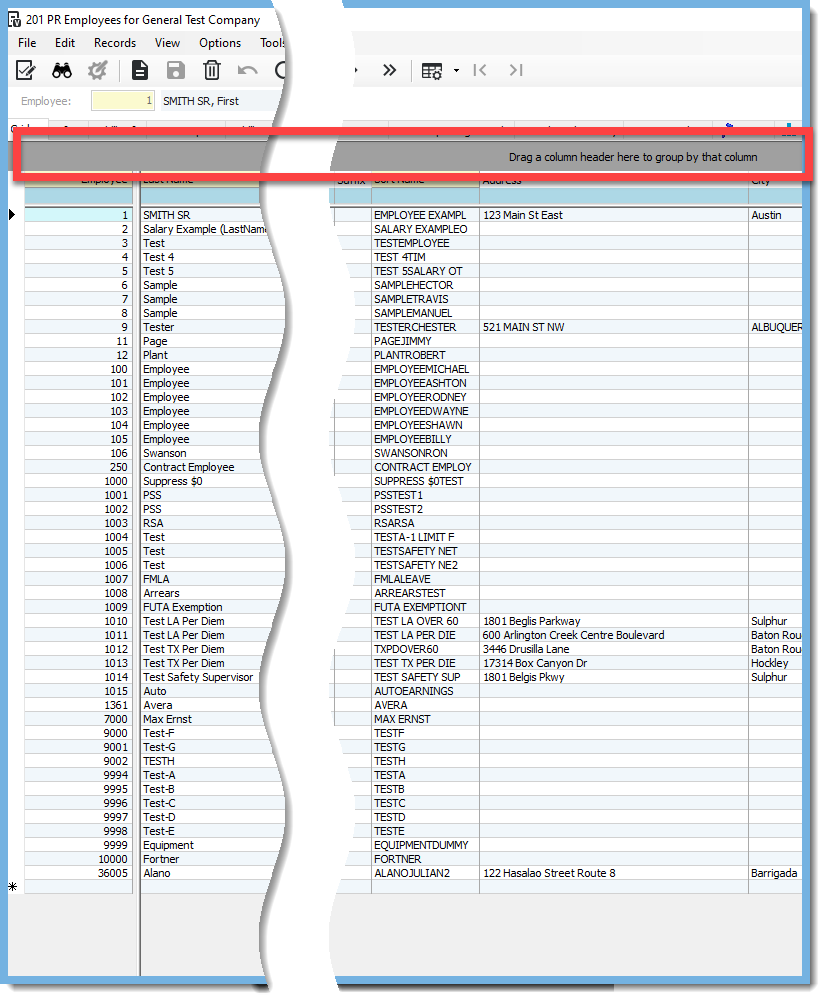
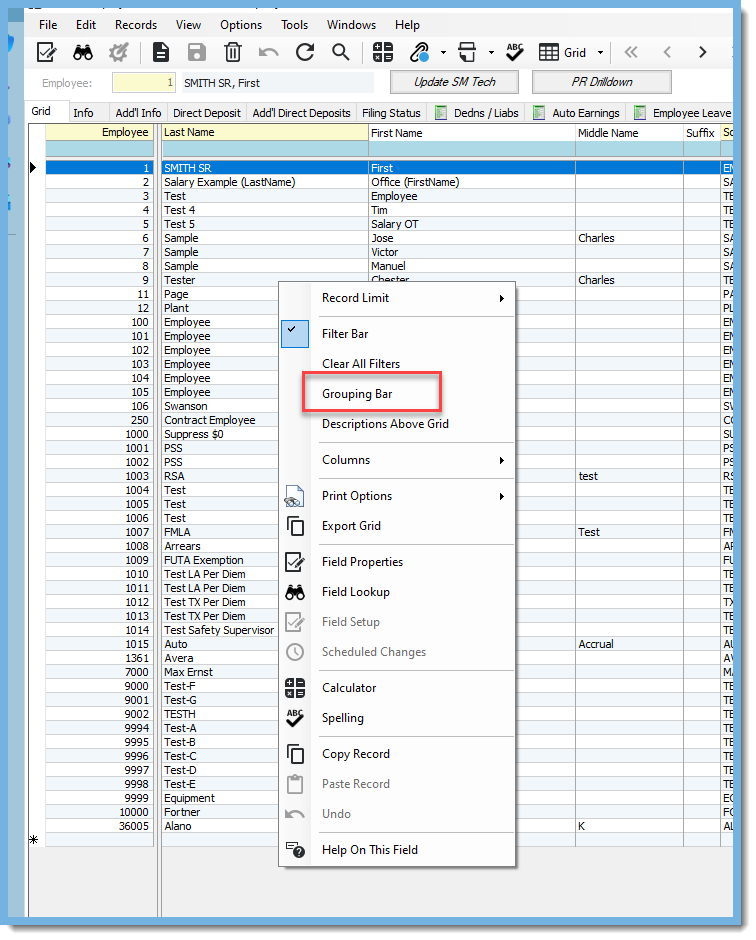 Once you click on Grouping Bar, you will see a gray bar appear above the filter bar. It will have the words "Drag a column header here to group by that column".
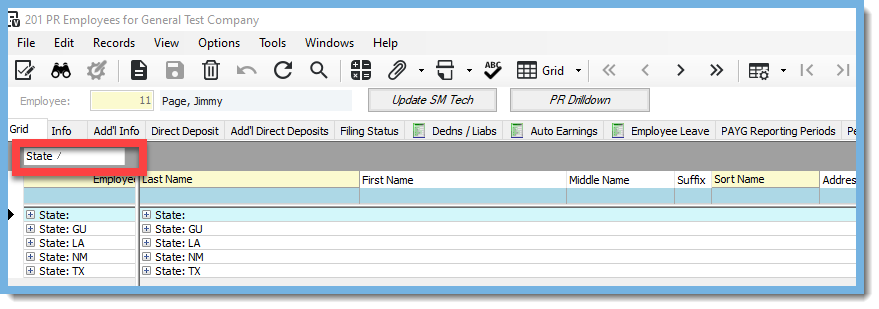
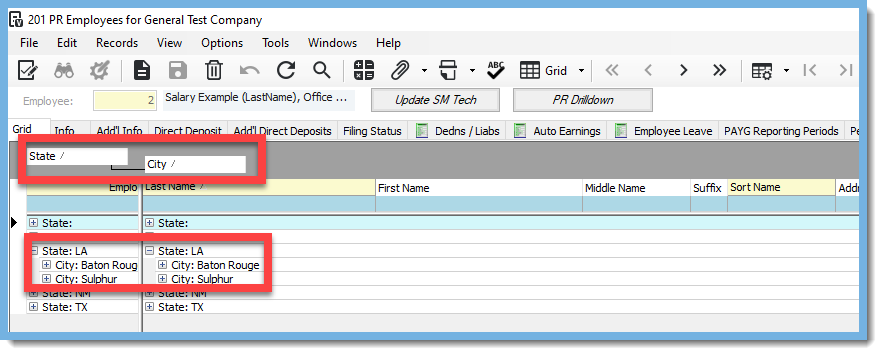
 In this example I want to group my grid by the State column to see how many states I have employees in. In order to do this, I drag the State column header to the gray bar. Now that column header is in the gray bar, it will group the employees by state.
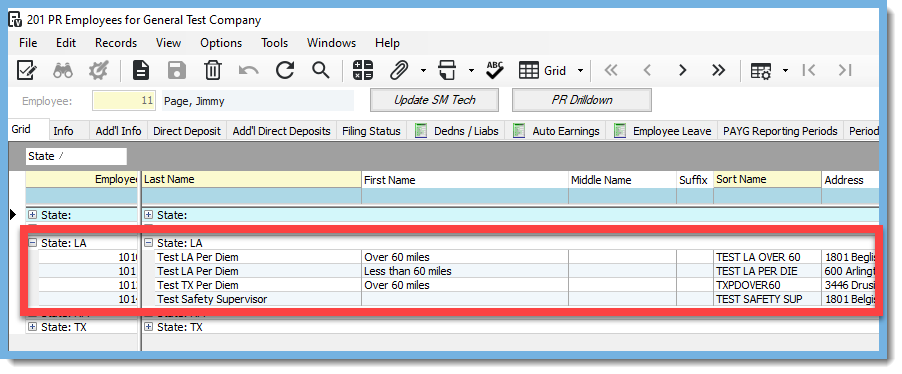
  Once it is grouped at this highest level, you can click on the "+" to expand the group to show the detail of the employees within each state.
  You can add additional levels of grouping by dragging column headers to the gray bar.
  I hope you find today's tip helpful! As always, if you need assistance with Vista, please visit our website for ConstrucTech Consulting to Book a Call with one of our consultants. To see more Tip Tuesday blogs, make sure to check out our ConstrucTech page on Linkedin! All past blogs can be found in the Blog section of our website.