<?xml version="1.0" encoding="UTF-8"?>
<feed xmlns="http://www.w3.org/2005/Atom">
                        <id>https://constructech.modihost.com/feed</id>
                                <link href="https://constructech.modihost.com/feed"></link>
                                <title><![CDATA[Blog - ConstrucTech Consulting]]></title>
                                <description>Bringing construction and technology together.</description>
                                <language>en-US</language>
                                <updated>2024-11-19T11:35:45-06:00</updated>
                <image>
        <url>https://www.constructech.io/android-chrome-256x256.png</url>
        <title>www.constructech.io - Blog</title>
        <link>https://www.constructech.io/blog</link>
        <width>256</width>
        <height>256</height>
    </image>
            <entry>
            <title><![CDATA[Charting Your Future: Why Career Paths Matter]]></title>
            <link rel="alternate" href="https://www.constructech.io/blog/charting-your-future-why-career-paths-matter" />
            <id>https://constructech.modihost.com/195922</id>
            <author>
                <name> <![CDATA[XXX Website Cemetery / Graveyard]]></name>
            </author>
            <summary type="html">
                <![CDATA[Pave the Way to Success: Unlocking Growth with Career Paths Bringing together construction and technology]]>
            </summary>
            <content type="html">
                <![CDATA[In today&rsquo;s dynamic workplace, employees and organizations thrive when career paths are clearly defined. Career paths provide a roadmap for employees, outlining the steps, skills, and training needed to progress in their careers. For organizations, these paths are a powerful tool to foster internal growth, retain top talent, and drive overall success.<br />
<br />
At Constructech Consulting, we help businesses set up and maximize their career path strategies. Here&rsquo;s how a well-defined career path benefits your team:<br />
&nbsp;
<div style="margin-left: 40px;"><strong>1.&nbsp; Boost Employee Engagement</strong><br />
Employees are more motivated and invested when they can visualize their future within the company. Career paths help create a sense of purpose and direction, which increases retention and job satisfaction.<br />
<br />
<strong>2.&nbsp;&nbsp;Enhance Skills Alignment</strong><br />
With career paths in place, employees know exactly what skills and training are required for their next steps. This ensures a steady, focused development plan tailored to both individual and organizational needs.<br />
<br />
<strong>3.&nbsp;&nbsp;Streamline Growth Opportunities</strong><br />
Career paths make it easy to identify promotion opportunities and prepare employees to step into leadership roles, fostering a culture of growth and internal mobility.</div>
<br />
<br />
<strong>How It Works</strong><br />
<br />
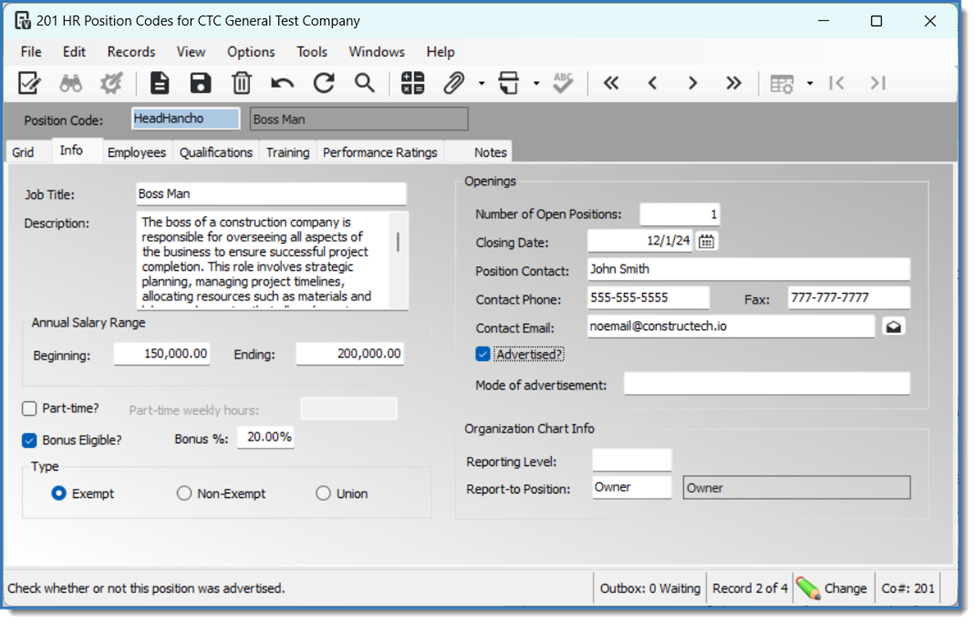
With our integrated tools, setting up career paths is simple and effective. Using your <strong>HR Position Codes</strong> in Vista, you can define roles and their required training, as shown below:<br />
<img height="623" src="https://fluxconsole.com/files/item/882/195923/image.png" width="975" />Once position codes are set, employees can access the <strong>Career Path</strong> feature in their Employee Portal. This intuitive tool allows them to explore their potential growth opportunities and see the exact skills and training required to reach their next position:<br />
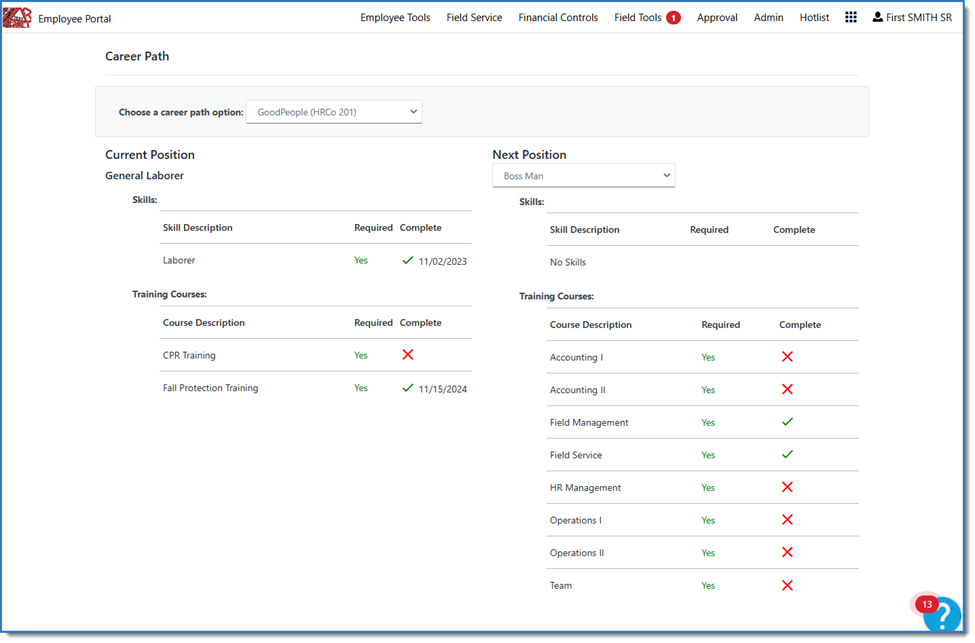
<img height="643" src="https://fluxconsole.com/files/item/882/195924/image.png" width="975" />Through this seamless process, employees feel empowered to take charge of their development while managers gain valuable insights into workforce planning.<br />
<br />
Ready to chart a clearer path for your team? Let us help! Contact us at <strong><a href="https://www.constructech.io/book-a-call">Constructech Consulting</a></strong> to learn how we can bring this powerful solution to your organization. Your team&rsquo;s growth starts here!<br />
&nbsp;]]>
            </content>
                          <enclosure url="https://fluxconsole.com/files/image/268574" length="0" type="image/png" />
                                    <updated>2024-11-19T11:35:45-06:00</updated>
        </entry>
            <entry>
            <title><![CDATA[ADP Smart Compliance + Vista]]></title>
            <link rel="alternate" href="https://www.constructech.io/blog/adp-smart-compliance-vista" />
            <id>https://constructech.modihost.com/195462</id>
            <author>
                <name> <![CDATA[XXX Website Cemetery / Graveyard]]></name>
            </author>
            <summary type="html">
                <![CDATA[ADP Smart Compliance + Vista Bringing together construction and technology]]>
            </summary>
            <content type="html">
                <![CDATA[<div style="text-align: center;"><strong>Integrating Trimble Vista with ADP SmartCompliance</strong><br />
&nbsp;</div>

<div>In the construction industry, efficiency and compliance are paramount. Integrating Trimble Vista with ADP SmartCompliance&reg; offers a powerful solution to streamline operations, maintain compliance, and mitigate risk. ADP SmartCompliance provides multiple services to help businesses maintain compliance with various regulations, including Employment Tax, W2 Management, Wage Garnishments, and Payment Solutions.<br />
&nbsp;</div>
This integration will require implementation on both the Vista and ADP side.&nbsp; Prior to scheduling Vista part of the ADP SmartCompliance&reg; implementation with Trimble, you would need to be sure you have an active implementation project with ADP.&nbsp; Once you choose the products you are interested in the implementation usually takes 12 &ndash; 16 weeks with Go Lives typically scheduled for the beginning of the quarter.&nbsp; This can depend on the test results with ADP and will vary depending on the products that were selected.&nbsp;<br />
<br />
Typically, the process starts with an ADP Implementation Startup Specialist, they gather the information on the products you are interested in. Once your company is ready to start implementation you will be assigned a Compliance Solutions Project Manager, and specialists on each product, for example such as a Tax Compliance Specialist and Payment Solutions specialist.&nbsp; To get Vista engaged, you would enter a case in Vista&rsquo;s Customer Portal, from there you would need to schedule time with the Vista Technical Services Specialist.&nbsp; You would then conduct weekly meetings on implementation with ADP.<br />
<br />
A true benefit of integrating ADP SmartCompliance with Trimble Vista is enhanced efficiencies for example businesses do not have to file each tax return or tax payments one by one to each taxing entity.&nbsp; Each pay period a file is submitted to ADP Tax to collect funds and depending on the payment and filing frequency setup in your profile, ADP completes payments and filings. &nbsp;When the quarter ends ADP would also file your quarterly taxes, you would have to review and submit a quarterly file.&nbsp; The last quarter would contain your W2 information which can generate your W-2&#39;s.&nbsp; Many customers enjoy the ADP Integration with Vista for the taxes alone.&nbsp; Two other products that deserve a mention are Wage Garnishments, and Payment Solutions.<br />
<br />
If you would like to know more about the ADP/Vista integration, please review the following Vista and ADP websites and get introduced to an ADP representative.<br />
<br />
<a href="https://dataxchange.trimble.com/integrations/adp/viewpoint-vista">https://dataxchange.trimble.com/integrations/adp/viewpoint-vista</a><br />
<br />
<a href="https://www.adp.com/what-we-offer/products/adp-smartcompliance.aspx">https://www.adp.com/what-we-offer/products/adp-smartcompliance.aspx</a><br />
<br />
If you need assistance with an ADP/Vista integration or any Vista processes, please visit our website&nbsp;<a href="https://www.constructech.io/book-a-call"><strong>ConstrucTech Consulting</strong></a>&nbsp;and&nbsp;<strong>Book a Call </strong>with us.&nbsp;&nbsp;<br />
<br />
&nbsp;]]>
            </content>
                          <enclosure url="https://fluxconsole.com/files/image/268005" length="0" type="image/jpg" />
                                    <updated>2024-11-04T11:35:45-06:00</updated>
        </entry>
            <entry>
            <title><![CDATA[Analyze Vista Data with Excel]]></title>
            <link rel="alternate" href="https://www.constructech.io/blog/analyze-vista-data-with-excel" />
            <id>https://constructech.modihost.com/186382</id>
            <author>
                <name> <![CDATA[XXX Website Cemetery / Graveyard]]></name>
            </author>
            <summary type="html">
                <![CDATA[Let Excel give you insights into your financial data. Bringing together construction and technology]]>
            </summary>
            <content type="html">
                <![CDATA[It&#39;s 2:00 pm on a Friday.&nbsp; You&#39;re thinking about all the nothing you&#39;re going to do this weekend when your boss calls.&nbsp; They want a quick graphic to insert into a customer presentation and they want it now.<br />
<br />
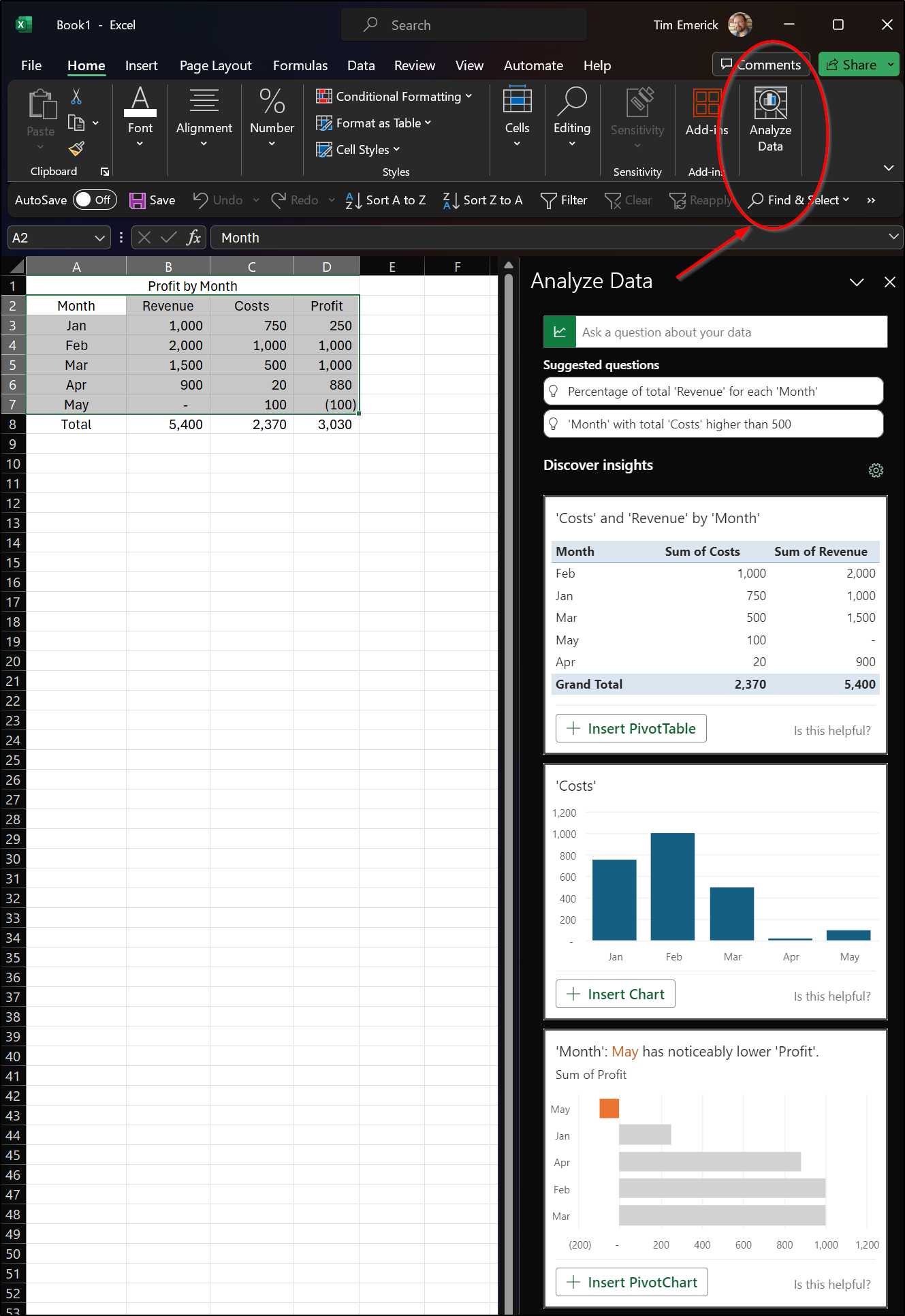
Fortunately, Excel can analyze data for you and offer helpful suggestions and you don&#39;t even need to know how to create a bar chart to do it.<br />
<br />
In the example below, I have a small table showing some monthly revenue, cost, and profit data that I cobbled together real quick from our accounting system.<br />
<br />
I quickly click the Analyze Data button on my Excel Home Ribbon and voila!&nbsp; Excel not only offers some quick data analysis and visualizations but it also suggests to ask it questions using plain english.<br />
<br />
Click a chart I like, throw it into a PowerPoint slide and weekend here we come!<br />
<img height="1932" src="https://fluxconsole.com/files/item/882/186383/image.png" width="1329" />Make sure to tune in every Tuesday for various tips on how to use the software you use everyday.&nbsp; We are always here to help as well if you are looking for impactful ways to study or visualize your data to aid in making smart business decisions.&nbsp; Visit our website and book a call.<br />
<br />
<br />
&nbsp;]]>
            </content>
                          <enclosure url="https://fluxconsole.com/files/image/267761" length="0" type="image/jpg" />
                                    <updated>2024-10-29T11:35:45-05:00</updated>
        </entry>
            <entry>
            <title><![CDATA[Get Ready for Year-End 2024]]></title>
            <link rel="alternate" href="https://www.constructech.io/blog/get-ready-for-year-end-2024" />
            <id>https://constructech.modihost.com/195079</id>
            <author>
                <name> <![CDATA[XXX Website Cemetery / Graveyard]]></name>
            </author>
            <summary type="html">
                <![CDATA[Get Ready for Year-End 2024 Bringing together construction and technology]]>
            </summary>
            <content type="html">
                <![CDATA[<div style="text-align: center;">Getting Ready for Year-End 2024<br />
&nbsp;</div>

<div>The road for year 2024 is quickly coming to an end.&nbsp; There&nbsp;are many tools provided through Vista that can help you to brush up on those year end processes and procedures.&nbsp;&nbsp;<br />
<br />
There is a Vista 2024 Year-End Support Guide that provides a plethora of informaiton, several year-end webinars that you can sign up for now, year-end checklists and important articles.&nbsp; Also, coming soon, will be Vista Year-End Training in the Viewpoint Academy.&nbsp;&nbsp;<br />
<br />
Take advantage of all these resourse by clicking <a href="https://www.viewpoint.com/vista-year-end">here</a>.<br />
<br />
Also, check out our blogs at <a href="https://www.constructech.io/blog">Constructech.io</a>&nbsp;to search for articles that may interest you or provide help with those year-end processes.&nbsp; You can also visit our ConstrucTech Consulting team by clicking <a href="https://www.constructech.io/our-team">here</a>&nbsp;to&nbsp;&quot;Book A Call&quot; for any quesions, concerns, or one on one training your may need.</div>]]>
            </content>
                          <enclosure url="https://fluxconsole.com/files/image/267570" length="0" type="image/jpg" />
                                    <updated>2024-10-22T11:35:45-05:00</updated>
        </entry>
            <entry>
            <title><![CDATA[Exciting Updates in Vista 2024 R10: New Features You’ll Love!]]></title>
            <link rel="alternate" href="https://www.constructech.io/blog/exciting-updates-in-vista-2024-r10-new-features-youll-love" />
            <id>https://constructech.modihost.com/194533</id>
            <author>
                <name> <![CDATA[XXX Website Cemetery / Graveyard]]></name>
            </author>
            <summary type="html">
                <![CDATA[Upgrade Your Efficiency: Vista 2024 R10 is Here with Game-Changing Features! Bringing together construction and technology]]>
            </summary>
            <content type="html">
                <![CDATA[We&#39;re excited to share some of the coolest enhancements from the latest 2024 R10 release! This update, which rolled out on October 2, 2024, here are just a few of the new features and improvements to make your work smoother and faster.<br />
<br />
If you&#39;re hosted in the Viewpoint for Cloud&trade; solution, the update happens automatically. For everyone else, you&rsquo;ll need to manually update your portal.<br />
<br />
<strong>Highlights:</strong>
<ul>
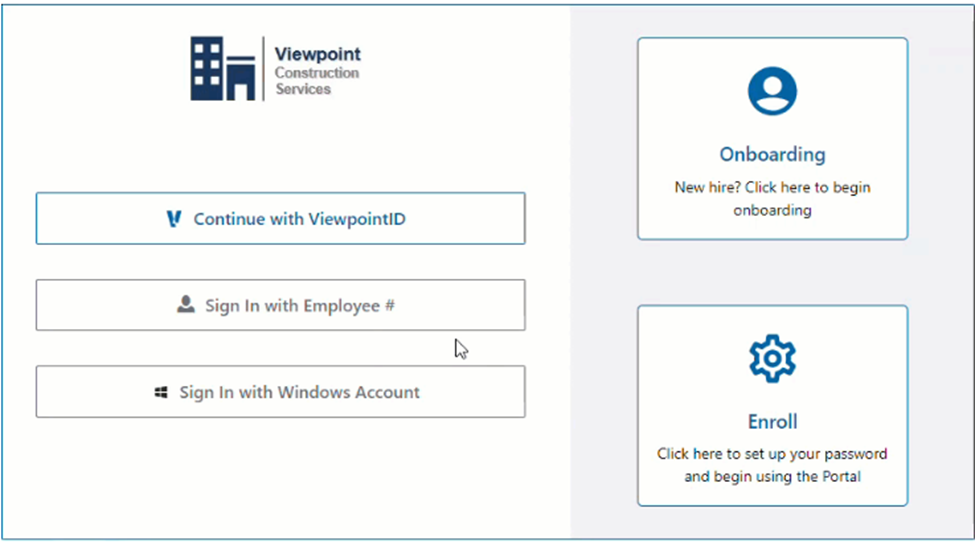
	<li><strong>Fresh Login Experience:</strong> The Vista Web portal login page got a makeover! It&rsquo;s now easier to navigate for both new and returning users.</li>
</ul>
<img height="545" src="https://fluxconsole.com/files/item/882/194534/image.png" width="975" />
<ul>
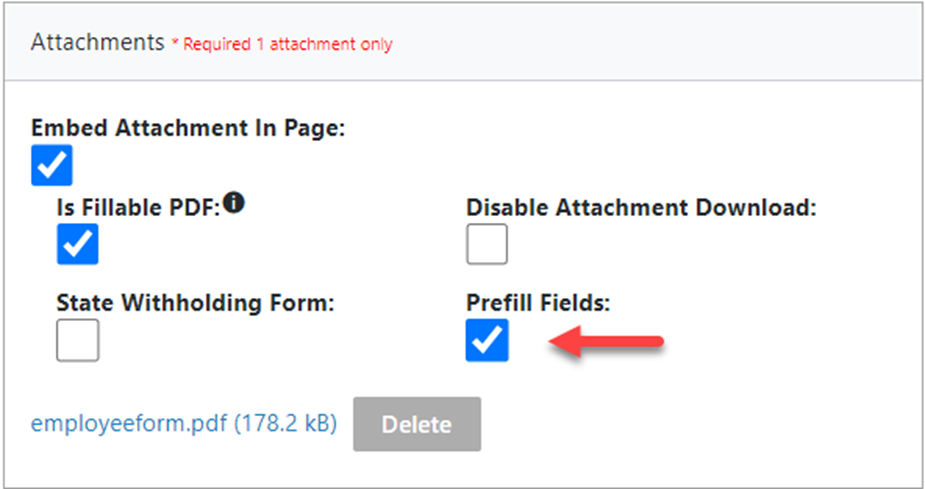
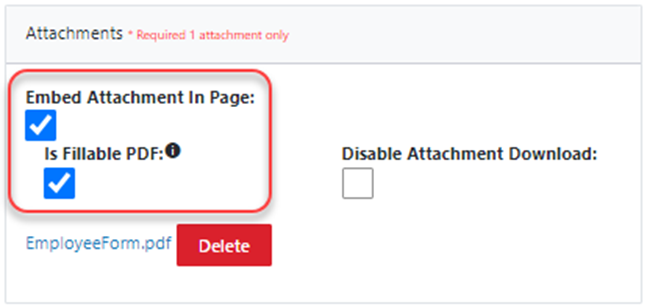
	<li><strong>Auto-Filled PDF Forms:</strong> Admins can set up fillable PDFs that automatically pull employee info directly from Vista. No more manually entering the basics!</li>
</ul>
<img height="489" src="https://fluxconsole.com/files/item/882/194535/image.png" width="925" />
<ul>
	<li><strong>Billing Upgrade:</strong> The Classic Billing Compiler has officially retired. Say hello to the Next Gen Billing Compiler, which offers a ton of new features for compiling documents.</li>
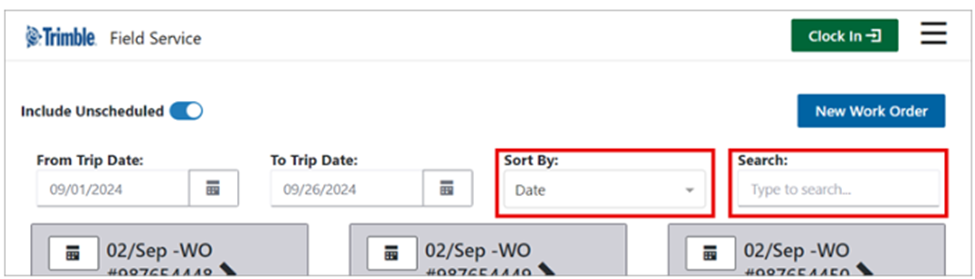
	<li><strong>Searchable Work Orders:</strong> The Work Order Dashboard now has a search bar! Find any Work Order by number, address, or customer in a snap.</li>
</ul>
<img height="279" src="https://fluxconsole.com/files/item/882/194536/image.png" width="975" />
<ul>
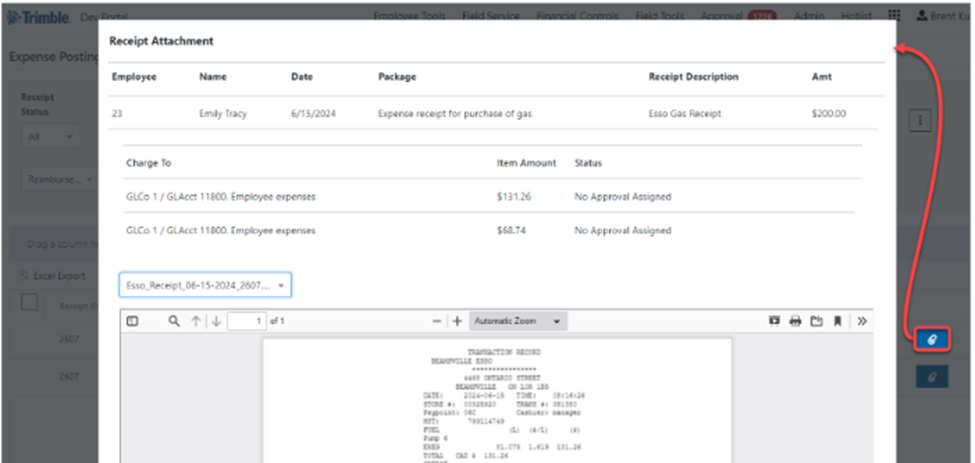
	<li><strong>Improved Expense Processing:</strong> Expenses now process in the background, making your work faster and preventing duplicate entries. You will also now be able to view attachments without ever leaving the expense posting dashboard!</li>
</ul>
<img height="463" src="https://fluxconsole.com/files/item/882/194537/image.png" width="975" /><br />
<strong>For more details, reach out to us at <a href="https://www.constructech.io/book-a-call">ConstrucTech Consulting</a>. We&#39;ve got you covered for all things Vista!</strong><br />
&nbsp;<br />
&nbsp;]]>
            </content>
                          <enclosure url="https://fluxconsole.com/files/image/266751" length="0" type="image/jpg" />
                                    <updated>2024-10-15T11:35:45-05:00</updated>
        </entry>
            <entry>
            <title><![CDATA[Leveraging Action Items in ProjectSight]]></title>
            <link rel="alternate" href="https://www.constructech.io/blog/leveraging-action-items-in-projectsight" />
            <id>https://constructech.modihost.com/194441</id>
            <author>
                <name> <![CDATA[XXX Website Cemetery / Graveyard]]></name>
            </author>
            <summary type="html">
                <![CDATA[In any industry, successful tracking and execution of work tasks can drive a firm toward higher margins, increased rates of productivity, and improved... Bringing together construction and technology]]>
            </summary>
            <content type="html">
                <![CDATA[In any industry, successful tracking and execution of work tasks can drive a firm toward higher margins, increased rates of productivity, and improved coverage of task responsibilities. Without that, firms risk fostering an aimless and stagnant workflow process.<br />
<br />
Trimble&rsquo;s premiere construction project software, ProjectSight, boasts an accessible and detailed user interface tailored to maximize customer efficiency in the construction industry. ProjectSight&rsquo;s <em>Action Items</em> module allows for a detailed overview of tasks that your company needs to complete. In this Tip Tuesday, we will breakdown that module and any important details necessary for you to drive task resolution at your firm.<br />
<br />
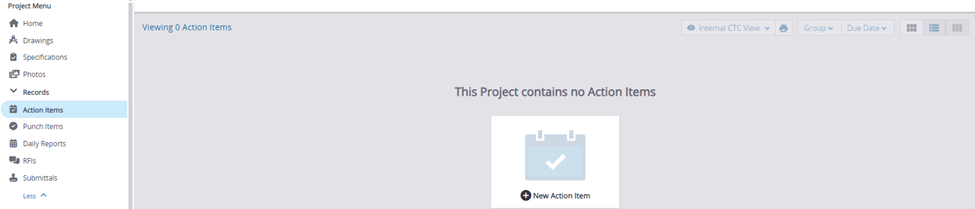
<img height="209" src="https://fluxconsole.com/files/item/882/194442/image.png" width="975" />First, click into your <em>Action Items</em> module in ProjectSight. If you have not yet created an action item, this screen will be blank.<br />
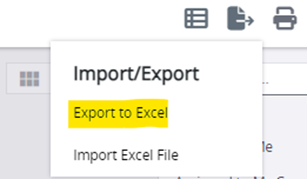
<img height="179" src="https://fluxconsole.com/files/item/882/194443/image.png" width="307" />Rather than painstakingly entering our action items manually one at a time, the user interface allows us to export blank data with all necessary column headers. The use of an Excel spreadsheet will provide us with an efficient means to upload several action items at once. When the sheet downloads, open it up and you will see a view similar to mine here.<br />

<img height="77" src="https://fluxconsole.com/files/item/882/194444/image.png" width="975" />The action items module comes standard with column headers like &lsquo;Type&rsquo;, Description&rsquo;, and &lsquo;Due Date&rsquo;.<br />
<br />
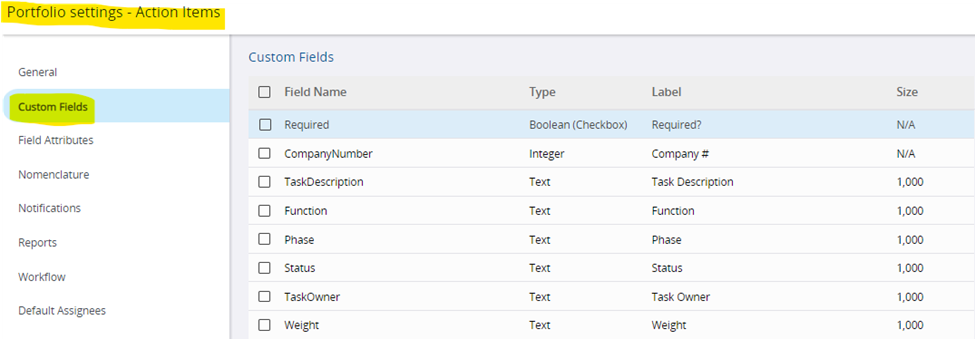
Additionally, you can add more headers by entering Portfolio Settings&gt;Records&gt;Action Items&gt;Custom Fields. I recommend setting their types to &lsquo;Text&rsquo; to allow for written records, but there are several options available to you.<br />
<img height="339" src="https://fluxconsole.com/files/item/882/194446/image.png" width="975" />Once your column headers are satisfactory and you have your exported sheet in front of you, you can add data to the cells. For our purposes, I will add data to the following headers: Subject, Task Owner, Type, Status, Due Date, Description, Importance and Author. You can see below some of that data I added into Excel.<br />

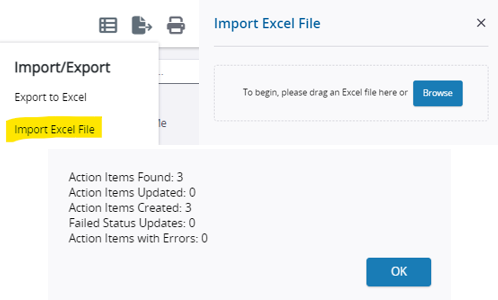
<img height="154" src="https://fluxconsole.com/files/item/882/194447/image.png" width="975" />Upon completion of the data upload, you are ready import your spreadsheet. Enter your <em>Action Item</em> screen again and select the &lsquo;Import Excel File&rsquo; button. You can then either drag the sheet onto the screen or select &lsquo;Browse&rsquo; to find it in your File Explorer. Upon successful completion, you will receive this confirmation page articulating the movement of your data.<br />
<img height="300" src="https://fluxconsole.com/files/item/882/194448/image.png" width="498" />We can now see that same Excel data displayed in my Action Item module.<br />

<img height="127" src="https://fluxconsole.com/files/item/882/194449/image.png" width="975" />Additionally, ProjectSight allows for dragging and dropping of different columns and the addition or subtraction of different column headers. Simply select the three-bar icon in the top right corner of the view and this screen will provide you with the ability to check or uncheck columns depending on how you want data displayed.<br />
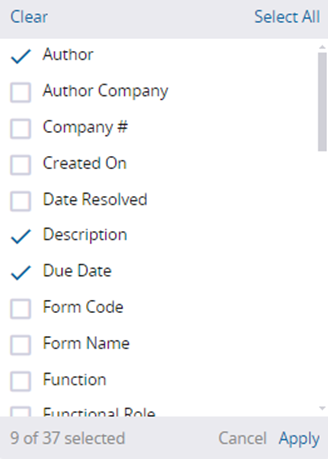
<img height="459" src="https://fluxconsole.com/files/item/882/194450/image.png" width="328" />To save this view, click the &lsquo;Save&rsquo; icon next to the plus button on the left side of your toolbar.<br />
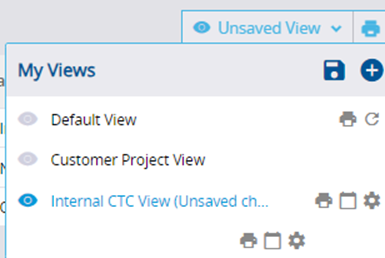
<img height="258" src="https://fluxconsole.com/files/item/882/194451/image.png" width="385" />Proper task maintenance is critical for any company to remain competitive in their market and expand their business opportunities. ProjectSight&rsquo;s <em>Action Items</em> module provides users with an interface that is both customizable and accessible that provides any data you wish to display. &nbsp;<br />
<br />
If you have any questions regarding ProjectSight&#39;s features or are interested in adding this software to your company&#39;s project management repertoire, please visit our website -&nbsp;<a href="https://www.constructech.io/about">ConstrucTech Consulting&nbsp;</a>- and&nbsp;<a href="https://www.constructech.io/book-a-call">Book a Call</a> with one of our consultants.<br />
&nbsp;]]>
            </content>
                          <enclosure url="https://fluxconsole.com/files/image/266619" length="0" type="image/jpg" />
                                    <updated>2024-10-08T11:35:45-05:00</updated>
        </entry>
            <entry>
            <title><![CDATA[Understanding Payroll Gross-Up for Incentives]]></title>
            <link rel="alternate" href="https://www.constructech.io/blog/understanding-payroll-gross-up-for-incentives" />
            <id>https://constructech.modihost.com/194011</id>
            <author>
                <name> <![CDATA[XXX Website Cemetery / Graveyard]]></name>
            </author>
            <summary type="html">
                <![CDATA[Payroll Gross-Up for Incentives Bringing together construction and technology]]>
            </summary>
            <content type="html">
                <![CDATA[<div style="text-align: center;"><strong>Understanding Payroll Gross-Up for Incentives </strong></div>
When it comes to employee compensation, one term that often comes up is &ldquo;grossing up.&rdquo; This practice is particularly useful when dealing with bonuses. But what exactly does it mean to Gross-Up wages, and why is it beneficial? Let&rsquo;s dive into the details for this week&rsquo;s blog.&nbsp;<br />
<br />
You may be asking yourself what a Gross-Up is, it&rsquo;s a method used by payroll to ensure that employees receive a specific net amount after taxes are deducted. Essentially, the employer increases the gross amount of the bonus to cover the employee&rsquo;s tax liabilities, so the net pay remains as intended.&nbsp;<br />
<br />
For example, if an employer promises a $1000 bonus, they will calculate and add the necessary amount to cover the taxes, ensuring the employee takes home the full $1000. We see this happen when employers issue bonuses or relocation expenses.&nbsp; Employees this way will receive more take-home pay.<br />
<br />
<strong>How to Calculate a Gross-Up</strong><br />
Calculating a gross-up involves some math, but it&rsquo;s straightforward once you understand the formula. Steps below:<br />
<br />
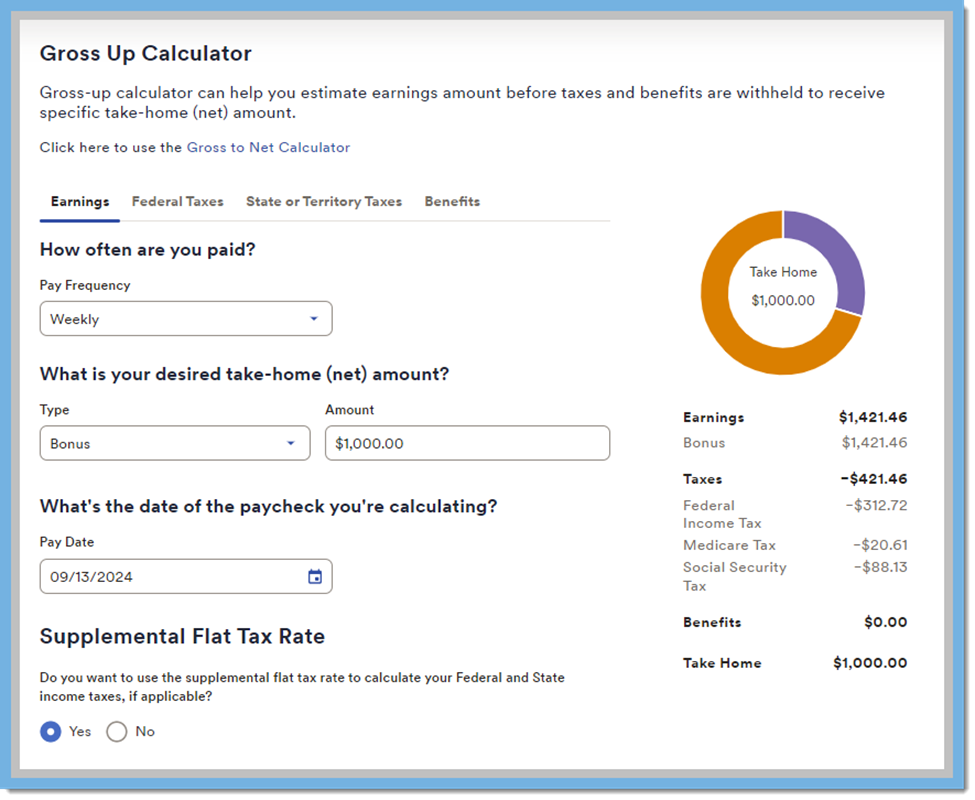
1.&nbsp; Determine the Desired Net Pay: This is the amount you want the employee to receive after taxes.&nbsp; In our example, the bonus is $1000 and we want $1000 to be the net amount for our employee.<br />
<br />
2.&nbsp; I<span style="font-size: 1rem;">dentify the Tax Rate: This includes federal, state, and any other applicable taxes. (Percentages shown are an example please review IRS rates and state/local websites if any changes are applicable)</span>

<ul style="margin-left: 40px;">
	<li>Federal 22%, Social Security 6.2%, Medicare 1.45%</li>
	<li>Tax Rate 29.65%</li>
</ul>
3.&nbsp; Use the Gross-Up Formula:

<ul style="margin-left: 40px;">
	<li>Gross-Up&nbsp;Amount=Desired Net Pay/ (1-Tax Rate)</li>
	<li>1000/ (1-.2965) =1000/0.7035=1421.46</li>
</ul>
4.&nbsp; So, the gross amount would be approximately $1421.46<br />
<br />
Some helpful advice is to find your favorite Gross-Up calculator online.&nbsp; There are several free resources online, the one below is <a href="https://www.adp.com/resources/tools/calculators/gross-pay-calculator.aspx">ADP&rsquo;s free Gross-Up Calculator </a>, ADP&rsquo;s website has many helpful resources for payroll.&nbsp; Some of my favorites are <a href="https://www.adp.com/resources/tools/tax-guides-and-forms/state-and-local-tax-guides/state-tax-guide.aspx">Fast Facts </a>and the Gross-Up Calculator.&nbsp;<br />
<br />
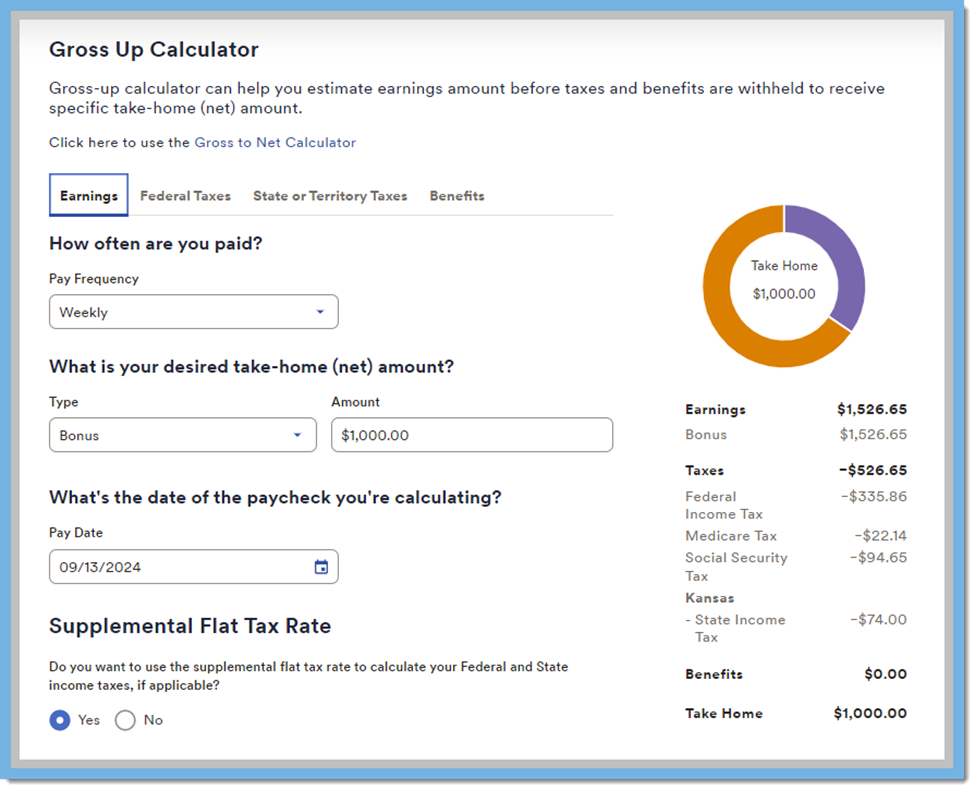
In the example below the supplemental flat tax rate was applied and no state income taxes were used.&nbsp;<br />
<img height="800" src="https://fluxconsole.com/files/item/882/194012/image.png" width="975" /><br />
<strong>Next Example with State Income Tax from Kansas</strong><br />
Now the amount for the bonus has changed to include the state income tax. In this example the supplemental rate was also used.&nbsp; Most states have supplemental rates but be sure to check with your tax expert.&nbsp;<br />
<img height="790" src="https://fluxconsole.com/files/item/882/194013/image.png" width="975" />Grossing up bonuses is a thoughtful practice that can significantly enhance employee satisfaction and simplify payroll processes. By understanding and implementing this method, employers can ensure their compensation packages are both competitive and appreciated by their workforce.&nbsp;<br />
<br />
On a previous Tip Tuesday, my colleague Susan Hanly wrote a blog post called <a href="https://www.constructech.io/blog/bonus-setup-processing-tips"><strong><u>Bonus Setup &amp; Processing Tips</u></strong></a> that explains the bonus setup features and processing tips within Vista.&nbsp; The blog is informative and helpful in understanding how bonuses are set up on the Pay Period Control, PR Deduction/Liabilities, and steps for processing. Please give that blog a read as well.<br />
<br />
As always, if you need assistance with any Vista processes, please visit our website&nbsp;<a href="https://www.constructech.io/book-a-call"><strong>ConstrucTech Consulting</strong></a>&nbsp;and&nbsp;Book a Call with one of our consultants.&nbsp;<br />
&nbsp;<br />
&nbsp;<br />
&nbsp;]]>
            </content>
                          <enclosure url="https://fluxconsole.com/files/image/265807" length="0" type="image/jpg" />
                                    <updated>2024-09-17T11:35:45-05:00</updated>
        </entry>
            <entry>
            <title><![CDATA[Sparklines - Visualizing your Vista Data]]></title>
            <link rel="alternate" href="https://www.constructech.io/blog/sparklines-visualizing-your-vista-data" />
            <id>https://constructech.modihost.com/193806</id>
            <author>
                <name> <![CDATA[XXX Website Cemetery / Graveyard]]></name>
            </author>
            <summary type="html">
                <![CDATA[Sparklines Bringing together construction and technology]]>
            </summary>
            <content type="html">
                <![CDATA[<h3 style="text-align: center;">Visualizing data with Sparklines.</h3>
In the world of data analysis, visual representation is key to understanding trends and patterns quickly. Microsoft Excel offers a powerful yet often underutilized feature called Sparklines. These tiny, cell-sized charts provide a compact and immediate visual summary of data trends, making them an invaluable tool for anyone working with data.

<div style="text-align: center;"><strong>What Are Sparklines?</strong><br />
&nbsp;</div>
Sparklines are miniature charts that fit within a single cell in Excel. Unlike traditional charts, they are designed to be embedded within the data itself, providing a quick visual representation without taking up much space. Sparklines can be used to show trends, variations, and patterns in a series of values, making them perfect for dashboards and reports.

<div style="text-align: center;"><strong>Types of Sparklines</strong></div>

<div><br />
Excel offers three types of Sparklines:</div>

<ul>
	<li><strong>Line Sparklines:</strong> These are used to show trends over time. They are ideal for displaying continuous data, such as monthly sales figures or stock prices.</li>
	<li><strong>Column Sparklines:</strong> These are used to compare individual values. They are perfect for showing discrete data points, such as the number of units sold each quarter.</li>
	<li><strong>Win/Loss Sparklines: </strong>These are used to show binary outcomes, such as wins and losses in a series of games. They are great for highlighting positive and negative values.</li>
</ul>

<div style="text-align: center;"><strong>How to Create Sparklines</strong></div>

<div><br />
Creating Sparklines in Excel is straightforward:</div>

<ul>
	<li>Select the Data: Highlight the range of data you want to visualize.</li>
	<li>Insert Sparklines: Go to the Insert tab on the Ribbon, and choose the type of Sparkline you want to create (Line, Column, or Win/Loss).</li>
	<li>Specify the Location: Select the cell where you want the Sparkline to appear.</li>
	<li>Customize: Use the Sparkline Tools on the Ribbon to customize the appearance, such as changing the color or adding markers.</li>
</ul>

<div style="text-align: center;"><strong>Customizing Sparklines</strong><br />
&nbsp;</div>

<div>Excel provides several customization options to make your Sparklines more informative:</div>

<ul>
	<li><strong>Markers</strong>: Highlight specific data points, such as the highest or lowest values.</li>
	<li><strong>Color</strong>: Change the color of the Sparkline to match your theme or highlight certain trends.</li>
	<li><strong>Axis</strong>: Add an axis to provide context for the data values.</li>
</ul>

<div style="text-align: center;"><strong>Example:</strong></div>

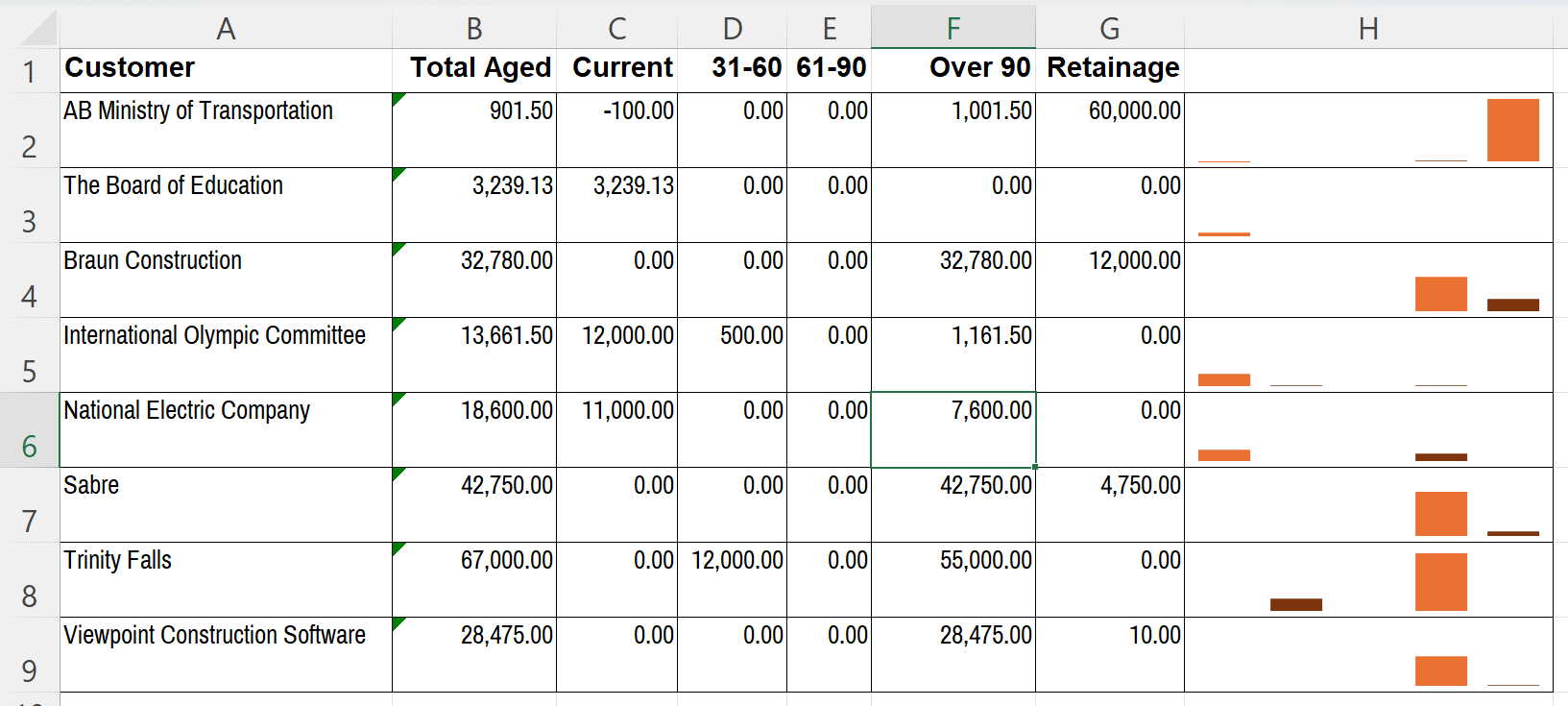
<div>Here I&#39;ve quickly pulled a sample AR Aging from Vista and applied some sparklines in Excel.&nbsp; It&#39;s very easy to see&nbsp;how the agings are spread using this visualization.<br />
<br />
<img height="735" src="https://fluxconsole.com/files/item/882/193817/image.png" width="1633" /></div>

<div style="text-align: center;"><strong>Conclusion</strong><br />
&nbsp;</div>

<div>Sparklines are a powerful tool for anyone looking to enhance their data analysis and reporting. By providing a quick and easy way to visualize trends and patterns, Sparklines can help you make more informed decisions and communicate your findings more effectively.&nbsp;<br />
<br />
Sparklines are available not only in Excel but also in PowerBI and SSRS reports.&nbsp; SSRS reports are fully supported in Vista and VistaWeb.&nbsp; If you would like to take your functional Vista reports to a new level by applying visualization techniques to them, reach out to us and we would love to discover how to transform your plain data into powerful and actionable visualizations.</div>]]>
            </content>
                          <enclosure url="https://fluxconsole.com/files/image/265476" length="0" type="image/jpg" />
                                    <updated>2024-09-10T11:35:45-05:00</updated>
        </entry>
            <entry>
            <title><![CDATA[Simplifying Construction HR Compliance]]></title>
            <link rel="alternate" href="https://www.constructech.io/blog/simplifying-construction-hr-compliance" />
            <id>https://constructech.modihost.com/192648</id>
            <author>
                <name> <![CDATA[XXX Website Cemetery / Graveyard]]></name>
            </author>
            <summary type="html">
                <![CDATA[Managing compliance in a construction HR department can feel like you’re trying to juggle while walking a tightrope. Bringing together construction and technology]]>
            </summary>
            <content type="html">
                <![CDATA[Managing compliance in a construction HR department can feel like you&rsquo;re trying to juggle while walking a tightrope. With so many documents to collect and store securely, there&rsquo;s no room for mistakes. The stakes are high&mdash;fines, lawsuits, and even loss of employee trust are all on the line. But don&rsquo;t worry, ConstrucTech Consulting is here to help!<br />
&nbsp;<br />
Here are the six key compliance areas you need to keep an eye on:<br />
&nbsp;<br />
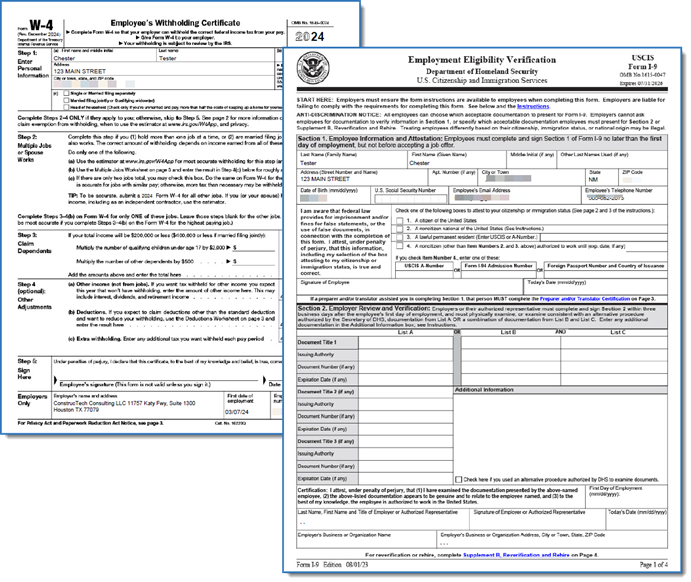
<strong>Onboarding Documentation:</strong> The I-9 and W-4 forms are critical for verifying employment eligibility and ensuring tax information is accurate. Track those expiration dates and keep documents accessible for audits.<img src="https://fluxconsole.com/files/item/882/192649/image.png" style="width: 450px; height: 350px;" /><strong>OFCCP Compliance:</strong> If you&rsquo;re working with government contracts over $10,000, you need to ensure there&rsquo;s no discrimination and that you&rsquo;re actively hiring veterans and individuals with disabilities.<br />

&nbsp;<br />
<strong>EEO Compliance:</strong> Companies with 100+ employees (or smaller companies with government contracts) must file an EEO-1 report detailing workforce demographics. Keep in mind that California has additional pay data reporting requirements.<br />
<img src="https://fluxconsole.com/files/item/882/192651/image.png" style="width: 300px; height: 227px;" /><strong>ACA 1094 Compliance:</strong> Employers with 50 or more full-time employees must provide affordable health coverage and file 1094 forms with the IRS. Use available safe harbors to meet affordability standards.<br />

&nbsp;<img src="https://fluxconsole.com/files/item/882/192650/image.png" style="float: right; width: 300px; height: 200px;" /><br />
<strong>OSHA Compliance:</strong> Track work-related injuries or illnesses if you have 10 or more employees, and keep those records on hand for five years. Larger companies need to submit OSHA Form 300A electronically.&nbsp;<br />
<br />
<br />
<strong>MSHA Compliance:</strong> Regular safety training is a must for all miners. Track and manage training schedules to keep your workforce safe and compliant.<br />
&nbsp;<br />
Feeling overwhelmed? &nbsp;We have the tools and expertise to make compliance simple. Vista by Viewpoint and Vista Web have the solutions to digitize and streamline your HR processes, ensuring that your documents are securely stored and easily accessible.<br />
&nbsp;<br />
Let us help you take the hassle out of HR compliance, so you can focus on what really matters&mdash;growing your business.<br />
&nbsp;<br />
Ready to simplify your compliance management? Get in touch with <a href="https://www.constructech.io/book-a-call">ConstrucTech Consulting</a> today!<br />
&nbsp;]]>
            </content>
                          <enclosure url="https://fluxconsole.com/files/image/263916" length="0" type="image/jpg" />
                                    <updated>2024-08-27T11:35:45-05:00</updated>
        </entry>
            <entry>
            <title><![CDATA[Guide to Project Budget Settings in ProjectSight]]></title>
            <link rel="alternate" href="https://www.constructech.io/blog/guide-to-project-budget-settings-in-projectsight" />
            <id>https://constructech.modihost.com/192225</id>
            <author>
                <name> <![CDATA[XXX Website Cemetery / Graveyard]]></name>
            </author>
            <summary type="html">
                <![CDATA[In a dynamic and fast-paced environment like construction development, tracking and leveraging a project&rsquo;s budget is nearly impossible without e... Bringing together construction and technology]]>
            </summary>
            <content type="html">
                <![CDATA[In a dynamic and fast-paced environment like construction development, tracking and leveraging a project&rsquo;s budget is nearly impossible without efficient software.&nbsp; Keeping in mind users&rsquo; demand for accessible and accurate budget tracking capabilities, ProjectSight designed tools to fit those needs. In this Tip Tuesday, we will highlight several project settings a user can manipulate to achieve their project&rsquo;s budgeting goals.<br />
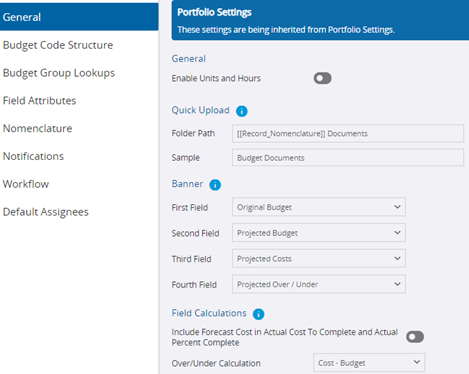
<img height="374" src="https://fluxconsole.com/files/item/882/192346/image.png" width="469" />In the <em>General</em> tab, users can decide if they want budget units and hours utilized in their project by selecting the icon below the <em>General </em>header. If selected, users will have access to the Hours, Quantity and Unit Price data fields in the Budget Items, Contract Invoices, PCOs and Purchase Order sections of the Budget screen.<br />
<br />
The <em>Quick Upload</em> section displays the location of linked records. In this example, the linked folder path is &ldquo;Record_Nomenclature&rdquo;.<br />
<br />
The <em>Banner</em> determines the order in which users can view budget fields in the Budget section. The default order as seen above is Original Budget, Projected Budget, Projected Costs and Projected Over/Under, respectively.<br />
<br />
Finally, <em>Field Calculations</em> allows users to edit the calculations of specific budget columns.<br />
<br />
In addition to a <em>General</em> tab for high-level edits, ProjectSight provides seven more tabs where users can edit their Budget settings.<br />
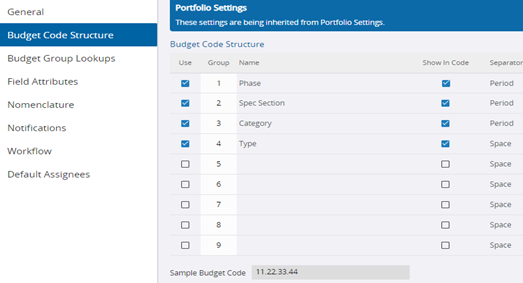
<img height="283" src="https://fluxconsole.com/files/item/882/192347/image.png" width="523" />The <em>Budget Code Structure </em>grants users nine different groups where they can link budget code structures. With this structure tab, they can name the groups, show records/reports and select separators for the codes.<br />
<img height="295" src="https://fluxconsole.com/files/item/882/192348/image.png" width="870" /><br />
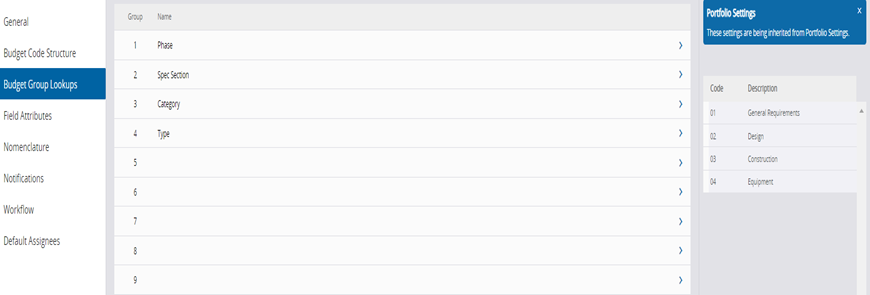
The <em>Budget Group Lookups</em> tab defines code options for Budget Code Structure. Every Group listed under the structure can be found in the <em>Budget Code Lookups</em> tab. Members of the group are defined on the right side of the tab with a code and description. For each group, the code must be unique, but descriptions do not.<br />
<img height="256" src="https://fluxconsole.com/files/item/882/192349/image.png" width="762" /><br />
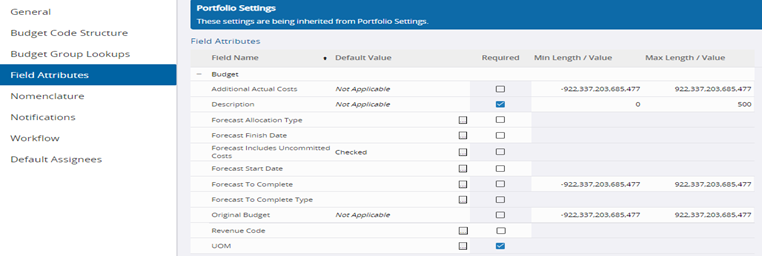
For Budget project setting-related edits, the <em>Field Attributes</em> tab can only edit one section: &ldquo;Budget.&rdquo; The description requires a system, and the UOM field could be required if the user selected the &ldquo;Units and Hours&rdquo; setting from the <em>General </em>tab.<br />
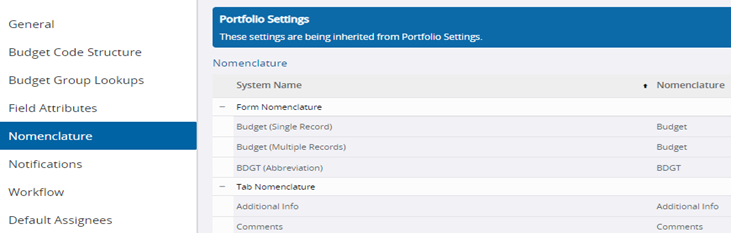
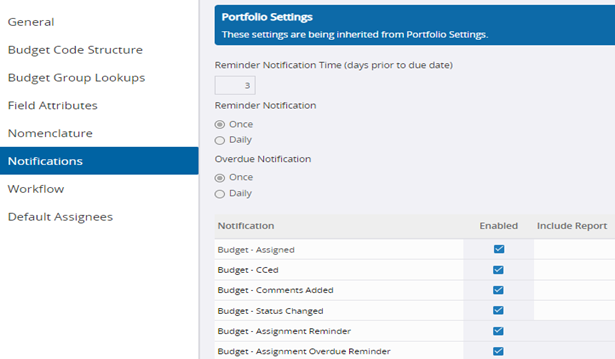
<img height="233" src="https://fluxconsole.com/files/item/882/192350/image.png" width="731" /><span style="font-size: 1rem;">In the </span><em style="font-size: 1rem;">Nomenclature tab</em><span style="font-size: 1rem;">, users can edit three sections of the Budget form: form, tab and field.</span><img height="359" src="https://fluxconsole.com/files/item/882/192351/image.png" width="615" />Possible Budget edits in the <em>Notifications </em>tab include Reminder Notification Time, Reminder Notification, Overdue Notification and Notification.<br />
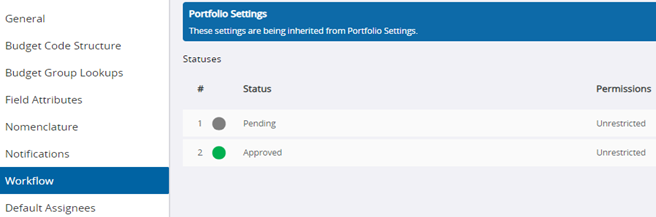
<img height="217" src="https://fluxconsole.com/files/item/882/192352/image.png" width="656" />The <em>Workflow</em> tab outlines statuses that are available. The only possible function in Budget workflow is &ldquo;record status&rdquo;.<br />
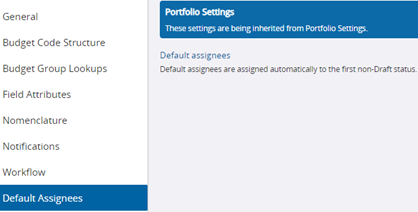
<img height="212" src="https://fluxconsole.com/files/item/882/192353/image.png" width="418" />Finally, we have the <em>Default Assignees </em>tab. Here, users can articulate which contacts are automatically assigned a record once they move past a non-draft status. You can assign either by a contact&rsquo;s name or by a project role, in which case all users who fit that role would be assigned.<br />
<br />
ProjectSight allows for extensive and accessible editing capabilities within projects, and that allotment extends to Budget-related details as well. Learning the language of ProjectSight&rsquo;s budgeting system is critical for users to understand their data and leverage their budgeting goals.&nbsp;If you have any questions regarding ProjectSight&#39;s features or are interested in adding this software to your company&#39;s project management repertoire, please visit our website -&nbsp;<a href="https://www.constructech.io/">ConstrucTech Consulting</a>&nbsp;- and&nbsp;<a href="https://www.constructech.io/book-a-call">Book a Call</a> with one of our consultants.]]>
            </content>
                          <enclosure url="https://fluxconsole.com/files/image/263320" length="0" type="image/jpg" />
                                    <updated>2024-08-20T11:35:45-05:00</updated>
        </entry>
            <entry>
            <title><![CDATA[Collaborate with Teams]]></title>
            <link rel="alternate" href="https://www.constructech.io/blog/collaborate-with-teams" />
            <id>https://constructech.modihost.com/191857</id>
            <author>
                <name> <![CDATA[XXX Website Cemetery / Graveyard]]></name>
            </author>
            <summary type="html">
                <![CDATA[Collaborate with Teams Bringing together construction and technology]]>
            </summary>
            <content type="html">
                <![CDATA[In today&rsquo;s interconnected world, seamless collaboration between different organizations is vital. Microsoft Teams and SharePoint offer powerful tools to assist in this process. On this blog let&rsquo;s consider how two organizations can effectively share files using these platforms.<br />
&nbsp;
<div style="text-align: center;"><strong>Setting Up Teams for Cross-Organization Collaboration</strong><br />
&nbsp;</div>
<strong>Create a Shared Team:</strong>

<ul>
	<li>One organization can create a new team in Microsoft Teams and invite members from the other organization as guests. This team will serve as the central hub for collaboration.&nbsp;&nbsp;</li>
</ul>
<strong>Manage Permissions:</strong>

<ul>
	<li>To confirm that guest permissions are set up correctly. Go to the team settings and adjust guest permissions to allow file sharing, editing, and other necessary actions.</li>
	<li>Roles and Capabilities
	<ul>
		<li>Owners: Can manage team settings, add/remove members, and handle administrative tasks.</li>
		<li>&nbsp;Members: Can participate in conversations, view and upload files, and collaborate as permitted by the team owner.</li>
		<li>Guests: you can invite external users to join your team and they can have limited capabilities but can still participate in conversations and access shared files</li>
	</ul>
	</li>
</ul>
<strong>Utilizing SharePoint for File Sharing</strong>

<ul>
	<li>In Teams, the <strong>Files</strong> tab on each standard channel is connected to a folder in the parent site&#39;s default document library. The Files tab on each private and shared channel is connected to the default document library in the corresponding channel site. Whenever you add or update a file on the <strong>Files</strong> tab, you&#39;re accessing the SharePoint site.</li>
	<li>When you create a&nbsp;new team or&nbsp;private channel in Microsoft Teams, a team site in SharePoint is&nbsp;automatically created</li>
</ul>
<strong>What should I create, a Team or a Channel?</strong>

<ul>
	<li>Create a Team: When you need a new group of people to collaborate on a broad set of tasks or projects.</li>
	<li>Create a Channel: When you need to organize discussions and work within an existing team.</li>
</ul>
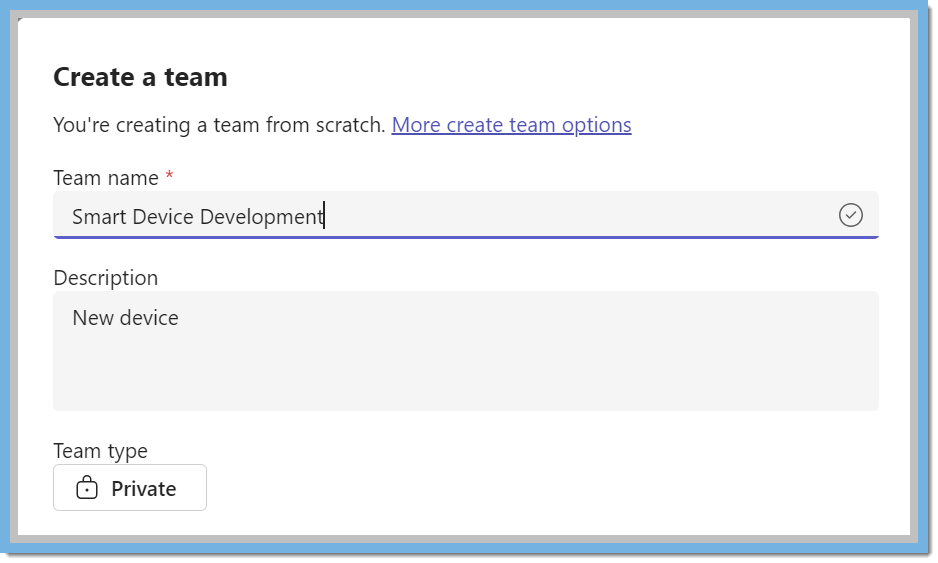
<strong>Example:&nbsp; Two companies come together to develop a new smart device that integrates hardware and software seamlessly</strong>

<ul>
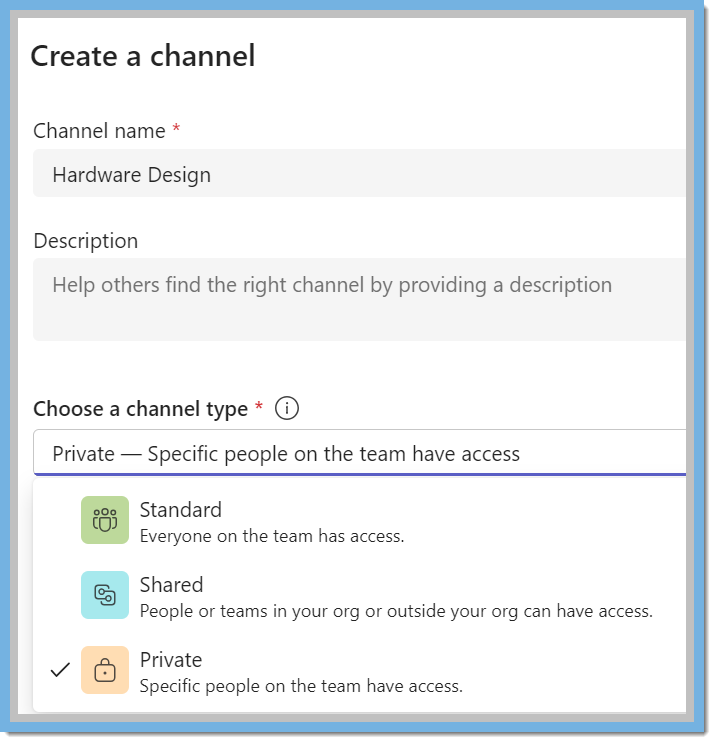
	<li><strong>Shared Team Creation:</strong>&nbsp;Create a team named &ldquo;Smart Device Development&rdquo; and invite members from both companies.</li>
</ul>
<img height="563" src="https://fluxconsole.com/files/item/882/191858/image.png" width="938" />
<ul>
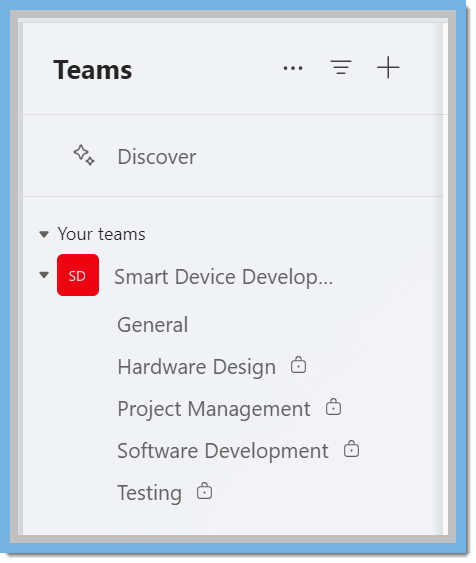
	<li><strong>Channels:</strong>&nbsp;Set up channels for hardware design, software development, testing, and project management.</li>
</ul>
<img height="742" src="https://fluxconsole.com/files/item/882/191860/image.png" width="714" /><img height="563" src="https://fluxconsole.com/files/item/882/191867/image.png" width="476" />
<ul>
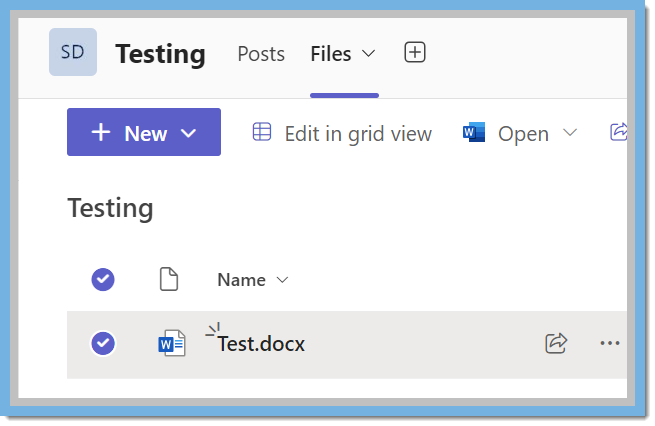
	<li><strong>SharePoint Integration:</strong>&nbsp;Use SharePoint to store design documents, code repositories, testing reports, and project timelines.</li>
</ul>
<img height="426" src="https://fluxconsole.com/files/item/882/191862/image.png" width="655" />
<ul>
	<li><strong>Regular Meetings:</strong>&nbsp;Schedule meetings to discuss progress and address any issues.</li>
	<li><strong>Collaborative Tools:</strong>&nbsp;Utilize Teams for real-time communication and SharePoint for version control and document management.</li>
</ul>
<strong>Benefits:</strong>

<ul>
	<li><strong>Seamless Communication:</strong>&nbsp;Teams provide a central hub for all communication, reducing the need for lengthy email threads.</li>
	<li><strong>Efficient File Sharing:</strong>&nbsp;SharePoint ensures that all files are easily accessible and up to date.</li>
	<li><strong>Enhanced Collaboration:</strong>&nbsp;Real-time editing and shared workspaces foster a collaborative environment.</li>
	<li><strong>Improved Organization:</strong>&nbsp;Channels and document libraries help keep everything organized and easy to find.</li>
</ul>
Teams is a hub for collaboration in the business world and it has so many features other than meetings and chats.&nbsp; Some additional functions on Teams include Polls, Forms, and OneNote.&nbsp; If you need additional help with Teams, Microsoft&rsquo;s support page has many helpful articles and videos that explain the definitions of each item in both Teams and SharePoint.&nbsp; Linked below are some helpful articles.&nbsp; In addition to this, the <strong>Help </strong>feature on Teams has video training available for review.&nbsp;&nbsp;<br />
<br />
Here&#39;s a link to explain channels from Microsoft Support:&nbsp;<a href="https://support.microsoft.com/en-us/office/standard-private-or-shared-channels-in-microsoft-teams-de3e20b0-7494-439c-b7e5-75899ebe6a0e">Standard, private, or shared channels in Microsoft Teams</a><br />
Another link that was helpful was the <a href="https://learn.microsoft.com/en-us/sharepoint/teams-connected-sites?bc=%2Fteamss%2Fbreadcrumb%2Ftoc.json&amp;toc=%2Fteams%2Ftoc.json">Overview of Teams and SharePoint Integration</a><br />
<br />
As always, if you need assistance with any Vista processes, please visit our website <a href="https://www.constructech.io/">ConstrucTech Consulting</a>&nbsp;and&nbsp;Book a Call with one of our consultants.&nbsp;]]>
            </content>
                          <enclosure url="https://fluxconsole.com/files/image/262930" length="0" type="image/jpg" />
                                    <updated>2024-08-13T11:35:45-05:00</updated>
        </entry>
            <entry>
            <title><![CDATA[Back to School -- Trimble Academy]]></title>
            <link rel="alternate" href="https://www.constructech.io/blog/back-to-school-trimble-academy" />
            <id>https://constructech.modihost.com/186384</id>
            <author>
                <name> <![CDATA[XXX Website Cemetery / Graveyard]]></name>
            </author>
            <summary type="html">
                <![CDATA[Learn more about Vista and TC1 by attending free academy courses. Bringing together construction and technology]]>
            </summary>
            <content type="html">
                <![CDATA[The end of summer for students is almost over and back to school time is rapidly approaching.&nbsp; Don&#39;t be the only one not going back to school.&nbsp; Trimble Construction One users have free access to a bevy of courses around Vista and the entire TC1 suite.&nbsp; Today we&#39;ll take a peek at how to find all the free content to help further your knowledge of TC1 and maybe even further your career in the process.<br />
<br />
The Trimble Viewpoint Academy is included with your subscription.&nbsp;&nbsp;You already have an Academy account if you have a Customer Support portal login. Talk to your system admin about getting an account if you don&#39;t already have one.<br />
<br />
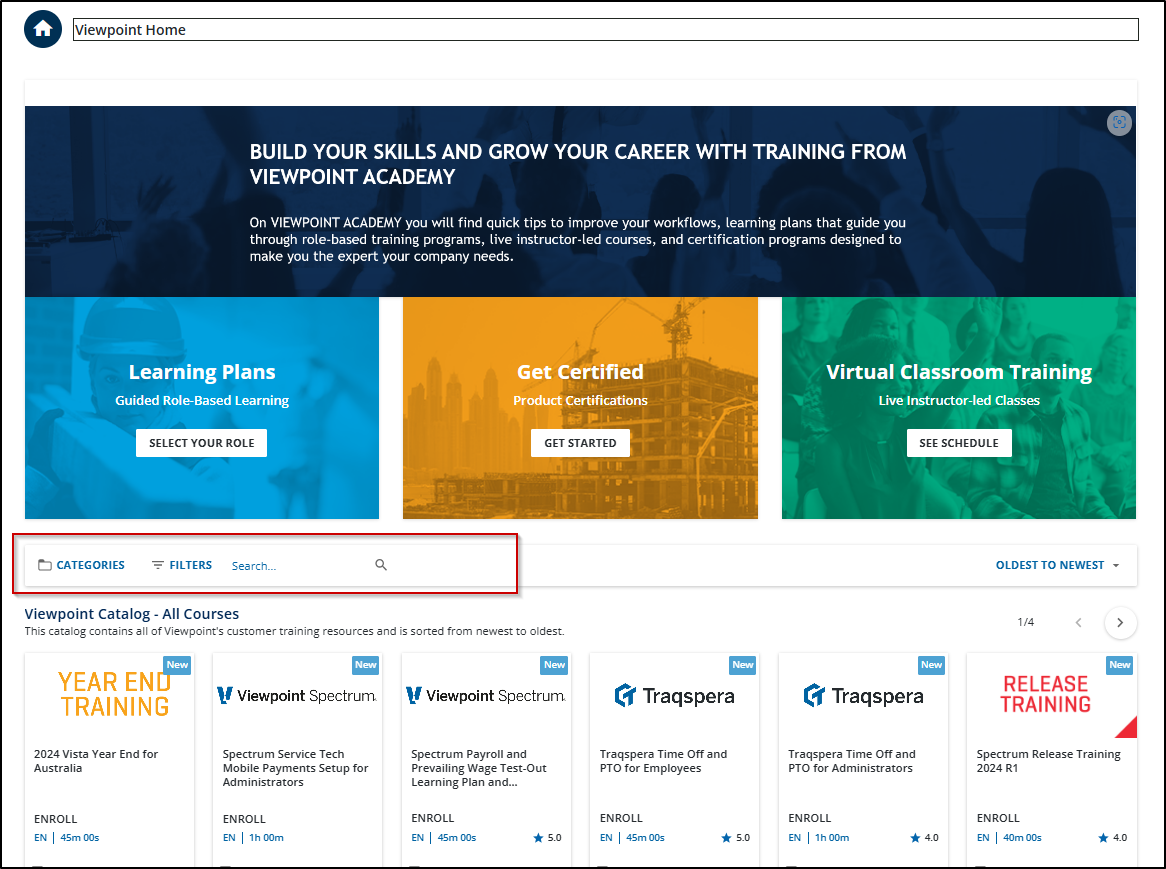
To start, head over to&nbsp;<a href="https://academy.viewpoint.com/" target="_blank">https://academy.viewpoint.com/</a>&nbsp;and login.&nbsp; In addition to options for Role Based learning (which you can earn certifications from) you can simply search for individual courses.<br />
<br />
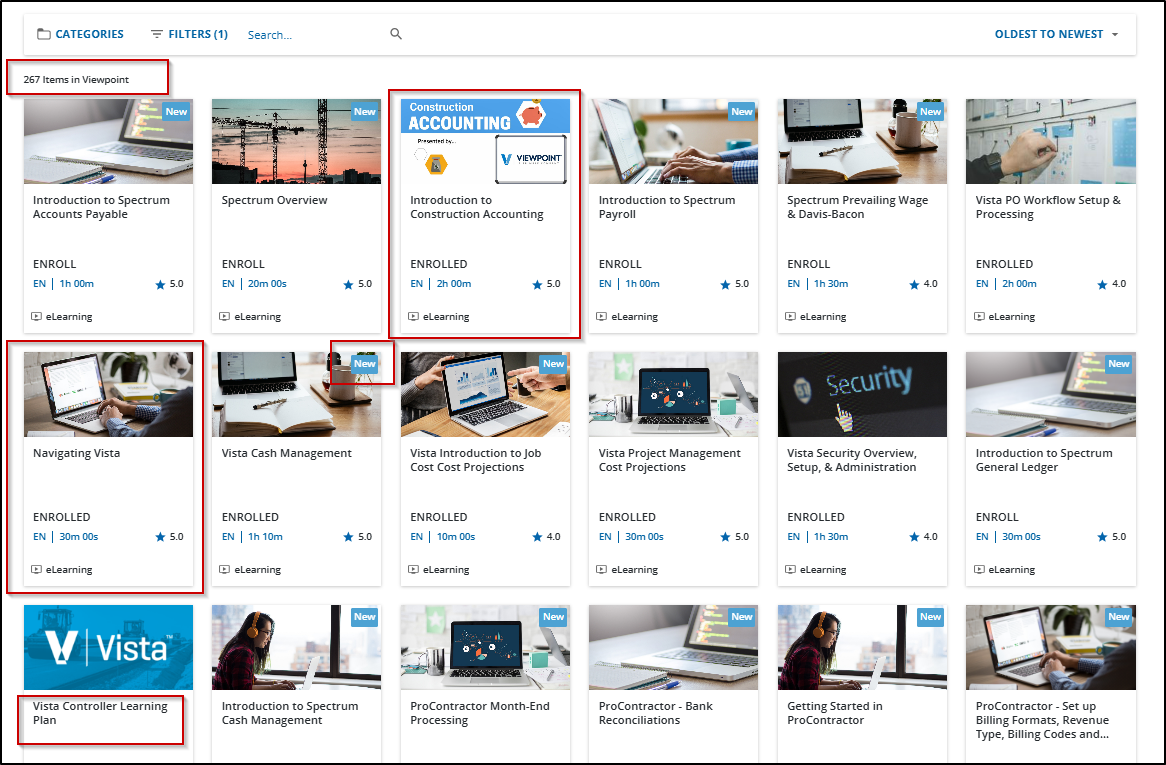
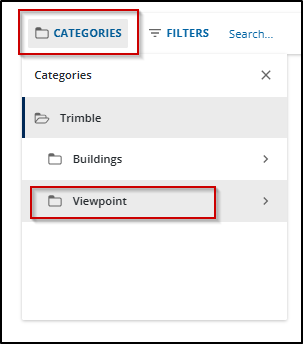
Scroll down a bit until you see the search bar.&nbsp; I&#39;ll show you how to filter down the courses to something relevant.<img height="869" src="https://fluxconsole.com/files/item/882/191597/image.png" width="1166" />Click the <em><strong>CATEGORIES</strong></em> button and Select <em><strong>Viewpoint</strong></em>.&nbsp; You can filter further if you like to show only certain Viewpoint products.&nbsp; Selecting Viewpoint though will give you a good starting point.<br />
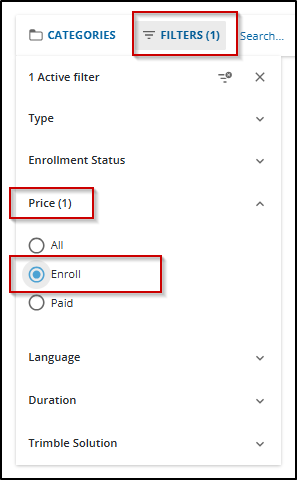
<img height="344" src="https://fluxconsole.com/files/item/882/191598/image.png" width="303" />Next click on the <em><strong>FILTERS</strong></em> button and select Price.&nbsp; Some courses are fee based, primarily instructor led courses, however there are plenty of free courses to take advantage of.&nbsp; Select the <em><strong>Enroll</strong></em> option to see all of the free offerings.<br />
<img height="480" src="https://fluxconsole.com/files/item/882/191599/image.png" width="297" />Here I can see that there are 267 free courses in the Viewpoint category.&nbsp; Some things to note are the amount of general construction knowledge courses such as the <strong>Intro to Construction Accounting </strong>course.&nbsp; Great for the up and coming construction admin professional.&nbsp; <strong>Navigating Vista</strong>&nbsp;is a great course for employees that are brand new to Vista.&nbsp; I like to call it Vista 101.&nbsp; Note the <strong>New</strong> tags showing newly published content as well as some of the role based learning plans like the <strong>Vista Controller Learning Plan.</strong><br />
<img height="765" src="https://fluxconsole.com/files/item/882/191600/image.png" width="1166" />Whether you are looking for a course around Vista, VistaWeb (financial controls, HR Management, Field Service, etc), Viewpoint Team, Project Sight, or any other Viewpoint product, you&#39;ll find a course to learn something new here.<br />
<br />
I&#39;ll note that these courses are web based so you can also watch them on the go with a tablet or a phone if it has a large-ish screen.<br />
<br />
For other options to learn more about your software, feel free to reach out to us on our website.&nbsp; We are happy and excited to share how Viewpoint software products can streamline your job and help you make better business decisions.<br />
<br />
<br />
<br />
&nbsp;]]>
            </content>
                          <enclosure url="https://fluxconsole.com/files/image/262557" length="0" type="image/png" />
                                    <updated>2024-08-06T11:35:45-05:00</updated>
        </entry>
            <entry>
            <title><![CDATA[Paystub Tools]]></title>
            <link rel="alternate" href="https://www.constructech.io/blog/paystub-tools" />
            <id>https://constructech.modihost.com/191427</id>
            <author>
                <name> <![CDATA[XXX Website Cemetery / Graveyard]]></name>
            </author>
            <summary type="html">
                <![CDATA[Schedule Automatic Paystub Notices Bringing together construction and technology]]>
            </summary>
            <content type="html">
                <![CDATA[<div style="text-align: center;"><strong><span style="color:#3579bc;"><span style="font-size:18px;"><em>Schedule Automatic Paystub Notices</em></span></span></strong><br />
&nbsp;</div>

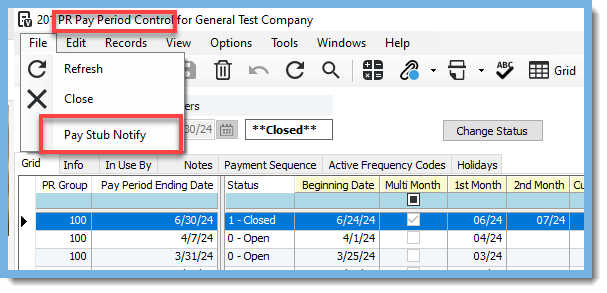
<div><span style="color:#3579bc;"><em><span style="font-size:16px;">Do you use PR </span>Pay Period Control&gt;Pay Stub Notify to inform&nbsp;your employees that their&nbsp;pay&nbsp;stub is ready to be viewed in the Employee Portal?&nbsp;</em></span></div>

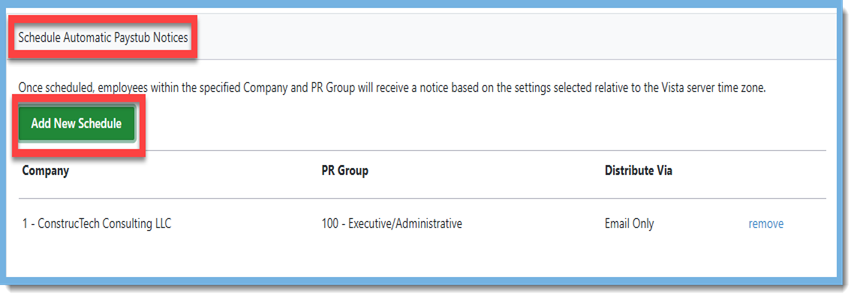
<div><img alt="PR Pay Period Control Pay Stub Notify" src="https://fluxconsole.com/files/item/882/191430/image.png" style="width: 607px; height: 293px;" /> <span style="color:#3579bc;"><em>If so, you will be happy to know there is a way to automate these notifications through Paystub Tools in the Vista Employee Portal.&nbsp; It&#39;s a simple process to get this task automated.&nbsp;&nbsp;</em><br />
<br />
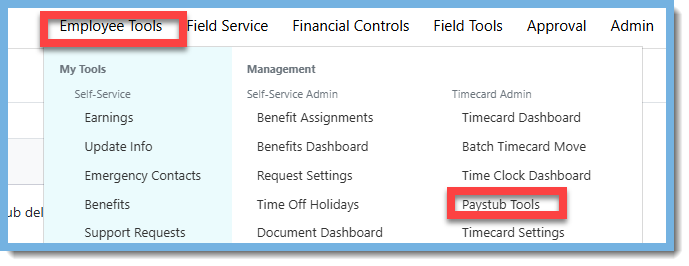
<em>In the Vista Employee Portal navigate to Employee Tools&gt;Pay Stub Tools.</em></span><img alt="Employee Tools Paystub Tools" src="https://fluxconsole.com/files/item/882/191457/image.png" style="width: 689px; height: 266px;" /><span style="color:#3579bc;"><em>Click on &quot;Add New Schedule&quot; under &quot;Schedule Automatic Paystub Notices&quot;.</em></span><br />
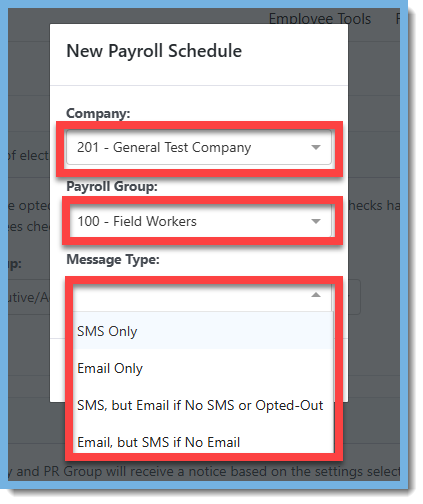
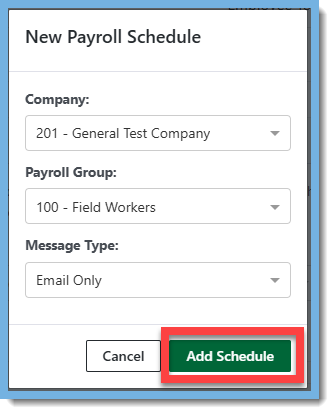
<img alt="Add New Schedule" src="https://fluxconsole.com/files/item/882/191454/image.png" style="width: 854px; height: 300px;" /><span style="color:#3579bc;"><em>Select a Company, Payroll Group, &amp; Message Type.</em></span><br />
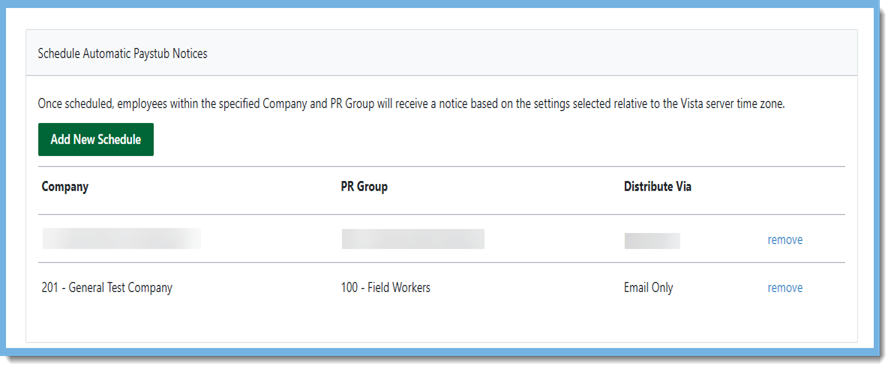
<img alt="New Payroll Schedule" src="https://fluxconsole.com/files/item/882/191439/image.png" style="width: 423px; height: 504px;" /><span style="color:#3579bc;"><em>Click on &quot;Add Schedule&quot;.</em></span><img alt="Add Schedule" src="https://fluxconsole.com/files/item/882/191441/image.png" style="width: 334px; height: 414px;" /><span style="color:#3579bc;"><em>Your &quot;New Schedule&quot; now shows up in the &quot;Schedule Automatic&nbsp;Paystub Notices&quot; section.</em></span><img height="371" src="https://fluxconsole.com/files/item/882/191458/image.png" width="891" /><span style="color:#3579bc;"><em>A few things to note:</em></span></div>

<ul>
	<li><span style="color:#3579bc;"><em>Automatic paystub notifications are sent in two separate messages:&nbsp; one message informs the employee that a new paystub is available; the second message includes a link to the emloyee&#39;s paystub in the portal.&nbsp;&nbsp;</em></span></li>
	<li><span style="color:#3579bc;"><em>These notifications are sent at 3pm on the day that the paystub is scheduled to appear (time is based on the time zone of the Vista Server).</em></span></li>
	<li><span style="color:#3579bc;"><em>You can only set up one schedule per Payroll Group.</em></span></li>
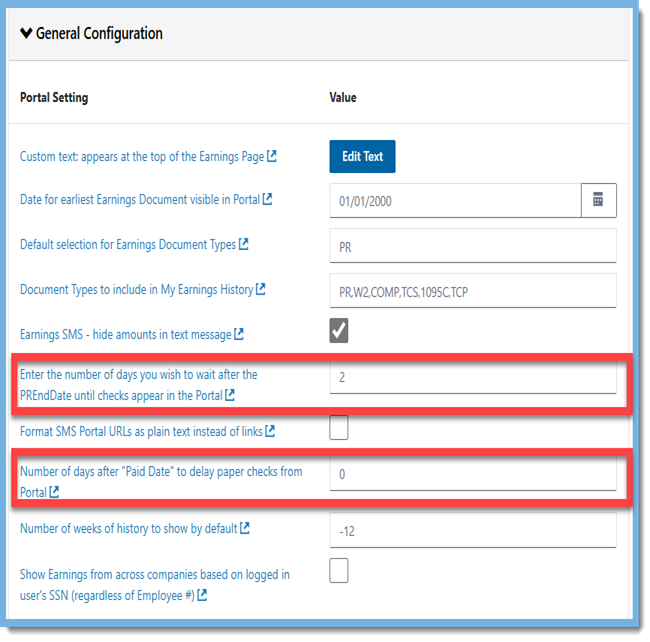
	<li><span style="color:#3579bc;"><em>Paystubs display based on the following portal settings:</em></span>
	<ul>
		<li><span style="color:#3579bc;"><em>&quot;Enter the Number of days you wish to wait after the PREndDate until checks appear in the portal&quot;.</em></span></li>
		<li><span style="color:#3579bc;"><em>&quot;Number of days after &quot;Paid Date&quot; to delay paper checks from portal&quot;.</em></span></li>
	</ul>
	</li>
</ul>
<img alt="General Configuration" src="https://fluxconsole.com/files/item/882/191459/image.png" style="width: 650px; height: 642px;" /><em><span style="color:#3579bc;">With just a few easy steps you have automated a payroll processing task!&nbsp; Please visit our website at </span><a href="https://www.constructech.io/"><span style="color:#3579bc;">ConstrucTech Consulting </span></a><span style="color:#3579bc;">to see more tips in our weekly Tip Tuesday blog.&nbsp;&nbsp;</span></em>]]>
            </content>
                          <enclosure url="https://fluxconsole.com/files/image/262176" length="0" type="image/jpg" />
                                    <updated>2024-07-23T11:35:45-05:00</updated>
        </entry>
            <entry>
            <title><![CDATA[Enhancing Construction Project Management with Trimble ProjectSight]]></title>
            <link rel="alternate" href="https://www.constructech.io/blog/enhancing-construction-project-management-with-trimble-projectsight" />
            <id>https://constructech.modihost.com/189415</id>
            <author>
                <name> <![CDATA[XXX Website Cemetery / Graveyard]]></name>
            </author>
            <summary type="html">
                <![CDATA[ProjectSight has been a powerful tool in the construction industry, but many are still unaware of its full capabilities and benefits. Bringing together construction and technology]]>
            </summary>
            <content type="html">
                <![CDATA[We are thrilled to announce that we are in the process of becoming certified to implement Trimble&#39;s ProjectSight software. While ProjectSight has been a powerful tool in the construction industry, many are still unaware of its full capabilities and benefits.<br />
&nbsp;
<div style="text-align: center;"><strong>Key Features of ProjectSight</strong></div>
&nbsp;<br />
<strong>Centralized Project Management:</strong><br />
ProjectSight offers a unified platform for managing all project-related information, ensuring that teams have access to the most up-to-date data at all times.<br />
<img height="518" src="https://fluxconsole.com/files/item/882/189416/image.png" width="975" /><strong>Document Control:</strong><br />
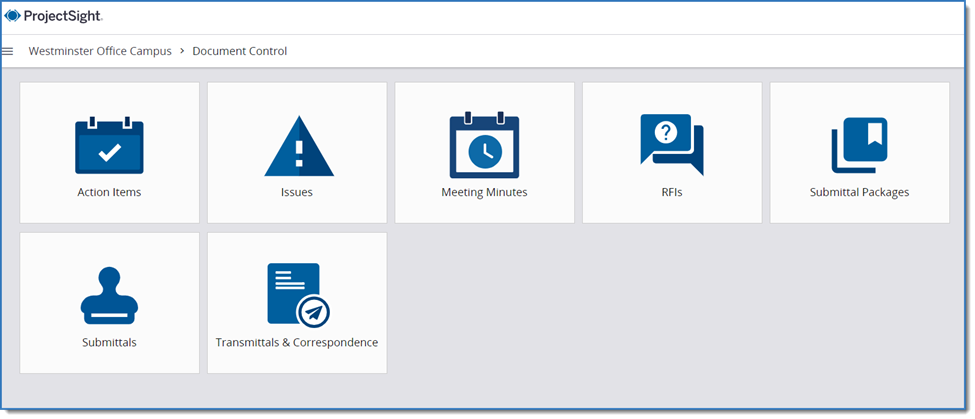
The software provides robust document management features, allowing users to store, organize, and share project documents securely and efficiently.<br />
<img height="419" src="https://fluxconsole.com/files/item/882/189417/image.png" width="975" />&nbsp;<br />
<strong>Field Management:</strong><br />
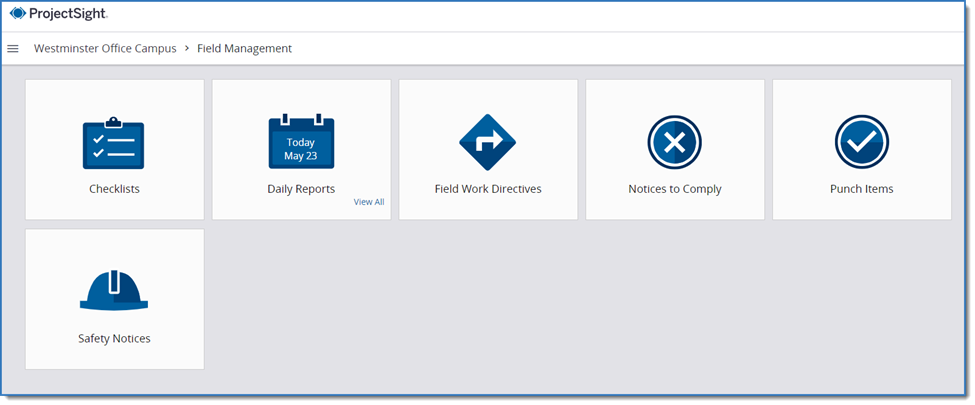
With tools designed for field teams, ProjectSight helps capture real-time data from the job site, facilitating better communication and faster issue resolution.<br />
<img height="405" src="https://fluxconsole.com/files/item/882/189418/image.png" width="975" />&nbsp;<br />
<strong>Cost Management:</strong><br />
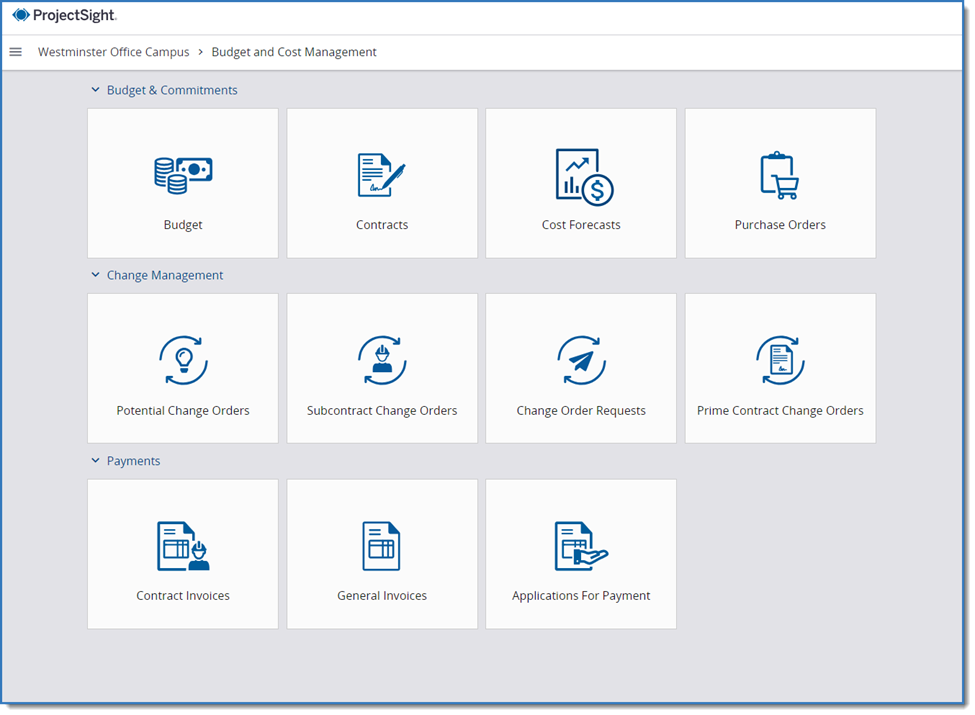
ProjectSight enables precise tracking of project budgets, costs, and expenditures, helping maintain financial control and prevent cost overruns.<br />
<img height="715" src="https://fluxconsole.com/files/item/882/189419/image.png" width="975" /><br />
&nbsp;<strong>Collaboration Tools:</strong><br />
ProjectSight enhances team collaboration through integrated communication tools, ensuring that all stakeholders are aligned and informed.
<ul>
	<li><strong>Real-Time Updates:</strong> ProjectSight allows team members to share updates and information in real time. Whether it&rsquo;s a change in the project schedule, a new document, or an issue that needs immediate attention, everyone is kept in the loop instantly.</li>
	<li><strong>Centralized Communication:</strong> The platform consolidates all communication channels into one place. This means that emails, messages, comments, and notifications related to the project are accessible from within ProjectSight, reducing the chances of missed information and improving response times.</li>
	<li><strong>Role-Based Access:</strong> With role-based access control, team members receive the information that is relevant to them. This ensures that sensitive information is only accessible to authorized personnel while still keeping everyone informed about their specific responsibilities.</li>
	<li><strong>Integrated Tools:</strong> ProjectSight integrates with various tools and applications, allowing seamless sharing of data and information across different platforms. This integration reduces the need for manual data entry and ensures that all project-related information is synchronized and up-to-date.</li>
	<li><strong>Task Management:</strong> Assigning and tracking tasks becomes more efficient with ProjectSight. Team members can easily see their tasks, deadlines, and priorities, and project managers can monitor progress and ensure that tasks are completed on time.</li>
	<li><strong>Collaboration Spaces:</strong> ProjectSight provides dedicated spaces for team discussions, brainstorming sessions, and collaboration on specific tasks or issues. These spaces foster better teamwork and idea sharing.</li>
</ul>
&nbsp;

<div style="text-align: center;"><span style="font-size:16px;"><strong>Why Choose ProjectSight?</strong></span><br />
&nbsp;</div>
<strong>Scalability:</strong> Suitable for projects of all sizes, from small renovations to large-scale construction.<br />
<br />
<strong>User-Friendly Interface:</strong> Intuitive design that makes it easy for teams to adopt and use.<br />
<br />
<strong>Integration Capabilities:</strong> Seamlessly integrates with other Trimble solutions and third-party applications, providing a comprehensive project management ecosystem.<br />
&nbsp;<br />
&nbsp;
<div style="text-align: center;"><strong>Our Upcoming Certification</strong><br />
&nbsp;</div>
ConstrucTech Consulting is committed to bringing the best tools and technologies to our clients. Our certification in <a href="https://projectsight.trimble.com/">ProjectSight</a> will enable us to offer expert implementation and support services, ensuring that your projects run smoothly from start to finish.<br />
<br />
Stay tuned for more updates as we complete our certification process and get ready to help you leverage the power of ProjectSight for your construction projects.&nbsp; Reach out to&nbsp; <a href="http://www.constructech.io/book-a-call">ConstrucTech Consulting</a> today to find out if ProjectSight is right for you!]]>
            </content>
                          <enclosure url="https://fluxconsole.com/files/image/259600" length="0" type="image/png" />
                                    <updated>2024-07-09T11:35:45-05:00</updated>
        </entry>
            <entry>
            <title><![CDATA[Uploading an RFI into ProjectSight]]></title>
            <link rel="alternate" href="https://www.constructech.io/blog/uploading-an-rfi-into-projectsight" />
            <id>https://constructech.modihost.com/190905</id>
            <author>
                <name> <![CDATA[XXX Website Cemetery / Graveyard]]></name>
            </author>
            <summary type="html">
                <![CDATA[Process tips for uploading RFI documents into ProjectSight. Bringing together construction and technology]]>
            </summary>
            <content type="html">
                <![CDATA[When uploading key company data into ProjectSight, whether from internal documentation or from a separate project management software, being able to efficiently and accurately transfer those files is critical to project success within your firm. Without the proper tools to complete your data implementation, you and your firm risk negative externalities like incomplete data sets or mislabeled documentation. In this week&rsquo;s Tip Tuesday, we will cover the data migration process for Requests for Information (RFIs) in ProjectSight.<br />
<br />
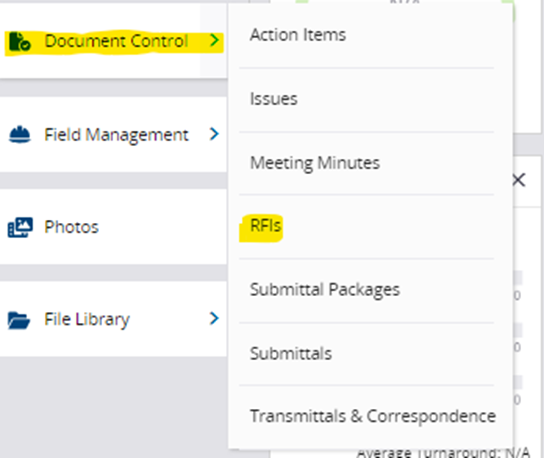
In your project&rsquo;s main dashboard screen, click into &lsquo;Document Control&rsquo; and select &lsquo;RFIs&rsquo;.<br />
<br />
<img height="458" src="https://fluxconsole.com/files/item/882/190944/image.png" width="544" /><br />
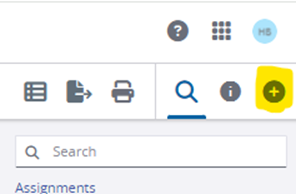
After entering the RFI screen, click the &ldquo;plus&rdquo; icon (highlighted below) to create a new RFI.<br />
<br />
<img height="194" src="https://fluxconsole.com/files/item/882/190945/image.png" width="296" /><br />
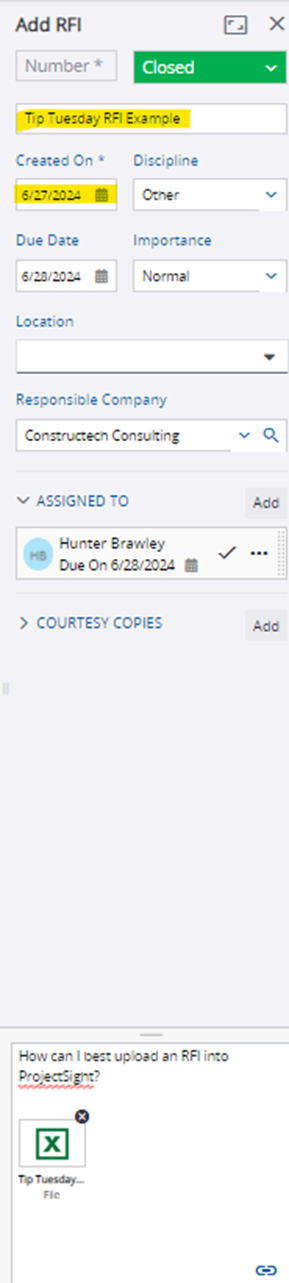
Upon clicking that icon, this page will appear on the right-hand side of your screen. The highlighted cells must be completed for the program to properly file this RFI, but the rest of the cells, though they can provide necessary context for your submission, are optional for completion.<br />
<br />
<img height="1283" src="https://fluxconsole.com/files/item/882/190946/image.png" width="289" /><br />
You can change the status of your RFI by clicking &lsquo;Draft&rsquo; which will provide you with three status options: Draft, Open, and Closed. A draft designation indicates the RFI is not ready for publication, an open status project will be published but is considered ongoing and can still be edited, and a closed RFI will be published and locked from editing from the viewer. You can also write a question or save a file in the bottom of the toolbar menu.<br />
<br />
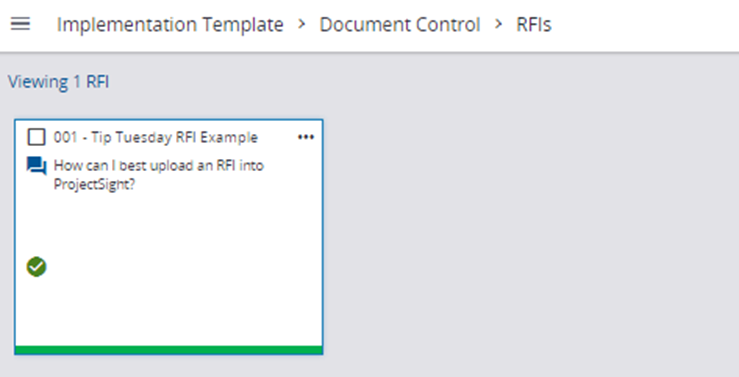
Once you save your RFI, it will appear in your RFI section like this:<br />
<br />
<img height="377" src="https://fluxconsole.com/files/item/882/190947/image.png" width="739" /><br />
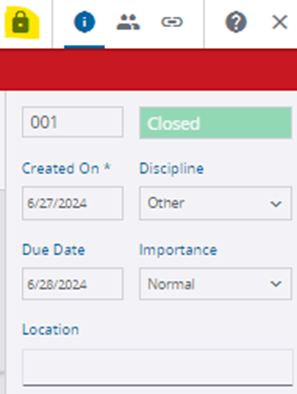
If you want to edit a Closed RFI, simply double click on the box above and select the lock icon. Once you tap this icon, the RFI will be changed to status Open while you make your edits. When you want to re-lock the RFI after completing your edits, you will have to click on the status bar again and select Closed.<br />
<br />
<img height="394" src="https://fluxconsole.com/files/item/882/190948/image.png" width="297" /><br />
To save your RFI, whether it be set to <em>draft</em>, <em>open</em>, or <em>closed</em>, click the icon highlighted below.<br />
<br />
<img height="54" src="https://fluxconsole.com/files/item/882/190949/image.png" width="623" /><br />
The ability to accurately track RFI documentation is crucial for successful internal communication within a construction project, and utilizing a software like ProjectSight to track this and other types of documentation will not only help organize your process flow but save your firm time and money.]]>
            </content>
                          <enclosure url="https://fluxconsole.com/files/image/261606" length="0" type="image/png" />
                                    <updated>2024-07-02T11:35:45-05:00</updated>
        </entry>
            <entry>
            <title><![CDATA[Excel Unique Items]]></title>
            <link rel="alternate" href="https://www.constructech.io/blog/excel-unique-items" />
            <id>https://constructech.modihost.com/190075</id>
            <author>
                <name> <![CDATA[XXX Website Cemetery / Graveyard]]></name>
            </author>
            <summary type="html">
                <![CDATA[Excel Unique Items Bringing together construction and technology]]>
            </summary>
            <content type="html">
                <![CDATA[<div style="text-align: center;"><strong>The UNIQUE function in Excel</strong>
<div style="text-align: left;">In today&rsquo;s post I want to share with you a helpful Excel function called UNIQUE.&nbsp; The UNIQUE function allows you to extract a unique list of items.&nbsp;&nbsp;It can work with various types of data including text, numbers, dates, and times.&nbsp;</div>

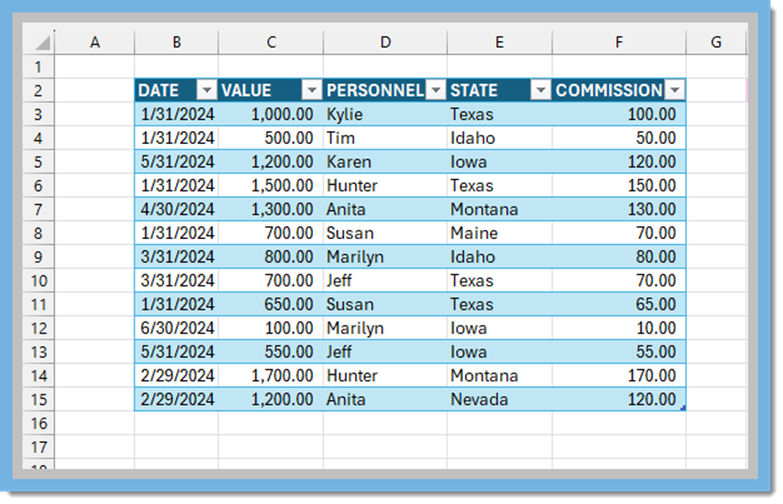
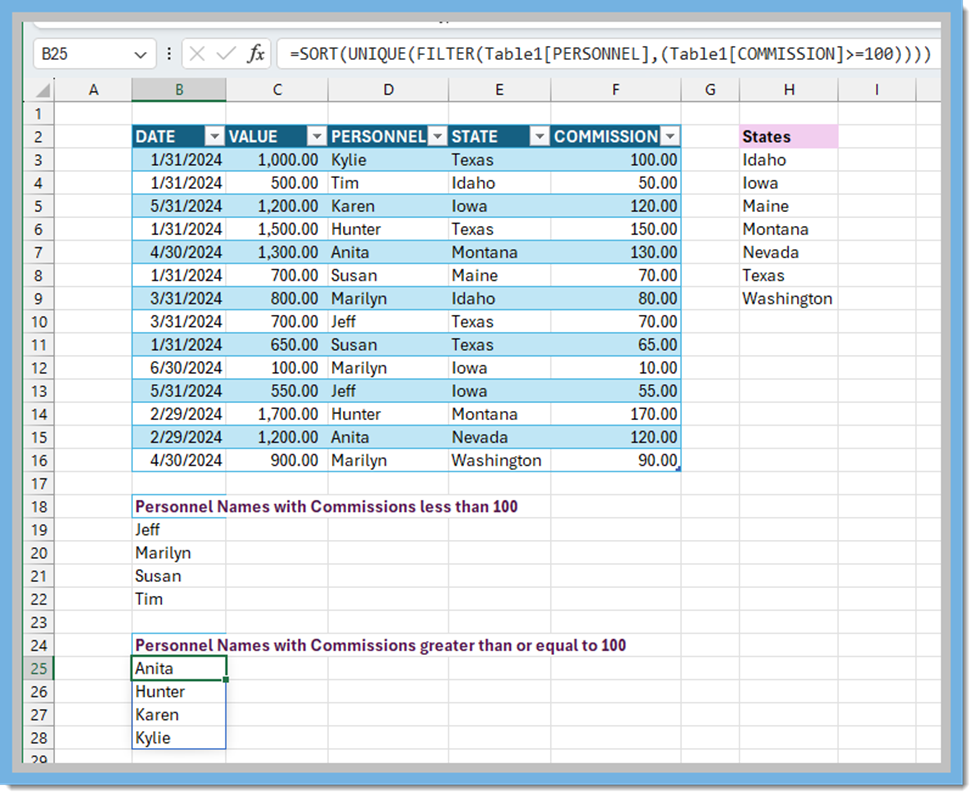
<div style="text-align: left;">This example uses SORT and UNIQUE together to return a unique list in ascending order.&nbsp;&nbsp;The graphic below is a simple table for commissions paid used as the source data.&nbsp; If you format the range as an Excel Table, then the formula will automatically update when you add or remove data from the table.</div>

<ul>
	<li style="text-align: left;"><span style="text-align: center; font-size: 1rem;">Commissions Paid</span></li>
</ul>
</div>
<img height="504" src="https://fluxconsole.com/files/item/882/190169/image.png" width="783" />
<ul>
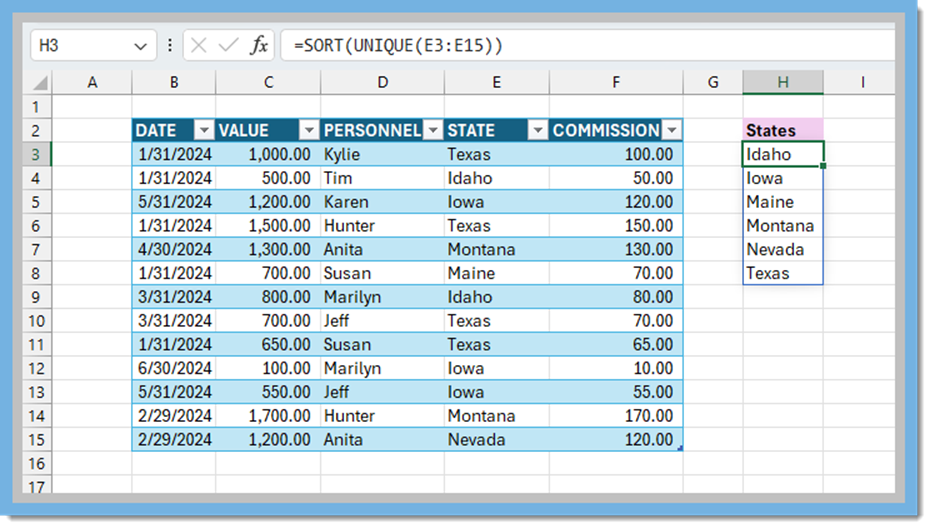
	<li>In this example, we want to know which states our personnel are working in</li>
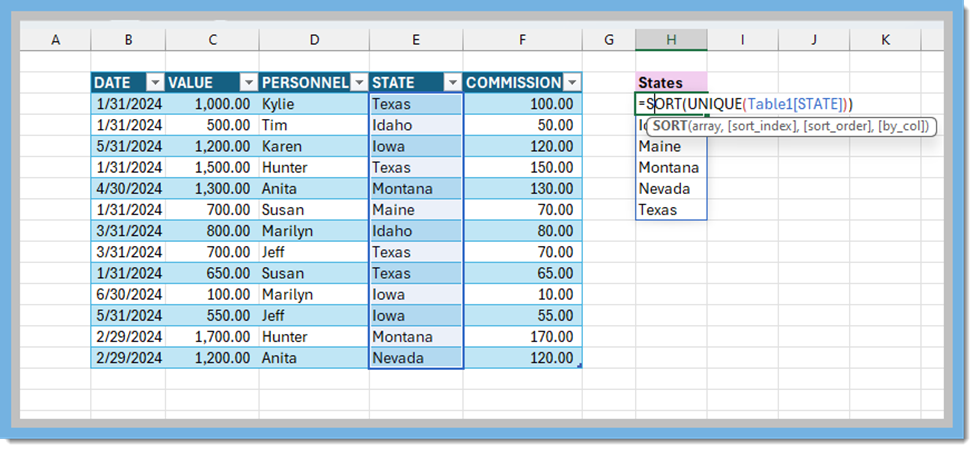
	<li>Add the formula to the side of the table using both SORT and UNIQUE together to get a list in ascending order.&nbsp; For the above example, the formula would be =SORT(UNIQUE(E3:E15)).</li>
	<li>Now we get a list of states in ascending order</li>
</ul>
<img height="528" src="https://fluxconsole.com/files/item/882/190170/image.png" width="930" />If you use a table, your formula will be converted to look like this:<br />
<img height="450" src="https://fluxconsole.com/files/item/882/190171/image.png" width="975" />
<ul>
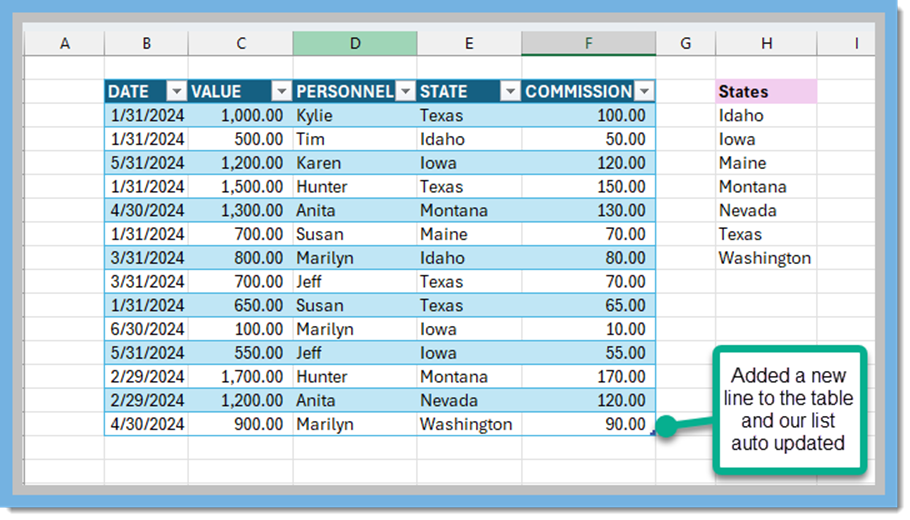
	<li>Now we can add to our table and our list of States will automatically update</li>
</ul>
<img height="520" src="https://fluxconsole.com/files/item/882/190172/image.png" width="910" />You can also explore how to combine the UNIQUE function with other functions to achieve specific results.&nbsp;<br />
<br />
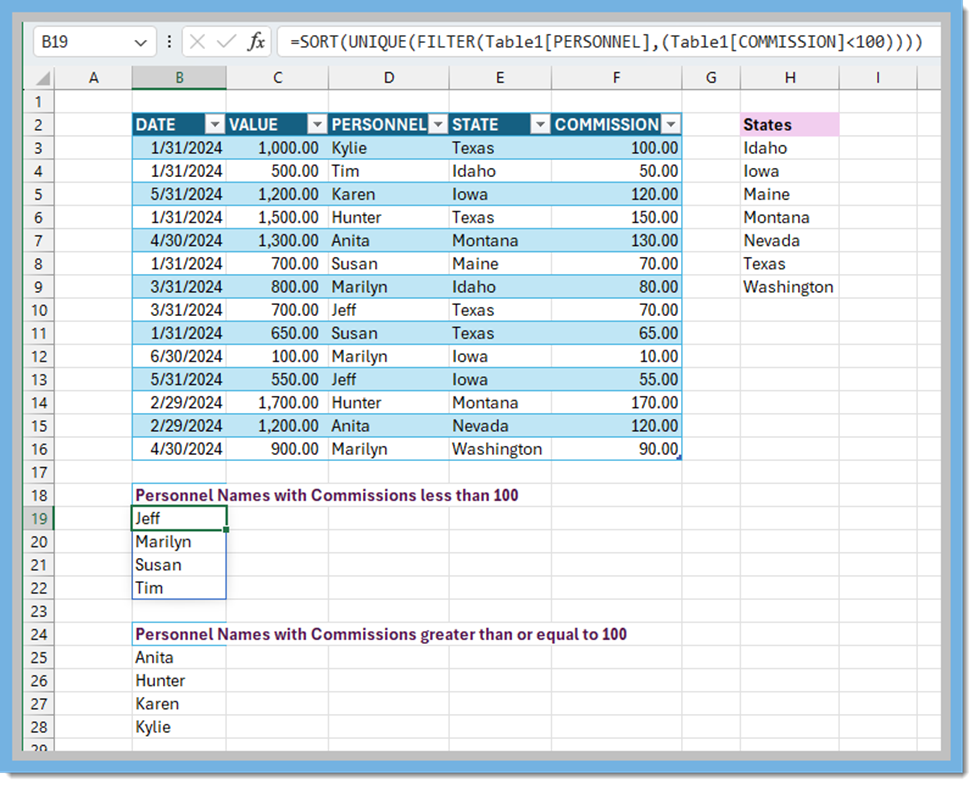
Here&rsquo;s an example:&nbsp; We want to filter the personnel column based on the commission condition, and then extract unique personnel names.&nbsp; The result provides a list of unique personnel names with commissions less than 100 and those greater than or equal to 100.<br />
Explanation of the formula below
<ul>
	<li>FILTER(Table1[PERSONNEL], (Table1[COMMISSION]&lt;100)):</li>
</ul>
The FILTER function extracts rows from the PERSONNEL column in the table named Table1 based on a condition.&nbsp;The condition is that the COMMISSION value in the same row must be less than 100.&nbsp;This filtered list contains personnel names meeting the specified criteria.

<ul>
	<li>UNIQUE(...):</li>
</ul>
The UNIQUE function takes the filtered list (from the FILTER function) and extracts unique values.&nbsp; It removes any duplicate personnel names, leaving only distinct names.

<ul>
	<li>Overall Explanation:</li>
</ul>
The entire formula combines these steps: filter the PERSONNEL column based on the commission condition, and then extract unique personnel names.&nbsp;The results are lists of unique personnel names with commissions less than 100 and greater than or equal to 100.<br />
<img height="785" src="https://fluxconsole.com/files/item/882/190173/image.png" width="975" /><img height="797" src="https://fluxconsole.com/files/item/882/190175/image.png" width="975" />Consider using these techniques to analyze and summarize your data in your Excel spreadsheets.&nbsp; As you know there are many ways to get the correct data in excel.&nbsp; I hope this helps and provides you with a new formula to use.&nbsp; Feel free to customize these formulas based on your specific context.&nbsp;<br />
<br />
As always, if you need assistance with any Vista processes, please visit our website <a href="http://constructech.io">ConstrucTech Consulting&nbsp;</a>and&nbsp;Book a Call with one of our consultants.&nbsp;]]>
            </content>
                          <enclosure url="https://fluxconsole.com/files/image/261269" length="0" type="image/jpg" />
                                    <updated>2024-06-25T11:35:45-05:00</updated>
        </entry>
            <entry>
            <title><![CDATA[Excel GroupBy as an alternative to Pivot Tables]]></title>
            <link rel="alternate" href="https://www.constructech.io/blog/excel-groupby-as-an-alternative-to-pivot-tables" />
            <id>https://constructech.modihost.com/186381</id>
            <author>
                <name> <![CDATA[XXX Website Cemetery / Graveyard]]></name>
            </author>
            <summary type="html">
                <![CDATA[GROUPBY is a powerful aggregation function that allows you to create data summaries using a single formula. Bringing together construction and technology]]>
            </summary>
            <content type="html">
                <![CDATA[Often times we are presented with a table of data, commonly exported from another system.&nbsp; Turning that data into an Excel Pivot Table is easy once you get the hang of it but for some people, Pivot Tables are a whole new concept that seems scary.<br />
<br />
Excel has a new function that will be coming out in a future release that can replace Pivot Tables for simple aggregation.&nbsp; &nbsp;My new favorite is the GROUPBY function.<br />
<br />
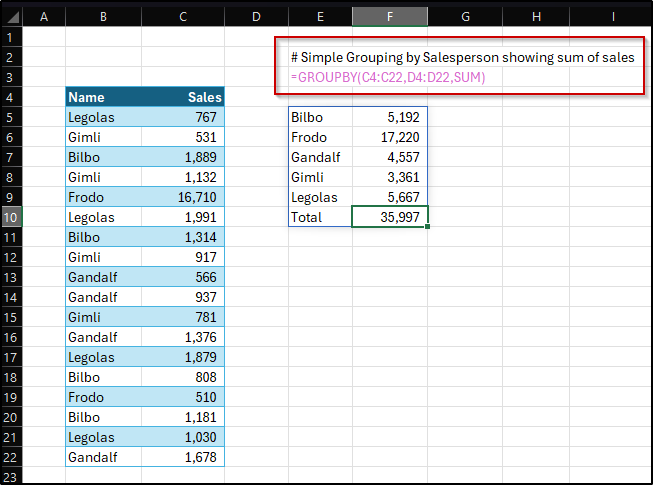
Let&#39;s say we have a table of Sales Data and I want to quickly get a summary of sales by sales person.&nbsp; I can use the GROUPBY function to create a simple aggregation of sum of sales that looks like this.<br />
<img height="485" src="https://fluxconsole.com/files/item/882/189976/image.png" width="653" /><br />
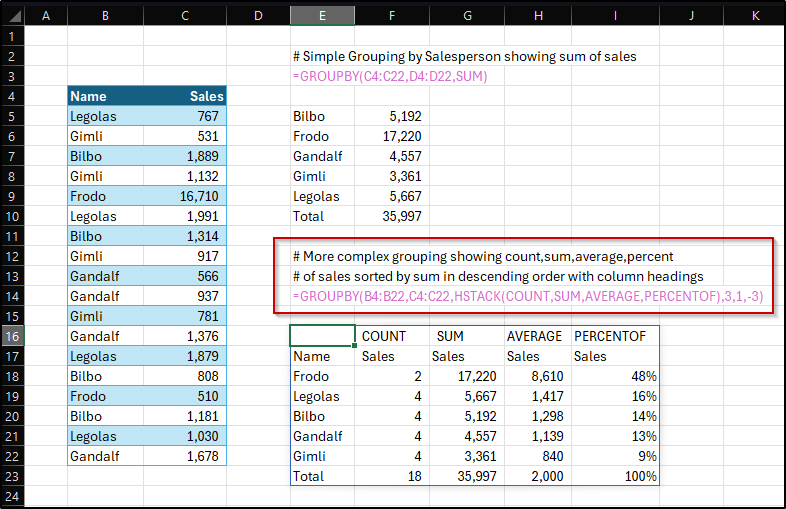
That was pretty easy.&nbsp; But what if we want to also see counts, averages, and percentages and want it sorted by sales in descending order.&nbsp; Is that possible?&nbsp; You bet it is!!!&nbsp; Using more of the parameters in the GROUPBY combined with our friend HSTACK we can create a somewhat complex summary table as easy as this.<br />
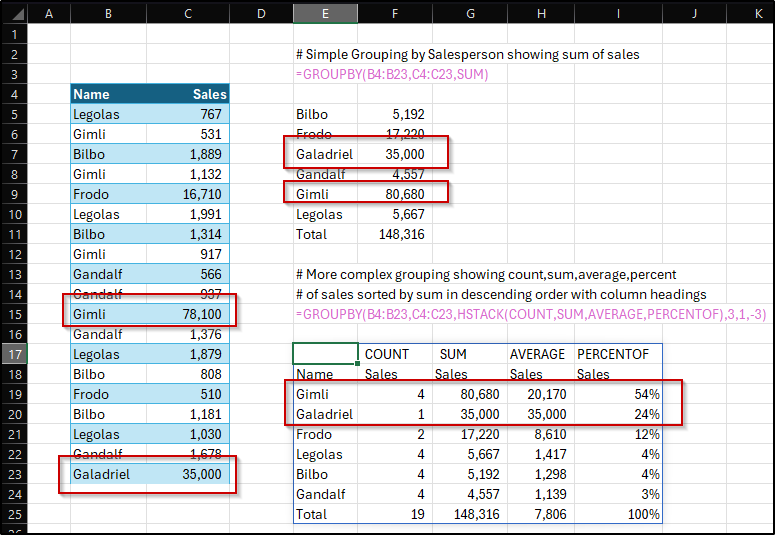
<img height="509" src="https://fluxconsole.com/files/item/882/189978/image.png" width="786" />Well, that&#39;s a pretty nifty trick, and the formulas change as data is updated.&nbsp; For instance, Gimli notices that there was a typo in his sales figure.&nbsp; He didn&#39;t sell 781 but actually sold 7,810.&nbsp; And, we got a new salesperson.&nbsp; By changing the number all the formulas update.&nbsp; BINGO!<br />
<img height="535" src="https://fluxconsole.com/files/item/882/189979/image.png" width="775" />Next time you want to do a quick aggregation in Excel, give GROUPBY or its sibling PIVOTBY a try.<br />
<br />
If you are wanting to up your Excel or Vista game, feel free to reach out to us.&nbsp; We would love to help you bring Construction and Technology together in a better way.<br />
<br />
For more information on this function, check out this Microsoft Tech Community article that explores GROUPBY and PIVOTBY further.<br />
<br />
<a href="https://techcommunity.microsoft.com/t5/excel-blog/new-aggregation-functions-groupby-and-pivotby/ba-p/3965765" target="_blank">https://techcommunity.microsoft.com/t5/excel-blog/new-aggregation-functions-groupby-and-pivotby/ba-p/3965765</a><br />
<br />
&nbsp;]]>
            </content>
                          <enclosure url="https://fluxconsole.com/files/image/260401" length="0" type="image/jpg" />
                                    <updated>2024-06-18T11:35:45-05:00</updated>
        </entry>
            <entry>
            <title><![CDATA[Editing PDF&#039;s with Microsoft Edge]]></title>
            <link rel="alternate" href="https://www.constructech.io/blog/editing-pdfs-with-microsoft-edge" />
            <id>https://constructech.modihost.com/186380</id>
            <author>
                <name> <![CDATA[XXX Website Cemetery / Graveyard]]></name>
            </author>
            <summary type="html">
                <![CDATA[Microsoft Edge has a built-in PDF reader that allows you to view, edit, and annotate PDFs without the need for external software. Here&rsquo;s how you... Bringing together construction and technology]]>
            </summary>
            <content type="html">
                <![CDATA[Microsoft Edge has a built-in PDF reader that allows you to view, edit, and annotate PDFs without the need for external software. Here&rsquo;s how you can use the Microsoft Edge PDF reader:<br />
<br />
<strong>Opening a PDF:</strong>
<ul>
	<li>If you&rsquo;re using Windows 11 or Windows 10, Microsoft Edge is set as your default PDF reader. To open a PDF, simply double-click the file or drag and drop it into the Microsoft Edge window.</li>
	<li>Once the PDF is open, you can use the toolbar at the top of the screen to navigate through the document, zoom in or out, and search for specific text.</li>
</ul>
<strong>Editing Blank Fields and Adding Text:</strong>

<ul>
	<li>Open the PDF in Microsoft Edge.</li>
	<li>Click on &ldquo;Edit&rdquo; in the toolbar at the top of the screen.</li>
	<li>Select the blank fields you want to edit and type in your text.</li>
	<li>Save the edited PDF by clicking &ldquo;Save&rdquo; in the top toolbar.</li>
	<li>You can also add new text, images, and shapes to the PDF by choosing &ldquo;Add notes&rdquo; in the top toolbar.&nbsp;This is useful for highlighting important information or making annotations1.</li>
</ul>
<strong>Printing a PDF:</strong>

<ul>
	<li>Open the PDF in Microsoft Edge.</li>
	<li>Click on &ldquo;Print&rdquo; in the toolbar at the top of the screen.</li>
	<li>Choose your printer and any print options you want to use.</li>
	<li>Click &ldquo;Print,&rdquo; and your PDF will start printing directly from your browser.</li>
</ul>
<strong>Saving a PDF:</strong>

<ul>
	<li>After making edits or printing a paper copy, you might want to save the PDF.</li>
	<li>Open the PDF in Microsoft Edge.</li>
	<li>Click on &ldquo;Save&rdquo; in the toolbar at the top of the screen.</li>
	<li>Choose where you want to save the PDF and give it a name.</li>
	<li>Click &ldquo;Save,&rdquo; and your PDF will be saved to the location you selected.</li>
</ul>
Using the built-in Microsoft Edge PDF reader is a convenient way to handle PDFs without relying on third-party software.&nbsp;Give it a try next time you need to work with a PDF!&nbsp;]]>
            </content>
                          <enclosure url="https://fluxconsole.com/files/image/259439" length="0" type="image/jpg" />
                                    <updated>2024-06-04T11:35:45-05:00</updated>
        </entry>
            <entry>
            <title><![CDATA[5 Ways to Optimize Workflow with Sage 300]]></title>
            <link rel="alternate" href="https://www.constructech.io/blog/5-ways-to-optimize-workflow-with-sage-300" />
            <id>https://constructech.modihost.com/188199</id>
            <author>
                <name> <![CDATA[XXX Website Cemetery / Graveyard]]></name>
            </author>
            <summary type="html">
                <![CDATA[Streamline Your Construction Business: A Guide to Optimizing Workflow with Sage 300" Bringing together construction and technology]]>
            </summary>
            <content type="html">
                <![CDATA[In the dynamic world of construction, efficiency is key. With projects demanding precision and timeliness, having the right tools can make all the difference. Enter Sage 300, a robust software solution designed to streamline operations and elevate productivity in the construction industry. In this guide, we&#39;ll explore how Sage 300 can revolutionize your workflow, from project management to financials, ensuring your construction business stays ahead of the curve.<br />
<br />
<strong>1. Project Management Made Simple:</strong>
<ul>
	<li>Utilize Sage 300&#39;s project management features to oversee every aspect of your construction projects from inception to completion.</li>
	<li>Easily track project timelines, budgets, and resources to ensure seamless execution.</li>
	<li>Collaborate effortlessly with your team, contractors, and stakeholders through centralized communication channels.</li>
</ul>
<strong>2. Financial Mastery:</strong>

<ul>
	<li>Say goodbye to spreadsheets and manual calculations. With Sage 300, managing finances becomes a breeze.</li>
	<li>Keep a close eye on project costs, invoices, and payments, all within one integrated platform.</li>
	<li>Gain insights into your financial health with customizable reports and analytics, empowering informed decision-making.</li>
</ul>
<strong>3. Resource Optimization:</strong>

<ul>
	<li>Maximize the efficiency of your workforce and equipment allocation with Sage 300&#39;s resource management tools.</li>
	<li>Identify potential bottlenecks and allocate resources strategically to optimize project timelines and profitability.</li>
	<li>Reduce downtime and unnecessary costs by keeping your resources fully utilized and operational.</li>
</ul>
<strong>4. Compliance and Regulation:</strong>

<ul>
	<li>Stay compliant with industry regulations and standards effortlessly with Sage 300&#39;s built-in compliance features.</li>
	<li>Automatically generate reports and documentation required for regulatory compliance, saving time and reducing the risk of errors.</li>
	<li>Rest easy knowing that your construction business is operating within legal boundaries, mitigating potential risks and liabilities.</li>
</ul>
<strong>5. Scalability and Flexibility:</strong>

<ul>
	<li>Whether you&#39;re a small construction firm or a large enterprise, Sage 300 offers scalability to grow with your business.</li>
	<li>Customize the software to suit your specific needs and adapt as your business evolves.</li>
	<li>Enjoy the flexibility of cloud-based access, allowing you to manage your construction projects anytime, anywhere.</li>
</ul>
<br />
In the fast-paced world of construction, staying competitive means embracing innovation. Sage 300 empowers construction businesses of all sizes to optimize their workflow, enhance productivity, and drive success. By harnessing the power of Sage 300, you can take your construction business to new heights, delivering projects on time and within budget while exceeding client expectations.<br />
<br />
For more information about Sage 300 connect with <a href="https://www.constructech.io/book-a-call">ConstrucTech Consulting</a> today.&nbsp;]]>
            </content>
                          <enclosure url="https://fluxconsole.com/files/image/257883" length="0" type="image/png" />
                                    <updated>2024-05-28T11:35:45-05:00</updated>
        </entry>
            <entry>
            <title><![CDATA[Using the Grouping Bar in Vista Grids]]></title>
            <link rel="alternate" href="https://www.constructech.io/blog/using-the-grouping-bar-in-vista-grids" />
            <id>https://constructech.modihost.com/188568</id>
            <author>
                <name> <![CDATA[XXX Website Cemetery / Graveyard]]></name>
            </author>
            <summary type="html">
                <![CDATA[Using the Group Bar in Vista Grids Bringing together construction and technology]]>
            </summary>
            <content type="html">
                <![CDATA[<em><strong><span style="color:#3579bc;">&nbsp; &nbsp; &nbsp; &nbsp; &nbsp; &nbsp; &nbsp; &nbsp; &nbsp; &nbsp; Using the Grouping Bar in Vista Grids<br />
<br />
Whether we realize it or not, we use the process of grouping things together to help us organize and decipher information.&nbsp; Such a simple concept can be so useful in our everyday lives.</span><br />
<br />
<span style="color:#3579bc;">I&#39;m always searching for ways to make working in Vista easier and I recently discovered the Grouping Bar in the Vista grids.&nbsp; &nbsp;While working with a client we needed to know which states the employees and jobs were in.&nbsp; The Grouping Bar made it easy to group both employees and jobs in the grid by state.&nbsp; Simple concept but very valuable!<br />
<br />
If you have not discovered the Grouping Bar, let me show you how it works.<br />
<br />
Open up a program in Vista that has a grid tab.&nbsp; While your cursor hovers somewhere over the grid, right click on your mouse, and click on Grouping Bar.&nbsp;&nbsp;</span></strong></em><br />
<img alt="Employee Grid in Vista" src="https://fluxconsole.com/files/item/882/188572/image.png" style="width: 756px; height: 940px;" /><em><strong><span style="color:#3579bc;">Once you click on Grouping Bar, you will see a gray bar appear above the filter bar.&nbsp; It will have the words&nbsp; &quot;Drag a column header here to group by that column&quot;.</span></strong></em><br />
<img alt="Employee Grid in Vista" src="https://fluxconsole.com/files/item/882/188570/image.png" style="width: 825px; height: 999px;" /><em><strong><span style="color:#3579bc;">In this example I want to group my grid by the State column to see how many states I have employees in.&nbsp; In order to do this, I drag the State column header to the gray bar.&nbsp; Now that column header is in the gray bar, it will group the employees by state.&nbsp;&nbsp;</span></strong></em><br />
<img alt="Employee Grid in Vista" src="https://fluxconsole.com/files/item/882/188574/image.png" style="width: 879px; height: 309px;" /><em><strong><span style="color:#3579bc;">Once it is grouped at this highest level, you can click on the &quot;+&quot; to expand the group to show the detail of the employees within each state.&nbsp;&nbsp;</span></strong></em><br />
<img alt="Employee Grid in Vista" src="https://fluxconsole.com/files/item/882/188576/image.png" style="width: 902px; height: 374px;" /><em><strong><span style="color:#3579bc;">You can add additional levels of grouping by dragging column headers to the gray bar.&nbsp;&nbsp;</span></strong></em><img alt="Employee Grid in Vista" src="https://fluxconsole.com/files/item/882/188579/image.png" style="width: 882px; height: 355px;" /><em><strong><span style="color:#3579bc;">I hope you find today&#39;s tip helpful!</span>&nbsp;&nbsp;<span style="color:#3579bc;">As always, if you need assistance with Vista, please visit our website for&nbsp;<a href="http://Constructech.io">ConstrucTech Consulting</a>&nbsp;to Book a Call with one of our consultants.&nbsp; To see more Tip Tuesday blogs, make sure to check out our ConstrucTech page on <a href="https://www.linkedin.com/search/results/all/?heroEntityKey=urn%3Ali%3Aorganization%3A69863055&amp;keywords=ConstrucTech%20Consulting&amp;origin=ENTITY_SEARCH_HOME_HISTORY&amp;sid=UZV">Linkedin</a>! All past blogs can be found in the Blog section of our website.</span></strong></em>]]>
            </content>
                          <enclosure url="https://fluxconsole.com/files/image/258598" length="0" type="image/jpg" />
                                    <updated>2024-05-14T11:35:45-05:00</updated>
        </entry>
            <entry>
            <title><![CDATA[Importing Timecards]]></title>
            <link rel="alternate" href="https://www.constructech.io/blog/importing-timecards" />
            <id>https://constructech.modihost.com/187947</id>
            <author>
                <name> <![CDATA[XXX Website Cemetery / Graveyard]]></name>
            </author>
            <summary type="html">
                <![CDATA[Importing Timecards Bringing together construction and technology]]>
            </summary>
            <content type="html">
                <![CDATA[<div style="text-align: center;"><span style="font-size:16px;"><strong>Importing Timecards</strong></span></div>
If you want to save time on manual entry in payroll, you can import timecards into Vista.&nbsp; Vista customers have many choices when deciding how to enter timecards including manual entry, importing, and the Employee Portal the online website.&nbsp; For this blog, we will focus on importing timecards via the import module in Vista.<br />
<br />
The importing steps include reviewing the form, including key fields, creating a template in the IM Template, importing using the IM Import task, reviewing the data imported in the IM Work Edit table, and then uploading in IM Upload.&nbsp; Since importing for time entry goes into a batch if you make a mistake, you can clear the batch.&nbsp;<br />
<br />
Let&rsquo;s start by opening the PR Time Entry screen and viewing the fields we may need.&nbsp; There are fields you may wish to import, fields that you would rather have Vista default, and fields you would like to prompt on import.&nbsp; Let&rsquo;s view the PR Time Entry grid and create an excel file to convert to CSV for import.&nbsp;
<ul>
	<li>Review PR Time Entry&nbsp;</li>
</ul>
<img height="374" src="https://fluxconsole.com/files/item/882/188374/image.png" width="975" />Open an excel file, enter the data to import
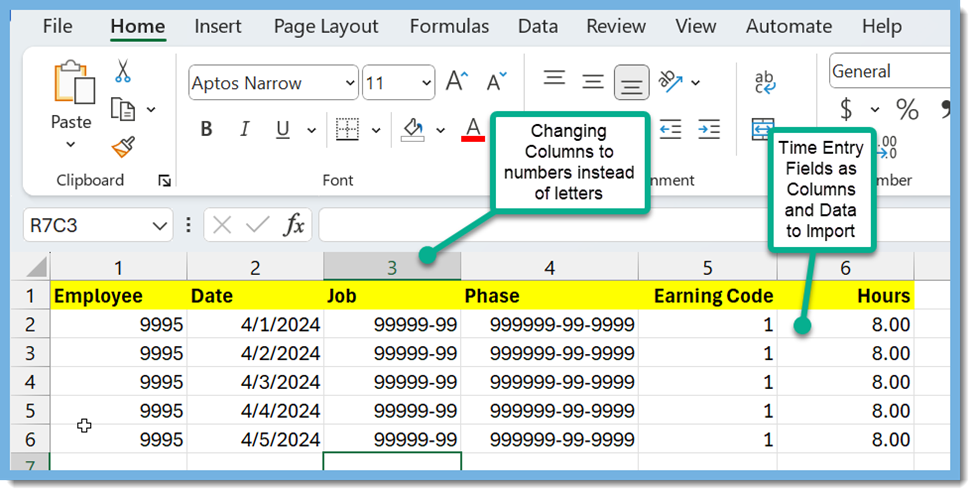
<ul>
	<li>Tip - you can turn the columns into numbers which makes creating a template in Vista easier, File, Options, Formulas, R1C1 reference style</li>
</ul>
<img height="495" src="https://fluxconsole.com/files/item/882/188375/image.png" width="975" />In IM Templates we will now copy the preexisting template and map our columns for importing
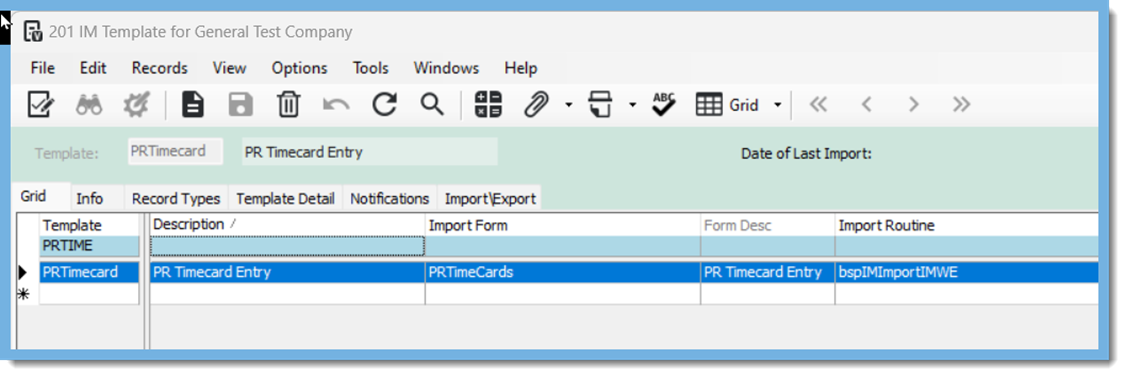
<ul>
	<li>Below is a picture of the original template, we will leave the original as is and copy the template</li>
</ul>
<img height="376" src="https://fluxconsole.com/files/item/882/188376/image.png" width="1125" />
<ul>
	<li><strong>File, Copy Template</strong></li>
</ul>
<img height="369" src="https://fluxconsole.com/files/item/882/188377/image.png" width="1125" />Enter in a New <strong>Template</strong> Name, in this example CTPRTime is the Template,&nbsp; Enter the <strong>Description,&nbsp;</strong>and<strong> Copy</strong><br />
<img height="772" src="https://fluxconsole.com/files/item/882/188378/image.png" width="1125" />&nbsp;Now we edit the <strong>Info Tab</strong> on our New Template <strong>CTPRTime</strong>

<ul>
	<li>Go to<strong> IM Template</strong>, select our newly made template,&nbsp;go to tab <strong>Info&nbsp;</strong></li>
	<li>Select <strong>Delimited</strong> for the format, <strong>Comma,</strong>&nbsp;<strong>Starting at line 2 </strong>(this is so that you don&rsquo;t have to delete your descriptions in your excel file), and check the box <strong>Remove Quotes</strong></li>
</ul>
<img height="739" src="https://fluxconsole.com/files/item/882/188379/image.png" width="1125" />Now we edit the Template Detail on our new import template
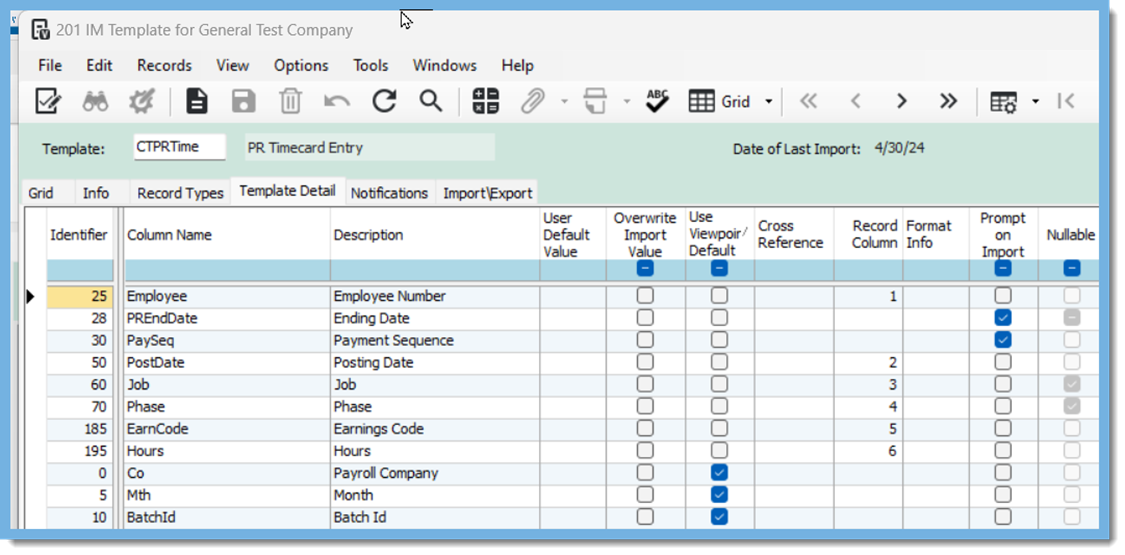
<ul>
	<li>Go to <strong>IM Template</strong>, select our newly made template, go to tab <strong>Template Detail</strong></li>
	<li>We match the fields to the <strong>Record Columns</strong> by entering the column number on the excel spreadsheet</li>
	<li>Choose <strong>Prompt on Import </strong>for the PR End Date and the Pay Sequence</li>
	<li>For the rest of the data we will use the <strong>checkbox Use Viewpoint Default</strong></li>
</ul>
<img height="555" src="https://fluxconsole.com/files/item/882/188380/image.png" width="1125" />
<ul>
	<li>Now our timecards are ready for import so we will now turn our excel file into a CSV (Comma delimited)</li>
	<li><strong>File Save as type CVS (Comma Delimited)</strong></li>
</ul>
<img height="147" src="https://fluxconsole.com/files/item/882/188381/image.png" width="1125" />Now we Import
<ul>
	<li>Go to <strong>IM Import</strong></li>
	<li><strong>ImportID </strong>will be a name of your choosing</li>
	<li>Template:<strong> </strong>Find your new template, in this example CTPRTime</li>
	<li><strong>Browse</strong> for your CSV file, remember to close your file before importing</li>
	<li><strong>Starting Line 2</strong></li>
	<li><strong>Execute</strong></li>
	<li>Prompting &ndash; <strong>Enter the Pay Period</strong> and <strong>Payment Sequence</strong>, <strong>Apply</strong></li>
	<li>Group detail will pop up, verify and close</li>
	<li>Import Results will tell you how many records were created</li>
</ul>
<img height="806" src="https://fluxconsole.com/files/item/882/188382/image.png" width="1059" />
<ul>
	<li>Now you can review each record in the IM Work Edit, and edit any fields that are incorrect</li>
	<li>We will not change anything but go to upload since the items in the IM Work Edit look correct</li>
</ul>
<img height="631" src="https://fluxconsole.com/files/item/882/188383/image.png" width="1125" />
<ul>
	<li>Go to<strong> IM Upload</strong>,&nbsp;<strong>Find ImportID</strong>, and choose <strong>Upload</strong></li>
</ul>
<img height="424" src="https://fluxconsole.com/files/item/882/188384/image.png" width="899" />Now you will be given the Batch ID
<ul>
	<li>You can view batch in the PR Time Entry form</li>
</ul>
<img height="376" src="https://fluxconsole.com/files/item/882/188385/image.png" width="956" />
<ul>
	<li>Now the time has been imported ready for <strong>review and post the batch</strong></li>
</ul>
<img height="513" src="https://fluxconsole.com/files/item/882/188386/image.png" width="1125" />As always, if you need assistance with any Vista processes, please visit our website&nbsp;<a href="https://www.constructech.io/">Constructech Consulting</a>&nbsp;and&nbsp;Book a Call with one of our consultants.&nbsp;<br />
&nbsp;<br />
&nbsp;<br />
&nbsp;<br />
&nbsp;<br />
&nbsp;]]>
            </content>
                          <enclosure url="https://fluxconsole.com/files/image/257527" length="0" type="image/jpg" />
                                    <updated>2024-05-07T11:35:45-05:00</updated>
        </entry>
            <entry>
            <title><![CDATA[Viewpoint Vista Pay Check Update]]></title>
            <link rel="alternate" href="https://www.constructech.io/blog/viewpoint-vista-pay-check-update" />
            <id>https://constructech.modihost.com/188027</id>
            <author>
                <name> <![CDATA[XXX Website Cemetery / Graveyard]]></name>
            </author>
            <summary type="html">
                <![CDATA[Viewpoint Vista 2023 R2 Version updated the system pay check and EFT Remittance Reports Bringing together construction and technology]]>
            </summary>
            <content type="html">
                <![CDATA[We all know how busy we get and how hard it can be to keep up with changes in Viewpoint Vista, but we wanted to point out this update that may affect some users. The pay check and EFT remittance reports were all updated to provide the new W-4 information on the stub.<br />
<br />
If you are using the system reports without a custom modification then you have been enjoying this enhancement all along. If, by chance you have customized your checks so that you could add your company logo or you are printing the whole check with bank and MICR information, then you may consider making an update to those reports.<br />
<br />
The reports that have been updated are:
<ul>
	<li>PR Check Print</li>
	<li>PR Check Print Stub</li>
	<li>PR Check Print Stub by Employee</li>
	<li>PR Check Print-2-Mail Format</li>
	<li>PR EFT Remittance</li>
	<li>PR EFT Remittance by Employee</li>
</ul>
If you need assistance updating your custom reports or you need assistance with any Viewpoint Vista processes or training, please visit our website for&nbsp;<a href="http://constructech.io">ConstrucTech Consulting</a>&nbsp;to Book a Call with one of our consultants.&nbsp; All past blogs can be found in the Blog section of our website.]]>
            </content>
                          <enclosure url="https://fluxconsole.com/files/image/257589" length="0" type="image/jpg" />
                                    <updated>2024-04-23T11:35:45-05:00</updated>
        </entry>
            <entry>
            <title><![CDATA[Simplified Guide to Adding Electronic Signatures to Checks]]></title>
            <link rel="alternate" href="https://www.constructech.io/blog/simplified-guide-to-adding-electronic-signatures-to-checks" />
            <id>https://constructech.modihost.com/187607</id>
            <author>
                <name> <![CDATA[XXX Website Cemetery / Graveyard]]></name>
            </author>
            <summary type="html">
                <![CDATA[In today's digital age, businesses are constantly seeking ways to streamline processes and enhance security. One such improvement is the ability to add electronic signatures to checks. Bringing together construction and technology]]>
            </summary>
            <content type="html">
                <![CDATA[In today&#39;s digital age, businesses are constantly seeking ways to streamline processes and enhance security. One such improvement is the ability to add electronic signatures to checks using Crystal Reports.<br />
<br />
Whether it&#39;s Accounts Payable or Payroll, integrating electronic signatures can add a layer of authenticity and efficiency to your financial transactions.<br />
<br />
Let&#39;s dive into a step-by-step guide on how to achieve this seamlessly. This is a little techy, but don&#39;t fret, this is the easiest one yet for those of you with any doubt in your Crystal Report abilities.&nbsp;&nbsp;<br />
<br />
<strong>Prerequisites:</strong> Before diving into the process, ensure you have a Crystal Reports license. If not, you can download a free trial version from here. Additionally, have your signature file ready in JPG format.<br />
<br />
<strong>Step 1: </strong>Copy the Report Using the Reports Programs, navigate to RP Report Copy and make a copy of the check report you intend to modify. Take note of the file name and location for future reference.<br />
<br />
<strong>Step 2:</strong> In Crystal Reports, open the copied report . This powerful tool will enable you to seamlessly integrate your electronic signature into the check.<br />
<br />
<strong>Step 3:</strong>&nbsp; At the top of the Crystal Reports interface, select &#39;<strong><em>Insert Picture</em></strong>&#39; and browse to locate your signature file. Once found, click to anchor the signature box in the desired area on the check.<br />
<br />
<strong>Step 4</strong>: Resize and Position Adjust the size and position of the signature file by dragging the edges of the picture box to your preferred dimensions. Ensure it fits neatly within the designated space on the check.<br />
<br />
<strong>Step 5:</strong> Configure Signature Format Right-click on the signature file and select &quot;Format Graphic&quot;. In the pop-up window, navigate to the &#39;Suppress&#39; tab. Here, select the blue &quot;x-2&quot; and add the formula {?PrintNonNeg}=&#39;Y&#39;. This step ensures that the signature is hidden when printing non-negotiable checks, signified by the change from blue to red.<br />
<br />
<strong>Step 6:</strong> Save the Report Once you&#39;re satisfied with the adjustments, save the modified report. This preserves your changes and ensures they are applied whenever the report is generated.<br />
<br />
<span style="color:#ff0000;"><strong>Important Note:</strong></span> When printing via the browser-based cloud viewer, it&#39;s crucial to adjust the printer properties to &#39;Black &amp; White&#39;. Failure to do so may result in the printing of only a solid black image, even when reviewing the document in PDF format. Ensuring &#39;Black &amp; White&#39; color selection is imperative for accurate printing.<br />
<br />
By following these simple steps, you can seamlessly incorporate electronic signatures into your check reports using Crystal Reports. Not only does this enhance security and authenticity, but it also streamlines your financial processes for increased efficiency and peace of mind.<br />
<br />
Want to learn how to add more than one signature based off of a CM Account or Bank Account? Contact <a href="https://www.constructech.io/book-a-call">ConstrucTech Consulting</a> today to find out how.&nbsp;&nbsp;]]>
            </content>
                          <enclosure url="https://fluxconsole.com/files/image/257205" length="0" type="image/jpg" />
                                    <updated>2024-04-16T11:35:45-05:00</updated>
        </entry>
            <entry>
            <title><![CDATA[Vista&#039;s Page Splitter]]></title>
            <link rel="alternate" href="https://www.constructech.io/blog/vistas-page-splitter" />
            <id>https://constructech.modihost.com/187435</id>
            <author>
                <name> <![CDATA[XXX Website Cemetery / Graveyard]]></name>
            </author>
            <summary type="html">
                <![CDATA[Splitting PDF pages right in Vista. Bringing together construction and technology]]>
            </summary>
            <content type="html">
                <![CDATA[I recently worked with a client who mentioned how tedious it was to individually scan AP invoices for attachment. They also found it cumbersome to split a PDF containing multiple invoices into separate files for attaching to accounts payable (AP) invoices. Fortunately, Vista&rsquo;s PDF Page Splitter is designed to handle these situations. I use it so frequently that I sometimes forget not everyone is aware of its existence.<br />
<br />
In this article, I&rsquo;ll demonstrate how to use the built-in PDF splitter to streamline AP invoice entry and increase efficiency.<br />
<br />
If you receive a stack of invoices from various vendors via mail, you can simply scan the entire stack into a single PDF using your office copy/scan machine. These machines often allow rapid scanning of documents, including front and back pages.<br />
<br />
In Vista, after you&#39;ve created and saved an invoice header, the paperclip icon will become bold and you can select the Page Splitter to open the Page Splitter Window. ( I usually have the Attachment Lister checked as well as a convenient way to see attachments on my document)<br />
<img alt="vista page splitter" src="https://fluxconsole.com/files/item/882/187440/image.png" style="width: 1157px; height: 389px;" />From there a window will open up and you can drag/drop a pdf containing multiple pages from your computer.&nbsp; You used to be able to drag/drop right from Outlook but the New Outlook no longer supports that.&nbsp; In that case, I recommend drag/drop to the desktop and then drag/drop to the Page Splitter...or click the browse button to find the PDF file.<br />
<img alt="vista page splitter" src="https://fluxconsole.com/files/item/882/187439/image.png" style="width: 936px; height: 366px;" />From there you can easily grab a pdf page (or use your CTRL key to click on multiple pages) and drag/drop them into the AP Invoice.&nbsp; In this example, I highlighted page 1 &amp; 2 and dragged them into my invoice.&nbsp; The Page Splitter copied the 2 pages into a single document and attached it to my invoice.&nbsp; It also grayed out Page 1 &amp; 2 in the Page Splitter window letting me know I had processed those pages from the original PDF.<br />
<img alt="vista page splitter" src="https://fluxconsole.com/files/item/882/187441/image.png" style="width: 1540px; height: 425px;" /><img alt="vista page splitter" src="https://fluxconsole.com/files/item/882/187442/image.png" style="width: 1020px; height: 640px;" />The Page Splitter has other options such as assigning Attachment Security Types, changing the file naming convention, or having the ability to save your progress and pick up where you left off at a later time.<br />
<br />
I hope this can&nbsp;simplify the laborious process&nbsp;of scanning and attaching PDF documents to your AP invoices or any Vista program that accepts attachments. If you need additional information, I encourage you to explore the online Vista Help or feel free to&nbsp;reach out to us via our web page booking links.]]>
            </content>
                          <enclosure url="https://fluxconsole.com/files/image/256868" length="0" type="image/jpg" />
                                    <updated>2024-04-09T11:35:45-05:00</updated>
        </entry>
            <entry>
            <title><![CDATA[Learning on the Go!]]></title>
            <link rel="alternate" href="https://www.constructech.io/blog/learning-on-the-go" />
            <id>https://constructech.modihost.com/186837</id>
            <author>
                <name> <![CDATA[XXX Website Cemetery / Graveyard]]></name>
            </author>
            <summary type="html">
                <![CDATA[Learning on the Go! Bringing together construction and technology]]>
            </summary>
            <content type="html">
                <![CDATA[<div style="text-align: center;"><em><strong><span style="font-size:18px;"><span style="color:#3579bc;">Learning on the Go!</span></span></strong></em></div>

<div><br />
<em><strong><span style="color:#3579bc;">Viewpoint Academy&nbsp; is a valuable resource for Viewpoint customers.&nbsp; It offers a wide range of product training materials that help customers enhance their skills in order to grow their careers.&nbsp;<br />
<br />
Go.Learn is an app that empowers learners to access learning content at anytime, anywhere.<br />
<br />
When you add&nbsp;the two together it equals &quot;Viewpoint Learning on the Go!&quot;.&nbsp; If this combination&nbsp;sounds like something you would love, scan the QR Code below to get started.</span></strong></em><br />
<br />
<img height="159" src="https://fluxconsole.com/files/item/882/186838/image.png" width="159" /><em><strong><span style="color:#3579bc;">Click on Install.</span></strong></em><br />
<img height="517" src="https://fluxconsole.com/files/item/882/186839/image.png" width="257" /><em><strong><span style="color:#3579bc;">Once it is installed click on the Go.Learn icon.</span></strong></em><img height="199" src="https://fluxconsole.com/files/item/882/186841/image.png" width="200" /><em><strong><span style="color:#3579bc;">Enter in the URL for the Viewpoint Academy platform, then click on Go to Login.</span></strong></em><img height="515" src="https://fluxconsole.com/files/item/882/186842/image.png" width="254" /><em><strong><span style="color:#3579bc;">Enter your Username and Password for Viewpoint Academy, then click on Sign In.</span></strong></em><br />
<img height="516" src="https://fluxconsole.com/files/item/882/186843/image.png" width="260" /><em><strong><span style="color:#3579bc;">Choose either &quot;Not Now&quot; or &quot;Keep Me Logged In&quot;.&nbsp;&nbsp;</span></strong></em><br />
<img height="506" src="https://fluxconsole.com/files/item/882/186844/image.png" width="255" /><em><strong><span style="color:#3579bc;">You are now ready to start &quot;Learning on the Go!&quot;</span></strong></em><img height="511" src="https://fluxconsole.com/files/item/882/186845/image.png" width="253" /><em><strong><span style="color:#3579bc;">If Wi-Fi is not available, you can download the content and learn while offline.</span></strong></em><img height="331" src="https://fluxconsole.com/files/item/882/186846/image.png" width="196" /><em><strong><span style="color:#3579bc;">As always, if you need assistance with any Vista processes or training, please visit our website for&nbsp;<a href="http://Constructech.io">ConstrucTech Consulting</a>&nbsp;to Book a Call with one of our consultants.&nbsp; To see more Tip Tuesday articles, make sure to check out our ConstrucTech page on <a href="https://www.linkedin.com/search/results/all/?heroEntityKey=urn%3Ali%3Aorganization%3A69863055&amp;keywords=ConstrucTech%20Consulting&amp;origin=ENTITY_SEARCH_HOME_HISTORY&amp;sid=UZV">Linkedin</a>! All past blogs can be found in the Blog section of our website.</span></strong></em><br />
&nbsp;</div>]]>
            </content>
                          <enclosure url="https://fluxconsole.com/files/image/256623" length="0" type="image/jpg" />
                                    <updated>2024-04-02T11:35:45-05:00</updated>
        </entry>
            <entry>
            <title><![CDATA[Deleting a Pay Period in Vista]]></title>
            <link rel="alternate" href="https://www.constructech.io/blog/deleting-a-pay-period-in-vista" />
            <id>https://constructech.modihost.com/186414</id>
            <author>
                <name> <![CDATA[XXX Website Cemetery / Graveyard]]></name>
            </author>
            <summary type="html">
                <![CDATA[Deleting a Pay Period - No payments made Bringing together construction and technology]]>
            </summary>
            <content type="html">
                <![CDATA[&nbsp;
<div style="text-align: center;"><span style="color:#3579bc;"><span style="font-size:18px;"><strong>VIEWPOINT VISTA - PAYROLL</strong></span></span><br />
&nbsp;</div>

<div><strong>Delete an existing PR Pay Period&nbsp;</strong><br />
Want to delete a Pay Period from the Pay Period Control in Vista?&nbsp;&nbsp;You can delete the pay period if no payments have been made. You will need to delete all the timecards and re-process the pay period before deleting the pay period.&nbsp;<br />
<br />
If employees have been paid, additional steps are needed to delete the pay period.&nbsp;<br />
<br />
<strong>Below existing pay period&nbsp;</strong><img height="900" src="https://fluxconsole.com/files/item/882/186443/image.png" width="1329" /><strong>Sequence 1 exists on Pay Period&nbsp;</strong><br />
<img height="361" src="https://fluxconsole.com/files/item/882/186445/image.png" width="765" /><strong>Active Frequency Code on existing Pay Period&nbsp;</strong><br />
<img height="363" src="https://fluxconsole.com/files/item/882/186448/image.png" width="758" /><span style="color:#3579bc;"><strong>Delete existing timecard entries in PR Time Entry</strong></span></div>
<br />
Select&nbsp;<span style="color:#000000;"><strong>Create a new batch</strong>&nbsp;</span>and select the<span style="color:#000000;"> <strong>Batch Month</strong>. </span>Select the correct<span style="color:#000000;"> <strong>PR Group</strong> </span>and <span style="color:#000000;"><strong>PR End Date</strong></span> then Click <span style="color:#000000;"><strong>OK</strong>.</span>

<div><img height="389" src="https://fluxconsole.com/files/item/882/186777/image.png" width="822" /></div>
<span style="color:#000000;">Go to <strong>File</strong>, <strong>Add Timecard</strong></span>

<div><img height="382" src="https://fluxconsole.com/files/item/882/186787/image.png" width="601" /></div>
Once the screen opens Option<span style="color:#000000;"> <strong>Add timecards from the current Payroll into your batch</strong> </span>will default, <span style="color:#000000;"><strong>add Employee</strong>,</span> and<span style="color:#000000;"> <strong>Ending Timecard Date</strong></span>

<div><img height="779" src="https://fluxconsole.com/files/item/882/186778/image.png" width="1038" /></div>
PR Timecard entry grid will show entries, under the<span style="color:#000000;"> <strong>Action column, select D-Delete</strong> </span>in the drop-down menu and when complete post the batch

<div><img height="573" src="https://fluxconsole.com/files/item/882/186781/image.png" width="1081" /><br />
<span style="color:#000000;"><strong>Process Employee</strong></span></div>
<br />
Go to<span style="color:#000000;"> <strong>PR Employee Sequence Control, select the PR Group, Employee, Pay Period Ending Date, and Process.&nbsp; </strong></span>This will clear the employee out of the PR Employee Sequence Control

<div><img height="615" src="https://fluxconsole.com/files/item/882/186782/image.png" width="1031" /><span style="color:#000000;"><strong>Remove Payment Sequences and Active Frequency Codes from PR Pay Period Control</strong></span><br />
<br />
Go to <span style="color:#000000;"><strong>Pay Period Control</strong>,&nbsp;</span><span style="font-size: 1rem;">Tab -</span><strong style="font-size: 1rem;"> Payment Sequence, </strong><span style="font-size: 1rem;">highlight</span><strong style="font-size: 1rem;"> Pay Sequence </strong><span style="font-size: 1rem;">and use the</span><strong style="font-size: 1rem;"> Trash Can</strong><span style="font-size: 1rem;"> to delete</span></div>

<div><img height="369" src="https://fluxconsole.com/files/item/882/186784/image.png" width="765" /></div>
Tab &ndash;<span style="color:#000000;"><strong> Active Frequence Codes,</strong></span><strong> </strong>highlight<span style="color:#000000;"><strong> Frequency </strong></span>and use the<span style="color:#000000;"><strong> Trash Can </strong></span>to delete

<div><img height="369" src="https://fluxconsole.com/files/item/882/186783/image.png" width="776" /></div>
Tab<span style="color:#000000;"> &ndash;<strong> Info </strong></span>use<span style="color:#000000;"><strong> Trash Can </strong></span>to delete, select <span style="color:#000000;"><strong>Yes </strong>to </span>confirm on message

<div><img height="638" src="https://fluxconsole.com/files/item/882/186785/image.png" width="1021" />Below screen shows after pay period has been deleted<br />
<img height="577" src="https://fluxconsole.com/files/item/882/186786/image.png" width="809" />As always, if you need assistance with any Vista processes, please visit our website&nbsp;<a href="https://www.constructech.io/">Constructech Consulting</a>&nbsp;and&nbsp;Book a Call with one of our consultants.&nbsp;</div>]]>
            </content>
                          <enclosure url="https://fluxconsole.com/files/image/255464" length="0" type="image/jpg" />
                                    <updated>2024-03-26T11:35:45-05:00</updated>
        </entry>
            <entry>
            <title><![CDATA[Fiddletree Drops the Mic with Revolutionary Onboarding Tools!]]></title>
            <link rel="alternate" href="https://www.constructech.io/blog/fiddletree-drops-the-mic-with-revolutionary-onboarding-tools" />
            <id>https://constructech.modihost.com/186803</id>
            <author>
                <name> <![CDATA[XXX Website Cemetery / Graveyard]]></name>
            </author>
            <summary type="html">
                <![CDATA[Get ready to witness the ultimate mic drop moment! Bringing together construction and technology]]>
            </summary>
            <content type="html">
                <![CDATA[Attention all HR professionals, brace yourselves for a game-changing announcement! <a href="https://www.fiddletreesystems.com/software">Fiddletree</a> has just unleashed a tsunami of innovation with its latest Onboarding Package, setting a new standard in HR management within Vista HR Management. Get ready to witness the ultimate mic drop moment!<br />
&nbsp;<br />
<strong>Integrated State Withholding Forms</strong><br />
Prepare to bid farewell to the days of drowning in paperwork! <a href="https://www.fiddletreesystems.com/software">Fiddletree</a> has waved its magic wand and seamlessly integrated all 38<img src="https://fluxconsole.com/files/item/882/186804/image.png" style="float: right; width: 349px; height: 213px;" /> state withholding forms into Vista HR Management&#39;s Onboarding module. With just a click, these fillable PDFs are ready to roll, automatically pre-filled with default fields based on new hire information. And the showstopper? Values from these forms effortlessly flow into Vista PR Deductions, ensuring a smooth and error-free process.<br />
&nbsp;<br />
<strong>E-Verify Integration</strong><br />
Say goodbye to the headache of juggling multiple platforms! <a href="https://www.fiddletreesystems.com/software">Fiddletree</a> has orchestrated a flawless integration between Vista HR Management and E-Verify.<img src="https://fluxconsole.com/files/item/882/186805/image.png" style="float: left; width: 287px; height: 270px;" /> Now, initiating and completing verifications is as easy as pie, with case details magically transformed into PDFs attached to onboarding profiles. Compliance has never been more elegant!<br />
&nbsp;<br />
&nbsp;<br />
&nbsp;<br />
&nbsp;<br />
&nbsp;<br />
&nbsp;<br />
&nbsp;<br />
<strong>Automatic Recognition Announcements</strong><br />
Get ready to turn up the volume on employee engagement!<img src="https://fluxconsole.com/files/item/882/186806/image.png" style="width: 303px; height: 141px; float: right;" /> <a href="https://www.fiddletreesystems.com/software">Fiddletree&#39;s</a> Automatic Recognition Announcements are here to steal the spotlight. From work anniversaries to new hire welcomes and employee birthdays, Vista HR Management becomes the ultimate celebration hub. Boost morale, foster camaraderie, and watch productivity skyrocket!<br />
&nbsp;<br />
&nbsp;<br />
<strong>Pricing That Hits All the Right Notes!</strong><br />
<a href="https://www.fiddletreesystems.com/software">Fiddletree</a> believes in making great tools accessible to businesses of all sizes. With <a href="https://www.fiddletreesystems.com/software">pricing</a> as friendly as a golden retriever at a picnic, there&#39;s no excuse not to join the revolution.&nbsp;<br />
<br />
Don&#39;t miss out on your chance to steal the show with <a href="https://www.fiddletreesystems.com/software">Fiddletree&#39;s</a> Onboarding Package! Schedule your <a href="https://www.fiddletreesystems.com/contact">demo</a> now.&nbsp;<br />
<br />
Connect with <a href="https://www.constructech.io/book-a-call">ConstrucTech Consulting</a> to learn more about this helpful HR addition and much more.&nbsp;]]>
            </content>
                          <enclosure url="https://fluxconsole.com/files/image/255932" length="0" type="image/webp" />
                                    <updated>2024-03-19T11:35:45-05:00</updated>
        </entry>
            <entry>
            <title><![CDATA[Sage 300: Streamline Tracking and Payment Processes]]></title>
            <link rel="alternate" href="https://www.constructech.io/blog/sage-300-streamline-tracking-and-payment-processes" />
            <id>https://constructech.modihost.com/186366</id>
            <author>
                <name> <![CDATA[XXX Website Cemetery / Graveyard]]></name>
            </author>
            <summary type="html">
                <![CDATA[Sage 300 offers streamlined solutions for tracking and managing vacation time with ease. Bringing together construction and technology]]>
            </summary>
            <content type="html">
                <![CDATA[Handling employee vacation time efficiently is crucial for businesses to maintain compliance and foster employee satisfaction. Sage 300 offers streamlined solutions for tracking and managing vacation time with ease. Let&#39;s explore two commonly used methods and how to simplify the process:<br />
&nbsp;<br />
<strong>Lump Sum Method:</strong><br />
&nbsp;<br />
In scenarios where employees receive a lump sum of vacation hours at the beginning of the calendar year, this is a straightforward setup process:<br />
&nbsp;
<ul>
	<li>Navigate to Payroll Setup.</li>
	<li>Double click on Earnings and Deductions.</li>
	<li>Enter or select the appropriate options, such as the frequency of payouts and accrual limits.</li>
	<li>Define accrual parameters based on service years, including the initial allocation and any carry-over allowances.</li>
	<li>Customize G/L distributions for accurate expense tracking.</li>
	<li>Save the vacation code and assign it to eligible employees.&nbsp;</li>
</ul>
<strong>Accruing Method:</strong><br />
&nbsp;<br />
For businesses opting for an accruing vacation time approach, there is a more flexible setup tailored to your needs:<br />
&nbsp;
<ul>
	<li>Navigate to Payroll Setup.</li>
	<li>Configure Earnings and Deductions settings, specifying the accrual frequency and maximum limits.</li>
	<li>Define accrual parameters based on service years, including accrual rates and carry-over allowances.</li>
	<li>Customize G/L distributions to accurately reflect vacation pay expenses.</li>
	<li>Save the configured vacation code and assign it to eligible employees.</li>
</ul>
&nbsp;<br />
With Sage 300&#39;s intuitive interface and customizable options, managing lump sum or accruing vacation time becomes a seamless process, allowing you to adapt to all your employee needs effortlessly.<br />
<br />
Once vacation codes are set up, tracking and utilizing vacation hours become hassle-free. Employees can easily log vacation hours in their timecards, reducing administrative burdens. Additionally, the Transaction History feature allows for effortless adjustments, ensuring accuracy in vacation hour balances.<br />
<br />
Connect with <a href="https://www.constructech.io/book-a-call">ConstrucTech Consulting</a> to learn more about this helpful tip and many more.<br />
&nbsp;]]>
            </content>
                          <enclosure url="https://fluxconsole.com/files/image/255354" length="0" type="image/webp" />
                                    <updated>2024-03-05T11:35:45-06:00</updated>
        </entry>
            <entry>
            <title><![CDATA[Excel Formula or Value?]]></title>
            <link rel="alternate" href="https://www.constructech.io/blog/excel-formula-or-value" />
            <id>https://constructech.modihost.com/185870</id>
            <author>
                <name> <![CDATA[XXX Website Cemetery / Graveyard]]></name>
            </author>
            <summary type="html">
                <![CDATA[Cell Inspector Bringing together construction and technology]]>
            </summary>
            <content type="html">
                <![CDATA[Auditing spreadsheets for instances where a value was typed in to overwrite a formula can be tedious and for large spreadsheets, seemingly impossible.<br />
<br />
Here&#39;s a handy trick to view if cells in a spreadsheet contain a value or a formula.<br />
<br />
Here is a small spreadsheet calculating a commission.&nbsp; Last month we over-rode a formula with a value and now this month the values seem off.<br />
<img alt="Snippet of an excel spreadsheet" src="https://fluxconsole.com/files/item/882/185871/image.png" style="width: 556px; height: 392px;" />To inspect cells to see if they contain a formula or a value you could cursor around to each cell and look at the formula bar, or you could simply show all cell formulas or values.&nbsp; To do this, head to the formula bar in Excel and select&nbsp;<strong>Show Formulas</strong>.<br />
<br />
We can quickly see what cells have values and should have formulas instead.&nbsp; To return to the original view, simply click the button again.<br />
<img alt="Excel Spreadsheet Formula Bar" src="https://fluxconsole.com/files/item/882/185873/image.png" style="width: 1589px; height: 685px;" />For more tips to help make your job and life easier, feel free to subscribe to our blog.&nbsp; Our team of Trimble Viewpoint Vista, Sage 300, and Excel experts are ready to help you with any challenge.&nbsp; Click the Book-A-Call button to schedule an appointment on our calendar that fits with your busy schedule.<br />
&nbsp;]]>
            </content>
                          <enclosure url="https://fluxconsole.com/files/image/254750" length="0" type="image/jpg" />
                                    <updated>2024-02-27T11:35:45-06:00</updated>
        </entry>
            <entry>
            <title><![CDATA[Creating Workflow subfolders using VA Menu Templates]]></title>
            <link rel="alternate" href="https://www.constructech.io/blog/creating-workflow-subfolders-using-va-menu-templates" />
            <id>https://constructech.modihost.com/185461</id>
            <author>
                <name> <![CDATA[XXX Website Cemetery / Graveyard]]></name>
            </author>
            <summary type="html">
                <![CDATA[Creating a Workflow using VA Menu Templates Bringing together construction and technology]]>
            </summary>
            <content type="html">
                <![CDATA[<div style="text-align: center;"><span style="font-size:18px;"><em><strong><span style="color:#3579bc;">Creating a Workflow with VA Menu Templates</span></strong></em></span></div>
<span style="color:#3579bc;">&nbsp;</span><br />
<em><strong><span style="color:#3579bc;"><span style="font-size:14px;">By definition, a workflow is an end-to-end process that helps teams meet their goals by connecting the right people to the right data at the right time.&nbsp; A workflow moves data (tasks) through a series of steps from initiation to completion. And once a workflow is set up, it helps you to organize information in a way that is not only understandable but also repeatable.<br />
<br />
One way to create a workflow in Vista is through VA Menu Templates.&nbsp; These templates can be used to create subfolders within a module to organize processes and reports.&nbsp; A subfolder can be created for each step in a process to guide a user in completing a task from beginning to end.&nbsp;<br />
<br />
As mentioned above a workflow lends itself to processes that are repeatable.&nbsp; Since payroll is a good example of a repeatable process, I will use it in my blog today to show you how to set up a workflow using the VA Menu Templates.&nbsp;<br />
<br />
Below is an image of what the Payroll Module would look like once a user has added all the subfolders created in VA Menu Templates for the Payroll Process Workflow.</span></span><br />
<img alt="Payroll Workflow in Vista" src="https://fluxconsole.com/files/item/882/185464/image.png" style="width: 650px; height: 900px;" /></strong></em><span style="font-size:16px;"><em><strong><span style="color:#3579bc;">Viewpoint Administration&gt;Programs&gt;VA Menu Templates&gt;Info</span></strong></em></span><br />
<br />
<span style="font-size:14px;"><em><strong><span style="color:#3579bc;">Click on the New Folder Icon</span></strong></em></span><br />
<img alt="Creating a new subfolder in Vista using Viewpoint Administration Menu Templates" src="https://fluxconsole.com/files/item/882/185466/image.png" style="width: 975px; height: 309px;" /><strong><span style="color:#47c8bf;"><em><span style="font-size:14px;">1.</span></em></span><span style="color:#3579bc;"><em><span style="font-size:14px;">&nbsp; In the Folder Template Field enter &lsquo;N&rsquo; or &lsquo;+&rsquo; for the system to default to the&nbsp; &nbsp;next available number.&nbsp; Note:&nbsp; The system begins numbering custom templates at 10,000 to distinguish the custom templates from the standard templates.</span></em></span></strong><br />
<strong><span style="color:#47c8bf;"><em><span style="font-size:14px;">2.</span></em></span><span style="color:#3579bc;"><em><span style="font-size:14px;">&nbsp; Enter a name for the folder in the Folder Title field.</span></em></span></strong><br />
<strong><span style="color:#47c8bf;"><em><span style="font-size:14px;">3.</span></em></span><span style="color:#3579bc;"><em><span style="font-size:14px;">&nbsp; Enter the module to associate the folder within the Module field.&nbsp; You can use F4 to see a list of all modules.</span></em></span></strong><br />
<strong><span style="color:#47c8bf;"><em><span style="font-size:14px;">4.</span></em></span><span style="color:#3579bc;"><em><span style="font-size:14px;">&nbsp; Check the Active box if you want this template to be available for use when users add subfolders to folders.</span></em></span></strong><br />
<span style="color:#3579bc;">&nbsp;</span><br />
<em><strong><span style="color:#3579bc;"><span style="font-size:16px;">Viewpoint Administration&gt;Programs&gt;VA Menu Templates&gt;Menu Items</span></span></strong></em><br />
<img alt="Adding Forms and Reports to the subfolder created in Viewpoint Administration Menu Templates" src="https://fluxconsole.com/files/item/882/185467/image.png" style="width: 864px; height: 420px;" /><em><strong><span style="color:#47c8bf;"><span style="font-size:14px;">1.</span></span><span style="color:#3579bc;"><span style="font-size:14px;">&nbsp;In the Item Type field, click on the drop down and choose either Form or Report.</span></span><br />
<span style="color:#47c8bf;"><span style="font-size:14px;">2.</span></span><span style="color:#3579bc;"><span style="font-size:14px;"> In the Item field, press F4 to get a list of either the forms or reports.&nbsp; Click on the form or report and press ok.</span></span><br />
<span style="color:#47c8bf;"><span style="font-size:14px;">3. </span></span><span style="color:#3579bc;"><span style="font-size:14px;">In the Menu Sequence field put a number which will correspond to how that form or report will show up in the subfolder.</span></span><br />
<br />
<span style="color:#3579bc;"><span style="font-size:14px;">The steps above should be repeated for 02 through 10 to complete your payroll workflow.<br />
<br />
To set up the Workflow in the Payroll Module the user will navigate to the Payroll Module. With your cursor on the &ldquo;Payroll&rdquo;, right click.&nbsp; &nbsp;Put your cursor on &ldquo;New&rdquo; and it will open the subfolder choices.&nbsp; Click on the newly created step 01 for the Payroll Workflow.&nbsp;</span></span></strong></em><img alt="Adding the Subfolders created in Viewpoint Administration Menu Templates to the Payroll Module" src="https://fluxconsole.com/files/item/882/185470/image.png" style="width: 903px; height: 467px;" /><em><strong><span style="color:#3579bc;"><span style="font-size:14px;">This will be added as a subfolder under Payroll.&nbsp; As you can see in the image below, the forms and reports you added to this template when setting it up in VA Menu Templates will show up in the &quot;01-Start a Pay Period&quot; subfolder.</span></span></strong></em><br />
<img alt="View of the Reports and Forms in the Subfolder" src="https://fluxconsole.com/files/item/882/185465/image.png" style="width: 975px; height: 911px;" /><em><strong><span style="font-size:14px;"><span style="color:#3579bc;">As always, if you need assistance with any Vista processes, please visit our website for&nbsp;</span><a href="https://www.constructech.io/"><span style="color:#3579bc;">ConstrucTech Consulting</span></a><span style="color:#3579bc;">&nbsp;to Book a Call with one of our consultants.&nbsp; To see more Tip Tuesday articles, make sure to check out our ConstrucTech page on </span><a href="https://www.linkedin.com/search/results/all/?heroEntityKey=urn%3Ali%3Aorganization%3A69863055&amp;keywords=ConstrucTech%20Consulting&amp;origin=ENTITY_SEARCH_HOME_HISTORY&amp;sid=~xy"><span style="color:#3579bc;">Linkedin</span></a><span style="color:#3579bc;">! All past blogs can be found in the Blog section of our website.</span></span><br />
&nbsp;</strong></em><br />
<br />
<br />
&nbsp;]]>
            </content>
                          <enclosure url="https://fluxconsole.com/files/image/254379" length="0" type="image/jpg" />
                                    <updated>2024-02-20T11:35:45-06:00</updated>
        </entry>
            <entry>
            <title><![CDATA[Vista-File Extension Allow List]]></title>
            <link rel="alternate" href="https://www.constructech.io/blog/vista-file-extension-allow-list" />
            <id>https://constructech.modihost.com/185193</id>
            <author>
                <name> <![CDATA[XXX Website Cemetery / Graveyard]]></name>
            </author>
            <summary type="html">
                <![CDATA[File Extension Allow List
Have you ever tried to add a website within Vista with an extension that is different from the usual &ldquo;.com&rdquo;, &l... Bringing together construction and technology]]>
            </summary>
            <content type="html">
                <![CDATA[<strong>File Extension Allow List</strong><br />
Have you ever tried to add a website within Vista with an extension that is different from the usual &ldquo;.com&rdquo;, &ldquo;.net&rdquo;, etc. and it did not let you? We have a &ldquo;different&rdquo; extension on our website (<u><a href="https://ccinc.sharepoint.com/sites/Team/Shared%20Documents/Systems/Viewpoint%20-%20Vista/Reference%20Documents/www.constructech.io">www.constructech.io</a></u>). The &ldquo;.io&rdquo; extension is popular in the tech world signifying I/O or input/output in computer science.&nbsp;<br />
I was training a client on entering a new vendor and went to add our website so that I could show the button next to the web address that you can press to go directly to the webpage. It would not take our web address because it did not recognize the &ldquo;.io&rdquo; extension. &nbsp;<br />
The solution is to go to <strong>VA File Extension Allow List</strong>, in the &ldquo;Upload Type&rdquo; field, press F4 and select &ldquo;Top Level Domains&rdquo;.<br />
<br />
<img alt="VA File Extension Allow List" src="https://fluxconsole.com/files/item/882/185194/VA%20File%20Extension%20Allow%20List.png" style="width: 541px; height: 561px;" />And add the required domain extension.<br />
<img alt="VA File Extension Allow List B" src="https://fluxconsole.com/files/item/882/185195/VA%20File%20Extension%20Allow%20List%20B.png" style="width: 624px; height: 346px;" />This will allow you to add the website within Vista and when you click on the globe button, it takes you to the website!<br />
<img alt="VA File Extension Allow List C" src="https://fluxconsole.com/files/item/882/185196/VA%20File%20Extension%20Allow%20List%20C.png" style="width: 624px; height: 157px;" />As always, if you need assistance with any Vista processes, please visit our website -&nbsp;<strong><u><a href="https://www.constructech.io/">ConstrucTech Consulting</a></u></strong>&nbsp;to Book a Call with one of our consultants. While you are there, sign up for our monthly newsletter to make sure that you do not miss out on our Tip Tuesday articles.&nbsp;You can also follow our ConstrucTech page on&nbsp;<strong><a href="https://www.linkedin.com/search/results/all/?keywords=constructech%20consulting&amp;origin=TYPEAHEAD_HISTORY&amp;searchId=53abfa75-d92b-4256-8c8e-8accf5e8c3ef&amp;sid=YOZ&amp;spellCorrectionEnabled=true">Linkedin</a></strong>!<br />
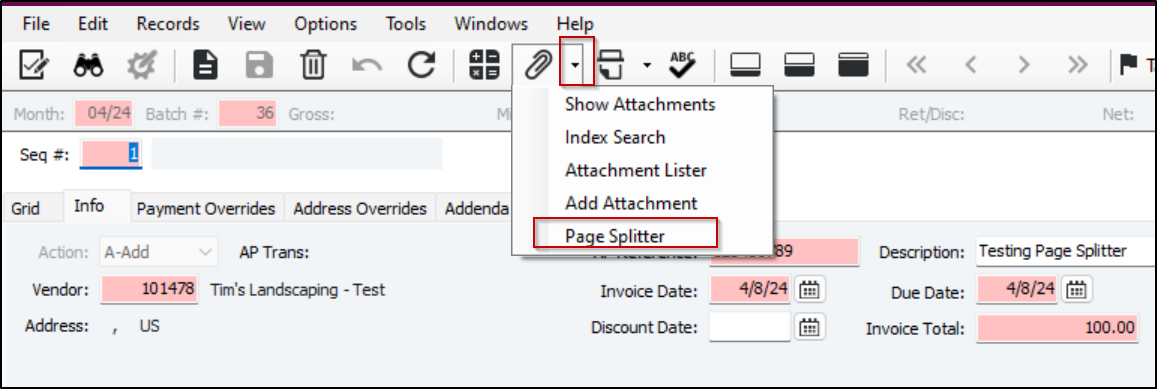
&nbsp;]]>
            </content>
                          <enclosure url="https://fluxconsole.com/files/image/254059" length="0" type="image/jpg" />
                                    <updated>2024-02-13T11:35:45-06:00</updated>
        </entry>
            <entry>
            <title><![CDATA[Enhancing Efficiency: Customizing PR Timecard Entry Grids]]></title>
            <link rel="alternate" href="https://www.constructech.io/blog/enhancing-efficiency-customizing-pr-timecard-entry-grids" />
            <id>https://constructech.modihost.com/184892</id>
            <author>
                <name> <![CDATA[XXX Website Cemetery / Graveyard]]></name>
            </author>
            <summary type="html">
                <![CDATA[Tailor Your PR Timecard Entry for a Smoother Workday! Bringing together construction and technology]]>
            </summary>
            <content type="html">
                <![CDATA[Navigating through PR Timecard Entry can sometimes feel like a maze, especially when juggling multiple employee IDs and job numbers. Fortunately, there&#39;s a solution that simplifies your experience and streamlines your workflow. Let&rsquo;s explore how to customize your grids to make your timecard entries uniquely tailored to your needs.<br />
&nbsp;<br />
<strong>Accessing the Customization Options:</strong>
<ul>
	<li>Begin by opening the PR Timecard Entry module.</li>
	<li>Navigate to the Options menu and select &quot;<strong>Customize Grids.</strong>&quot;</li>
</ul>
<img height="600" src="https://fluxconsole.com/files/item/882/184893/image.png" width="920" /><strong>Tailoring the Employee Column:</strong>

<ul>
	<li>On the PR User Grid Options tab, focus on the Employee field.</li>
	<li>Opt for a more descriptive view by selecting &quot;<strong>Description in grid</strong>.&quot;</li>
</ul>
<img height="994" src="https://fluxconsole.com/files/item/882/184894/image.png" width="975" /><strong>Extending Customization Across Fields &amp; Tabs:</strong>

<ul>
	<li>Recognize that this enhancement isn&#39;t limited to one section, turn this on for the Job, Phases or any other field that you might find useful.&nbsp;</li>
	<li>Repeat the customization process in the Job, Mechanic, and Service Timecards tabs.</li>
</ul>
&nbsp;<br />
<strong>Saving Your Configuration:</strong>

<ul>
	<li>After making the necessary adjustments, click on the save icon to preserve your customized grid settings.</li>
	<li>Once saved, close the User Grid Options form.</li>
</ul>
<img height="327" src="https://fluxconsole.com/files/item/882/184895/image.png" width="975" />With these simple yet powerful customizations, you&#39;ll notice a new column added to your timecard entry grid. This column will display the descriptions you&#39;ve chosen alongside the relevant data.<br />
&nbsp;<br />
Say goodbye to the hassle of searching for job numbers and employee names when time is of the essence. By incorporating descriptions into your grid, you eliminate unnecessary steps and enhance overall navigation efficiency.&nbsp; Additionally, you make your timecard entries uniquely yours by tailoring the grid to display information that matters most to you. This personal touch not only improves usability but also contributes to a more user-friendly experience.<br />
&nbsp;<br />
Embrace the power of customization and revolutionize your timecard entry process today! &nbsp;Connect with&nbsp;<strong><a href="https://www.constructech.io/book-a-call">ConstrucTech Consulting</a></strong>&nbsp;to learn about this helpful trick and many more.<br />
&nbsp;]]>
            </content>
                          <enclosure url="https://fluxconsole.com/files/image/253514" length="0" type="image/jpg" />
                                    <updated>2024-02-06T11:35:45-06:00</updated>
        </entry>
            <entry>
            <title><![CDATA[Vista Tax Update 2024 #1]]></title>
            <link rel="alternate" href="https://www.constructech.io/blog/vista-tax-update-2024-1" />
            <id>https://constructech.modihost.com/183870</id>
            <author>
                <name> <![CDATA[XXX Website Cemetery / Graveyard]]></name>
            </author>
            <summary type="html">
                <![CDATA[Vista Tax Update 2024 Bringing together construction and technology]]>
            </summary>
            <content type="html">
                <![CDATA[<div style="text-align: center;"><em><strong>Vista Tax Update 2024</strong></em><br />
&nbsp;</div>

<div><em><strong>The first Vista Tax Update for the new year has been released.&nbsp; For Vista users in the cloud (VFC &amp; VEC) activating the routine is easy!<br />
<br />
Payroll&gt;PR Routines</strong></em><br />
<img alt="PR Routines File Initialization" src="https://fluxconsole.com/files/item/882/183873/image.png" style="width: 429px; height: 390px;" /><em><strong>Go to PR Routines in the Payroll Module.&nbsp; Click on File and then Initialize.&nbsp;&nbsp;</strong></em><br />
<br />
<img alt="Do you want to initialize PR Routine information?" src="https://fluxconsole.com/files/item/882/183874/image.png" style="width: 1260px; height: 641px;" /><em><strong>A box with &quot;Do you want to initialize PR Routine information?&quot; will pop up.&nbsp; Click on Yes.</strong></em><br />
<img alt="Successfully initialized Tax Routine information." src="https://fluxconsole.com/files/item/882/183876/image.png" style="width: 1252px; height: 643px;" /><em><strong>A box with &quot;Successfully initialized Tax Routine information.&quot; will then pop up.&nbsp; Click on Close.</strong></em><br />
<img height="547" src="https://fluxconsole.com/files/item/882/183879/image.png" width="1075" /><em><strong>Go to the Grid and check to make sure that the &quot;Last Updated&quot; column has the current date.&nbsp; Also, for the&nbsp;Routines that have changed, you will see a 24 behind the Procedure Name.&nbsp;&nbsp;<br />
<br />
Note:&nbsp; If a routine has more than one update in a calendar year,&nbsp;you will see a number after the two digit year which represents the number of the update for that routine during that year&nbsp; (i.e., for IL Tax, the Procedure Name has a 232 after it.&nbsp; This indicates that it is the second update for the routine for calendar year 2023).<br />
<br />
To ensure that you do not miss initializing a new Tax Update, I recommend that you make the PR Routines Initialization part of your&nbsp;Payroll Workflow.&nbsp;&nbsp;</strong></em><br />
<img alt="Payroll Workflow" src="https://fluxconsole.com/files/item/882/183878/image.png" style="width: 488px; height: 853px;" /><em><strong>As always, if you need assistance with any Vista processes, please visit our website for&nbsp;<a href="https://www.constructech.io/">ConstrucTech Consulting</a>&nbsp;to Book a Call with one of our consultants.&nbsp; To see more Tip Tuesday articles, make sure to check out our ConstrucTech page on <a href="https://www.linkedin.com/search/results/all/?keywords=constructech%20consulting&amp;origin=TYPEAHEAD_HISTORY&amp;searchId=53abfa75-d92b-4256-8c8e-8accf5e8c3ef&amp;sid=YOZ&amp;spellCorrectionEnabled=true">Linkedin</a>!</strong></em></div>]]>
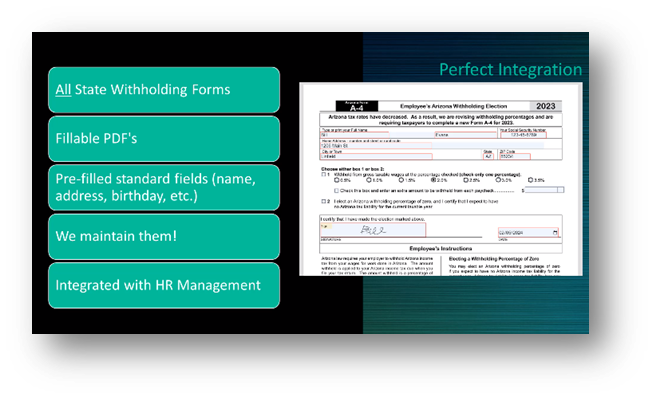
            </content>
                          <enclosure url="https://fluxconsole.com/files/image/252405" length="0" type="image/jpg" />
                                    <updated>2024-01-16T11:35:45-06:00</updated>
        </entry>
            <entry>
            <title><![CDATA[Set Sail with Confidence with the Employee Portal Welcome Kit]]></title>
            <link rel="alternate" href="https://www.constructech.io/blog/set-sail-with-confidence-with-the-employee-portal-welcome-kit" />
            <id>https://constructech.modihost.com/183430</id>
            <author>
                <name> <![CDATA[XXX Website Cemetery / Graveyard]]></name>
            </author>
            <summary type="html">
                <![CDATA[Embarking on the journey of implementing a new employee portal can feel like venturing into uncharted territory. But fear not, for we present to you the Employee Welcome Kit—a guidance specifically designed for those pioneering this digital landscape. Bringing together construction and technology]]>
            </summary>
            <content type="html">
                <![CDATA[As you tread the path of implementing our Employee Portal, you might not be aware of this hidden gem&mdash;the <strong>Employee Welcome Kit</strong>. Let&#39;s unravel how this simple toolkit becomes your trusted companion, especially in the initial stages of portal integration.<br />
&nbsp;<br />
In the midst of the implementation hustle, the <strong>Employee Welcome Kit</strong> stands as your ally, simplifying the process for both you and your employees.<br />
<br />
<strong>Poster Set A: Log In To Your Employee Portal</strong><br />
<br />
When the portal login page feels like a maze, Poster Set A is your trusted map:<img height="394" src="https://fluxconsole.com/files/item/882/183433/image.png" style="float: right;" width="299" /><br />
&nbsp;<br />
<strong>Simplified Instructions:</strong> Ease your employees into the portal with straightforward guidance.<br />
<br />
<strong>QR Code Decoded:</strong> A quick video tutorial eliminates any guesswork.<br />
<br />
<strong>Quick Reference Zone:</strong> Provide a direct link to your portal for easy access.
<div style="text-align: right;">&nbsp;</div>
<br />
<br />
<br />
<strong>Download Your Implementation Guide:</strong><br />
English: <a href="chrome-extension://efaidnbmnnnibpcajpcglclefindmkaj/https:/storage.googleapis.com/ezd_org_viewpoint2/snapshots/cgxpw7w79CfAsUzNfUqg/2b7f2110-dc7c-11ec-bbc8-0242c0252b0d?GoogleAccessId=viewpoint-prod-k8-content-api@production-services-302914.iam.gserviceaccount.com&amp;Expires=1703539460&amp;Signature=V2cl8NoW3055zoSAJ4qkDobDDgAl7ZKJplMffM3XlIk449j8V17oN1ECriHviWLG06RG39hCk%2B8oWN2HuKa7pHlmkbyTmU6PNfX0WxdYcd%2FwHtM%2BxkLeq0q93xYjhImxcTjNKihx%2F7RHJssNKM1aMrCiRmTcKWwBv4OockgTObc7Jlxf1LWwqTSnjkvP2RUYnd%2BqzzAdICvnrt8Qx4wt1Fox0pO4L02TKYuW0MgWcnfqc1h7h2uDk%2FU64PfURbPxo%2BJvqqKNMCk8Osz9ch06uvQ6vwqP17Kp16c%2F1awchP0kN3QWFX3tyYJcnSYlvs1tB6Vu6jnV%2BiSHY43PEbPDlA%3D%3D&amp;response-content-disposition=filename%3D%22LoggingIn_WithoutTranslations_8.5x11.pdf%22">Log In To Your Portal.pdf</a><br />
English with Spanish Translations: <a href="chrome-extension://efaidnbmnnnibpcajpcglclefindmkaj/https:/storage.googleapis.com/ezd_org_viewpoint2/snapshots/cgxpw7w79CfAsUzNfUqg/2bbc5120-dc7c-11ec-bbc8-0242c0252b0d?GoogleAccessId=viewpoint-prod-k8-content-api@production-services-302914.iam.gserviceaccount.com&amp;Expires=1703539460&amp;Signature=gGvaElGaCTKTvCn2%2B%2BeG3uaER5Ol69%2F08KpIKx%2BQeajpQQ4tlu81ZG8mKzG8Mw%2FcSDpW%2Fya2MJIIniay86BeaHjp0QwtuQJK4WGP8v4jrWhEN1cC346a7pjm7yu9Do5eNhBlbnBya79mF8x15CSheA%2FhvM3AKEA66HwgBVFOq9iX%2BtOsoxpmzSbqT4Ya%2FOD%2FNY4Vpl2xmQiTZxxIvGmgDBiK8AGrl3eCz%2FmTL0tyZ%2B%2BL9TN9LmUnOtyozlTIu0%2BbrU6%2FKLUTWDjokzLkxbk0EsaFitO8uAieLngyVIs2NwwUHBazcpqvhFyjQTzt22khRNC4zDhxUgaxtHWwpPY0Vg%3D%3D&amp;response-content-disposition=filename%3D%22LoggingIn_WithSpanishTranslations_8.5x11.pdf%22">Log In To Your Portal (with translations).pdf</a><br />
<br />
<strong>Poster Set B: View Your Earnings Documents</strong><br />
<br />
During the portal&#39;s maiden voyage, Poster Set B ensures a smooth sailing for understanding earnings:<br />
<img src="https://fluxconsole.com/files/item/882/183434/image.png" style="float: left; width: 298px; height: 394px;" />&nbsp;<br />
<br />
<br />
<strong>Step-by-Step Clarity:</strong> Navigate the nuances of viewing earnings documents effortlessly.<br />
<br />
<strong>Language Options:</strong> English or Spanish&mdash;catering to diverse preferences.<br />
&nbsp;<br />
<br />
<br />
<br />
<br />
<br />
<br />
<strong>Download Your Earnings Navigation:</strong><br />
English: <a href="chrome-extension://efaidnbmnnnibpcajpcglclefindmkaj/https:/storage.googleapis.com/ezd_org_viewpoint2/snapshots/cgxpw7w79CfAsUzNfUqg/2c1609e0-dc7c-11ec-bbc8-0242c0252b0d?GoogleAccessId=viewpoint-prod-k8-content-api@production-services-302914.iam.gserviceaccount.com&amp;Expires=1703539460&amp;Signature=IxNlw%2FCnEuZknuvpdClXGKgcqauosMsslxALG2VS55nhOh%2F3dxHBUt3%2B4auTo%2BZbbfg8ksg7YjXA1lbtZIU1tftb7nyRdOP%2Fene%2FGG5Y2Ex1K5hCyDnfcz9t6FeAlyycbyhdAVa0MdBVnG%2Bg7yBJ%2FGpFJHC0p4quu064J80NodABR%2F7PrjlEOXDOHsZpg0sFV0%2BNZDY8HlhHOIBSyzwhb6RiWXNw2snyKjSA1RFmd%2BrW7dQHmMXzwmGxVeHcfe8XRn0aDlXu60xRG6J8Wjmd%2BBLpX5M4NogeUakRaGKUOZIJVw00TEUMCKeZXmNzAToa7ld79hqw8nuxhDbmH7oNQA%3D%3D&amp;response-content-disposition=filename%3D%22Earnings_WithoutTranslations_8.5x11.pdf%22">View Your Earnings Documents.pdf</a><br />
English with Spanish Translations: <a href="chrome-extension://efaidnbmnnnibpcajpcglclefindmkaj/https:/storage.googleapis.com/ezd_org_viewpoint2/snapshots/cgxpw7w79CfAsUzNfUqg/2c4fb780-dc7c-11ec-bbc8-0242c0252b0d?GoogleAccessId=viewpoint-prod-k8-content-api@production-services-302914.iam.gserviceaccount.com&amp;Expires=1703539460&amp;Signature=kn57a9SxPlf%2BKa3HwYTCLCafo8doxMjHTvFhkIU2B3O%2FmLVnFg2bTooLF5ySO97hv%2BLSLa5GCeLlNBwoqx1JfExyyt%2B9j0ZcEmSYYDvq3HY8m62lRsL3fXyvNaM5rufWVo9H5eMeaFRMSLydLUrYmhjCXYTfZWEXFskg2Slobjoz79jwJaMNASol6ES6brVP9oBIcCwdEz73fHTYBo2cEPmivsxkhzdrCfn70NO4zeXStEvHIYHhXDlZeFG1xNHjixvqgVqEe4M4rjOzseQ1k41kZaiCa8H3vxKwMGjsz%2Bk%2BPfOp%2BvuxVf4%2FqqfWdsAySZS%2Buqax%2BIwxPLQcdxvy6g%3D%3D&amp;response-content-disposition=filename%3D%22Earnings_WithSpanishTranslations_8.5x11.pdf%22">View Your Earnings Documents (with translations).pdf</a><br />
<br />
Implementing a new process often raises questions, and the <strong>Employee Welcome Kit</strong> provides the answers. These posters become your navigational aides, taking out the guesswork for your employees, allowing them to guide themselves through the portal login process.<br />
&nbsp;<br />
Picture this: Your office adorned with these strategically placed posters, serving as a silent guide for your employees. The confusion dissipates, and a sense of empowerment takes its place.<br />
&nbsp;<br />
So, if you&#39;re on the brink of introducing the Employee Portal, know that the <strong>Employee Welcome Kit</strong> is your trusted companion.<br />
<br />
Download, print, and witness how these posters become the guiding light for both you and your employees in the exciting journey of portal implementation.&nbsp;<img height="260" src="https://fluxconsole.com/files/item/882/183435/image.png" width="612" />Welcome to a world where the new isn&#39;t strenuous but a step towards streamlined efficiency!&nbsp;Connect with&nbsp;<strong><a href="https://www.constructech.io/book-a-call">ConstrucTech Consulting</a></strong>&nbsp;to learn about this helpful tool and many more.<br />

&nbsp;]]>
            </content>
                          <enclosure url="https://fluxconsole.com/files/image/251859" length="0" type="image/jpg" />
                                    <updated>2023-12-26T11:35:45-06:00</updated>
        </entry>
            <entry>
            <title><![CDATA[2023 Year-End Processes]]></title>
            <link rel="alternate" href="https://www.constructech.io/blog/2023-year-end-processes" />
            <id>https://constructech.modihost.com/183165</id>
            <author>
                <name> <![CDATA[XXX Website Cemetery / Graveyard]]></name>
            </author>
            <summary type="html">
                <![CDATA[2023 Year-End Processes Bringing together construction and technology]]>
            </summary>
            <content type="html">
                <![CDATA[<div style="text-align: center;">&nbsp;</div>

<div style="text-align: center;"><span style="color:#000000;"><span style="font-size:18px;"><strong><em>Year-End Payroll, 1099 Processing, &amp; More</em></strong></span></span><br />
&nbsp;</div>
<span style="color:#000000;"><em><strong>As 2023 rapidly ends and we look forward to a brand-new year, ConstrucTech Consulting would like to share with you some tips to prepare for year-end reporting and to get 2024 off to a great start.&nbsp;&nbsp;</strong></em></span><br />
<br />
<strong><em><span style="color:#000000;">Checklists are always a great way to get you organized and have a plan for your Year-End reporting and processing.&nbsp; Click </span><a href="https://support.viewpoint.com/s/knowledgedetail?c__urlname=Year-End-Check-lists"><span style="color:#000000;">here</span></a><span style="color:#000000;">&nbsp;to access checklists for Accounts Payable, General Ledger, Payroll and a Q&amp;A for Timing of Payroll Year-End Tasks.</span></em></strong><br />
<br />
<strong><em><span style="color:#000000;">Do you need a visual refresher for Vista Payroll 941 Processing, ACA Reporting, W-2 Processing, 1099 Processing, or how to do a Payroll Leave Reset?&nbsp; Click </span><a href="https://info.viewpoint.com/Upcoming-Webinars-Page.html"><span style="color:#000000;">here</span></a><span style="color:#000000;">&nbsp;to find Available on-Demand webinars.</span></em></strong><br />
<br />
<span style="color:#000000;"><strong><em>Note:&nbsp; If the link takes you to a blank page, you will need to login to your Viewpoint Customer Portal account.</em></strong></span><br />
<br />
<em><strong><span style="color:#000000;">As always, if you need assistance with any Year-End processes, please visit our website at </span><a href="https://www.constructech.io/"><span style="color:#000000;">www.ConstrucTechConsulting.io</span></a><span style="color:#000000;"> to Book a Call with one of our consultants.&nbsp; To see more Tip Tuesday articles, make sure to check out our ConstrucTech page on </span><a href="https://www.linkedin.com/search/results/all/?fetchDeterministicClustersOnly=true&amp;heroEntityKey=urn%3Ali%3Aorganization%3A69863055&amp;keywords=constructech%20consulting&amp;origin=RICH_QUERY_SUGGESTION&amp;position=0&amp;searchId=bb6f15c0-54a7-462b-b69f-6beaf260a4fb&amp;sid=e-8&amp;spellCorrectionEnabled=false"><span style="color:#000000;">Linkedin</span></a><span style="color:#000000;">!</span></strong></em><br />
&nbsp;]]>
            </content>
                          <enclosure url="https://fluxconsole.com/files/image/251307" length="0" type="image/jpg" />
                                    <updated>2023-12-21T11:35:45-06:00</updated>
        </entry>
            <entry>
            <title><![CDATA[Simplifying your Bulk Updates]]></title>
            <link rel="alternate" href="https://www.constructech.io/blog/simplifying-your-bulk-updates" />
            <id>https://constructech.modihost.com/183255</id>
            <author>
                <name> <![CDATA[XXX Website Cemetery / Graveyard]]></name>
            </author>
            <summary type="html">
                <![CDATA[Let us help you navigate the Sage database and develop your time-saving solutions. Bringing together construction and technology]]>
            </summary>
            <content type="html">
                <![CDATA[We understand that for Sage 300 users, data updates are about practicality, not unnecessary frills.&nbsp; In the world of bulk data updates, our focus is on making your experience straightforward and effective.<br />
&nbsp;<br />
Imagine fine-tuning your payroll intricacies effortlessly. We ensure the precision of insurance rates, navigate pay rates with accuracy, and organize union pay, deductions, and fringe tables seamlessly. It&#39;s about making the complex feel simple.<br />
&nbsp;<img alt="data toolkit" src="https://fluxconsole.com/files/item/882/183257/image.png" style="float: right; width: 152px; height: 106px;" /><br />
When it comes to contracts, importing CN Contracts with a Schedule of Values is a smooth addition to your data toolkit. Think of it as incorporating new data buddies into your Sage 300 environment.
<div style="text-align: right;">&nbsp;</div>
The process involves practical tweaks, like DCT File Modification, allowing access to previously restricted fields. While not mandatory, tools like Office Connector or Microsoft Access can add an extra layer of efficiency to your data journey.<br />
&nbsp;<br />
We&#39;re here to simplify, not complicate. Collaborate with <strong><a href="https://www.constructech.io/book-a-call">Constructech Consulting</a></strong> to ensure your Sage 300 data updates are a seamless, stress-free experience.]]>
            </content>
                          <enclosure url="https://fluxconsole.com/files/image/251484" length="0" type="image/jpg" />
                                    <updated>2023-12-19T11:35:45-06:00</updated>
        </entry>
            <entry>
            <title><![CDATA[Bonus Setup &amp; Processing Tips]]></title>
            <link rel="alternate" href="https://www.constructech.io/blog/bonus-setup-processing-tips" />
            <id>https://constructech.modihost.com/183024</id>
            <author>
                <name> <![CDATA[XXX Website Cemetery / Graveyard]]></name>
            </author>
            <summary type="html">
                <![CDATA[Bonus Setup & Processing Tips Bringing together construction and technology]]>
            </summary>
            <content type="html">
                <![CDATA[<div style="text-align: center;"><em><strong><span style="color:#3579bc;"><span style="font-size:18px;">Bonus Setup &amp; Processing Tips</span></span></strong></em><br />
&nbsp;</div>

<div><span style="color:#3579bc;"><em>With year-end 2023 right around the corner, many businesses are giving bonuses to their employees.&nbsp; Below I will show you how to set-up those year-end bonuses to process them efficiently and correctly.</em></span><br />
<img alt="Payroll Pay Period Control" src="https://fluxconsole.com/files/item/882/183026/image.png" style="width: 873px; height: 281px;" /></div>

<ul>
	<li><span style="color:#3579bc;"><em>In the PR Pay Period Control, set up a separate Payment Sequence for the bonus checks.</em></span></li>
	<li><span style="color:#3579bc;"><em>Check the &quot;Bonus&quot; check box.&nbsp; This will ensure that the taxes will be calculated according to the Rate assigned on the Deduction code setup.</em></span></li>
</ul>
<img alt="PR Deductions/Liabilities" src="https://fluxconsole.com/files/item/882/183027/image.png" style="width: 1060px; height: 773px;" />
<ul>
	<li><span style="color:#3579bc;"><em>On the Federal Withholding deduction code, if the &quot;Calculate as rate of gross on bonus sequence&quot; is checked and a rate is entered in the box, this is the rate that will be used to calculate the deduction for the bonus check.&nbsp; &nbsp;If this box is not checked, the normal rate will be used.</em></span></li>
</ul>
<img height="452" src="https://fluxconsole.com/files/item/882/183030/image.png" width="890" />
<ul>
	<li><span style="color:#3579bc;"><em>If you have a separate Earn Code for Bonuses, be sure to assign that Earn Code to the Basis Codes tab for all appropriate Deductions and Liabilities.</em></span></li>
</ul>
<span style="color:#3579bc;"><em>It is important to process the Payment Sequences within the PR Pay Period in order.&nbsp; If Pay Sequence 2 for the Bonus check is processed before the regular pay checks, a limit may be reached in Pay Sequence 2.&nbsp; To avoid this problem, post and process the regular payroll sequence (Pay Sequence 1) before processing the bonus check sequence (Pay Sequence 2).</em></span><br />
<br />
<span style="color:#3579bc;"><em>Note:&nbsp; If Pay Sequences are processed out of order, the YTD amounts on the Pay Stub will be incorrect.</em></span><br />
<br />
<span style="color:#3579bc;"><em>As always,&nbsp; if you need assistance with Bonus check setup and processing, please visit our website at <a href="https://www.constructech.io/">www.ConstrucTechConsulting.io</a> to Book a Call with one of our consultants.&nbsp; To see more Tip Tuesday articles, make sure to check out our ConstrucTech page on <a href="https://www.linkedin.com/search/results/all/?fetchDeterministicClustersOnly=true&amp;heroEntityKey=urn%3Ali%3Aorganization%3A69863055&amp;keywords=constructech%20consulting&amp;origin=RICH_QUERY_SUGGESTION&amp;position=0&amp;searchId=bb6f15c0-54a7-462b-b69f-6beaf260a4fb&amp;sid=e-8&amp;spellCorrectionEnabled=false">Linkedin</a>!</em></span><br />
<br />
&nbsp;]]>
            </content>
                          <enclosure url="https://fluxconsole.com/files/image/251137" length="0" type="image/jpg" />
                                    <updated>2023-12-12T11:35:45-06:00</updated>
        </entry>
            <entry>
            <title><![CDATA[Taming Excel - importing data with leading zeros]]></title>
            <link rel="alternate" href="https://www.constructech.io/blog/taming-excel-importing-data-with-leading-zeros" />
            <id>https://constructech.modihost.com/182771</id>
            <author>
                <name> <![CDATA[XXX Website Cemetery / Graveyard]]></name>
            </author>
            <summary type="html">
                <![CDATA[How to configure Excel to not perform certain data conversions when importing data from other sources. Bringing together construction and technology]]>
            </summary>
            <content type="html">
                <![CDATA[At ConstrucTech we are often faced with the challenge of migrating data from a customer&#39;s legacy system into Vista or Sage 300.&nbsp; This is typically done via some sort of data extract, a bit of transformation, and then uploading into the destination system.<br />
<br />
Often times we run into issues during the transformation step where we need to inspect the data first and Excel is a great tool for looking at columnar data.&nbsp; However, Excel is often &quot;too nice&quot; and automatically does some unwanted data conversions such as stripping leading zero&#39;s and automagically converting text that looks like numbers into actual numbers.&nbsp; This certainly does cause problems with things like social security numbers or bank account numbers that have leading zero&#39;s.<br />
<br />
Microsoft has finally given us the choice on how that behaviour should work for us although it is a little hidden.&nbsp; <font color="#0f172a"><b>***Caution***</b>&nbsp; You must be on a newer version of Excel to access this little gem.</font><br />
<br />
From Excel, head over to the&nbsp;<strong>File</strong>&nbsp;menu.&nbsp; Select the&nbsp;<strong>Options</strong>&nbsp;menu.&nbsp; Once in the&nbsp;<strong>Excel Options</strong>&nbsp;menu, select the&nbsp;<strong>Data</strong>&nbsp;option.&nbsp; Notice the&nbsp;<strong>Automatic Data Conversion</strong>&nbsp;section.&nbsp; Voila!&nbsp; Not only is there an option to not remove leading zeros and convert to a number, but there is also the ability to be notified of any data conversions that have happened.&nbsp; You can even re-enable some of the legacy data import wizards that no longer show up in the Data Toolbar Ribbon.<br />
<br />
<img alt="Screen shot showing Excel/File/Options/Data options." src="https://fluxconsole.com/files/item/882/182772/image.png" style="width: 839px; height: 683px; float: left;" />Hopefully this little tip can help you with exporting data into Excel.<br />

<br />
While exporting data from Vista/Sage into Excel is handy, it can be tedious.&nbsp; If you often have to export/transform data and would like a custom automated solution, reach out!&nbsp; We&#39;d love to talk to you about the undiscovered capabilities of your ERP system.]]>
            </content>
                          <enclosure url="https://fluxconsole.com/files/image/250703" length="0" type="image/jpg" />
                                    <updated>2023-12-05T11:35:45-06:00</updated>
        </entry>
            <entry>
            <title><![CDATA[Unveiling the Hidden Magic: A Guide to Finding Your Custom Views in Crystal Reports]]></title>
            <link rel="alternate" href="https://www.constructech.io/blog/unveiling-the-hidden-magic-a-guide-to-finding-your-custom-views-in-crystal-reports" />
            <id>https://constructech.modihost.com/182423</id>
            <author>
                <name> <![CDATA[XXX Website Cemetery / Graveyard]]></name>
            </author>
            <summary type="html">
                <![CDATA[Unlock the magic of Crystal Reports with our playful guide to finding lost custom views. A tad techy, so consult your IT pro or Crystal Reports designer before diving in. Rediscover the joy of reporting with our enchanting solution! Bringing together construction and technology]]>
            </summary>
            <content type="html">
                <![CDATA[<strong>Unveiling the Hidden Magic: A Guide to Finding Your Custom Views in Crystal Reports</strong><br />
<br />
<span style="font-size:16px;">So, you&#39;ve toiled away creating the perfect custom view in SSMS, only<img alt="question mark scratching head" src="https://fluxconsole.com/files/item/882/182426/image.png" style="float: right; width: 185px; height: 203px;" /></span><span style="font-size: 1rem;"><span style="font-size:16px;"> </span>to find yourself scratching your head when it&nbsp;</span><span style="font-size: 1rem;"> mysteriously disappears in the vast expanse of Crystal Reports. Fear not, fellow data wranglers! We have a nifty little trick up our sleeves that will make you chuckle at its simplicity. Let&#39;s embark on a journey to uncover the hidden gem of custom views together.&nbsp;</span><br />
<br />
<strong style="font-size: 1rem;">The Quest for the Lost View:</strong><br />
<span style="font-size: 1rem;">Picture this: you&#39;re all set with your meticulously crafted custom report, eagerly anticipating the moment you can seamlessly integrate it back into your database fields. You&#39;ve added the custom view in SSMS, and now it&#39;s time to link it back in Crystal Reports. You dive into the Database Expert, locate your &quot;My Connections,&quot; select your trusty Viewpoint database, click on dbo, and... something&#39;s amiss, but what?&nbsp; In your quest for the elusive custom view, you&#39;re met with a puzzling sight in the Database Expert. Your connections are filled with stored procedures, but your custom view is nowhere in sight. Fret not; here&#39;s where the magic happens.</span><img alt="Computer Image screen of stored procedures in database" src="https://fluxconsole.com/files/item/882/182427/image.png" style="width: 377px; height: 513px;" /><strong>The Unveiling Trick:</strong><br />
Take a deep breath, right-click anywhere in the Database Expert under &quot;<strong>My Connections,&quot;</strong> and select &quot;<strong>Options</strong>.&quot;<br />
<img alt="Options selection on computer screen" src="https://fluxconsole.com/files/item/882/182428/image.png" style="width: 746px; height: 643px;" />In the Data Explorer section, you&#39;ll spot a mischievous checkbox labeled &quot;<strong>Stored Procedures</strong>.&quot; Ah-ha! Uncheck that little rascal. I know, it sounds counterintuitive &ndash; why uncheck stored procedures when you&#39;re on the hunt for a custom view? It&#39;s one of those quirky things that only Crystal Reports seems to understand.<br />
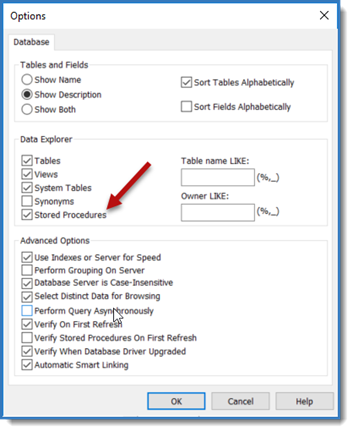
<img alt="stored procedure on computer screen" src="https://fluxconsole.com/files/item/882/182430/image.png" style="width: 353px; height: 432px;" /><strong>The Moment of Revelation:</strong><br />
With the checkbox unchecked, click &quot;<strong>OK</strong>.&quot;<br />
<img alt="computer screen options" src="https://fluxconsole.com/files/item/882/182431/image.png" style="width: 355px; height: 434px;" />Now, right-click again under &quot;<strong>My Connections</strong>&quot; and select &quot;<strong>Refresh</strong>.&quot;<br />
<img alt="refresh button on computer screen" src="https://fluxconsole.com/files/item/882/182432/image.png" style="width: 558px; height: 395px;" />Behold! Return to your dbo, and there they are &ndash; your custom views and tables, basking in the glory of rediscovery. It&#39;s like finding a hidden passage in a labyrinth &ndash; perplexing but so very satisfying.<br />
<img alt="tables and views on computer screen" src="https://fluxconsole.com/files/item/882/182434/image.png" style="width: 446px; height: 224px;" /><strong>The Tricky Little Guy:</strong><br />
Crystal Reports can be a sly character, throwing curveballs just when you least expect it. Sometimes, the logic seems to defy reason, but&ndash; you&#39;ve outsmarted the system. That custom view is now at your command, ready to join your selected tables and pave the way for your Crystal Reports masterpiece.<br />
<img alt="add your custom views on computer screen" src="https://fluxconsole.com/files/item/882/182435/image.png" style="width: 975px; height: 417px;" />And there you have it &ndash; the not-so-secret secret to unveiling your custom views in Crystal Reports. Remember, in the world of data reporting, sometimes you must dance to Crystal Reports&#39; whimsical tune.&nbsp; So, the next time you find yourself on a wild goose chase for your custom views, just uncheck that pesky &quot;<strong>Stored Procedures&quot;</strong> box, hit refresh, and watch the magic unfold.<br />
&nbsp;<br />
Connect with <a href="https://www.constructech.io/book-a-call">ConstrucTech Consulting</a> to learn about this helpful trick and many more! Happy reporting!]]>
            </content>
                          <enclosure url="https://fluxconsole.com/files/image/250214" length="0" type="image/jpg" />
                                    <updated>2023-11-28T11:35:45-06:00</updated>
        </entry>
            <entry>
            <title><![CDATA[Vista Year End - 2023]]></title>
            <link rel="alternate" href="https://www.constructech.io/blog/vista-year-end-2023" />
            <id>https://constructech.modihost.com/182351</id>
            <author>
                <name> <![CDATA[XXX Website Cemetery / Graveyard]]></name>
            </author>
            <summary type="html">
                <![CDATA[Start planning now for year-end because it will be here before you know it!

Use this link for everything about year-end 2023 in Vista

https://ww... Bringing together construction and technology]]>
            </summary>
            <content type="html">
                <![CDATA[<p>Start planning now for year-end because it will be here before you know it!</p>

<p>Use this link for everything about year-end 2023 in Vista<br />
<br />
<a href="https://www.viewpoint.com/vista-year-end?utm_source=network&amp;utm_medium=network&amp;utm_campaign=awre-mktg5a">https://www.viewpoint.com/vista-year-end?utm_source=network&amp;utm_medium=network&amp;utm_campaign=awre-mktg5a</a><br />
<br />
There will be updates as new information is available.<br />
<br />
If you have any issues or concerns and would like assistance, please go to our Book A Call button and schedule a call with a consultant.</p>]]>
            </content>
                          <enclosure url="https://fluxconsole.com/files/image/250105" length="0" type="image/jpg" />
                                    <updated>2023-11-21T11:35:45-06:00</updated>
        </entry>
            <entry>
            <title><![CDATA[Are you wondering how to reset your password for RDP in AVD?]]></title>
            <link rel="alternate" href="https://www.constructech.io/blog/are-you-wondering-how-to-reset-your-password-for-rdp-in-avd" />
            <id>https://constructech.modihost.com/181740</id>
            <author>
                <name> <![CDATA[XXX Website Cemetery / Graveyard]]></name>
            </author>
            <summary type="html">
                <![CDATA[End User Password Reset Instructions for RDP in AVD Bringing together construction and technology]]>
            </summary>
            <content type="html">
                <![CDATA[<div style="text-align: center;"><em><strong><span style="color:#3579bc;"><span style="font-size:18px;">End User Password Reset Instructions for AVD</span></span></strong></em></div>

<div><em><strong><span style="color:#3579bc;"><span style="font-size:16px;">Vista users who have already migrated from NetApp Virtual Desktop Service to Microsoft Azure Virtual Desktop (AVD) may be asking, &quot;How do I reset my password used for the remote desktop connection&nbsp;in AVD&quot;?</span></span></strong></em><br />
<br />
<em><span style="font-size:16px;"><strong><span style="color:#3579bc;">Below are the steps you need to take to do just that.<br />
<br />
1.&nbsp; Browse to the following URL: </span><a href="https://passwordreset.microsoftonline.com/passwordreset#!/"><span style="color:#3579bc;">https://passwordreset.microsoftonline.com/passwordreset#!/</span></a><br />
<br />
<span style="color:#3579bc;">2.&nbsp; You will see the following screen:</span></strong></span></em><img height="517" src="https://fluxconsole.com/files/item/882/181742/image.png" width="535" /></div>

<ul>
	<li><em><strong><span style="color:#3579bc;"><span style="font-size:16px;">Enter your account&#39;s name, which should be in the format &quot;firstinitial.lastname.companycode@viewpoint.cloud.</span></span></strong></em></li>
	<li><em><strong><span style="color:#3579bc;"><span style="font-size:16px;">Enter the characters in the image.</span></span></strong></em></li>
	<li><em><strong><span style="color:#3579bc;"><span style="font-size:16px;">Click Next</span></span></strong></em></li>
</ul>
<em><strong><span style="color:#3579bc;"><span style="font-size:16px;">3.&nbsp; Choose the contact method that you want to use for verification.</span></span></strong></em><img height="339" src="https://fluxconsole.com/files/item/882/181743/image.png" width="515" />
<ul>
	<li><em><strong><span style="color:#3579bc;"><span style="font-size:16px;">&nbsp;In this example, I chose &quot;Approve a notification on my authenticator app&quot;.&nbsp;&nbsp;</span></span></strong></em></li>
	<li><em><strong><span style="color:#3579bc;"><span style="font-size:16px;">Click Next.</span></span></strong></em></li>
</ul>
<em><strong><span style="color:#3579bc;"> <span style="font-size:16px;"> 4.&nbsp;The System will send a notification number to your Microsoft Authenticator app that was setup previously on your mobile device.</span></span></strong></em><img height="436" src="https://fluxconsole.com/files/item/882/181745/image.png" width="666" />
<ul>
	<li><em><strong><span style="color:#3579bc;"><span style="font-size:16px;">Enter the number showing on your PC&#39;s screen (in this example &quot;63&quot;) into the Microsoft Authenticator app prompt on your mobile device.</span></span></strong></em></li>
	<li><em><strong><span style="color:#3579bc;"><span style="font-size:16px;">Tap &quot;yes&quot; on your mobile device.</span></span></strong></em></li>
</ul>
<em><strong><span style="color:#3579bc;"> <span style="font-size:16px;">5.&nbsp; The screen below will appear.</span></span></strong></em><img height="462" src="https://fluxconsole.com/files/item/882/181747/image.png" width="466" />
<ul>
	<li><em><strong>&nbsp;<span style="color:#3579bc;"><span style="font-size:16px;">Enter your new password.</span></span></strong></em></li>
	<li><em><strong><span style="color:#3579bc;"><span style="font-size:16px;">&nbsp;Confirm your new password by entering it again.</span></span></strong></em></li>
	<li><em><strong><span style="color:#3579bc;"><span style="font-size:16px;">&nbsp;Click on Next.</span></span></strong></em></li>
</ul>
<em><strong><span style="color:#3579bc;"> <span style="font-size:16px;">6. The screen below will appear and you are finished resetting your password.&nbsp; You can close this screen.</span></span></strong></em><img height="276" src="https://fluxconsole.com/files/item/882/181748/image.png" width="490" /><strong><em><span style="font-size:16px;"><span style="color:#3579bc;">As always,&nbsp; if you need assistance with resetting your End User Password for your RDP in AVD, please visit our website at <a href="https://www.constructech.io/">www.ConstrucTechConsulting.io</a>.&nbsp; To see more Tip Tuesday articles, make sure to check out our ConstrucTech page on <a href="https://www.linkedin.com/search/results/all/?keywords=constructech%20consulting&amp;origin=TYPEAHEAD_HISTORY&amp;searchId=aee9c0ad-971d-468d-a832-d1b111935e7d&amp;sid=2Ap&amp;spellCorrectionEnabled=true">Linkedin</a>!</span></span></em></strong><br />
<br />
<br />
&nbsp;]]>
            </content>
                          <enclosure url="https://fluxconsole.com/files/image/249207" length="0" type="image/jpg" />
                                    <updated>2023-11-07T11:35:45-06:00</updated>
        </entry>
            <entry>
            <title><![CDATA[Trimble Work Center]]></title>
            <link rel="alternate" href="https://www.constructech.io/blog/trimble-work-center" />
            <id>https://constructech.modihost.com/181326</id>
            <author>
                <name> <![CDATA[XXX Website Cemetery / Graveyard]]></name>
            </author>
            <summary type="html">
                <![CDATA[It's like building your own LEGO set, where you get to choose the bricks that make up your ideal construction workspace. Bringing together construction and technology]]>
            </summary>
            <content type="html">
                <![CDATA[<img height="45" src="https://fluxconsole.com/files/item/882/181342/image.png" width="278" />In the ever-evolving world of construction and project management, staying ahead of the curve is essential. With Viewpoint Vista 2023 R1, the Trimble Work Center is here to take your construction and project management game to the next level.&nbsp;<br />
<br />
Picture a central hub where you can seamlessly connect with your projects, access critical reports, and launch essential Trimble applications.&nbsp;<br />
<br />
Let&#39;s dive into what the Trimble Work Center has to offer.<br />
<br />
<strong>Home Page Widgets: Your Gateway to Efficiency</strong><br />
The Work Center&#39;s home page widgets serve as your go-to tools for managing projects, accessing data, and uncovering useful resources. These widgets are your digital companions that link you directly to your Trimble applications, and they&#39;re designed to streamline your workflow.<br />
<img height="524" src="https://fluxconsole.com/files/item/882/181337/image.png" width="1027" /><br />
<strong>Publication Sites: Tailored to Your Needs</strong><br />
But here&#39;s where it gets even more exciting. The Trimble Work Center offers customization to match your specific requirements. You can select from various publication sites, including My Construction Dashboard, Preconstruction, Project Management, Accounting &amp; Financials, HR Management, Resources &amp; Materials, Service Management, Analytics &amp; Reporting, and Help &amp; Support. Each publication site is designed to cater to your unique demands.<br />
<br />
Not only can you switch between these sites, but you can also create custom dashboards, cherry-picking the widgets that matter most to you. It&#39;s like building your own LEGO set, where you get to choose the bricks that make up your ideal construction workspace. And if you have a favorite setup, set it as your default dashboard for quick access.<br />
<br />
<img height="456" src="https://fluxconsole.com/files/item/882/181333/image.png" width="1058" /><br />
<strong>Application Menu: Navigate Your World</strong><br />
The Work Center acts as a portal to all your Trimble applications. With an application menu in the upper right-hand corner, you can seamlessly launch the Trimble applications you use, and they open in a new browser tab. It&#39;s the virtual toolbox that simplifies your access to the right tool for the job.<span style="font-size:11px;"><img height="849" src="https://fluxconsole.com/files/item/882/181344/image.png" width="372" /></span><br />
<strong>User Profile: Your Digital Identity</strong><br />
Your Trimble Work Center isn&#39;t complete without a personal touch. In the upper right-hand corner, you&#39;ll find your user profile. It&#39;s where you can access your Trimble user profile and jump into My Profile to keep things personalized. Plus, you can use this menu to find support resources or sign out of the Work Center when your workday comes to a close.<img height="424" src="https://fluxconsole.com/files/item/882/181334/image.png" width="373" /><br />
<strong>Dark Mode: Because Cool Matters</strong><br />
For those who prefer to work in style, the Work Center also offers a dark mode. It&#39;s not just functional; it&#39;s fashionable! With just a click, you can change the interface to suit your aesthetic preferences. After all, your workspace should reflect your personality.<br />
<img height="698" src="https://fluxconsole.com/files/item/882/181336/image.png" width="1903" /><br />
<strong>Trimble Work Center Widgets: Your Window to Efficiency</strong><br />
The Work Center widgets are where the magic happens. These nifty additions to your dashboard are designed to simplify your life and make project management a breeze. Here&#39;s a glimpse of what&#39;s in store:<br />
<img height="551" src="https://fluxconsole.com/files/item/882/181354/image.png" style="float: left;" width="421" /><br />
<br />
<br />
<br />
<br />
<br />
<br />
<br />
<br />
<br />
<br />
<br />
<br />
<br />
<br />
<br />
<br />
<br />
<br />
<br />
<br />
<br />
<strong>General</strong>
<ul>
	<li><span style="color:#000000;">Viewpoint Construction Technology Blog</span>: Stay updated with posts on the Trimble Viewpoint Blog.</li>
	<li><span style="color:#000000;">Discover New Functionality</span>: Explore solutions available in Trimble Construction One.</li>
	<li><span style="color:#000000;">Learning Resources: Access</span> Trimble Viewpoint learning resources.</li>
	<li><span style="color:#000000;">Work Center Suggestions</span>: Provide feedback on the Work Center.</li>
</ul>
<strong>Preconstruction</strong>

<ul>
	<li><span style="color:#000000;">Accubid Anywhere Estimates:</span> View your Accubid Anywhere Estimates, with overdue estimates highlighted.</li>
	<li><span style="color:#000000;">Accubid Anywhere Projects:</span> Access your Accubid Anywhere Projects.</li>
</ul>
<strong>Project Management</strong>

<ul>
	<li><span style="color:#000000;">ProjectSight Assignment Status:</span> Get insights into your ProjectSight items, organized by status.</li>
	<li><span style="color:#000000;">ProjectSight Portfolio: </span>Access your ProjectSight portfolios.</li>
	<li><span style="color:#000000;">ProjectSight Assigned To Me:</span> Stay on top of your ProjectSight assignments.</li>
	<li><span style="color:#000000;">Trimble Connect Projects: </span>Access your Trimble Connect projects.</li>
	<li><span style="color:#000000;">Viewpoint Team Assigned To Me: </span>Find your Team work items, daily logs, and forms assigned to you.</li>
	<li><span style="color:#000000;">Viewpoint Team Projects: </span>Explore your Team projects.</li>
</ul>
<br />
<strong>Accounting and Financials</strong>

<ul>
	<li><span style="color:#000000;">Unapproved Invoice Aging:</span> Track unapproved invoices in your Vista enterprise, sorted by due date.</li>
	<li><span style="color:#000000;">Unapproved Invoice List: </span>View the list of unapproved invoices in your Vista enterprise.</li>
</ul>
<br />
<strong>Resources and Materials</strong>

<ul>
	<li><span style="color:#000000;">PowerFab Planned Load Status by Job:</span> Tekla PowerFab users can access planned loads, organized by status.</li>
	<li><span style="color:#000000;">On!Track Tool List: </span>View your On!Track tools and equipment.</li>
</ul>
<br />
<strong>Analytics &amp; Reporting</strong>

<ul>
	<li><span style="color:#000000;">Analytics:</span> Dive into your Viewpoint Analytics dashboards or reports, Trimble SysQue Analytics, and Trimble FabShop Analytics.</li>
</ul>
The future of construction is here, and it&#39;s more accessible than ever. To get started with Trimble Work Center, make sure your company is part of the Trimble Construction One contract and that you have a Trimble ID. Once you&#39;ve got that sorted, head over to <a href="https://workcenter.apps.trimble.com/">Trimble Work Center</a> and watch your construction world transform.<br />
<br />
Trimble Work Center is your passport to a future where construction management is a breeze. Whether you&#39;re managing projects, navigating finances, or diving deep into analytics, the Work Center is your trusted companion, making your journey smoother and more enjoyable.&nbsp;<br />
<br />
Connect with&nbsp;<a href="https://www.constructech.io/">ConstrucTech Consulting</a>&nbsp;to learn more useful tips and tricks!&nbsp;]]>
            </content>
                          <enclosure url="https://fluxconsole.com/files/image/248428" length="0" type="image/jpg" />
                                    <updated>2023-10-24T11:35:45-05:00</updated>
        </entry>
            <entry>
            <title><![CDATA[New I-9 Form]]></title>
            <link rel="alternate" href="https://www.constructech.io/blog/new-i-9-form" />
            <id>https://constructech.modihost.com/180940</id>
            <author>
                <name> <![CDATA[XXX Website Cemetery / Graveyard]]></name>
            </author>
            <summary type="html">
                <![CDATA[New I-9 Form Bringing together construction and technology]]>
            </summary>
            <content type="html">
                <![CDATA[<div style="text-align: center;"><em><strong><span style="color:#3579bc;"><span style="font-size:18px;">New I-9 Form</span></span></strong></em></div>

<div><em><span style="color:#3579bc;">On August 31, 2023, a revised version of Form I-9, Employment Eligibility Verification, was published by the U.S. Citizenship and Immigration Services.&nbsp; Employers must use the latest version of the I-9 form starting November 1, 2023.&nbsp; &nbsp;Employees hired prior to November 1, 2023, and who have already completed the outdated version of Form I-9 do not have to fill out the new Form I-9 (dated 08/01/2023).&nbsp;&nbsp;<br />
<br />
A few highlights on the changes made to Form I-9 are (1)&nbsp;it is now designed to be a fillable form on tablets and mobile devices, (2) several sections have been moved to be standalone&nbsp;supplements, (3) there is&nbsp; a revised list of Acceptable Documents, (4) there is a reduction of instructions, (5) and a check box has been added which allows employers to indicate that they have examined Form I-9 remotely.<br />
<br />
Please click&nbsp;<a href="https://www.uscis.gov/newsroom/alerts/uscis-to-publish-revised-form-i-9">here</a> to read more about the revisions made to&nbsp;form I-9 and <a href="https://www.uscis.gov/sites/default/files/document/forms/i-9.pdf">here</a> to get a copy.<br />
<br />
For Trimble Vista users utilizing the onboarding process in the Web Portal, the I-9 form is/was updated in 2023 R10.&nbsp; Following this portal update, any I-9 forms that new hires currently have in progress will be updated to the latest version of the form.&nbsp; Any I-9 forms that new hires submitted prior to the current release of the new form will remain on the previous version of the form.<br />
<br />
As always,&nbsp; if you need assistance understanding the new I-9 Form, please visit our website at <a href="https://www.constructech.io/">www.ConstrucTechConsulting.io</a>.&nbsp; To get more Tip Tuesdays, make sure to check out our ConstrucTech page on <a href="https://www.linkedin.com/search/results/all/?keywords=constructech%20consulting&amp;origin=TYPEAHEAD_HISTORY&amp;searchId=aee9c0ad-971d-468d-a832-d1b111935e7d&amp;sid=2Ap&amp;spellCorrectionEnabled=true">Linkedin</a>!</span><br />
<br />
<br />
&nbsp;</em></div>]]>
            </content>
                          <enclosure url="https://fluxconsole.com/files/image/248007" length="0" type="image/png" />
                                    <updated>2023-10-17T11:35:45-05:00</updated>
        </entry>
            <entry>
            <title><![CDATA[Trimble Viewpoint - New RDP! Have you heard??]]></title>
            <link rel="alternate" href="https://www.constructech.io/blog/trimble-viewpoint-new-rdp-have-you-heard" />
            <id>https://constructech.modihost.com/180859</id>
            <author>
                <name> <![CDATA[XXX Website Cemetery / Graveyard]]></name>
            </author>
            <summary type="html">
                <![CDATA[Trimble is changing their remote desktop infrastructure (RDS) from NetApp Virtual Desktop Services to Azure Virtual Desktop. Bringing together construction and technology]]>
            </summary>
            <content type="html">
                <![CDATA[<h2><span style="color:#3399ff;">New RDP! NetApp Virtual Desktop to Azure Virtual Desktop Migration - Have you heard??</span></h2>
<span style="color:#000000;">Who will be affected? What should we do to prepare?</span><br />
<strong>Don&rsquo;t worry, here is everything you should know!</strong><br />
Trimble is changing their remote desktop infrastructure (RDS) from NetApp Virtual Desktop Services to Azure Virtual Desktop.
<hr /><span style="font-size:16px;"><strong>What if our end users are accessing the Vista application with VRL?</strong></span><br />
<span style="font-size:14px;"><strong><em>[Nothing will change]</em></strong></span><em><span style="font-size:14px;"> for users accessing the Vista application using single sign-on (SSO) or SQL authentication.</span> </em><br />
<strong>What if our end users are a VRL user but use RDP to access the application?</strong><br />
<em><span style="font-size:14px;">You will be affected by the migration!</span> </em><br />
<strong>How do I know if I use a Remote Desktop Link or VRL?</strong><br />
<span style="font-size:14px;"><em>When in the Vista application, check for yourself!</em></span><br />
<br />
<strong><span style="font-size:22px;">RDP User</span></strong><br />
<img height="520" src="https://fluxconsole.com/files/item/882/180861/image.png" width="975" /><span style="font-size:22px;"><strong>VRL User</strong></span><br />
<img height="523" src="https://fluxconsole.com/files/item/882/180862/image.png" width="975" />
<hr /><strong>I am the cloud admin and need to know how I will be affected with managing cloud users/access?</strong><br />
<em>Currently you are managing cloud users through </em><a href="https://manage.vds.netapp.com">https://manage.vds.netapp.com</a>&nbsp;or <a href="https://viewpoint.partner.manage.cloudworkspace.com">https://viewpoint.partner.manage.cloudworkspace.com</a><br />
<em>Once migrated to AVD you will manage cloud users via </em><a href="https://cascade.viewpoint.cloud">https://cascade.viewpoint.cloud</a><br />
&nbsp;<br />
<strong>Sure, I understand but what do we need to do to migrate users to AVD?</strong><br />
<em>Users will need to download the Azure Virtual Desktop with the Remote Desktop Client (Depending on the end user&rsquo;s device)</em><br />
&nbsp;
<table border="0" cellpadding="0" cellspacing="0">
	<thead>
		<tr>
			<th><strong>Your device</strong></th>
			<th nowrap="nowrap"><strong>Documentation and AVD Download Links</strong></th>
		</tr>
	</thead>
	<tbody>
		<tr>
			<td>Windows computer</td>
			<td><a href="https://learn.microsoft.com/en-us/azure/virtual-desktop/users/connect-windows" target="_blank">Connect to Azure Virtual Desktop with the Remote Desktop client for Windows</a></td>
		</tr>
		<tr>
			<td>Mac computer</td>
			<td><a href="https://learn.microsoft.com/en-us/azure/virtual-desktop/users/connect-macos" target="_blank">Connect to Azure Virtual Desktop with the Remote Desktop client for macOS</a></td>
		</tr>
		<tr>
			<td>Apple mobile devices and tablets</td>
			<td><a href="https://learn.microsoft.com/en-us/azure/virtual-desktop/users/connect-ios-ipados" target="_blank">Connect to Azure Virtual Desktop with the Remote Desktop client for iOS and iPadOS</a></td>
		</tr>
		<tr>
			<td>Google mobile devices and tablets</td>
			<td><a href="https://learn.microsoft.com/en-us/azure/virtual-desktop/users/connect-android-chrome-os" target="_blank">Connect to Azure Virtual Desktop with the Remote Desktop client for Android and Chrome OS</a></td>
		</tr>
		<tr>
			<td>Computer web browser (any OS)</td>
			<td><a href="https://learn.microsoft.com/en-us/azure/virtual-desktop/users/connect-web" target="_blank">Connect to Azure Virtual Desktop with the Remote Desktop client for Web</a></td>
		</tr>
	</tbody>
</table>
&nbsp;

<hr /><em>Once you have downloaded AVD, you will use your cloud desktop credentials to login.</em><br />
<strong>Username</strong>: <a href="mailto:firstinitial.lastname.companycode@viewpointcloud">firstinitial.lastname.companycode@viewpoint.cloud</a><br />
<strong>Password</strong>: Same cloud desktop password prior to migration<br />
&nbsp;<br />
<br />
Always connect with support for additional questions or issues migrating.<br />
<a href="http://support.viewpoint.com">support.viewpoint.com</a><br />
<br />
Now you know what to expect!<br />
Make sure to communicate the change with all end users at the company and enjoy navigating the new RDS experience.<br />
<br />
Check our blog for more weekly tips and tricks!<br />
<a href="https://www.constructech.io/blog">https://www.constructech.io/blog</a>]]>
            </content>
                          <enclosure url="https://fluxconsole.com/files/image/247706" length="0" type="image/jpg" />
                                    <updated>2023-10-10T11:35:45-05:00</updated>
        </entry>
            <entry>
            <title><![CDATA[Hiding Vista columns with F3]]></title>
            <link rel="alternate" href="https://www.constructech.io/blog/hiding-vista-columns-with-f3" />
            <id>https://constructech.modihost.com/180052</id>
            <author>
                <name> <![CDATA[XXX Website Cemetery / Graveyard]]></name>
            </author>
            <summary type="html">
                <![CDATA[How to modify column layout in Viewpoint Vista. Bringing together construction and technology]]>
            </summary>
            <content type="html">
                <![CDATA[I like tidy columns.&nbsp; If you&#39;re anything like me then you must also get annoyed by the many columns in Vista&#39;s grid views.&nbsp; Here are a few tips to manage those columns using F3 Field Properties.
<hr />
<div style="text-align: center;"><strong>Column Order</strong></div>
Column order can be changed by simply dragging and dropping columns the way you like them.&nbsp; However, they are locked by default and must be unlocked first.&nbsp; Head to the&nbsp;<strong>View</strong>&nbsp;menu to Unlock Column Order and then you can move columns around to your hearts content.&nbsp; If you don&#39;t like the your layout, you can always Reset Column Order from the same spot.<br />
<img height="616" src="https://fluxconsole.com/files/item/882/180054/image.png" width="1135" />
<hr />
<div style="text-align: center;"><strong>Hiding Columns</strong></div>
But Tim, can I simply hide columns like I can in Excel?&nbsp; You bet you can!&nbsp; Highlight a field in the grid and Click on the Tools Menu (or the icon with the check mark or press the F3 key)<br />
<img height="391" src="https://fluxconsole.com/files/item/882/180055/image.png" width="704" />There are lots of options in the Field Properties.&nbsp; The option we are looking for is called <strong>Show in Grid</strong>.&nbsp; You can uncheck this box for any fields you don&#39;t want to show on the grid.&nbsp; These are usually fields you might never or very rarely use.<br />
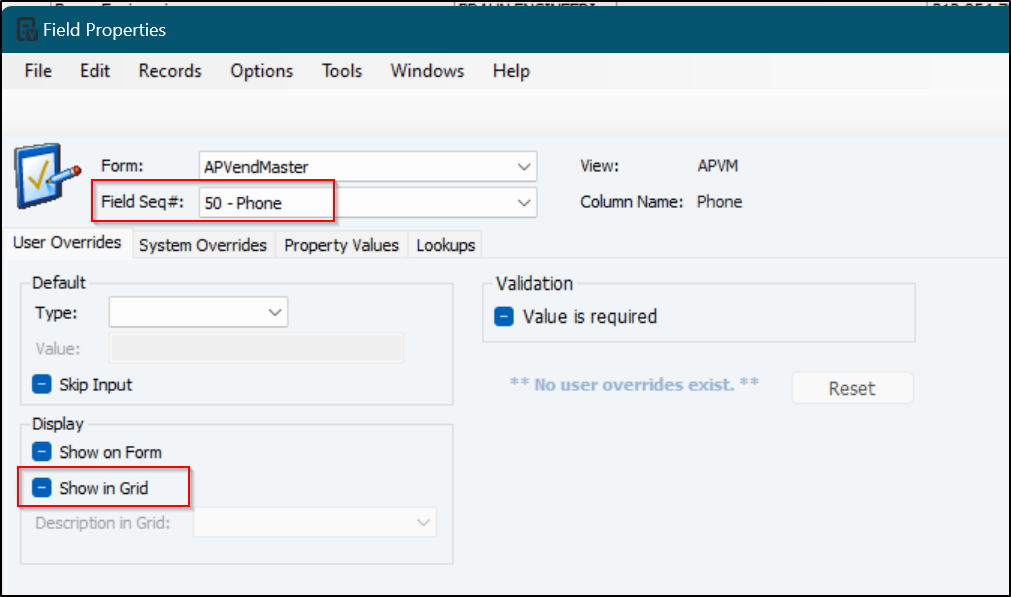
<img height="597" src="https://fluxconsole.com/files/item/882/180056/image.png" width="1011" />
<hr />
<div style="text-align: center;"><strong>Temporarily Showing Hidden Columns</strong></div>
So, you hide some columns and now you need to enter some data in a hidden column but it&#39;s only a one-off time.&nbsp; You don&#39;t need to go through the trouble of unhiding, enter data, and hide again.<br />
<br />
Head to the menu and select the&nbsp;<strong>View</strong>&nbsp;option.&nbsp; From there you can show hidden fields.&nbsp; Hidden fields will now show until you close the window and re-open it.<br />
<img height="439" src="https://fluxconsole.com/files/item/882/180058/image.png" width="850" />
<hr /><br />
There are many many ways to customize the Vista experience for you and your fellow users.&nbsp; Feel free to book a call with us if you&#39;d like to see if there are ways we can make data entry into Vista easier for your business.]]>
            </content>
                          <enclosure url="https://fluxconsole.com/files/image/246825" length="0" type="image/jpg" />
                                    <updated>2023-09-26T11:35:45-05:00</updated>
        </entry>
            <entry>
            <title><![CDATA[No more &quot;who wants to take notes?&quot;]]></title>
            <link rel="alternate" href="https://www.constructech.io/blog/no-more-who-wants-to-take-notes" />
            <id>https://constructech.modihost.com/179420</id>
            <author>
                <name> <![CDATA[XXX Website Cemetery / Graveyard]]></name>
            </author>
            <summary type="html">
                <![CDATA[AI-generated summaries, transcripts, playback, and highlights to make your meetings more efficient and effective Bringing together construction and technology]]>
            </summary>
            <content type="html">
                <![CDATA[<strong>Introducing Read AI: Your Personal Meeting Efficiency Partner</strong><br />
<br />
In an era where remote work and digital collaboration have become the norm, tools like Microsoft Teams have played a pivotal role in facilitating seamless communication among teams and organizations. Microsoft Teams has consistently evolved to meet the dynamic needs of modern work environments. One such innovation is the ReadAI feature, which has the potential to transform the way we engage in chat conversations. Let&#39;s dive into the ReadAI feature, exploring its capabilities, benefits, and its impact on team collaboration.<br />
<br />
Imagine having a trusted companion that transforms your meetings into seamless, productive experiences. That&#39;s precisely what Read AI is here to do.<br />
<img height="562" src="https://fluxconsole.com/files/item/882/179460/image.png" width="415" />As you embark on your meeting journey with Read, you&#39;ll discover a world of efficiency and effectiveness. In real time, Read provides gentle nudges to elevate the meeting quality and effortlessly manages meeting notes. And after the meeting concludes, it&#39;s Read that steps up to deliver a comprehensive meeting summaries, sparing you the hassle.<br />
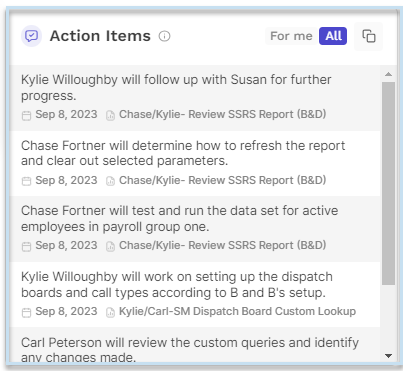
<br />
But here&#39;s the magic &ndash; Read learns from your meetings, understanding what makes them truly effective. It offers tailored recommendations to enhance your gatherings and unveils trending topics, allowing you to witness your work&#39;s evolution firsthand.<br />
<br />
Picture this: You&#39;re about to use the Read app in your meeting. First, you might see a recording dialog, depending on your video conferencing platform. Allowing recording unlocks a treasure trove of features &ndash; transcriptions, summaries, and video playback, all neatly packaged in the meeting report.<br />
Once recording is a go, Read seamlessly joins your call, just like any other participant. Throughout the meeting, you gain access to real-time metrics &ndash; talk time, sentiment, engagement, and Read Score &ndash; all distilled from verbal and visual interactions among participants. You can even refine your communication by monitoring filler words and average talking speed. These metrics, aggregated for all participants, refresh every 10 seconds.<br />
<br />
And the convenience doesn&#39;t stop there. You can effortlessly take notes and revisit past meeting reports, all within the Read app. Forgotten action items from your last group meeting? Read&#39;s got your back.<br />
<img src="https://fluxconsole.com/files/item/882/179459/image.png" style="width: 403px; height: 371px;" />Post-meeting, a treasure trove of insights awaits you in the form of a meeting report. Transcript summaries and video playback are just the beginning &ndash; you&#39;ll also delve into the most significant moments based on engagement. It&#39;s like having a highlight reel for your meetings, boosting engagement as Read takes care of the note-taking.<br />
<br />
Getting started with Read is a breeze. In just two minutes, you can harness its power for free.<br />
<br />
Two simple ways to access it: Open your browser, visit <a href="https://www.read.ai/teams">Read AI</a>, and select &quot;<strong>Create Account</strong>,&quot; or find Read AI on your Teams App.<br />
<img height="495" src="https://fluxconsole.com/files/item/882/179461/image.png" width="1192" />Sync your calendar to let Read know when to jump into action, and feel free to fine-tune the settings during onboarding. For Zoom users, adding Read ensures you unlock its full potential.<br />
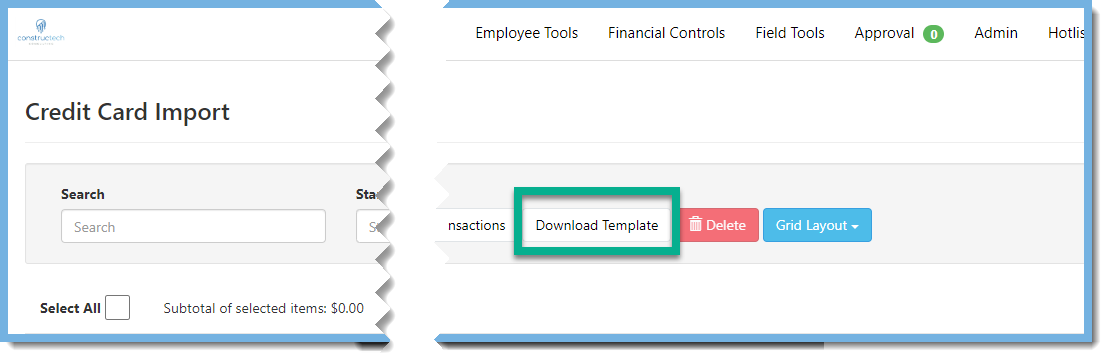
<br />
That&#39;s it &ndash; with your preferred join preferences in place, you&#39;re all set to experience the remarkable difference that Read AI brings to your meetings. Welcome to a new era of effortless efficiency and productivity!<br />
<br />
At ConstrucTech we want to make sure to provide you with the most up to date information and technology available to better improve your overall experience.&nbsp;&nbsp;<br />
<br />
Connect with&nbsp;<a href="https://outlook.office365.com/owa/calendar/ConstrucTechConsulting@constructech.consulting/bookings/">ConstrucTech Consulting</a>&nbsp;to learn more useful tips and tricks!&nbsp;]]>
            </content>
                          <enclosure url="https://fluxconsole.com/files/image/246571" length="0" type="image/jpg" />
                                    <updated>2023-09-19T11:35:45-05:00</updated>
        </entry>
            <entry>
            <title><![CDATA[Credit Card Import Failed?]]></title>
            <link rel="alternate" href="https://www.constructech.io/blog/credit-card-import-failed" />
            <id>https://constructech.modihost.com/178868</id>
            <author>
                <name> <![CDATA[XXX Website Cemetery / Graveyard]]></name>
            </author>
            <summary type="html">
                <![CDATA[The Credit Card Transactions Import in the Trimble Viewpoint Vista Web Portal has failed due to the old template being incompatible with the 2023 R8 Update. Bringing together construction and technology]]>
            </summary>
            <content type="html">
                <![CDATA[<div style="text-align: center;"><em><strong><span style="color:#3579bc;"><span style="font-size:18px;">&quot;Credit Card Import Fail&quot;</span></span></strong></em></div>

<div><em><strong><span style="color:#3579bc;">Did you receive a &quot;Credit Card Import Fail&quot; message when trying to import Credit Card transactions into the Trimble Viewpoint Vista&nbsp;Web Portal after the 2023 R8 Update?&nbsp; If so,&nbsp;you may be&nbsp;receiving the error because the template for the import now requires the employee number column.&nbsp; The old template is no longer compatible with the import.&nbsp;&nbsp;<br />
<br />
You will be excited to hear this is an easy fix!&nbsp; &nbsp;Just follow the steps below.<br />
<br />
Web Portal&gt;Employee Tools&gt;Credit Card Import</span></strong></em><img alt="Download Template Button" src="https://fluxconsole.com/files/item/882/178888/image.png" style="width: 1107px; height: 357px;" /><em><strong><span style="font-size: 1rem;"><span style="color:#3579bc;">Click on Download Template.</span>&nbsp;&nbsp;</span></strong></em><br />
<img alt="Credit Card Transaction Template" src="https://fluxconsole.com/files/item/882/178891/image.png" style="width: 714px; height: 302px;" /><em><strong>T<span style="color:#3579bc;">he new template will open.&nbsp; Open your current import file in Microsoft Excel or Google Sheets.<br />
<br />
Copy each column from your old template into the new template that you just downloaded.&nbsp; Make sure that the columns match between the old and new template.&nbsp; The new&nbsp;Employee field can be left blank or can be populated with the corresponding employee numbers.&nbsp; Next do a Find and replace to remove commas for compatibility with the csv format.&nbsp; Save the new template as a</span> <span style="color:#3579bc;">.CSV file.&nbsp;&nbsp;</span></strong></em><br />
<img alt="Import Transactions Button" src="https://fluxconsole.com/files/item/882/178894/image.png" style="width: 943px; height: 307px;" /><em><strong><span style="color:#3579bc;">Click on Import Transactions.&nbsp; Choose the new template .CSV file and click on open.&nbsp; The file should be imported.<br />
<br />
Visit our website at <a href="http://constructech.io">ConstrucTech Consulting</a> to contact us if you need assistance setting up Standard Notes and follow us on <a href="https://www.linkedin.com/search/results/all/?keywords=constructech%20consulting&amp;origin=TYPEAHEAD_HISTORY&amp;searchId=11ac3d69-a318-4b0e-89c9-b58457d42f83&amp;sid=XWL">LinkedIn</a> for more Tip Tuesdays.</span></strong></em><br />
&nbsp;</div>]]>
            </content>
                          <enclosure url="https://fluxconsole.com/files/image/245515" length="0" type="image/jpg" />
                                    <updated>2023-09-05T11:35:45-05:00</updated>
        </entry>
            <entry>
            <title><![CDATA[When Vista isn&#039;t enough]]></title>
            <link rel="alternate" href="https://www.constructech.io/blog/when-vista-isnt-enough" />
            <id>https://constructech.modihost.com/178706</id>
            <author>
                <name> <![CDATA[XXX Website Cemetery / Graveyard]]></name>
            </author>
            <summary type="html">
                <![CDATA[What to do when Vista isn't enough Bringing together construction and technology]]>
            </summary>
            <content type="html">
                <![CDATA[<p>Businesses are complicated and sometimes Vista out of the box isn&#39;t enough for a particular part of your business.&nbsp; Now, don&#39;t get me wrong...Vista Construction Accounting is a world class database with an abundance of customizability and reporting options.&nbsp; However, sometimes there&#39;s a business need that Vista doesn&#39;t address.&nbsp; Trimble/Viewpoint partners to the rescue!!!<br />
<br />
Trimble/Viewpoint has partnered with many 3rd party software developers&nbsp;to integrate and interface custom solutions with Vista&#39;s powerful accounting suite.<br />
<br />
Are you a Heavy Civil contractor and need specific weighing/dispatching software?&nbsp; Trimble has a software partner for that.&nbsp; Like pulling lot&#39;s of data into spreadsheets?&nbsp; Also a partner for that.<br />
<br />
To see all of the Trimble Vista&nbsp;software partners, head to <a href="https://www.viewpoint.com/company/partners/software/vista">https://www.viewpoint.com/company/partners/software/vista</a>&nbsp;and browse through their software partners to find a solution that is tightly integrated with Vista.<br />
<br />
Of course, if you&#39;re too busy running your business, we would love to help evaluate your needs to find and implement a solution for you.&nbsp; Book a call with us to see how to extend Vista to solve a business problem.</p>]]>
            </content>
                          <enclosure url="https://fluxconsole.com/files/image/244867" length="0" type="image/jpeg" />
                                    <updated>2023-08-29T11:35:45-05:00</updated>
        </entry>
            <entry>
            <title><![CDATA[Attachment Issues]]></title>
            <link rel="alternate" href="https://www.constructech.io/blog/attachment-issues" />
            <id>https://constructech.modihost.com/177746</id>
            <author>
                <name> <![CDATA[XXX Website Cemetery / Graveyard]]></name>
            </author>
            <summary type="html">
                <![CDATA[Information on Attachments in Vista Bringing together construction and technology]]>
            </summary>
            <content type="html">
                <![CDATA[Do You Have Attachment Issues?<br />
&nbsp;<br />
Most know that in Vista, you can attach documents to most records within the programs. This is most often used for copies of invoices in Accounts Payable and employee documents in Payroll. But there may be some things that you do not know:
<ul>
	<li>&nbsp;When you attach an item, you should always set an attachment type to the item. This is what secures the attachment and gives the ability to assign access to those users that should be able&nbsp;to see the attachment.</li>
</ul>
<img alt="Screenshot of Attachment Form in Vista" src="https://fluxconsole.com/files/item/882/177755/Screenshot%20of%20Attachment%20Form%20in%20Vista.jpg" style="width: 700px; height: 182px;" />
<ul>
	<li>You can set default attachment types to forms, at the employee and system level, so that you do not have to add the attachment type every time you attach something.</li>
	<li>You can add PDFs, pictures, Word documents, Excel spreadsheets, etc.</li>
	<li>It can be very easy to drag-and-drop an attachment from emails or from anywhere on your device.</li>
	<li>&nbsp;One way of adding attachments is to scan directly into Vista using a scanner. If you are interested in this method, check the Knowledge Base Articles because there are specifications on the type of scanner you need, and at the time of this article there was a known issue with Windows 11 and scanning directing into Vista. Do your research beforehand.</li>
	<li>&nbsp;You can view the attachments from the dropdown next to the Paperclip &gt; View Attachments (the window that opens will lock you up and you will not be able to do anything else in Vista, so when you are finished looking at the attachment, close the Attachment Form before moving on to something else in Vista), or you can go to the dropdown next to the&nbsp; Paperclip &gt; Attachment List to open a section to the right of the screen that lists all of the attachments. This does not lock up anything,&nbsp;you can&nbsp;easily see what is attached, and click on the item that you want to view.</li>
</ul>
<img alt="Screenshot of Attachment Lister Selection in Vista" src="https://fluxconsole.com/files/item/882/177756/Screenshot%20of%20Attachment%20Lister%20Selection%20in%20Vista.jpg" style="width: 601px; height: 219px;" />
<ul>
	<li>And a NEW feature, if you have reports assigned to the form (which is something that can easily be added), under Options &gt; Reports, you can print a report, choose Export, then choose Attach to Form and it will attach a copy of the report to the form.</li>
</ul>
<img alt="Screenshot of T&amp;M Report Selection in Vista" src="https://fluxconsole.com/files/item/882/177759/Screenshot%20of%20T&amp;M%20Report%20Selection%20in%20Vista.jpg" style="width: 600px; height: 344px;" /><img alt="Screenshot of T&amp;M Report Attach in Vista" src="https://fluxconsole.com/files/item/882/177761/Screenshot%20of%20T&amp;M%20Report%20Attach%20in%20Vista.jpg" style="width: 700px; height: 537px;" />
<div style="margin-left: 40px;">This is really great for T&amp;M Billing. If you print the invoice, attach it to the invoice in JB T&amp;M Bill Edit, then you can use the Billing Compiler in Vista Web to pull in that invoice and all the attachments that are related to that invoice. You can remove any unneeded attachments or add other miscellaneous attachments. Then you can download a full PDF of your package or download a zip file. Even though you cannot email it out from the billing compiler at this time, you can save it and email it manually.</div>
<img alt="Screenshot of Billing Compiler in Vista Web" src="https://fluxconsole.com/files/item/882/177750/Screenshot%20of%20Billing%20Compiler%20in%20Vista%20Web.jpg" style="width: 699px; height: 380px;" /><br />
If you would like assistance with any of the above ideas, please click Book A Call to reach out to any of our consultants.]]>
            </content>
                          <enclosure url="https://fluxconsole.com/files/image/243896" length="0" type="image/png" />
                                    <updated>2023-08-22T11:35:45-05:00</updated>
        </entry>
            <entry>
            <title><![CDATA[Standard Notes can be music to your ears!]]></title>
            <link rel="alternate" href="https://www.constructech.io/blog/standard-notes-can-be-music-to-your-ears" />
            <id>https://constructech.modihost.com/177192</id>
            <author>
                <name> <![CDATA[XXX Website Cemetery / Graveyard]]></name>
            </author>
            <summary type="html">
                <![CDATA[Standard Notes can be music to your ears! Bringing together construction and technology]]>
            </summary>
            <content type="html">
                <![CDATA[<div style="text-align: center;"><br />
<span style="font-size:20px;"><strong><span style="color:#3579bc;"><em>Standard Notes in Vista</em></span></strong></span><br />
&nbsp;</div>

<div><span style="font-size:16px;"><strong><span style="color:#3579bc;"><em>Did you know that you can setup Standard Notes that&nbsp;can be selected when populating Notes fields in Vista??&nbsp; You can use the HQ Standard Note task in the Headquarters (HQ) module to create standard notes for frequently used information, such as billing procedures, shipping procedures, special requirements, or company policies.&nbsp; Once these Standard Notes are set up, they can be pulled into header or item notes in various forms throughout the Vista system (i.e., work orders, change orders, purchase&nbsp;orders, subcontracts).<br />
<br />
HQ&gt;Programs&gt;Standard Note&gt;Info</em></span></strong></span></div>

<div style="text-align: center;"><img alt="HQ Standard Notes info tab" src="https://fluxconsole.com/files/item/882/177314/image.png" style="width: 441px; height: 275px;" /></div>
<span style="font-size: 1rem;"><strong><span style="color:#47c8bf;"><em>1.</em></span></strong>&nbsp;<span style="font-size:16px;"><em><strong><span style="color:#3579bc;"> </span></strong></em></span><strong><span style="color:#3579bc;"><em><span style="font-size:16px;">Standard N</span>ote</em> - <em>Enter a code (up to 10 characters) that uniquely&nbsp; &nbsp; &nbsp; &nbsp; &nbsp;identifies this note.</em></span></strong><br />
<em><strong><span style="color:#47c8bf;">2.</span></strong></em>&nbsp; <strong><span style="color:#3579bc;"><em>Description </em>- <em>Enter a description for this note (up to 30&nbsp; &nbsp; &nbsp; &nbsp; &nbsp; &nbsp; &nbsp; &nbsp; &nbsp; &nbsp; &nbsp; &nbsp; &nbsp; &nbsp;characters).</em></span></strong><br />
<em><strong><span style="color:#47c8bf;">3.</span></strong></em>&nbsp;<strong> <span style="color:#3579bc;"><em>Created By - Enter the name of the person who created the note&nbsp; &nbsp; &nbsp; &nbsp; &nbsp; &nbsp; (up to 30 characters).</em></span></strong><br />
<em><strong><span style="color:#47c8bf;">4.</span></strong></em>&nbsp; <strong><span style="color:#3579bc;"><em>Creation Date</em> - <em>Enter the date the note was created.</em></span></strong></span>

<div><br />
<em><strong><span style="color:#3579bc;">HQ&gt;Programs&gt;Standard Note&gt;Notes</span></strong></em><br />
<img alt="HQ Standard Note Notes tab" src="https://fluxconsole.com/files/item/882/177316/image.png" style="width: 441px; height: 223px;" /><em><strong><span style="color:#3579bc;">In the Notes tab, enter any miscellaneous notes about this item.&nbsp; &nbsp;</span></strong></em><br />
<img alt="HQ Standard Notes Notes tab" src="https://fluxconsole.com/files/item/882/177320/image.png" style="width: 558px; height: 551px;" /><em><strong><span style="color:#3579bc;">Once you have entered any miscellaneous notes, with your cursor in the&nbsp;notes field, click on Tools and Spelling to do a spell check.&nbsp;</span></strong></em><br />
<img alt="HQ Standard Note Notes tab" src="https://fluxconsole.com/files/item/882/177321/image.png" style="width: 623px; height: 388px;" /><em><strong><span style="color:#3579bc;">Or you can click on the spell check icon in the Tool Bar!<br />
<br />
Now that the Standard Note has been setup in the HQ Module, the Standard Note can be inserted into the Notes field.&nbsp;&nbsp;</span></strong></em><br />
<img height="780" src="https://fluxconsole.com/files/item/882/177371/image.png" width="446" /><em><strong><span style="color:#3579bc;">In the Notes tab, right click and choose Standard Notes.</span></strong></em><br />
<img height="847" src="https://fluxconsole.com/files/item/882/177372/image.png" width="458" /><em><strong><span style="color:#3579bc;">With your cursor in the Std Note to Copy field, press F4.&nbsp; The Standard Note Lookup box will pop up.&nbsp; Choose the Standard Note you want and click ok.&nbsp; &nbsp;If you need to setup a Standard Note you can click on Setup and it will take you to the HQ Standard Note setup screen.</span></strong></em><br />
<img height="245" src="https://fluxconsole.com/files/item/882/177373/image.png" width="555" /><em><strong><span style="color:#3579bc;">&nbsp;Once you choose the Standard Note you want and click ok, the Note field will be populated.&nbsp;</span></strong></em><br />
<br />
<em><strong><span style="color:#3579bc;">Visit our website at </span><a href="http://constructech.io"><span style="color:#3579bc;">ConstrucTech Consulting</span></a><span style="color:#3579bc;"> to contact us if you need assistance setting up Standard Notes and follow us on </span><a href="https://www.linkedin.com/search/results/all/?keywords=constructech%20consulting&amp;origin=TYPEAHEAD_HISTORY&amp;searchId=c869bd53-b988-4cc9-bbcf-d5ceea8dc897&amp;sid=~oA"><span style="color:#3579bc;">LinkedIn</span></a><span style="color:#3579bc;"> for more Tip Tuesdays.</span></strong></em></div>]]>
            </content>
                          <enclosure url="https://fluxconsole.com/files/image/243258" length="0" type="image/jpg" />
                                    <updated>2023-08-15T11:35:45-05:00</updated>
        </entry>
            <entry>
            <title><![CDATA[TC1 Team Quick Links]]></title>
            <link rel="alternate" href="https://www.constructech.io/blog/tc1-team-quick-links" />
            <id>https://constructech.modihost.com/176323</id>
            <author>
                <name> <![CDATA[XXX Website Cemetery / Graveyard]]></name>
            </author>
            <summary type="html">
                <![CDATA[Trimble Construction One - Team Application Links Bringing together construction and technology]]>
            </summary>
            <content type="html">
                <![CDATA[<h2><span style="color:#3366cc;">Trimble Construction One - Quick Link</span><img src="https://fluxconsole.com/files/item/882/176334/image.png" style="width: 107px; height: 48px;" /></h2>
ConstrucTech&rsquo;s <span style="color:#3399cc;">Kylie Willoughby</span> posted an article back in February on utilizing <a href="https://constructech.modihost.com/blog/viewpoint-vista-quick-links">Viewpoint Vista - Quick Links</a>. I found this blog extremely helpful and started relying heavily on quick links in Vista to navigate to different websites quickly.<br />
Trimble Construction One - Team gives you the same ability to configure URL links to navigate to your desired websites.
<h3>Check out how!</h3>

<hr />As an <em>Enterprise Admin</em>, navigate to your Username in the top right corner.&nbsp;Drop down and select <span style="color:#3366cc;"><strong>Admin Center</strong></span><br />
<img height="508" src="https://fluxconsole.com/files/item/882/176327/image.png" width="393" />
<hr />Once in the Admin Center, select <strong>MODULES</strong> and then&nbsp;<strong>APPLICATIONS</strong><br />
<img height="324" src="https://fluxconsole.com/files/item/882/176363/image.png" width="566" />
<hr />Select <strong>ADD NEW APPLICATION</strong><br />
<img height="480" src="https://fluxconsole.com/files/item/882/176329/image.png" width="838" />
<hr />Enter the desired Name and URL Link to <strong>CREATE CUSTOM APPLICATION </strong>and click Save!&nbsp;<br />
<img height="550" src="https://fluxconsole.com/files/item/882/176330/image.png" width="975" />
<hr />Now when you select the Application menu in the top right, you will see your new Application!<br />
<img height="555" src="https://fluxconsole.com/files/item/882/176331/image.png" width="590" />
<hr />Select the new application and enjoy navigating quickly to a new webpage!<br />
<img height="519" src="https://fluxconsole.com/files/item/882/176332/image.png" width="975" />Check out <a href="https://constructech.modihost.com/blog">Blog - ConstrucTech Consulting</a>&nbsp;for more tips and tricks every Tuesday!<br />
<br />
&nbsp;]]>
            </content>
                          <enclosure url="https://fluxconsole.com/files/image/241700" length="0" type="image/jpg" />
                                    <updated>2023-08-01T11:35:45-05:00</updated>
        </entry>
            <entry>
            <title><![CDATA[Vista Report Catalog]]></title>
            <link rel="alternate" href="https://www.constructech.io/blog/vista-report-catalog" />
            <id>https://constructech.modihost.com/176208</id>
            <author>
                <name> <![CDATA[XXX Website Cemetery / Graveyard]]></name>
            </author>
            <summary type="html">
                <![CDATA[Don't know which report to run in Viewpoint? Don't sweat it! Use the Reports Catalog instead. Bringing together construction and technology]]>
            </summary>
            <content type="html">
                <![CDATA[<div>There is no doubt about it, when it comes to reporting, Viewpoint has you covered.&nbsp; &nbsp;<br />
<br />
Literally, hundreds of standard reports that come with this ERP!&nbsp;<br />
<br />
<img src="https://fluxconsole.com/files/item/882/176211/image.png" style="width: 600px; height: 300px; float: left; margin: 1px;" /><br />
<br />
<br />
<br />
<br />
<br />
<br />
<br />
<br />
<br />
So many reports,&nbsp; that it can be a bit overwhelming and leave you scratching your head as to where to even begin!&nbsp;<br />
<br />
Picture going through each report, entering in your parameters and previewing them one at a time just to find that it&#39;s not giving you the detail you need.&nbsp;</div>
<br />
<img src="https://fluxconsole.com/files/item/882/176218/image.png" style="width: 300px; height: 216px; float: right; margin: 1px;" /><br />
<br />
<br />
Honestly, who has time for that?!&nbsp;<br />
<br />
<br />
&nbsp;
<div style="text-align: center;"><br />
<br />
Don&#39;t sweat this process anymore.&nbsp; Try using the <strong>Report Catalog</strong> instead!&nbsp; &nbsp;</div>
<br />
<br />
<span style="font-size:20px;"><u><strong>Accessing Viewpoint Reports Catalog</strong></u></span><br />
<br />
If you are already logged into Viewpoint, just locate the <strong>Help</strong> menu at the top of any of your screens, then select <strong>Viewpoint Help.</strong><br />
<img height="294" src="https://fluxconsole.com/files/item/882/176212/image.png" width="638" />Once you are redirected to Viewpoint Help, select <strong>Reports Catalog</strong>.<br />
<img height="774" src="https://fluxconsole.com/files/item/882/176213/image.png" width="1464" />Here you will be provided a list of all the standard reports for each module.&nbsp;&nbsp;<br />
<img height="731" src="https://fluxconsole.com/files/item/882/176215/image.png" width="1115" />
<div style="text-align: center;"><span style="font-size:8px;">Each module provides <strong>General Reports</strong> and <strong>Australia - Specific Reports</strong>&nbsp;.&nbsp;&nbsp;</span></div>
<br />
Clicking on <strong>General Reports </strong>displays a list of all general reports assigned to that module, along with a description and a recommended run frequency for each report.&nbsp;<br />
<img height="842" src="https://fluxconsole.com/files/item/882/176216/image.png" width="863" />&nbsp;WAIT, it gets even better!&nbsp;<br />
<br />
By selecting the Title links on one of these reports, you can see the Report Parameters and it shows you a sample of the report you are running!!!&nbsp;<br />
<br />
<img height="688" src="https://fluxconsole.com/files/item/882/176219/image.png" width="890" />No need to dread this process next time you are looking for that perfect report.&nbsp;&nbsp;<br />
<br />
You don&#39;t even need to be logged into Viewpoint to view these either, just visit the link at:&nbsp;<a href="https://help.viewpoint.com/en/vista/2023-r1">https://help.viewpoint.com/en/vista/2023-r1</a><br />
&nbsp;
<div style="text-align: center;"><strong>Connect with&nbsp;<a href="https://outlook.office365.com/owa/calendar/ConstrucTechConsulting@constructech.consulting/bookings/">ConstrucTech Consulting</a>&nbsp;to learn more useful tips and tricks!&nbsp;</strong></div>]]>
            </content>
                          <enclosure url="https://fluxconsole.com/files/image/241552" length="0" type="image/jpg" />
                                    <updated>2023-07-25T11:35:45-05:00</updated>
        </entry>
            <entry>
            <title><![CDATA[Excel Data tricks for importing into Vista]]></title>
            <link rel="alternate" href="https://www.constructech.io/blog/excel-data-tricks-for-importing-into-vista" />
            <id>https://constructech.modihost.com/176044</id>
            <author>
                <name> <![CDATA[XXX Website Cemetery / Graveyard]]></name>
            </author>
            <summary type="html">
                <![CDATA[Excel, Power Query, & CSV...Oh My!! Bringing together construction and technology]]>
            </summary>
            <content type="html">
                <![CDATA[Often times when importing data into Vista that originated from another system, there comes a need to edit a .CSV file in Excel.&nbsp; Excel usually does a good job of converting that data into a spreadsheet then converting it back into .CSV files...except for when it doesn&#39;t.&nbsp; The biggest offender is numbers with leading zero&#39;s that need to be preserved or numbers with commas and dollar signs that Excel thinks is text.&nbsp; <strong>PowerQuery to the rescue.</strong><br />
<br />
This small dataset needs to be manipulated in Excel before importing into Vista.&nbsp; If I open in Excel by double clicking on the file then I will lose the leading zero&#39;s.<br />
<img alt="A small table with numbers and letters" src="https://fluxconsole.com/files/item/882/176046/image.png" style="width: 109px; height: 85px;" />Rather than opening the .csv in Excel, instead try opening a blank Excel workbook. Then head to the Data menu, Get Data, From File, From Text/CSV.<br />
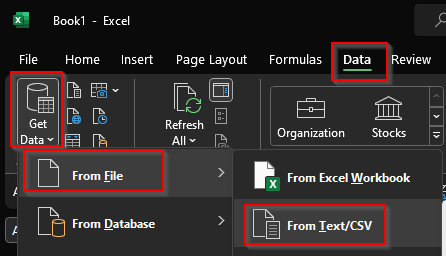
<img alt="a screen snip of excel's menu showing how to import a text file" src="https://fluxconsole.com/files/item/882/176047/image.png" style="width: 446px; height: 256px;" />Select the file and choose Transform Data.<br />
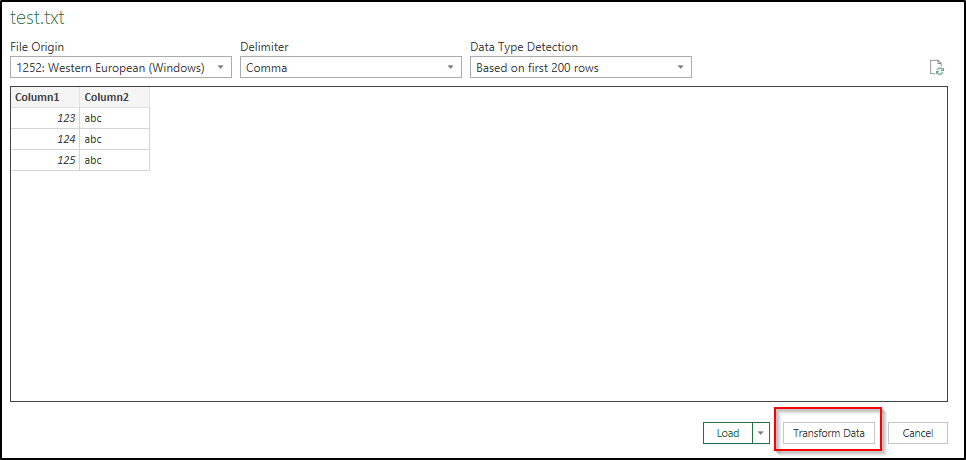
<img alt="a screen snip from power query after grabbing a new file to import" src="https://fluxconsole.com/files/item/882/176048/image.png" style="width: 966px; height: 460px;" />PowerQuery will attempt to guess the data types just as Excel would, only we can now change that guess in PowerQuery, unlike Excel.<br />

<img alt="Screen snip from Power Query" src="https://fluxconsole.com/files/item/882/176049/image.png" style="width: 887px; height: 174px;" />Click the icon in the left corner of the header and choose something different.<br />

<img alt="screen snip from power query" src="https://fluxconsole.com/files/item/882/176051/image.png" style="width: 879px; height: 175px;" />Voila, our data is now ready to load into Excel as intended without any erroneous auto-corrects.<br />
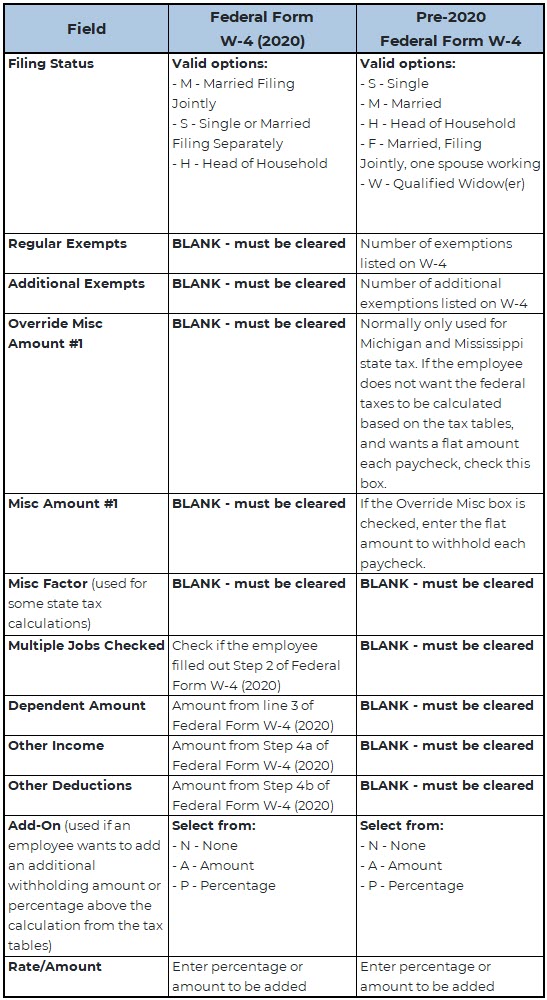
<br />
Exporting data from 3rd party systems and websites into Vista is something some of our clients do every day.&nbsp; Reach out if you are interested in learning how to import data into Vista.&nbsp; Or, if you are too busy actually running your business, we would be happy to develop a solution to streamline data imports into Vista for you.]]>
            </content>
                          <enclosure url="https://fluxconsole.com/files/image/241218" length="0" type="image/png" />
                                    <updated>2023-07-18T11:35:45-05:00</updated>
        </entry>
            <entry>
            <title><![CDATA[Federal Filing Status Instructions - New and Old W-4 Form]]></title>
            <link rel="alternate" href="https://www.constructech.io/blog/federal-filing-status-instructions-new-and-old-w-4-form" />
            <id>https://constructech.modihost.com/175792</id>
            <author>
                <name> <![CDATA[XXX Website Cemetery / Graveyard]]></name>
            </author>
            <summary type="html">
                <![CDATA[Vista federal filing status update using the old or the new W-4 Form Bringing together construction and technology]]>
            </summary>
            <content type="html">
                <![CDATA[Did your employee fill out the old W-4 form that we filled out for years, or did they fill out the new W-4 from 2020? It matters when entering data into Vista to get the desired results. You may not realize that having data in some fields will affect the withholding calculation. There are some fields that should be blank for both forms. When they are not, the system does not know whether to calculate withholdings based on the old form or the new.<br />
&nbsp;<br />
Before we get started though, there are several places where the filing status can be entered or changed. You can update the filing status in <span style="color:#40e0d0;"><strong>HR Resources &gt; Filing Status</strong></span> tab, in <strong>PR Employees &gt; Filing Status</strong> tab or <strong>Dedns/Liabs</strong> tab, and in <strong>PR Employee Dedns/Liabs</strong>. Would you like for changes to update the other places where this data lives? If so, make sure to check the&nbsp;<strong>W-4 Info</strong> box in <strong>HR Company Parameters</strong>, under <strong>Updates</strong>.<br />
&nbsp;<br />
To update the Federal Filing Status for an employee enter the deduction code for Federal Withholdings. The chart below describes the remaining fields and what should be blank and what should be filled in from the W-4 form.<br />
<img alt="W-4 Filing Status Chart" src="https://fluxconsole.com/files/item/882/175793/W-4%20Filing%20Status%20Chart.jpg" style="width: 547px; height: 1000px;" />Hopefully this simplifies things and makes your federal withholdings calculate perfectly!<br />
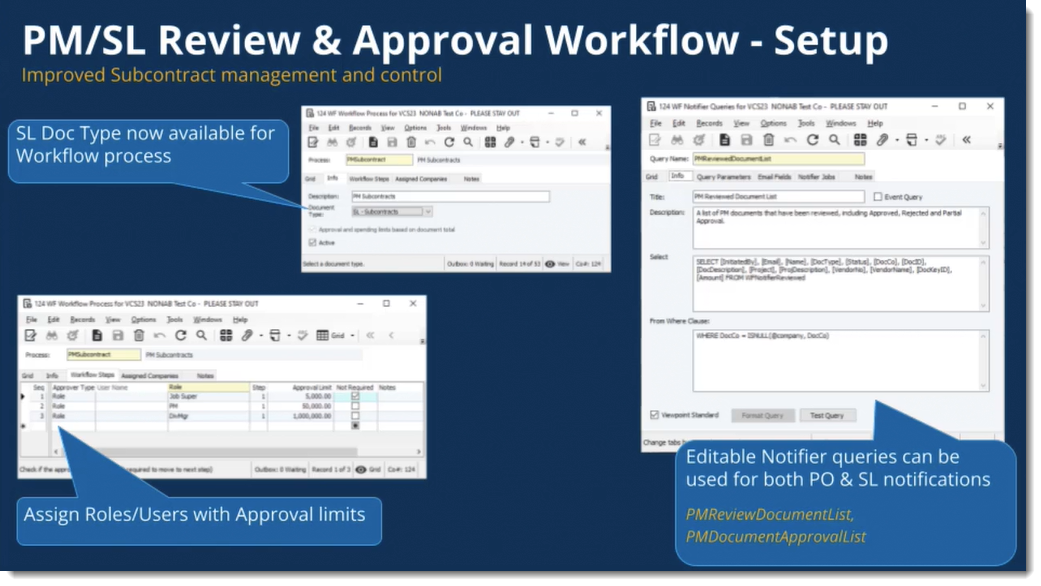
&nbsp;<br />
If you have any questions or would like assistance with this or any other Vista issues, please click <strong>&quot;Book A Call&quot;</strong> and schedule a free 30-minute initial consultation with one of our consultants.]]>
            </content>
                          <enclosure url="https://fluxconsole.com/files/image/240839" length="0" type="image/jpg" />
                                    <updated>2023-07-11T11:35:45-05:00</updated>
        </entry>
            <entry>
            <title><![CDATA[Vista 2023 R1 Update Is Here OR Coming Soon]]></title>
            <link rel="alternate" href="https://www.constructech.io/blog/vista-2023-r1-update-is-here-or-coming-soon" />
            <id>https://constructech.modihost.com/174832</id>
            <author>
                <name> <![CDATA[XXX Website Cemetery / Graveyard]]></name>
            </author>
            <summary type="html">
                <![CDATA[Vista 2023 R1 Update is either here or coming soon. Bringing together construction and technology]]>
            </summary>
            <content type="html">
                <![CDATA[The new release Vista 2023 R1 is finally here, well for some Vista users it may still be coming! The new enhancements and features are really exciting. Here is a summary of a few:<br />
&nbsp;<br />
<strong>Subcontract review and approval process</strong> - similar to the Purchase Order review and approval process. This has been an important need for many of our clients. We have come up with different work arounds that have helped but this will make it much more streamlined.<br />
<img alt="PM-SL Review &amp; Approval Workflow-Setup" src="https://fluxconsole.com/files/item/882/174833/PM-SL%20Review%20&amp;%20Approval%20Workflow-Setup.png" style="width: 711px; height: 400px;" /><strong>Job Billing Invoice Delivery</strong> - email invoices to customers. We have been waiting for this too. There is the ability to assign the invoice formats on JB Company Parameters and you can override that at the AR Customer level and/or at the contract-level. An override for the recipient of the emailed invoice can be made on the JC Contract, JB Progress Billing, JB T&amp;M Edit, or on the new JB Invoice Delivery, if necessary. One concern is that the JB Invoice Delivery does not include attachments. The Billing Compiler in Financial Controls is still the best place for that process.<br />
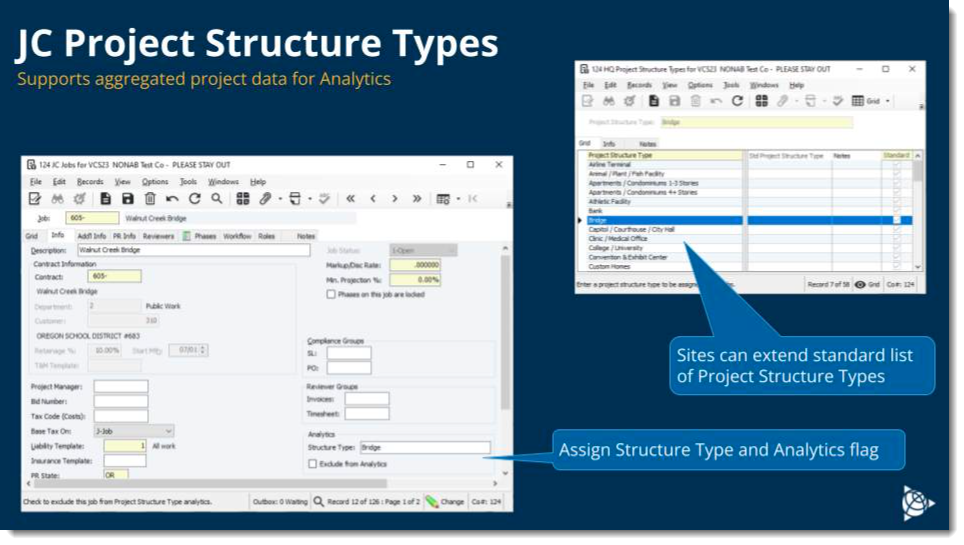
<br />
<strong>Project Structure Types</strong> - a field was added to JC Jobs and PM Projects to select from predefined or custom project structure types to be used in Analytics. There is also a check box to allow you to exclude the selected job from Analytics reporting.<br />
<img alt="JC Project Structures" src="https://fluxconsole.com/files/item/882/174834/JC%20Project%20Structures.png" style="width: 708px; height: 400px;" /><strong>Payroll Period Close Process</strong> - when running the close process on a pay period, the system will ask if you want to run the accrual/usage update for employee leave. This is nice because not running that final leave update is usually what holds up running the GL Month Close.<br />
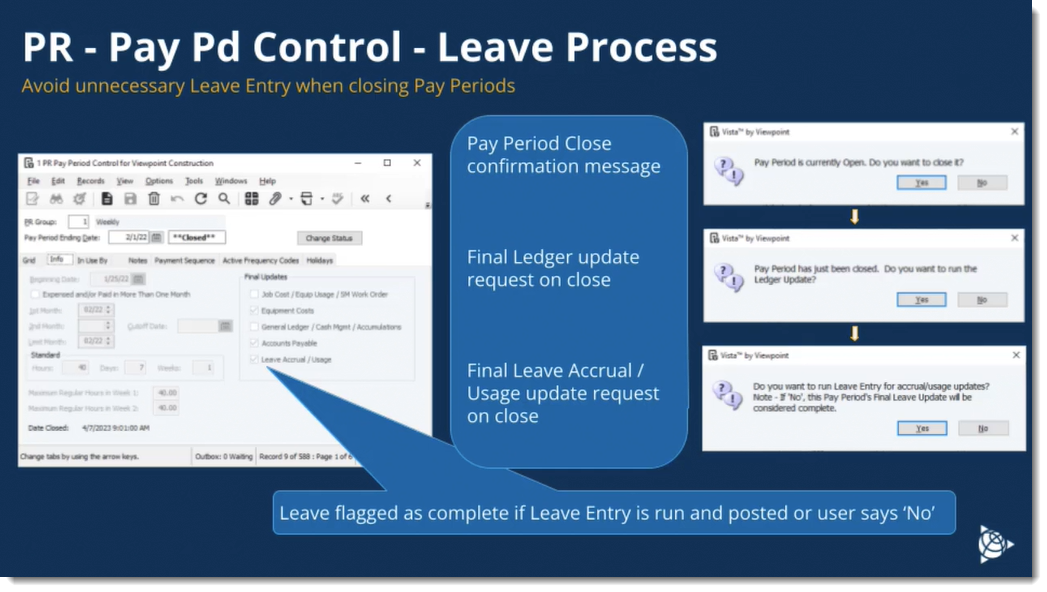
<img alt="PR - Pay Pd Control - Leave Process" src="https://fluxconsole.com/files/item/882/174835/PR%20-%20Pay%20Pd%20Control%20-%20Leave%20Process.png" style="width: 707px; height: 400px;" /><strong>Background Jobs</strong> - when running a process that takes an extended amount of time, like printing payroll checks or direct deposit stubs, you can let that run in the background and continue on with your work. If you ever want to check on the progress, you can go to Main Menu &gt; View &gt; Display Job Queue to see the Background Jobs form.<br />
<img alt="Display Job Queue" src="https://fluxconsole.com/files/item/882/174836/Display%20Job%20Queue.png" style="width: 703px; height: 400px;" /><strong>Improve Tool Tracking and Job Cost Allocations with Hilti ON!</strong>&nbsp;- An integration is in place that will not only track tools but will help to automatically allocate tool use and costs to jobs.<br />
<br />
<strong>Service Work Order Summary Info Panel</strong> - will include added agreement and term notes.<br />
<img alt="SM Agreement Notes" src="https://fluxconsole.com/files/item/882/174837/SM%20Agreement%20Notes.png" style="width: 707px; height: 400px;" /><strong>TC1 Access - Trimble Work Center</strong> - you can now access the Trimble Work Center from the Vista main menu by clicking the Trimble Work Center icon in the toolbar. If you are using SSO to log into Vista, it will automatically launch in a separate tab without having to log in again.<br />
<img alt="Vista Menu - TC1 Access" src="https://fluxconsole.com/files/item/882/174839/Vista%20Menu%20-%20TC1%20Access.png" style="width: 659px; height: 350px;" /><strong>Updates to the Login Screen and Desktop Icon<br />
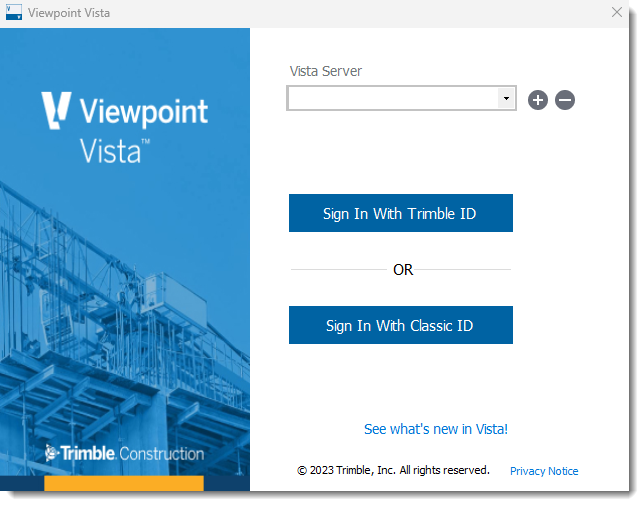
On-premises</strong> - the changes are in appearance only <strong>AND Cloud and Trimble Construction One </strong>- also in appearance but if using SSO, the login button reads &quot;Sign In With Trimble&quot; instead of &quot;Log In With Viewpoint ID&quot;. And if you do not use SSO, you will select the new &quot;Continue With Classic ID&quot; button.<br />
<img alt="New Login Screen" src="https://fluxconsole.com/files/item/882/174840/New%20Login%20Screen.png" style="width: 509px; height: 400px;" /><strong>The Vista desktop icon will be updated to the following:<img alt="New Icon" src="https://fluxconsole.com/files/item/882/174841/New%20Icon.png" style="width: 85px; height: 88px;" />Aatrix History Filtering by Report Type</strong> - you will now be able to filter your Aatrix filings by type and be able to review historical listing by user.<br />
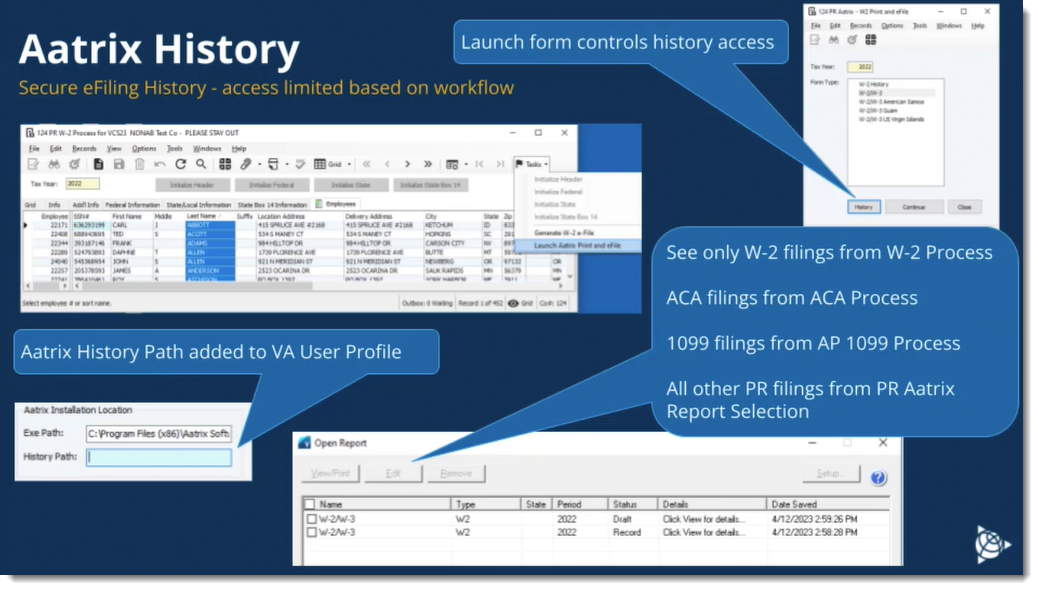
<img alt="Aatrix History" src="https://fluxconsole.com/files/item/882/174842/Aatrix%20History.png" style="width: 704px; height: 400px;" /><strong>VA - New Queries that Identify Programs and Reports that Require an Office License</strong> - two reports were adding that list these programs and reports. The Office license will have full capabilities and the PM user will have restricted capabilities and costs less. Securities setting will need to restrict those PM users so that they do not access those reports because they will be counted as an Office license for that day.<br />
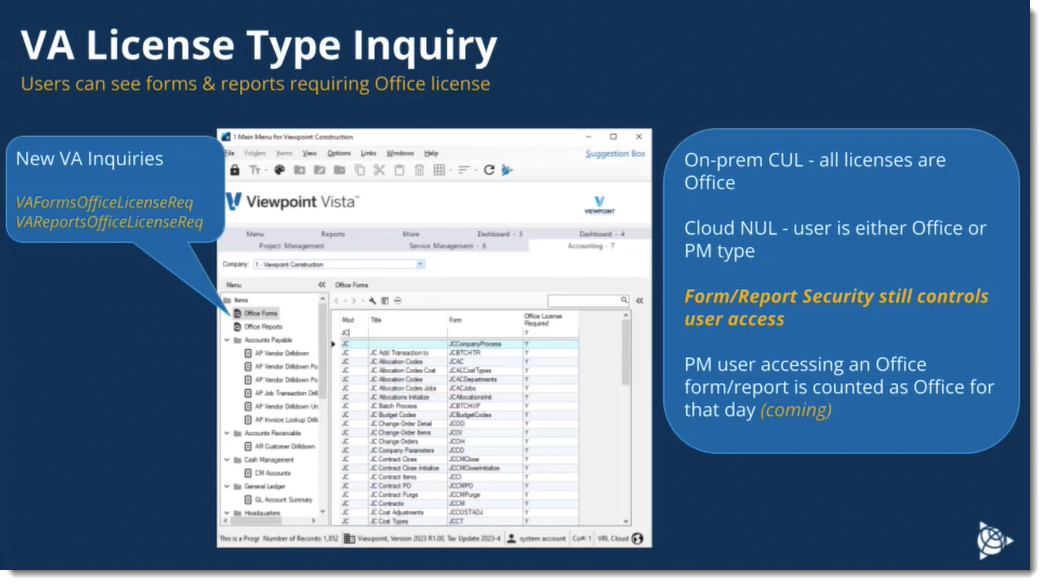
<img alt="VA License Type Inquiry" src="https://fluxconsole.com/files/item/882/174843/VA%20License%20Type%20Inquiry.png" style="width: 715px; height: 400px;" />You can go to the Viewpoint Academy to read through more information and watch some short videos on some of these items.<br />
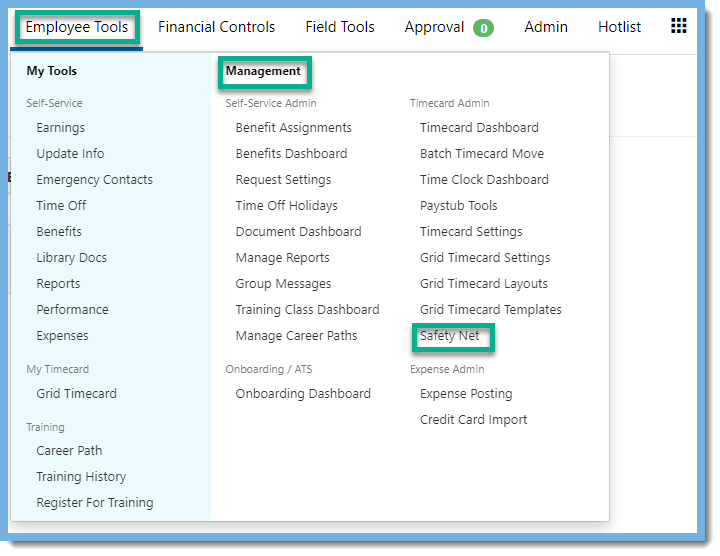
&nbsp;<br />
<a href="https://academy.viewpoint.com/learn/course/5958/Vista%2520Release%2520Training%25202023%2520R1">https://academy.viewpoint.com/learn/course/5958/Vista%2520Release%2520Training%25202023%2520R1</a><br />
&nbsp;<br />
If any of this sounds like a lot, or you want more information, we can help you out. Just click <strong>&quot;Book A Call&quot;</strong> on our webpage and set up a time to discuss your needs. We know that it can be hard to keep up with the changes, but we are here to help.]]>
            </content>
                          <enclosure url="https://fluxconsole.com/files/image/239800" length="0" type="image/png" />
                                    <updated>2023-06-27T11:35:45-05:00</updated>
        </entry>
            <entry>
            <title><![CDATA[Safety Nets Can Be a Lifesaver!]]></title>
            <link rel="alternate" href="https://www.constructech.io/blog/safety-nets-can-be-a-lifesaver" />
            <id>https://constructech.modihost.com/174253</id>
            <author>
                <name> <![CDATA[XXX Website Cemetery / Graveyard]]></name>
            </author>
            <summary type="html">
                <![CDATA[Timecard Safety Net Bringing together construction and technology]]>
            </summary>
            <content type="html">
                <![CDATA[<span style="color:#3579bc;"><em>Mistakes happen!&nbsp; And when mistakes happen, it&#39;s always good to have a Safety Net.<br />
<br />
Have you ever deleted a timecard batch by mistake?&nbsp; Or maybe not the whole batch but lines within the batch?&nbsp; Oops!&nbsp; All the time entered into the Portal Batch is gone.&nbsp; So what do you do?&nbsp; Does everyone need to re-enter their time?&nbsp; This could be a daunting task depending on how many employees and how much time has been entered.&nbsp; Well let&#39;s face it, I don&#39;t think anyone enjoys recreating&nbsp; a timecard!</em></span><br />
<br />
<span style="color:#3579bc;"><em>You&#39;re in luck!&nbsp; The Vista Employee Portal has a feature under Employee&gt;Management called Safety Net.&nbsp; The Safety Net allows a user to recover deleted timecard lines.&nbsp; It is important to note that the&nbsp;&nbsp;Timecard Safety Net is enabled by default.</em></span><br />
<img alt="Employee Portal, Employee, Management, Safety Net" src="https://fluxconsole.com/files/item/882/174254/image.png" style="width: 720px; height: 556px;" /><span style="color:#3579bc;"><em>Let&#39;s take a look at how the Timecard Safety Net works.&nbsp;&nbsp;The first step is to Prepare the Batch.&nbsp; If the lines were removed from a batch that still exists, you can skip to below the last step in creating a batch.&nbsp; &nbsp;If the entire batch was cleared and canceled, start with this Timecard Dashboard image to create a new batch.&nbsp;&nbsp;<br />
<br />
Go to Timecard Dashboard in the portal.&nbsp; Choose the correct Company and Pay Period.&nbsp;&nbsp;</em></span><br />
<img alt="Timecard Dashboard" src="https://fluxconsole.com/files/item/882/174256/image.png" style="width: 706px; height: 350px;" /><span style="color:#3579bc;"><em>Click on Open Portal Batch.&nbsp; This creates the new batch.&nbsp;&nbsp;</em></span><img alt="Timecard Dashboard" src="https://fluxconsole.com/files/item/882/174257/image.png" style="width: 801px; height: 350px;" /><span style="color:#3579bc;"><em>Navigate to the the Timecard Safety Net which is under Employer&gt;Management in the portal (as seen in the image above).&nbsp; In order to use the Safety Net you must be logged into the portal as Timecard Admin or System Admin. Once at the Timecard Safety Net screen, choose the correct company, Batch From (select the batch ID you want to restore the lines from) and Batch To (select the batch ID you want to restore the lines to).&nbsp;&nbsp;Note:&nbsp; If you deleted just some of the lines from a batch and the original batch still exists, then the Batch From and Batch To will be the same.</em></span><br />
<br />
<span style="color:#3579bc;"><em>Once the Batch From and Batch To are selected, all the deleted items in the selected Batch From will be visible in the grid.&nbsp; Use the checkboxes to indicate which lines you want to restore, or you can select all lines with the top checkbox.&nbsp; Click on the Restore Items button.&nbsp; The restored lines are now back in Vista within the batch indicated in the Batch To field. They will no longer be visible in the grid.&nbsp; Open up the batch in Vista and verify it.&nbsp;&nbsp;</em></span><br />
<img alt="Timecard Safety Net" src="https://fluxconsole.com/files/item/882/174259/image.png" style="width: 985px; height: 350px;" /><span style="color:#3579bc;"><em>This Safety Net feature is easy to use and will certainly be a lifesaver for many!&nbsp;</em></span><br />
<br />
<em><span style="color:#3579bc;">Visit our website at </span><a href="http://constructech.io"><span style="color:#3579bc;">ConstrucTech Consulting</span></a><span style="color:#3579bc;"> to contact us if you need assistance in using the Timecard Safety Net and/or for follow us on </span><a href="https://www.linkedin.com/company/constructech-consulting/"><span style="color:#3579bc;">LinkedIn </span></a><span style="color:#3579bc;">for more Tip Tuesdays.</span></em><br />
&nbsp;]]>
            </content>
                          <enclosure url="https://fluxconsole.com/files/image/239183" length="0" type="image/jpg" />
                                    <updated>2023-06-20T11:35:45-05:00</updated>
        </entry>
            <entry>
            <title><![CDATA[Feeling Fancy? Learn How To Add A Vista Custom Tab]]></title>
            <link rel="alternate" href="https://www.constructech.io/blog/feeling-fancy-learn-how-to-add-a-vista-custom-tab" />
            <id>https://constructech.modihost.com/174151</id>
            <author>
                <name> <![CDATA[XXX Website Cemetery / Graveyard]]></name>
            </author>
            <summary type="html">
                <![CDATA[Feeling fancy?  Let’s learn how to add a custom tab to an existing program in Vista! Bringing together construction and technology]]>
            </summary>
            <content type="html">
                <![CDATA[I recently, had a hand in creating a custom tab in Vista and let me tell you ... it really made me feel fancy.&nbsp; &nbsp;<br />
<br />
This tip is definitely a bit more technical for the normal user, but is intended to show you the endless capabilities of Vista customization.&nbsp;<br />
<br />
Are you feeling fancy too?<br />
<br />
Come on then, let&#39;s jump right into it.&nbsp;<br />
<br />
Let&rsquo;s say you created a user defined form in Vista, maybe something related to payroll employees, projects or jobs.<br />
<img alt="Example: User Defined Table" src="https://fluxconsole.com/files/item/882/174152/Picture1.png" style="width: 780px; height: 146px;" />And now you want to reference that form in an existing module within Vista.&nbsp;<br />
<img alt="Example: Custom Tab" src="https://fluxconsole.com/files/item/882/174153/Picture2.png" style="width: 780px; height: 137px;" />We can do this by adding a custom tab in PR Employees, PM Projects or JC Jobs, just to name a few, so that the records on your user defined form correlate to the specific employee, project or job.&nbsp;<br />
<br />
Below, we will walk through the steps for adding a custom tab to PR Employees for a user defined form we are calling &quot;<em>Manpower</em>&quot;.<br />
<br />
<strong>Adding a Custom Tab in Vista</strong><br />
&nbsp;<br />
First, start out by creating a basic inquiry in <strong>VA Inquiries.&nbsp; </strong>This inquiry below is selecting all of the fields that I created in my user defined table that I&nbsp;would like to see in the new custom tab I will be creating in PR Employees.&nbsp;&nbsp;<br />
<img alt="Example: VA Inquiry" src="https://fluxconsole.com/files/item/882/174161/Picture3.png" style="width: 602px; height: 548px;" />Once you have created your query, move over to the Parameters tab and make sure any parameters used in your Query Text are also assigned in the <strong>Parameters </strong>tab as well.<br />
<br />
Here we are using: <strong>@Co </strong>for the company and <strong>@Employee</strong> for the Employee.&nbsp;<br />
&nbsp;<img alt="VA Inquires for custom tab" src="https://fluxconsole.com/files/item/882/174162/Picture4.png" style="width: 780px; height: 303px;" />Setting these parameters ensures that when you are looking at a specific employee in PR Employees that you only see records related to <u>that </u>employee instead of it pulling in all the records from your user defined form.&nbsp;&nbsp;<br />
<br />
Next, while you are still in the VA Inquiries program in Vista, locate the Vista Standard inquiry for <strong>PREmployees, </strong>(This is where I want to add my custom tab.&nbsp; I find this easiest to locate by using the grid tab)<br />
<img alt="VA Inquiries" src="https://fluxconsole.com/files/item/882/174163/Picture5.png" style="width: 780px; height: 221px;" />While selected on the PR Employees inquiry, locate the <strong>Links</strong> tab.&nbsp;<img alt="VA Inquiries Links Tab" src="https://fluxconsole.com/files/item/882/174164/Picture6.png" style="width: 780px; height: 236px;" /> Now, and this part gets a little confusing, so try and stay with me, we want to link the new VA Inquiry we just created to the already existing <strong>PR Employees </strong>inquiry.&nbsp;<br />
&nbsp;<br />
In your next blank line in the <strong>Related Query</strong> field, select <strong>F4 </strong>or select the binoculars to lookup existing queries and select the custom VA inquiry you created, here it is called <strong><em>udManpower</em></strong>.&nbsp;<br />
<img alt="VA Inquiries" src="https://fluxconsole.com/files/item/882/174165/Picture7.png" style="width: 636px; height: 458px;" />
<div style="text-align: center;"><span style="font-size:11px;"><em>See <a href="https://help.viewpoint.com/en/vista/2022-r2/administration/viewpoint-administration/inquiries/about-the-va-inquiry-links-form/field-definitions-va-inquiry-links-form#ID-00048fea">Field Definitions for Links Tab</a></em></span></div>
<br />
We want to then define our parameters again for the PREmployees inquiry, just like we did before, by double-clicking the <strong>Related Query</strong> name you just added.&nbsp;&nbsp;A new window will pop up to define these parameters.&nbsp;<br />
<img alt="VA Inquiries" src="https://fluxconsole.com/files/item/882/174166/Picture8.png" style="width: 780px; height: 338px;" />Once you have entered your parameters, select <strong>save </strong>and you can close out of VA Inquires, we are done in here.&nbsp;<br />
<br />
Next, we need to create our custom tab in PR Employees.&nbsp; To do this, open the PR Employees program. From the menu options select <strong>Tools &gt; Form Properties.</strong><br />
<img alt="PR Employees Form Properties" src="https://fluxconsole.com/files/item/882/174167/Picture9.png" style="width: 646px; height: 431px;" />In the new window, select the <strong>Tab Pages</strong> tab, then <strong>Add&nbsp;</strong>to give your new tab a name.&nbsp;&nbsp;<br />
<img height="526" src="https://fluxconsole.com/files/item/882/174175/image.png" width="918" />Lastly, we need to edit that new tab.&nbsp; Click on the name of the tab page you just created and select <strong>Edit.&nbsp;</strong><br />
<img alt="Form Properties" src="https://fluxconsole.com/files/item/882/174170/Picture12.png" style="width: 454px; height: 268px;" />A new window is displayed to select your VA inquiry we created earlier.&nbsp; Change your <strong>Control Type</strong> to <strong>3-Query</strong><br />
<img alt="VA Custom Form Tabs" src="https://fluxconsole.com/files/item/882/174171/Picture13.png" style="width: 460px; height: 256px;" />In the Query Name field, use your lookup to select your VA Inquiry you created earlier.&nbsp;<br />
<img alt="VA Custom Form Tabs" src="https://fluxconsole.com/files/item/882/174172/Picture14.png" style="width: 472px; height: 289px;" />Once you have selected the Query Name, you can save and close the VA Custom Form Tabs section.&nbsp;<br />
&nbsp;&nbsp;<br />
Don&rsquo;t panic, this will cause PR Employees to reload the form but it will open back up on it&rsquo;s own.&nbsp;<br />
<br />
Once the form has reloaded, you will see your new tab created up on the top.&nbsp; Click the tab to make sure all fields are displaying properly.<br />
<img alt="PR Employees " src="https://fluxconsole.com/files/item/882/174173/Picture15.png" style="width: 780px; height: 141px;" />This process can be a little tricky, so if you don&#39;t get it on the first go round don&#39;t get discouraged, we&#39;ve got you covered.&nbsp; Now go get fancy!&nbsp;<br />
<br />
Connect with&nbsp;<a href="https://outlook.office365.com/owa/calendar/ConstrucTechConsulting@constructech.consulting/bookings/">ConstrucTech Consulting</a>&nbsp;to learn about this customization and many more!&nbsp;]]>
            </content>
                          <enclosure url="https://fluxconsole.com/files/image/238973" length="0" type="image/webp" />
                                    <updated>2023-06-13T11:35:45-05:00</updated>
        </entry>
            <entry>
            <title><![CDATA[Vista/Crystal Custom Reports with VRL - Force Local Render]]></title>
            <link rel="alternate" href="https://www.constructech.io/blog/vistacrystal-custom-reports-with-vrl-force-local-render" />
            <id>https://constructech.modihost.com/162862</id>
            <author>
                <name> <![CDATA[XXX Website Cemetery / Graveyard]]></name>
            </author>
            <summary type="html">
                <![CDATA[Quick Tip for VRL Crystal Reports Bringing together construction and technology]]>
            </summary>
            <content type="html">
                <![CDATA[If you are on the cloud and have custom Crystal Reports, you may be familiar with the pain associated with custom fonts.&nbsp; As of Vista 2022 R2.01, you can now force the report to render on the local machine while using VRL rather than on the VRL Server.&nbsp; This can help alleviate some of the headaches associated with VRL reports.<br />
<br />
Read more <a href="https://help.viewpoint.com/en/vista/2022-r2/whats-new/vista-2022-r2-service-packs/vista-2022-r2.01">here</a>, a screen snippet is presented below.<br />
<img height="529" src="https://fluxconsole.com/files/item/882/162863/image.png" width="823" />This option that Viewpoint/Trimble made available recently can greatly reduce frustrations with respect to viewing reports over VRL.<br />

<br />
Please feel free to reach out by booking a call with us if you need any assistance with VRL or any other Vista feature.<br />
&nbsp;]]>
            </content>
                          <enclosure url="https://fluxconsole.com/files/image/225817" length="0" type="image/jpg" />
                                    <updated>2023-06-06T11:35:45-05:00</updated>
        </entry>
            <entry>
            <title><![CDATA[Vista Page Splitter]]></title>
            <link rel="alternate" href="https://www.constructech.io/blog/vista-page-splitter" />
            <id>https://constructech.modihost.com/173511</id>
            <author>
                <name> <![CDATA[XXX Website Cemetery / Graveyard]]></name>
            </author>
            <summary type="html">
                <![CDATA[Vista's Page Splitter makes short work of multi-page PDF's when attaching to invoices. Bringing together construction and technology]]>
            </summary>
            <content type="html">
                <![CDATA[Vista&#39;s new Automatic Invoicing is a great new feature that uses AI to recognize vendor invoices and pre-fill AP Invoice fields.&nbsp; However, Automatic Invoicing may not be for everyone.&nbsp; If you would rather scan invoices to PDF and manually enter in Vista then read on.
<hr />Have you found yourself in front of the company scanner scanning in AP Invoices one at a time to generate separate files for attaching into Vista?&nbsp; You may wonder if Vista could split those pages for you, and you know what?&nbsp; You bet it can!!
<hr />To use Vista&#39;s Page Splitter, simply scan your stack of invoices in as a single PDF file.&nbsp;&nbsp;<br />
<img alt="person at copy machine" src="https://fluxconsole.com/files/item/882/173514/image.png" style="width: 558px; height: 400px;" />Then from AP Transaction Entry, click the paper clip icon and Select Page Splitter<br />
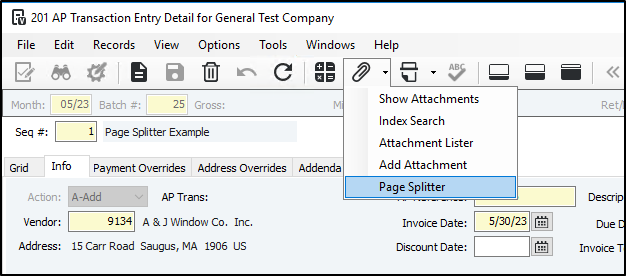
<img alt="screen clip of ap transaction entry" src="https://fluxconsole.com/files/item/882/173513/image.png" style="width: 626px; height: 276px;" />From the Page Splitter program, click the browse button to find your multi-page PDF.&nbsp; You can then click the various pages to view them and drag/drop them right into Vista.&nbsp; To drag/drop multiple pages, simply use Shift-Click or Ctrl-Click to select multiple pages before dragging and dropping.<br />
<img alt="screenshot of page splitter form" src="https://fluxconsole.com/files/item/882/173515/image.png" style="width: 784px; height: 515px;" />That&#39;s all there is to it.&nbsp; No more scanning in individual pages and having to name them one at a time.<br />
<br />
Feel free to reach out if you would like any assistance with Page Splitter or any Vista functionality.&nbsp; We are pleased to be at your service.]]>
            </content>
                          <enclosure url="https://fluxconsole.com/files/image/238135" length="0" type="image/png" />
                                    <updated>2023-05-30T11:35:45-05:00</updated>
        </entry>
            <entry>
            <title><![CDATA[Is your Earnings Code lookup blank in SM Pay Types?]]></title>
            <link rel="alternate" href="https://www.constructech.io/blog/is-your-earnings-code-lookup-blank-in-sm-pay-types" />
            <id>https://constructech.modihost.com/172563</id>
            <author>
                <name> <![CDATA[XXX Website Cemetery / Graveyard]]></name>
            </author>
            <summary type="html">
                <![CDATA[Is your Earnings Code lookup blank in SM Pay Types? Don’t Panic, let me tell you why. Bringing together construction and technology]]>
            </summary>
            <content type="html">
                <![CDATA[<strong>SM Pay Types&hellip;What are they?</strong><br />
<br />
SM Pay types represent the different labor costs for service work.&nbsp; They allow you to define anticipated labor costs for service work at different pay levels;<br />
<img height="590" src="https://fluxconsole.com/files/item/882/172569/SM Pay Types.png" width="1482" />When creating work orders, pay types are used to derive labor cost estimates so that you can bill for service work before payroll is cut. The actual payroll costs are updated to the work order once you process your payroll.<br />
<br />
Sounds easy enough&hellip;. Right? Well, here&#39;s the question I always get asked;<br />
&nbsp;
<div style="text-align: center;"><strong>&quot;I have my Earnings Code setup in PR Earn Codes, why can&rsquo;t I select&nbsp;it in SM Pay Types?&quot;</strong></div>
<img height="457" src="https://fluxconsole.com/files/item/882/172571/image.png" width="1072" />Don&rsquo;t Panic! Let me show you how to fix the SM Pay Types Earn Code lookup.&nbsp;&nbsp;<br />
<br />
1.&nbsp;&nbsp;Go to PR Earn Codes and check the option- <strong>Include in Remote Timesheet Entry&nbsp;</strong><br />
<img height="562" src="https://fluxconsole.com/files/item/882/172572/image.png" width="975" />2.&nbsp; Once you have checked this option for any PR Earn Code that you would need to include in SM Pay Types, they will then appear in the lookup.<br />
<img height="350" src="https://fluxconsole.com/files/item/882/172573/image.png" width="975" /><br />
It&#39;s really that simple! If you are a service based construction company, the Service Management Module is the way to go! Now get to adding your SM Pay Types .&nbsp;<br />
<br />
Connect with <a href="https://outlook.office365.com/owa/calendar/ConstrucTechConsulting@constructech.consulting/bookings/">ConstrucTech Consulting</a> today to find out more!<br />
&nbsp;]]>
            </content>
                          <enclosure url="https://fluxconsole.com/files/image/237018" length="0" type="image/png" />
                                    <updated>2023-05-23T11:35:45-05:00</updated>
        </entry>
            <entry>
            <title><![CDATA[What&#039;s Your Color Scheme??]]></title>
            <link rel="alternate" href="https://www.constructech.io/blog/whats-your-color-scheme" />
            <id>https://constructech.modihost.com/172051</id>
            <author>
                <name> <![CDATA[XXX Website Cemetery / Graveyard]]></name>
            </author>
            <summary type="html">
                <![CDATA[Customizing Your Color Scheme in Viewpoint Vista Bringing together construction and technology]]>
            </summary>
            <content type="html">
                <![CDATA[<div style="text-align: center;"><span style="color:#3579bc;"><span style="font-size:24px;"><strong><em>What&#39;s your color scheme in Vista?</em></strong></span></span></div>

<div><span style="font-size:16px;"><span style="color:#3579bc;"><em>Vista is full of ways to customize and automate your experience!&nbsp; One way is to customize the color scheme.&nbsp; Customizing your Vista&nbsp; screen with different colors&nbsp;is easy.&nbsp; There are many reasons you may want to customize your color scheme.&nbsp; One reason may be to differentiate between&nbsp;companies you may have.&nbsp; Another reason may be that different colors may be pleasing to the eye.&nbsp; So let&#39;s get started!<br />
<br />
First, it is important to note that&nbsp;color schemes are specific to each login.&nbsp; Color schemes are stored in User Preference, so they are not affected by any updates or changes to the application.<br />
<br />
You can open the color selector by going to the main menu and selecting <strong>Options&gt;Colors</strong> or clicking on the Colors icon on the toolbar.</em></span></span><br />
<img alt="Choose either Options then colors or click on the Colors icon in the toolbar." src="https://fluxconsole.com/files/item/882/172054/image.png" style="width: 494px; height: 466px;" /><span style="color:#3579bc;"><em>Select the theme you would like to change in the <strong>Select Default Theme or a Company </strong>drop down menu.&nbsp;</em></span></div>

<ul>
	<li><span style="color:#3579bc;"><em>Select <strong>Default Colors</strong> to modify the default theme.&nbsp; The default theme applies unless a specific theme is defined for a company.</em></span></li>
	<li><span style="color:#3579bc;"><em>Select a company to modify the theme of a specific company.&nbsp; The theme setup on the company will override the default them when using the selected company.</em></span></li>
</ul>
<img alt="Select Default Theme or a Company" src="https://fluxconsole.com/files/item/882/172055/image.png" style="width: 663px; height: 562px;" /><span style="color:#3579bc;"><em><strong>Note:</strong>&nbsp; An asterisk displays next to each company in the drop down menu with a defined theme.&nbsp; If you want to remove all the themes defined on companies, click the <strong>Restore Defaults - All Companies</strong> button.</em></span><br />
<img alt="Asterisk = Overridden; Restore Defaults - All Companies" src="https://fluxconsole.com/files/item/882/172057/image.png" style="width: 662px; height: 563px;" /><em><span style="color:#3579bc;">In the <strong>Theme</strong> field, select the theme you want to use.&nbsp; The theme will be applied to the preview at the bottom of the form so that you can see how the application will look.&nbsp; You can always restore back to the default theme.</span></em><br />
<img alt="Override Default Colors in Theme; Restore Default Button; Preview display on bottom of screen" src="https://fluxconsole.com/files/item/882/172059/image.png" style="width: 661px; height: 561px;" /><span style="color:#3579bc;"><em>You can also change the color of the <strong>Theme Smart Cursor </strong>or <strong>Theme Required Field Indicator</strong> within the main Theme.&nbsp; These changes also have a Restore Default button.</em></span><br />
<img alt="Change color of Theme Smart Cursor and Theme Required Field Indicator; Restore Default buttons" src="https://fluxconsole.com/files/item/882/172060/image.png" style="width: 662px; height: 563px;" /><span style="color:#3579bc;"><em>Once the color scheme meets your satisfaction, click on <strong>Apply</strong> and then <strong>OK</strong>.&nbsp;</em></span><br />
<img alt="Apply and OK buttons" src="https://fluxconsole.com/files/item/882/172061/image.png" style="width: 661px; height: 559px;" /><span style="color:#3579bc;"><em>Hope you enjoyed this Tip Tuesday blog!&nbsp; If you need assistance with anything please click&nbsp;Book a Call&nbsp;to schedule a meeting or click&nbsp;Email Support&nbsp;to add a support ticket. Someone from our team will reach out to you with assistance.</em></span><br />
&nbsp;]]>
            </content>
                          <enclosure url="https://fluxconsole.com/files/image/236568" length="0" type="image/jpg" />
                                    <updated>2023-05-16T11:35:45-05:00</updated>
        </entry>
            <entry>
            <title><![CDATA[Viewpoint VistaWeb 2023-R4 is here!]]></title>
            <link rel="alternate" href="https://www.constructech.io/blog/viewpoint-vistaweb-2023-r4-is-here" />
            <id>https://constructech.modihost.com/170694</id>
            <author>
                <name> <![CDATA[XXX Website Cemetery / Graveyard]]></name>
            </author>
            <summary type="html">
                <![CDATA[Viewpoint Vista Web 2023-R4 Bringing together construction and technology]]>
            </summary>
            <content type="html">
                <![CDATA[<h2><span style="color:#3579bc;">Viewpoint Employee Portal 2023-R4 is here!</span></h2>
Check out some enhancements with the 23.4 release!<br />
<br />
<strong>Vista Compatibility</strong>

<ul>
	<li>Vista 2022 R2</li>
	<li>Vista 2023 R1</li>
</ul>
Vista cloud hosted customers will automatically receive the latest update.<br />
&nbsp;<br />
<strong>Security Improvements and Impact on Portal Login</strong><br />
Users with a linked Viewpoint ID (VPID) account will no longer be able to log in to the portal with their employee number. You can unlink your portal login from your Viewpoint ID (Trimble Construction One Account). Log in with your Viewpoint ID, select your name in the upper right and then select <strong>Unlink.</strong><br />
<br />
Check out <u><a href="https://help.viewpoint.com/viewpoint-hr-management-for-vista/viewpoint-hr-management-for-vista/getting-started/additional-options/configure-viewpoint-id-login">Configure Viewpoint ID Login</a></u>&nbsp;for more information.

<hr />
<h3>Release Highlights</h3>
<strong><span style="color:#74b2e1;">NEW</span></strong><strong><span style="color:#74b2e1;">: </span>Subcontract review and approval in the portal&nbsp;</strong>

<ul>
	<li><span style="font-size: 1rem;">Subcontracts can now be approved or rejected by reviewers by going to </span><strong style="font-size: 1rem;">Approval&gt;Pending PO/SL Review</strong><span style="font-size: 1rem;"> (formerly Purchase Order Review).</span><span style="font-size: 1rem;"> </span></li>
</ul>
<span style="font-size: 11px;">**Only available in Vista version 2023 R1 and forward**</span><br />
<span style="font-size: 1rem;">To learn more, see&nbsp;</span><u style="font-size: 1rem;"><a href="https://apim.viewpointplatform.com/help/v1/contents/urn:contentId:FM_000034:FM:FM" target="_blank">Pending PO / Subcontract Review</a></u>

<hr /><strong><span style="color:#74b2e1;">NEW:</span> </strong><strong>Separate layouts for Field Tickets and&nbsp;Field Management Mobile</strong>

<ul>
	<li>You can now create unique layouts for the payroll section of Field Tickets and Field Management Mobile timecards. Your existing layouts will still be available and can continue to be used. No changes are needed.</li>
</ul>
<img alt="Grid Timecard Settings" src="https://fluxconsole.com/files/item/882/170696/image.png" style="width: 750px; height: 248px;" />
<hr /><strong><span style="color:#74b2e1;">NEW:</span> </strong><strong>No Bill option for compiling attachments</strong>

<ul>
	<li>The Next Gen Billing Compiler now gives you the ability to select the <strong>No Bill </strong>option. This will allow you to compile and download attachments based on date ranges and filters without having to specify a particular bill.</li>
</ul>
<img alt="Project Billing Settings" src="https://fluxconsole.com/files/item/882/170697/image.png" style="width: 917px; height: 220px;" />For more information, see&nbsp;<u><a href="https://apim.viewpointplatform.com/help/v1/contents/urn:contentId:FC_000011:FC:FC" target="_blank">How to Use the Next Gen Billing Compiler</a>.</u>

<hr /><strong><span style="color:#74b2e1;">NEW: </span>Add fillable PDF forms to onboarding profiles and job categories</strong>

<ul>
	<li>Embed fillable PDF forms in document templates. You can then add the applicable template to a job category or hiring profile. The fillable PDF forms can be completed by new hires or applicants during the onboarding/application process. The completed forms are attached to the employee&rsquo;s HR Resource records once the new hire is initialized to Vista.</li>
</ul>

<hr /><strong>Expanded functionality for managing Scheduled Jobs in the Portal</strong><br />
The Scheduled Job button was added to Portal Settings in the 23.2 release. The feature has been expanded in this release.
<ul>
	<li><strong>View more details about each Scheduled Job </strong>

	<ul>
		<li>Expanded details include the job name, schedule (in standard time), upcoming/past execution dates, last run job status, UD job (Y/N), and if the job is enabled.</li>
	</ul>
	</li>
	<li><strong>Add new Scheduled Jobs</strong>
	<ul>
		<li>Add new jobs directly from the Managed Jobs page.</li>
	</ul>
	</li>
</ul>
To learn more, see&nbsp;<u><a href="https://apim.viewpointplatform.com/help/v1/contents/urn:contentId:HRV_000041:HRV:HRV" target="_blank">Create a New Scheduled Job</a>.</u>

<ul>
	<li><strong>Edit and run jobs, view job history, and delete ud-jobs</strong>

	<ul>
		<li>Edit schedules and executables, enable/disable jobs, manually run jobs, check job statuses/history, and more directly from the Manage Scheduled Jobs page.</li>
	</ul>
	</li>
</ul>
To learn more, see&nbsp;<u><a href="https://apim.viewpointplatform.com/help/v1/contents/urn:contentId:HRV_000038:HRV:HRV" target="_blank">Manage Scheduled Jobs</a>.</u>

<hr />Check out <a href="https://help.viewpoint.com/en/viewpoint-hr-management-for-vista/viewpoint-hr-management-for-vista/whats-new/whats-new-in-2023-r4?mkt_tok=NjIzLU5EQS00ODcAAAGLZ4MGxTp6ZpNi-Mpr2KpV_h3LDsRmdM36Iv0ZOiG1HaKyWJnXBCUoihIKvnBevHsx8eakXUTTURXy_FOXA5uBl6Kz-791dZWUFN_2NIMa9vivcMw"><u>Viewpoint 2023 R4</u></a> for more information!<br />
<strong>Reach out to our team if you have any questions or need assistance! </strong><br />
consulting@constructech.io&nbsp;<br />
&nbsp;]]>
            </content>
                          <enclosure url="https://fluxconsole.com/files/image/235599" length="0" type="image/jpg" />
                                    <updated>2023-05-02T11:35:45-05:00</updated>
        </entry>
            <entry>
            <title><![CDATA[Resurrecting VistaWeb Payroll Batch]]></title>
            <link rel="alternate" href="https://www.constructech.io/blog/resurrecting-vistaweb-payroll-batch" />
            <id>https://constructech.modihost.com/170090</id>
            <author>
                <name> <![CDATA[XXX Website Cemetery / Graveyard]]></name>
            </author>
            <summary type="html">
                <![CDATA[Have you ever accidentally posted the VistaWeb portal batch for the current week's payroll instead of last week's payroll? How do you get the time back into VistaWeb so that all of the approvals can be made and so employees can see their entire week's worth of time? Well, it is relatively easy! Bringing together construction and technology]]>
            </summary>
            <content type="html">
                <![CDATA[Have you ever accidentally posted your VistaWeb portal batch for the current week&#39;s payroll instead of last week&#39;s payroll? How do you get the time back into VistaWeb so that all of the approvals can be made and so employees can see their entire week&#39;s worth of time? Well, it is relatively easy!<br />
<br />
Go to the <strong>Timecard Dashboard</strong> in <strong>VistaWeb</strong> and select the current pay period from the list. It will be towards the bottom under <strong>&quot;Active Portal Periods - No Portal Batch&quot;</strong> and click <strong>&quot;Open New Batch&quot;.</strong><img alt="Screenshot of Timecard Dashboard in VistaWeb" src="https://fluxconsole.com/files/item/882/170093/2023-04-25_14-41-00%20A3.jpg" style="width: 700px; height: 136px;" />It will ask if you are sure you want to continue, click<strong> &quot;Open Portal Batch&quot;</strong>,&nbsp;and make note of the batch number by clicking the drop down on the <strong>&quot;Pay Period&quot;</strong> and find that current pay period. It will list the batch number in the description.<br />
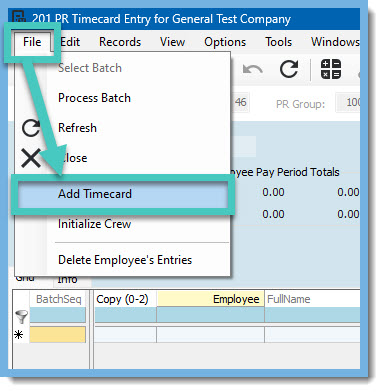
<br />
Next, within <strong>Vista</strong>, go to <strong>PR Timecard Entry</strong>. In the Batch Selection, select the batch that was created in VistaWeb (you may have to uncheck the <strong>&quot;Show my batches only&quot;</strong> to see the batch), and click <strong>&quot;OK&quot;</strong>. In the PR Timecard Entry screen go to <strong>File &gt; Add Timecard</strong>.<img alt="Screenshot of PR Timecard Entry in Vista" src="https://fluxconsole.com/files/item/882/170103/2023-04-25_14-54-32%20B.jpg" style="width: 383px; height: 392px;" /><span style="font-size: 1rem;">On the </span><strong style="font-size: 1rem;">PR Add Trans to Timecard Batch</strong><span style="font-size: 1rem;"> screen click </span><strong style="font-size: 1rem;">&quot;Add to Batch&quot;</strong><span style="font-size: 1rem;">. If you also had Service or Mechanic timecards in that original posted batch, you will want to select each of those and click &quot;Add to Batch&quot; for those timecard types as well.<img alt="Screenshot of PR Add Trans to Timecard Batch in Vista" src="https://fluxconsole.com/files/item/882/170124/2023-04-25_14-56-15%20C2.jpg" style="width: 503px; height: 419px;" />All of the entries from any batches that were posted for the pay period will be in the portal batch again. If you need to restrict the entries to the one batch, there is a field for the <strong>&quot;Last Posted Batch#&quot;</strong> where you can enter the batch number that was posted. Review the results to make certain that everything is correct.&nbsp; Now, simply close the window without posting the batch and you will be able to see the time in the portal again.<br />
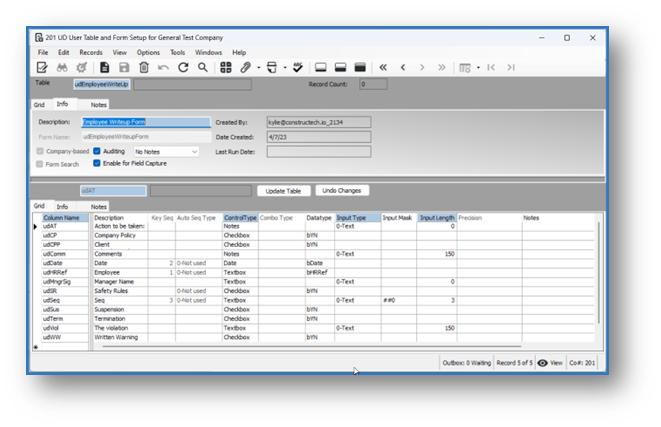
<br />
If you still are having problems,&nbsp; click <strong>Book a Call</strong> to schedule a meeting or click <strong>Email Support</strong> to add a support ticket. Someone from our team will reach out to you with assistance.</span>]]>
            </content>
                          <enclosure url="https://fluxconsole.com/files/image/235003" length="0" type="image/jpg" />
                                    <updated>2023-04-25T11:35:45-05:00</updated>
        </entry>
            <entry>
            <title><![CDATA[Did you miss the 2023 Vista Summit?]]></title>
            <link rel="alternate" href="https://www.constructech.io/blog/did-you-miss-the-2023-vista-summit" />
            <id>https://constructech.modihost.com/169632</id>
            <author>
                <name> <![CDATA[XXX Website Cemetery / Graveyard]]></name>
            </author>
            <summary type="html">
                <![CDATA[Did you happen to miss the 2023 Vista Summit? Bringing together construction and technology]]>
            </summary>
            <content type="html">
                <![CDATA[<img alt="Vista Summit The 2023 Trimble Viewpoint Vista User Summit Virtual Event April 11-12 2023" src="https://fluxconsole.com/files/item/882/169633/image.png" style="width: 708px; height: 461px;" /><br />
Did you happen to miss the 2023 Vista Summit?&nbsp; If so, you&#39;re in luck as all of the sessions were recorded and are now available to watch on demand. Here is a complete list of the sessions and can be accessed by clicking this link.&nbsp; <a href="https://events.viewpoint.com/vista-summit-2023/agenda" target="_blank">https://events.viewpoint.com/vista-summit-2023/agenda</a>.
<ul>
	<li><strong>Vista User Summit Keynote: Building for the Future</strong></li>
	<li><strong>Top Vista Enhancements: Simplify Your Work</strong></li>
	<li><strong>Connecting Project Management &amp; Vista</strong></li>
	<li><strong>Using Vista to Drive Greater Pre-Construction Workflow Accuracy</strong></li>
	<li><strong>Do More with Your Service Business: Vista Field Service</strong></li>
	<li><strong>Tekla + Vista: One Customer&#39;s Story</strong></li>
	<li><strong>Paying the Bills: Deep Dive</strong></li>
	<li><strong>Viewpoint HR Management: Putting Labor at the Center of Enterprise Resource Planning (ERP)</strong></li>
	<li><strong>Data-Driven: From 10,000 ft to the Jobsite</strong></li>
	<li><strong>Vista Field Tools: Deep Dive</strong></li>
	<li><strong>Optimizing Vista for Heavy Highway/Civil Contractor Workflows</strong></li>
	<li><strong>Secrets to Success: Customer Resources to Support Your Growth for Vista</strong></li>
</ul>
Feel free to reach out if you would like to know more about implementing any of these topics in your business by clicking the Book A Call button.<br />
<br />
&nbsp;]]>
            </content>
                          <enclosure url="https://fluxconsole.com/files/image/234397" length="0" type="image/jpg" />
                                    <updated>2023-04-18T11:35:45-05:00</updated>
        </entry>
            <entry>
            <title><![CDATA[Field Management- Field Apps]]></title>
            <link rel="alternate" href="https://www.constructech.io/blog/field-management-field-apps" />
            <id>https://constructech.modihost.com/169345</id>
            <author>
                <name> <![CDATA[XXX Website Cemetery / Graveyard]]></name>
            </author>
            <summary type="html">
                <![CDATA[Gather your data from the field and push it right into Vista™! Bringing together construction and technology]]>
            </summary>
            <content type="html">
                <![CDATA[<span style="font-size:20px;"><strong>User Defined Tables and Forms</strong></span><br />
<br />
<span style="font-size:18px;">Today, Viewpoint allows you to use the User Database (UD) module to develop custom data tables and forms that enhance information maintained by&nbsp;Vista&trade;&#39;s standard tables and forms.</span><br />
<img alt="user defined table in Vista" src="https://fluxconsole.com/files/item/882/169351/Picture1.png" style="width: 661px; height: 427px;" /><span style="font-size:18px;">Employees from your company, if granted access, can then enter data directly into the custom forms in Vista&trade;.</span><br />
<img alt="user defined table created in vista for employee writeup" src="https://fluxconsole.com/files/item/882/169353/Picture2.png" style="width: 591px; height: 476px;" /><span style="font-size:18px;">Until now, we have been chained to our desks to get this data entered into&nbsp;Vista&trade; .&nbsp;&nbsp;</span><br />
<img alt="female chained to her desk" src="https://fluxconsole.com/files/item/882/169350/chained.jpg" style="width: 572px; height: 402px;" /><span style="font-size:18px;">We suggested, we voted and we were heard! &nbsp;And let me tell you first hand, it was well worth the wait.&nbsp;</span><br />
<br />
<span style="font-size:20px;"><strong>Introducing Viewpoint Field Management-Field Apps</strong></span><br />
<br />
<span style="font-size:18px;">The <strong>Field Apps</strong> module allows&nbsp;Trimble Construction One&nbsp;customers to create low-code / no-code user-defined (UD) tables and forms on the web.<br />
<br />
Users can collect data on any device with an internet connection and save that data to the UD tables and forms that they have been given access to via their Vista security setup.</span><br />
<img alt="field apps version of user defined table through employee portal " src="https://fluxconsole.com/files/item/882/169348/Picture3.png" style="width: 579px; height: 367px;" /><span style="font-size:18px;">No more excuses folks.&nbsp; We now have data collection capabilities at our fingertips.&nbsp;<br />
&nbsp;&nbsp;<br />
Connect with <a href="https://www.constructech.io/">ConstrucTech Consulting</a> today to find out more!</span>]]>
            </content>
                          <enclosure url="https://fluxconsole.com/files/image/233976" length="0" type="image/png" />
                                    <updated>2023-04-11T11:35:45-05:00</updated>
        </entry>
            <entry>
            <title><![CDATA[Filter Not Working?]]></title>
            <link rel="alternate" href="https://www.constructech.io/blog/filter-not-working" />
            <id>https://constructech.modihost.com/166618</id>
            <author>
                <name> <![CDATA[XXX Website Cemetery / Graveyard]]></name>
            </author>
            <summary type="html">
                <![CDATA[Filter Not Working? Bringing together construction and technology]]>
            </summary>
            <content type="html">
                <![CDATA[<div style="text-align: center;"><span style="font-size:26px;"><strong><span style="color:#3579bc;"><em>Is your filter not working properly?&nbsp;</em></span></strong></span></div>

<div style="text-align: center;">&nbsp;</div>
<strong><em><span style="color:#3579bc;">The filter function in Excel can come in handy if you are dealing with a large spreadsheet and you need to sort the data according to a set of conditions.&nbsp; Sometimes when using the filter function, it might not work properly.&nbsp; The most common filter issue is blank cells within the dataset.&nbsp; Deleting the blank cells is a quick fix!&nbsp;<br />
&nbsp;<br />
But sometimes blank cells are not the issue or maybe not the only issue and you have to dig a little deeper.&nbsp; Here is a list of some potential reasons why your filter function is not working:</span></em></strong>

<ul>
	<li><strong><em><span style="color:#3579bc;">Blank or Hidden Rows within your dataset</span></em></strong></li>
	<li><strong><em><span style="color:#3579bc;">Vertical Merged Cells</span></em></strong></li>
	<li><strong><em><span style="color:#3579bc;">Data Value Error</span></em></strong></li>
	<li><strong><em><span style="color:#3579bc;">Selection of more than one spreadsheet</span></em></strong></li>
	<li><strong><em><span style="color:#3579bc;">Your worksheet is protected</span></em></strong></li>
</ul>
<em style=""><strong style=""><font color="#3579bc">In this week&#39;s blog &quot;How to fix Blank or Hidden Rows within your dataset&quot; will be covered.&nbsp;&nbsp;</font></strong></em><br />
<br />
<em><strong><span style="color:#3579bc;">In this example the filter is applied to the first row with the column headings.</span></strong></em><br />
<img height="517" src="https://fluxconsole.com/files/item/882/166624/image.png" width="765" /><em><strong><span style="color:#3579bc;">When you drop down on the &quot;Order Date&quot;, the Date Filter only includes January and February.&nbsp; Where are March, April, and May?</span></strong></em><br />
<img alt="Excel worksheet with sample data.  Click on the drop down arrow for Order Date field." src="https://fluxconsole.com/files/item/882/168800/image.png" style="width: 734px; height: 714px;" /><em><strong><span style="color:#3579bc;">To fix this pro</span><span style="color:#3579bc;">blem, highlight the entire worksheet by pressing CTRL+A.&nbsp; Note:&nbsp; If the worksheet contains data, and the active cell is above or to the right of the data, pressing CTRL+A selects the current region.&nbsp; Pressing CTRL+A a second time selects the entire worksheet.&nbsp;<br />
<br />
Once the entire spreadsheet is highlighted, right click on the mouse, and choose &quot;Unhide&quot;.</span></strong></em><br />
<img alt="Excel worksheet with sample data.  Click on unhide to unhide the hidden rows." src="https://fluxconsole.com/files/item/882/168802/image.png" style="width: 798px; height: 743px;" /><em><strong><span style="color:#3579bc;">This will reveal the blank rows that were hidden and were keeping months March, April, and May from showing up in the filter.</span></strong></em><br />
<img alt="Excel worksheet with sample data showing the blank rows that were hidden." src="https://fluxconsole.com/files/item/882/168804/image.png" style="width: 821px; height: 840px;" /><em><strong><span style="color:#3579bc;">Press F5 to bring up the &quot;Go To&quot; box.&nbsp; Click on the &quot;Special&quot; button.</span></strong></em><br />
<img alt="Excel worksheet with sample data showing the Go to box and the special button." src="https://fluxconsole.com/files/item/882/169022/image.png" style="width: 825px; height: 900px;" /><em style="color: rgb(53, 121, 188); font-size: 1rem;"><strong><span style="color:#3579bc;">Choose &quot;Blanks&quot; and click OK.</span></strong></em><img height="933" src="https://fluxconsole.com/files/item/882/169023/image.png" width="843" /><em style="color: rgb(53, 121, 188); font-size: 1rem;"><strong><span style="color:#3579bc;">The blank rows are highlighted.</span></strong></em><img height="837" src="https://fluxconsole.com/files/item/882/168896/image.png" width="736" /><em><strong><span style="color:#3579bc;">Click on &quot;Delete&quot; and then &quot;Delete Sheet Rows&quot;.</span>&nbsp;</strong></em><br />
<img height="839" src="https://fluxconsole.com/files/item/882/169024/image.png" width="1031" /><strong><em><span style="color:#3579bc;">Now that all the blank rows are deleted, click on the drop down arrow for &quot;Order Date&quot;.&nbsp; Voila! March, April, and May now show up in the Date Filter!</span></em></strong><br />
<img height="721" src="https://fluxconsole.com/files/item/882/169025/image.png" width="735" /><em><strong><span style="color:#3579bc;">Stay tuned as more fixes for excel filter issues will be covered in future blogs.&nbsp; You can visit our website <a href="https://www.constructech.io/blog">here</a>&nbsp;</span><span style="color:#3579bc;">to read more Tip Tuesday blogs.&nbsp;&nbsp;</span></strong></em><br />
&nbsp;]]>
            </content>
                          <enclosure url="https://fluxconsole.com/files/image/233560" length="0" type="image/jpg" />
                                    <updated>2023-04-04T11:35:45-05:00</updated>
        </entry>
            <entry>
            <title><![CDATA[Microsoft Excel - MERGING MAYHEM!]]></title>
            <link rel="alternate" href="https://www.constructech.io/blog/microsoft-excel-merging-mayhem" />
            <id>https://constructech.modihost.com/168730</id>
            <author>
                <name> <![CDATA[XXX Website Cemetery / Graveyard]]></name>
            </author>
            <summary type="html">
                <![CDATA[Eliminate mayhem with merged cells in excel! Use center text alignment across multiple columns instead! Bringing together construction and technology]]>
            </summary>
            <content type="html">
                <![CDATA[<h1><span style="color:#0066cc;"><span style="font-size:18px;">Excel Formatting &ndash; Text Alignment: Center Across Selection</span></span></h1>
Merging cells is commonly used in Excel to quickly format spreadsheets to apply a nice clean look. While this may work well with basic spreadsheets, you will begin to run across issues when working in more complex spreadsheets. I know I have found myself wading through spreadsheets to pinpoint merged cells issues.<br />
What if there was an easier approach that could eliminate lost time searching through and eventually reworking a spreadsheet?<br />
<strong>Text Alignment: Center Across Selection</strong> gives you the same clean look without the issues caused by merged cells.

<hr />Let&rsquo;s look at a painful issue caused by merged cells that <strong>Text Alignment: Center Across Selection </strong>resolves.<br />
We will first use Merge &amp; Center cells to apply a nice format for our location across all months on our schedule.<br />
<img height="567" src="https://fluxconsole.com/files/item/882/168750/image.png" width="911" />There is no doubt that this provides a much cleaner look on our schedule. So, what is the issue?<br />
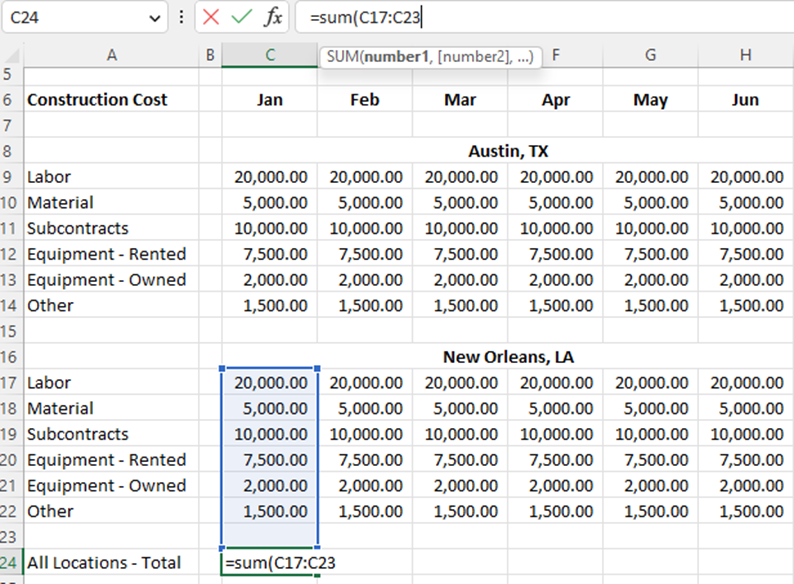
Now we will begin applying some functions to our schedule. Let&rsquo;s sum all cost for both locations (Column C) on the last row.<br />
<img height="584" src="https://fluxconsole.com/files/item/882/168751/image.png" width="794" />The merged cells in Row 16 restrict our ability to continue our function vertically to sum the cost for our Austin, TX location.<br />
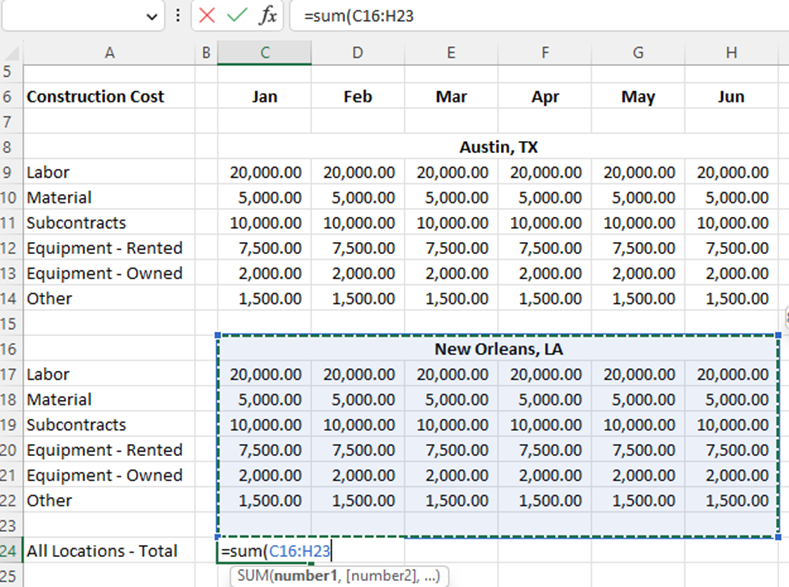
<img height="587" src="https://fluxconsole.com/files/item/882/168752/image.png" width="789" />Let&rsquo;s try this again and format the location title with <strong>Text Alignment: Center Across Selection</strong>.<br />
Start by selecting the cells that you would like for the title to be centered across.<br />
<img height="561" src="https://fluxconsole.com/files/item/882/168753/image.png" width="783" />Next, right click on the highlighted cells and select <strong>Format Cells&hellip;</strong><br />
<img height="606" src="https://fluxconsole.com/files/item/882/168754/image.png" width="789" /><span style="font-size: 1rem;">On the </span><strong style="font-size: 1rem;">Alignment</strong><span style="font-size: 1rem;"> tab, drop down on Horizontal and select </span><strong style="font-size: 1rem;">Center Across Selection </strong><span style="font-size: 1rem;">and click OK.</span><img height="756" src="https://fluxconsole.com/files/item/882/168755/image.png" width="831" />The header is now centered without any merged cells. The look and feel is identical as the <strong>Merge &amp; Center </strong>format.<br />
Let&rsquo;s try again to sum all Jan cost for both locations (Column C).<br />
<img height="665" src="https://fluxconsole.com/files/item/882/168756/image.png" width="872" />Notice that we don&rsquo;t get restricted by merged cells and can continue our function for Austin, TX!<br />
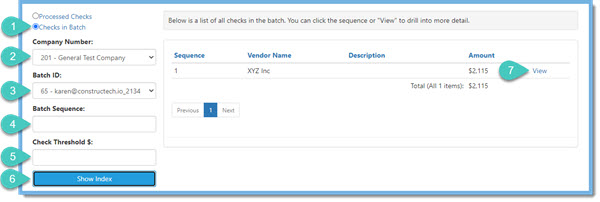
Get started making your life easier when compiling spreadsheets!
<hr />Follow Constructech Consulting on LinkedIn or check our blog on our website <a href="http://www.constructech.io">www.constructech.io</a> for more tips and tricks!]]>
            </content>
                          <enclosure url="https://fluxconsole.com/files/image/233076" length="0" type="image/jpg" />
                                    <updated>2023-03-28T11:35:45-05:00</updated>
        </entry>
            <entry>
            <title><![CDATA[Viewpoint Financial Controls - Check Review]]></title>
            <link rel="alternate" href="https://www.constructech.io/blog/viewpoint-financial-controls-check-review" />
            <id>https://constructech.modihost.com/168367</id>
            <author>
                <name> <![CDATA[XXX Website Cemetery / Graveyard]]></name>
            </author>
            <summary type="html">
                <![CDATA[A quick and easy way to look at a check and all of the invoices paid by that check. Bringing together construction and technology]]>
            </summary>
            <content type="html">
                <![CDATA[One very time consuming process is matching invoices to checks so that the check signer can review and sign the checks.&nbsp; This can be replaced by an automatic process called <span style="color:#3579bc;"><strong>Check Review</strong></span> in <strong>Viewpoint Financial Controls</strong>. It is possible to review the checks and the invoices being paid before the checks are printed or at any time after the checks have be processed. And best of all, it is really very easy to setup also.<br />
&nbsp;<br />
If the check signer wants to review the checks and the invoices being paid before the checks are printed, the invoices can be selected for payment in <strong>AP Payment Workflow</strong> and click the button to create a payment batch. The reviewer is then able to go to <strong>Financial Controls &gt; Check Review</strong> in the portal, select <strong>Checks in Batch</strong> (1), and use the parameters to restrict the display for a certain <strong>Company Number</strong> (2), select a certain <strong>Batch ID</strong> (3), a certain <strong>Batch Sequence</strong> (4) if you want to just view one item in the batch, and even a <strong>Check Threshold Amount</strong> (5) if you only want to see checks over a certain dollar amount. Then press the <strong>Show Index button</strong> (6) to list the checks in the batch. Press <strong>View</strong> (7) to see the detail.<br />
<img alt="Screenshot of Check Review Screen" src="https://fluxconsole.com/files/item/882/168369/2023-03-20_Blog%20Pic%201B.jpg" style="width: 600px; height: 202px;" />When viewing the detail of the check, it is possible to click through each check (1), it shows the check amount (2), it is possible to click through each invoice (3), review how the invoice was coded (4), review each page of the actual invoice (5), and <strong>Reject</strong> (6) any check that should not be cut. This will remove the check from the batch and email the batch creator to let them know that it was rejected.<br />
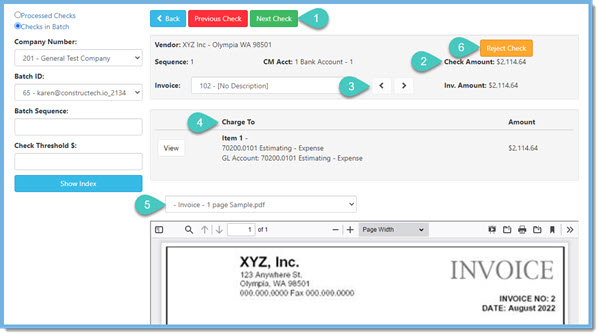
<img alt="2023-03-20_Blog Pic 2B" src="https://fluxconsole.com/files/item/882/168370/2023-03-20_Blog%20Pic%202B.jpg" style="width: 600px; height: 336px;" />If the reviewer wants to look at checks after they have been processed, select <strong>Processed Checks</strong> and the parameters can be used to restrict the checks displayed.<br />
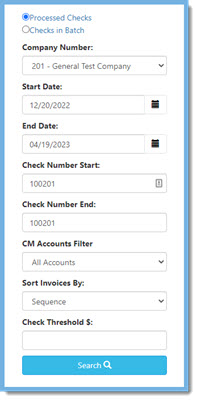
<img alt="Screenshot of Check Review Screen" src="https://fluxconsole.com/files/item/882/168372/2023-03-20_Blog%20Pic%203B.jpg" style="width: 197px; height: 400px;" />The added feature here is a <strong>View </strong>button (1) to view the copy of the check and there is an <strong>Export PDF</strong>&nbsp;button (2) that will download a copy of the check along with the copies of invoices that were paid.<br />
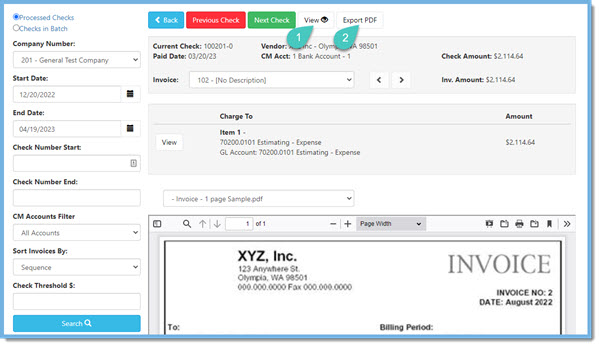
<img alt="2023-03-20_Blog Pic 4B" src="https://fluxconsole.com/files/item/882/168373/2023-03-20_Blog%20Pic%204B.jpg" style="width: 599px; height: 346px;" /><br />
And the best thing about this feature is that it is so easy to turn on and use! If you run into any issues, please reach out to us and will be happy to assist.]]>
            </content>
                          <enclosure url="https://fluxconsole.com/files/image/232227" length="0" type="image/jpg" />
                                    <updated>2023-03-21T11:35:45-05:00</updated>
        </entry>
            <entry>
            <title><![CDATA[Tidying those cluttered Vista Custom Fields]]></title>
            <link rel="alternate" href="https://www.constructech.io/blog/tidying-those-cluttered-vista-custom-fields" />
            <id>https://constructech.modihost.com/161876</id>
            <author>
                <name> <![CDATA[XXX Website Cemetery / Graveyard]]></name>
            </author>
            <summary type="html">
                <![CDATA[Vista Custom Fields are a great way to gather additional data in your database but they are rarely as well lined up the way Viewpoint lines them up.  Bringing together construction and technology]]>
            </summary>
            <content type="html">
                <![CDATA[Frustrated with how hard it is to align Vista&#39;s Custom Fields?&nbsp; Yeah, me too.&nbsp; This is a quick tip on how to put in an alignment guide to help get those lovely boxes lined up.<br />
<br />
Vista Custom Fields are a great way to gather additional data in your database but they are rarely lined up as well as how&nbsp;Viewpoint lines them up.&nbsp;
<hr />Here are some fields added to JC Contracts.&nbsp; Kinda lined up but certainly not optimal.<br />
<img alt="custom fields listing before alignment" src="https://fluxconsole.com/files/item/882/161877/image.png" style="width: 344px; height: 238px;" />
<hr />To move custom fields, simply right click on the background of the form and select&nbsp;<strong>Move Custom Fields</strong>.&nbsp; If it is greyed out, head over to&nbsp;<strong>VA User Profile</strong>&nbsp;and enable&nbsp;<strong>Form Administrator.</strong><br />
<img alt="menu selection move custom fields" src="https://fluxconsole.com/files/item/882/161878/image.png" style="width: 372px; height: 289px;" />Moving fields around is fairly intuitive and there are red alignment lines that are somewhat helpful if the fields are all together.&nbsp;
<hr />If thefields are spread out, consider using a temporary&nbsp;<strong>Custom Groupbox </strong>to help align things.&nbsp; You&#39;ll see it on the same menu as Move Custom Fields. It can provide a temporary alignment line to help get things in order.&nbsp; Right clicking on a box once it has been created will allow you to name/resize/move the box.&nbsp; Here I used it to align the text on the left side.<br />
<img alt="custom fields listing after alignment" src="https://fluxconsole.com/files/item/882/161879/image.png" style="width: 313px; height: 285px;" />
<hr /><span style="font-size: 1rem;">Now that my text is lined up, I&#39;ll delete the Group box and create two new boxes to organize my input fields.</span><img alt="delete custom box" src="https://fluxconsole.com/files/item/882/161880/image.png" style="width: 285px; height: 274px;" /><img alt="name custom box" src="https://fluxconsole.com/files/item/882/161881/image.png" style="width: 299px; height: 265px;" />
<hr />And now my fields are nicely lined up and grouped in a way that makes sense for my business needs.&nbsp; They could still use some adjustment on the spacing between fields but overall it&#39;s much better than before.<br />
<img alt="nicely aligned fields" src="https://fluxconsole.com/files/item/882/161882/image.png" style="width: 656px; height: 297px;" />
<hr />Pro-Tip: On today&#39;s high resolution screens, it&#39;s sometimes hard to line things up.&nbsp; Changing your screen resolution temporarily to 1024x768 makes everything bigger and easier to line up.&nbsp; Don&#39;t forget to change it back to the normal resolution when done aligning.
<hr />Hopefully there was a tip or two in here that you enjoyed.&nbsp; If creating these customizations aren&#39;t your thing, or to put it in construction-ese, out of your scope, feel free to reach out and see how we can help you ditch the external spreadsheets and keep all your personalized data within Vista.<br />
&nbsp;]]>
            </content>
                          <enclosure url="https://fluxconsole.com/files/image/227634" length="0" type="image/jpg" />
                                    <updated>2023-03-14T11:35:45-05:00</updated>
        </entry>
            <entry>
            <title><![CDATA[Schedule Data Changes for Fields]]></title>
            <link rel="alternate" href="https://www.constructech.io/blog/schedule-data-changes-for-fields" />
            <id>https://constructech.modihost.com/167006</id>
            <author>
                <name> <![CDATA[XXX Website Cemetery / Graveyard]]></name>
            </author>
            <summary type="html">
                <![CDATA[Stop penciling your reminders and start scheduling your changes! Bringing together construction and technology]]>
            </summary>
            <content type="html">
                <![CDATA[<span style="font-size:18px;"><strong>Schedule Data Changes for Fields</strong></span><br />
<br />
Did you know that you can set a schedule for changing data for a specific field in Viewpoint? &nbsp;&nbsp;<br />
<br />
<strong>Awesome, neither did I!</strong><br />
<br />
Let&rsquo;s say that an employee informs you that they are moving in a month and will need to change their address for payroll purposes, you could set the address field in PR Employees to update to the new address automatically on the specified date.&nbsp;<br />
&nbsp;
<div><strong>Come on, let&#39;s run through this together.&nbsp;&nbsp;</strong></div>

<div style="margin-left: 40px;"><br />
1.&nbsp;&nbsp;Right-click on the field that you wish to change, and the system will display the shortcut menu.&nbsp;</div>

<div style="margin-left: 40px;"><img alt="PR employees right click field in address bar with drop down menu" src="https://fluxconsole.com/files/item/882/167008/Pic1.png" style="font-size: 1rem; margin-left: 40px; width: 445px; height: 430px;" /></div>

<div style="margin-left: 40px;">2.&nbsp; Select <strong>Scheduled Changes.</strong>&nbsp; The system displays the VA Scheduled Changes form.&nbsp;<br />
<img alt="VA Scheduled changes form" src="https://fluxconsole.com/files/item/882/167010/ScheduledChanges.png" style="width: 737px; height: 346px;" />3.&nbsp; Enter the date for changing data in the <strong>Effective Date</strong> field, or press the <strong>Calendar </strong>button to select the date from the Calendar window.&nbsp;</div>

<div>&nbsp;</div>

<div style="margin-left: 40px;"><img alt="VA Scheduled changes form effective date" src="https://fluxconsole.com/files/item/882/167011/EffectiveDate.png" style="font-size: 1rem; width: 459px; height: 188px;" /></div>

<div style="margin-left: 40px;">4.&nbsp; Tab off of the <strong>Effective Date</strong> field and the system will enable the New Value field.<br />
<img alt="VA Scheduled changes form New Value field" src="https://fluxconsole.com/files/item/882/167012/tabofffield.png" style="width: 642px; height: 302px;" />5.&nbsp; Enter the new data in the <strong>New Value</strong> field.<br />
<img alt="VA Scheduled changes form enter new value" src="https://fluxconsole.com/files/item/882/167013/newvaluefield.png" style="width: 780px; height: 367px;" />6.&nbsp; Save the record<br />
<img alt="VA Scheduled changes form save record button" src="https://fluxconsole.com/files/item/882/167014/savetherecord.png" style="width: 525px; height: 93px;" /></div>

<div>The system updates the field with the new data on the effective date that you specified. If you need to update the scheduled change for a field prior to the effective date, just right-click on the field to access <strong>VA Scheduled Changes</strong> and edit the data in the New Value field.<br />
&nbsp;<br />
<strong>Note:</strong> &nbsp;If you have created a change for the incorrect date, you will need to create a new record for the correct date and delete the record that you created previously.<br />
<br />
Think about all the ways you can use this handy hidden feature.&nbsp;</div>

<ul>
	<li><strong>Deductions/Liability Codes </strong>&nbsp;When SUTA rates change on 01/01/23 or the subject amount changes on FICA on 01/01/23, this allows you to schedule it as soon as you know instead of trying to remember the day of.&nbsp;</li>
	<li><strong>Employee Leave Codes &nbsp;</strong>When a single union rate changes, like wage assessments or union dues, mid-year versus first of the year, just schedule it and forget it!&nbsp;</li>
	<li><strong>PR State Insurance</strong>: Update WC rates if you get them early and they are effective on a certain date.&nbsp;</li>
	<li><strong>HQ Tax Rate Updates,</strong> <strong>PR Employee Craft/Class Changes</strong>, and <strong>so much more!</strong>&nbsp;</li>
</ul>
&nbsp;

<div style="text-align: center;"><strong>Stop penciling your reminders and start scheduling your changes!</strong></div>

<div>&nbsp;</div>

<div style="text-align: center;"><a href="https://outlook.office365.com/owa/calendar/ConstrucTechConsulting@constructech.consulting/bookings/">Connect with ConstrucTech Consulting</a> today to find out more!</div>]]>
            </content>
                          <enclosure url="https://fluxconsole.com/files/image/230823" length="0" type="image/jpg" />
                                    <updated>2023-03-07T11:35:45-06:00</updated>
        </entry>
            <entry>
            <title><![CDATA[Is Your Menu Disappearing?]]></title>
            <link rel="alternate" href="https://www.constructech.io/blog/is-your-menu-disappearing" />
            <id>https://constructech.modihost.com/166692</id>
            <author>
                <name> <![CDATA[XXX Website Cemetery / Graveyard]]></name>
            </author>
            <summary type="html">
                <![CDATA[Is Your Menu Disappearing?? Bringing together construction and technology]]>
            </summary>
            <content type="html">
                <![CDATA[<div style="text-align: center;"><em><strong><span style="color:#3579bc;"><span style="font-size:24px;">Is Your Drop Down Menu Disappearing??</span></span></strong></em></div>
<br />
<em><span style="color:#3579bc;">Have you ever tried to capture an image of a drop down menu in Snagit?&nbsp; &nbsp; Before we go any further, if you have never used it, you may be wondering &quot;What is Snagit?&quot;.&nbsp; &nbsp;Snagit is a screen capture software, similar to Microsoft&#39;s Snipping Tool but much more robust.&nbsp; You can learn more about this software by clicking <a href="https://www.techsmith.com/screen-capture.html#SnagitFeatures">here</a>.<br />
<br />
Now to get back to our &quot;Disappearing Menu&quot;!&nbsp; You click on the drop down arrow in your application and then click on the Capture Button in Snagit.&nbsp; By the time you move back to the application you are working in, the menu has disappeared! Frustrating, right??</span><br />
<br />
<span style="color:#3579bc;">There&#39;s an easy way to fix this issue by using the Time Delay feature in Snagit:</span></em>

<ul>
	<li><em><span style="color:#3579bc;">If you are not using a <span style="font-size:16px;">Preset Key</span>, click on the Time Delay feature as shown below.&nbsp; Toggle the Time Delay Button to on.&nbsp; Select the number of seconds to delay.&nbsp; This will set the Time Delay for this one time.&nbsp; If not using a Preset Key, you will have to turn the Time Delay on each time you are capturing an image.&nbsp;&nbsp;</span></em></li>
</ul>
<span style="color:#3579bc;"> </span><img alt="Snagit Capture Menu, no Preset Key, Time Delay feature, Time Delay Button, Delay Seconds" src="https://fluxconsole.com/files/item/882/166694/image.png" style="width: 765px; height: 369px;" />
<ul>
	<li><em><span style="color:#3579bc;">If you are using a Preset Key, click on the Preset Key you want to use.&nbsp; Then click on the Edit Button.</span></em></li>
</ul>
<img alt="Snagit Capture Menu, Preset Key, Edit" src="https://fluxconsole.com/files/item/882/166696/image.png" style="width: 705px; height: 392px;" />&nbsp; &nbsp; <em>&nbsp; <span style="color:#3579bc;">Click on the Time Delay feature as shown below.&nbsp; Toggle the Time&nbsp;<br />
&nbsp; &nbsp; &nbsp; Delay Button to on.&nbsp; Select the number of seconds to delay.</span></em><br />
<img alt="Snagit Capture Menu, Preset Key, Time Delay Feature, Time Delay Button, Delay Seconds" src="https://fluxconsole.com/files/item/882/166700/image.png" style="width: 892px; height: 366px;" />&nbsp; &nbsp; &nbsp;<em> </em><span style="color:#3579bc;"><em>Click on the Save Preset Button</em>.</span><br />
<img alt="Snagit Capture Menu, Preset Key, Save Preset" src="https://fluxconsole.com/files/item/882/166698/image.png" style="width: 795px; height: 370px;" /><em><span style="color:#3579bc;">After the Time Delay is set and saved (if using a Preset Key), you can click on the Capture Button and it will count down the seconds, giving you enough time to return to your application, click on the Drop Down Menu, and then capture the image!&nbsp; &nbsp;&nbsp;<br />
<br />
Happy Tip Tuesday from the ConstrucTech Team!&nbsp; As always, please contact our Team with any questions or concerns.</span></em><br />
<br />
&nbsp; &nbsp;&nbsp;]]>
            </content>
                          <enclosure url="https://fluxconsole.com/files/image/230308" length="0" type="image/jpg" />
                                    <updated>2023-02-28T11:35:45-06:00</updated>
        </entry>
            <entry>
            <title><![CDATA[Viewpoint Employee Portal 2023-R2 has arrived!]]></title>
            <link rel="alternate" href="https://www.constructech.io/blog/viewpoint-employee-portal-2023-r2-has-arrived" />
            <id>https://constructech.modihost.com/165396</id>
            <author>
                <name> <![CDATA[XXX Website Cemetery / Graveyard]]></name>
            </author>
            <summary type="html">
                <![CDATA[Viewpoint Employee Portal 2023-R2 Bringing together construction and technology]]>
            </summary>
            <content type="html">
                <![CDATA[<h3><span style="color:#6699ff;">Viewpoint Employee Portal 2023-R2 has arrived!</span></h3>
Check out some enhancements with the 23.2 release<br />
<span style="color: rgb(15, 23, 42); font-weight: 600; font-size: 1rem;">Recurring Scheduled Jobs can now be managed directly from Portal Settings!</span><br />
<span style="font-size:12px;"><em>Admin&gt;Portal Settings</em></span><br />
<br />
Scheduled Jobs no longer need to be managed with SQL Server Management Studio (SSMS). These can now be managed directly from the Employee Portal. Before this change, you could choose from very general settings in the Portal Settings for things like automatic creation of portal batches - at midnight on the first day of the pay period, the day after the first day of the payperiod, or the day before the first day of a payperiod. Now you will be able to be more specific on the timing of the automatic creation of the batch. Also the timing of email notifications like an automatic welcome email for a new hire can be scheduled to a more specific time and/or day.<br />
<br />
<img alt="Admin Portal Settings" src="https://fluxconsole.com/files/item/882/165404/image.png" style="width: 975px; height: 628px;" /><br />
<strong>NOTE:</strong> Make sure to review your custom SQL jobs before updating to the newest version, as they will be deleted. Modification of any default SQL jobs will require an update to the schedule on the Scheduled Jobs page.<br />
<br />
<strong>Stay Tuned:</strong> More information to come in future blog posts.

<hr />
<h4>Embed fillable PDF forms in a document!</h4>
You now have the ability to embed PDF attachments with fillable fields in a document for signature or acknowledgement. Information captured in the PDF form is saved directly in Vista.<br />
<img alt="Enabled Attachments" src="https://fluxconsole.com/files/item/882/165407/image.png" style="width: 647px; height: 307px;" />
<hr />
<h4>Rejection reason for bills in Job Billing!</h4>
Users now have the ability to select from a dropdown list the reason for rejection in the Job Billing Dashboard. Unlimited character notes can also be used to communicate the reason for rejection.<br />
Reason codes can be customized by System Admins within Portal Settings.
<hr />
<h4>Voluntary Self-Identification form updates!</h4>
The Voluntary Self-Identification form includes new sections to comply with EEOC requirements for reporting gender and to include non-binary gender and veteran designations. The corresponding fields with populate within Vista.<br />
<img alt="Self-Identification Form" src="https://fluxconsole.com/files/item/882/165405/image.png" style="width: 597px; height: 593px;" /><img alt="Self-Identification Form" src="https://fluxconsole.com/files/item/882/165406/image.png" style="width: 580px; height: 506px;" /><img alt="Self-Identification Form" src="https://fluxconsole.com/files/item/882/165408/image.png" style="width: 584px; height: 478px;" />
<hr /><a href="https://help.viewpoint.com/en/viewpoint-hr-management-for-vista/viewpoint-hr-management-for-vista/whats-new/whats-new-in-2023-r2?mkt_tok=NjIzLU5EQS00ODcAAAGJ2wdWPetfarPDV1VWD6_s8W315h5a9CB6vbyP1gMes5f_NTR5vtWT80yh-nw7-ie2gckFan4ppCLr-VuVCR2MzYn2TRlNgn8_0wxnyhWxwKxVHno"><span style="color:#0000ff;">Check out more information here!</span></a><br />
<br />
Stay tuned for an upcoming tips or reach out to us for help!<br />
<span style="font-size:16px;">consulting@constructech.io&nbsp;</span><br />
&nbsp;]]>
            </content>
                          <enclosure url="https://fluxconsole.com/files/image/228980" length="0" type="image/jpg" />
                                    <updated>2023-02-21T11:35:45-06:00</updated>
        </entry>
            <entry>
            <title><![CDATA[Viewpoint Vista - Quick Links]]></title>
            <link rel="alternate" href="https://www.constructech.io/blog/viewpoint-vista-quick-links" />
            <id>https://constructech.modihost.com/165259</id>
            <author>
                <name> <![CDATA[XXX Website Cemetery / Graveyard]]></name>
            </author>
            <summary type="html">
                <![CDATA[Stop searching through all of your bookmarks and add your link directly into Vista instead! Bringing together construction and technology]]>
            </summary>
            <content type="html">
                <![CDATA[<div><span style="font-size:20px;"><strong>Viewpoint Vista - Quick Links</strong></span></div>
<br />
How many times do you find yourself having to leave Vista throughout the day to locate a URL?<br />
<br />
If you&#39;re like me, I&rsquo;m constantly searching for the right bookmark on my browser or looking for that email that might contain a link to a website that I absolutely need for my job.&nbsp; &nbsp;<br />
&nbsp;<br />
<strong>You know what I&#39;m talking about !&nbsp;</strong><br />
<img alt="Accounting, Payroll and Human Resources images with different websites they frequent" src="https://fluxconsole.com/files/item/882/165340/Picture1.png" style="width: 672px; height: 500px;" /><br clear="ALL" />
<strong>What if I told you that Vista has a way to add those commonly used links right into the system for quick and convenient access?</strong><br />
<br />
That&rsquo;s right! It&rsquo;s actually been there all along, but a lot of us just seem to miss it!<br />
<img alt="screenshot of vista links menu item" src="https://fluxconsole.com/files/item/882/165341/Picture2.png" style="width: 780px; height: 254px;" /><br />
<span style="font-size:18px;">Let&rsquo;s check it out!</span><br />
<br />
This menu displays a list of links. Some are in the list by default, and you can define others. Upon initial access to Vista, this menu will include a link to <strong>the Viewpoint Construction Software</strong> website, also known as <strong>TC1</strong>.<br />
<img alt="screenshot of Vistal Links menu items" src="https://fluxconsole.com/files/item/882/165342/Picture3.png" style="width: 478px; height: 155px;" /><strong>Organize Links</strong>&nbsp;provides access to the Organize Links form, where you can add, edit, and delete links.<br />
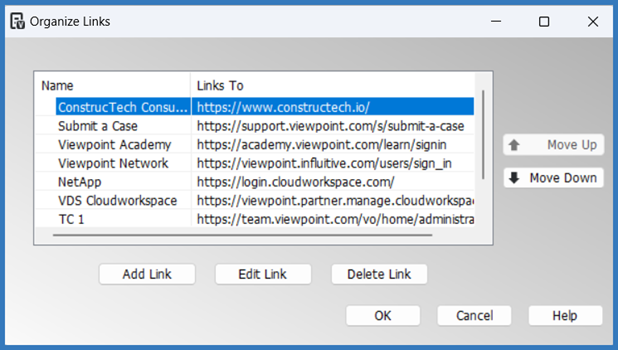
<img alt="Organize links with list of links addeed" src="https://fluxconsole.com/files/item/882/165529/Picture4.png" style="width: 618px; height: 350px;" /><br />
Defined links will display in the <strong>Links</strong> menu above this option.&nbsp; &nbsp;<br />
<img height="292" src="https://fluxconsole.com/files/item/882/165530/Picture5.png" width="780" /><br />
Save time, stop searching and get to adding your Quick Links!&nbsp;<br />
&nbsp;<br />
<a href="https://outlook.office365.com/owa/calendar/KylieConstrucTechConsulting@constructech.consulting/bookings/">Connect with ConstrucTech Consulting</a> today to find out more!]]>
            </content>
                          <enclosure url="https://fluxconsole.com/files/image/229260" length="0" type="image/png" />
                                    <updated>2023-02-14T11:35:45-06:00</updated>
        </entry>
            <entry>
            <title><![CDATA[Understanding the Vista Security Hierarchy]]></title>
            <link rel="alternate" href="https://www.constructech.io/blog/understanding-the-vista-security-hierarchy" />
            <id>https://constructech.modihost.com/164868</id>
            <author>
                <name> <![CDATA[XXX Website Cemetery / Graveyard]]></name>
            </author>
            <summary type="html">
                <![CDATA[Understanding the hierarchy of Viewpoint Vista Security can be a little challenging at times. Partly because there are many different ways to manage t... Bringing together construction and technology]]>
            </summary>
            <content type="html">
                <![CDATA[Understanding the hierarchy of Viewpoint Vista Security can be a little challenging at times. Partly because there are many different ways to manage the securtity of programs, reports, attachments, queries, and data within Vista. It can make it easy to inadvertantly give a user more access than intended.<br />
<br />
Mistakes that can be made when setting up security access include:&nbsp;
<ul>
	<li>Selecting &quot;Global&quot; or &quot;Across All Companies&quot; in the Companies box will give the User or Group access to ALL companies within the database unless you use Company Data Security to assign company access to each employee.&nbsp;<img alt="Form Security Screenshot highlighting Global selections" src="https://fluxconsole.com/files/item/882/164978/Form%20Security%20Screenshot%20highlighting%20Global%20selections.jpg" style="width: 782px; height: 602px;" /></li>
	<li>Selecting &quot;All&quot; in the Modules box can inadvertantly give the selected User or Group access to ALL modules.</li>
	<li>Selecting &quot;All&quot; in the Groups or User box can inadvertantly give ALL of the Groups or Employees rights to the selected Companies and Modules.<img alt="Form Security Screenshot highlighting Module and Group-Employee selections" src="https://fluxconsole.com/files/item/882/164981/Form%20Security%20Screenshot%20highlighting%20Module%20and%20Group-Employee%20selections.jpg" style="width: 779px; height: 405px;" /></li>
</ul>
Be careful and alert when making these selections.<br />
<br />
Assigning users to multiple security groups that contain the same forms, reports, or attachments can cause conflicts.<br />
<img alt="Security Heirarchy Pyramid, Security Group-Global Level at the bottom, Security Group-Company Level above that, User-Global Level above that, and User Company Level at the top" src="https://fluxconsole.com/files/item/882/164976/2023-02-06_17-54-16.jpg" style="width: 675px; height: 408px;" />The least restricted setting is a security group with global level security, the next restrictive is a security group with company level security, then a user with global level security, and finally the most restrictive is a user with company level security. If you assign multiple groups, the most restrictive will override the least restrictive. However, when there are two conflicting groups at the same level, it will defer to the lease restricted group.<br />
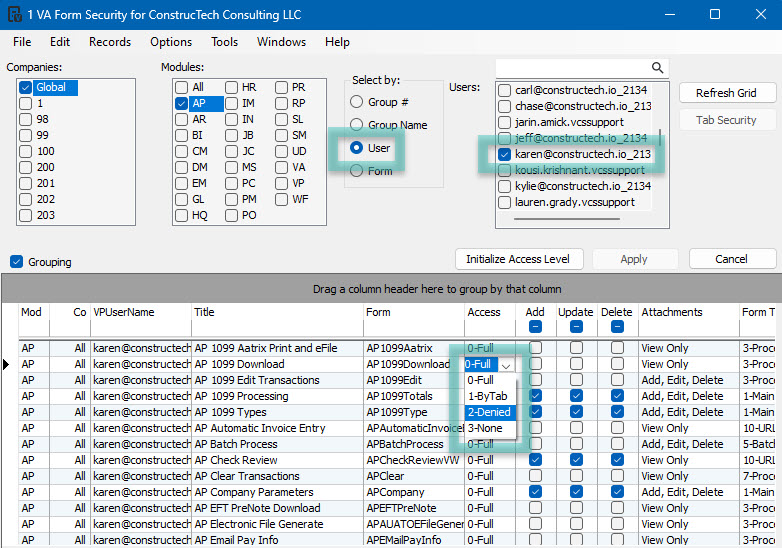
<br />
The easiest way to deny a user access is to not assign them to a group with access. Access of &quot;3-None&quot; only means that it will look to the next level to determine access. If every level has &quot;3-None&quot; then they do not have access, but if just one assigned group has &quot;0-Full&quot; access, then the user has access.<br />
<br />
While it is not the preferred strategy, there is the option to deny the user at their user level. To do this, select &quot;User&quot; for the &quot;Select By&quot; parameter, select the user from the list, click the &quot;Grouping&quot; box, and then &quot;Refresh Grid&quot;. From there you can select &quot;2-Denied&quot; in the &quot;Access&quot; column for any form, report, attachment or inquiry.&nbsp;<br />
<img alt="Form Security Screenshot" src="https://fluxconsole.com/files/item/882/164977/Form%20Security%20Screenshot.jpg" style="width: 714px; height: 500px;" />There are several reports in <strong>Viewpoint Administration &gt; Reports</strong> that will help you to review user and group access. This is be most effective way to audit your users&#39; access.<br />
<br />
If you would like assistance with Vista Security Access setup and/or review, please use our <strong>&quot;Email Support&quot;</strong> option or click on the <strong>&quot;Book A</strong> <strong>Call&quot;</strong> button and schedule an appointment with one of our consultants.]]>
            </content>
                          <enclosure url="https://fluxconsole.com/files/image/228494" length="0" type="image/jpg" />
                                    <updated>2023-02-07T11:35:45-06:00</updated>
        </entry>
            <entry>
            <title><![CDATA[Vista Excel Export - Pesky extra rows]]></title>
            <link rel="alternate" href="https://www.constructech.io/blog/vista-excel-export-pesky-extra-rows" />
            <id>https://constructech.modihost.com/162864</id>
            <author>
                <name> <![CDATA[XXX Website Cemetery / Graveyard]]></name>
            </author>
            <summary type="html">
                <![CDATA[Quickly remove extra rows from Vista exports in Excel Bringing together construction and technology]]>
            </summary>
            <content type="html">
                <![CDATA[Vista is able to export most reports to Excel.&nbsp; Often the standard reports will add lines we just don&#39;t care about and it can become a chore to clean up.<br />
<br />
Here&#39;s a quick tip to easily delete rows with empty cells to clean up that data.
<hr />This is a sample snip from a standard Vista report showing PR Employee Sequence Detail.<br />
<img height="620" src="https://fluxconsole.com/files/item/882/162867/image.png" width="1529" />
<hr />And, here is the same report exported to Vista<br />
<img height="630" src="https://fluxconsole.com/files/item/882/162868/image.png" width="740" /><br />
What I want to do is keep the yellow highlighted rows.&nbsp; I notice that column Q has data on the rows that I want to keep and no data on the rows I don&#39;t want to keep.&nbsp; So, I highlight the orange area and go to the Goto Special Menu and select &quot;Blanks&quot; to limit my selection in column Q to only cells that don&#39;t contain any data.<br />
<img height="352" src="https://fluxconsole.com/files/item/882/162869/image.png" width="388" /><img height="504" src="https://fluxconsole.com/files/item/882/162871/image.png" width="589" />
<hr />I now have cells selected that don&#39;t have anything in them.&nbsp; Next I want to delete those entire rows by right clicking any of those selected cells and selecting &quot;Delete&quot;.&nbsp; In the following dialog box, choose &quot;Entire Row&quot;.&nbsp;<img height="343" src="https://fluxconsole.com/files/item/882/162873/image.png" width="395" /><img height="179" src="https://fluxconsole.com/files/item/882/162874/image.png" width="199" />
<hr /> And Voila.&nbsp; A cleaner looking range of cells.<br />
<img height="162" src="https://fluxconsole.com/files/item/882/162875/image.png" width="705" />
<hr />Hopefully this quick Excel Tip can help you clean up Excel Exported Crystal reports from Vista.&nbsp;<br />
<br />
Spending time cleaning up Vista&#39;s standard exported reports adds no value to your business and may constrain your already busy staff.&nbsp; Call on ConstrucTech as we can customize reports to your specifications and eliminate the pesky report cleanup.&nbsp; We can even add additional information that your business might find useful.&nbsp; IE, this report could benefit from an Employee Number in addition to the Employee Name.<br />
<br />
Reach out if you are looking for assistance with any custom reporting or training projects.]]>
            </content>
                          <enclosure url="https://fluxconsole.com/files/image/227632" length="0" type="image/png" />
                                    <updated>2023-01-31T11:35:45-06:00</updated>
        </entry>
            <entry>
            <title><![CDATA[Tidying up 1099 Type &amp; Box Number Information]]></title>
            <link rel="alternate" href="https://www.constructech.io/blog/tidying-up-1099-type-box-number-information" />
            <id>https://constructech.modihost.com/163780</id>
            <author>
                <name> <![CDATA[XXX Website Cemetery / Graveyard]]></name>
            </author>
            <summary type="html">
                <![CDATA[Tidying Up 1099 Type and Box # Information in Vista for Tax Year 2023 Bringing together construction and technology]]>
            </summary>
            <content type="html">
                <![CDATA[<h2><a id="Heading" name="Heading"><span style="color:#3579bc;"><em>1099&nbsp;Type &amp; Box#&nbsp;can be corrected in Vista&nbsp;prior to Year End 1099 processing for Tax Year 2023</em></span></a></h2>
<strong><span style="color:#74b2e1;"><em>Have you successfully filed your 1099s for Tax Year 2022 but had to make some corrections to a Vendor Record in 2023 after making payments to that Vendor for Tax Year 2023?&nbsp; Maybe you found some Vendors with an incorrect 1099 Type and/or Box# during your reconciliation process of your 2022 1099s.&nbsp; If there were payments made to a Vendor for the current tax year prior to making that change, then that payment record will have the incorrect 1099 Type and/or Box#.&nbsp;</em><br />
<br />
<em>These payments can be corrected in Vista through the </em></span><span style="color:#3579bc;"><em>AP 1099<span style="color:#74b2e1;"><em> </em></span>Processing Program</em></span><span style="color:#74b2e1;"><em> in the </em></span><span style="color:#3579bc;"><em>Accounts Payable Module</em></span><span style="color:#74b2e1;"><em>.&nbsp; &nbsp;The steps for correcting this informaiton are as follows:</em>&nbsp;</span><br />
<br />
<span style="color:#3579bc;"><em>Accounts Payable&gt;AP 1099 Processing&gt;Tasks</em></span></strong><br />
<img alt="Viewpoint AP Module 1099 Processing Screen" src="https://fluxconsole.com/files/item/882/163794/image.png" style="width: 851px; height: 523px;" /><strong><span style="color:#3579bc;"><em>Drop down on Tasks and choose Edit Transactions.</em></span></strong><img alt="Viewpoint AP Module 1099 Edit Transaction Screen" src="https://fluxconsole.com/files/item/882/163795/image.png" style="width: 745px; height: 357px;" /><em><strong><span style="color:#47c8bf;">1.</span></strong></em> <em><span style="color:#3579bc;"><b>Year Ending</b></span></em><font color="#0f172a"><b><em> -</em><em> </em></b></font><strong><span style="color:#74b2e1;"><em>Enter the Year Ending month.</em></span></strong><br />
<strong><em><span style="color:#47c8bf;">2.</span></em><strong><span style="color:#3579bc;"> </span></strong><span style="color:#3579bc;"><em>Vendor</em></span></strong><font color="#0f172a"><em> - </em></font><strong><span style="color:#74b2e1;"><em>Enter the vendor number.</em></span></strong><br />
<strong><em><span style="color:#47c8bf;">3.</span></em><font color="#0f172a"> </font><span style="color:#3579bc;"><em>Select by Paid Mth</em></span></strong><font color="#0f172a"><em> - </em></font><strong><span style="color:#74b2e1;"><em>Check this box.</em></span></strong><br />
<strong><span style="color:#47c8bf;"><em>4.</em></span><font color="#0f172a"> </font><span style="color:#3579bc;"><em>Paid Month</em></span></strong><font color="#0f172a"><em> - </em></font><strong><span style="color:#74b2e1;"><em>Enter in the month for the payment being&nbsp; &nbsp; &nbsp; &nbsp;corrected.</em></span></strong><br />
<br />
<em><strong><span style="color:#3579bc;">Click on the Refresh button.</span></strong></em><br />
<img alt="Viewpoint AP Module Edit Transaction Screen" src="https://fluxconsole.com/files/item/882/163796/image.png" style="width: 741px; height: 376px;" /><strong><span style="color:#74b2e1;"><em>​​​​In the example above, the 1099 vendor was paid $1,000 in January 2023 prior to the correction being made to this vendor.&nbsp; This vendor was originally&nbsp; setup as a MISC Type Box 7.&nbsp; After reconciling 2022 1099 information, it was discovered that this vendor should be NEC Type Box 1.&nbsp; This can be corrected as seen on the screen below.</em></span></strong><br />
<img alt="Viewpoint AP Module 1099 Edit Transaction Screen" src="https://fluxconsole.com/files/item/882/163803/image.png" style="width: 737px; height: 370px;" /><strong><span style="color:#3579bc;"><em>After correcting the Type and Box#, click on the Refresh button and close out of the screen.&nbsp;&nbsp;<br />
<br />
Happy Tip Tuesday from the ConstrucTech Team!&nbsp; As always, please contact our Team regarding any of your Trimble Viewpoint Vista software concerns or questions.</em></span></strong>]]>
            </content>
                          <enclosure url="https://fluxconsole.com/files/image/227306" length="0" type="image/jpg" />
                                    <updated>2023-01-24T11:35:45-06:00</updated>
        </entry>
            <entry>
            <title><![CDATA[Vista Field Service]]></title>
            <link rel="alternate" href="https://www.constructech.io/blog/vista-field-service" />
            <id>https://constructech.modihost.com/163226</id>
            <author>
                <name> <![CDATA[XXX Website Cemetery / Graveyard]]></name>
            </author>
            <summary type="html">
                <![CDATA[Interested in learning more about how Vista Field Service can streamline your work orders and transform your service billing? Bringing together construction and technology]]>
            </summary>
            <content type="html">
                <![CDATA[<p style="text-align: center;"><strong>Vista Field Service</strong><br />
<strong><span style="color:#3579bc;">Connect Your Back Office And Field Technicians In An Instant</span></strong></p>

<p><br />
A service technicians&#39; main objective is the work needing to be done in the field &ndash; whether it&rsquo;s performing a preventive maintance check up on a heating unit; upgrading an electrical panel; or repairing a leaky pipe.&nbsp; This is why its critical to avoid bogging down your service technicians with problematic adminsitrative tasks or derailing their work with disconnected systems when they need real time data and information while<img alt="cell phone in hands" src="https://farm66.staticflickr.com/65535/52631443539_54c80f4ff0_m.jpg" style="width: 214px; height: 240px; float: right;" /> on the jobsite.&nbsp;<br />
<br />
<strong>Introducing Vista Field Service</strong><br />
Viewpoint Vista users now can close that data and processing gap between the back office and the field service technicians with Vista Field Service.&nbsp;&nbsp;<br />
<br />
Vista Field Service replaces manual processes for dispatching technicians and assigning work orders, as well as capturing field data on work completed.&nbsp; This solution extends the power of<br />
Vista Service Management to the field through a mobile friendly<br />
web interface.&nbsp; This easy-to-use solution enables fast<br />
implementation for technicians, allowing them to work<br />
quickly and efficiently while on the go.&nbsp;<br />
<br />
In the field, technicians have a simple easy to use tool to see all work order information, assign costs, enter time, update records and capture customer signatures all from their mobile device.&nbsp;<br />
<br />
Implementing a modern solution like Vista Field Service means less administrative red tape, happier clients and much faster billing and payment cycles for you.&nbsp;<br />
<br />
<a href="https://outlook.office365.com/owa/calendar/KylieConstrucTechConsulting@constructech.consulting/bookings/">Connect with ConstrucTech Consulting</a> today to find out more!</p>]]>
            </content>
                          <enclosure url="https://fluxconsole.com/files/image/228105" length="0" type="image/png" />
                                    <updated>2023-01-17T11:35:45-06:00</updated>
        </entry>
            <entry>
            <title><![CDATA[Button Up Your Internal Vista Processes!]]></title>
            <link rel="alternate" href="https://www.constructech.io/blog/button-up-your-internal-vista-processes" />
            <id>https://constructech.modihost.com/162714</id>
            <author>
                <name> <![CDATA[XXX Website Cemetery / Graveyard]]></name>
            </author>
            <summary type="html">
                <![CDATA[Link your internal procedure documents to forms directly in Vista! Bringing together construction and technology]]>
            </summary>
            <content type="html">
                <![CDATA[<h3>Vista Custom Form Button&#39;s - Document Links</h3>
<br />
Does your team have internal procedure documentation for workflows in Vista?&nbsp; Wouldn&rsquo;t it be nice to have certain documentation readily available to end users to quickly reference when completing a form?<br />
<br />
Vista Custom (UD) Buttons gives you the ability to embed direct web &amp; document links on forms.<br />
<img height="430" src="https://fluxconsole.com/files/item/882/162739/image.png" width="894" /><img height="966" src="https://fluxconsole.com/files/item/882/162808/image.png" width="829" /><br />
To get started open <strong>Viewpoint Administration&gt;Programs&gt;VA Custom Form Buttons.</strong><br />
<span style="font-size:12px;"><em>[User must have access to VA Custom Form Buttons Program]</em></span><br />
<img height="311" src="https://fluxconsole.com/files/item/882/162722/image.png" width="975" />
<hr /><br />
Select the form you would like the Custom Button to display on and give it an ID (multiple buttons can be added on a single form).<br />
<img height="384" src="https://fluxconsole.com/files/item/882/162723/image.png" width="826" />
<hr /><br />
Select the <strong>[Text:]</strong> you wish to display on the Custom Button. Next select External Application as your <strong>[Action Type:]</strong>. Locate and select your document by clicking Browse on the <strong>[Action:]</strong> field.<br />
The <strong>[Button Refresh:]</strong> selection field can be used to Refresh Records or Data Sets.<img height="352" src="https://fluxconsole.com/files/item/882/162807/image.png" width="783" /><br />
Now you are ready to open your form and resize/position the Custom Button to your desired location.<br />
<img height="688" src="https://fluxconsole.com/files/item/882/162725/image.png" width="975" />
<hr /><br />
<strong>Accept</strong>&nbsp;the new position and start improving procedures and data entry right away!<br />
<img src="https://fluxconsole.com/files/item/882/162726/image.png" style="width: 800px; height: 809px;" /><br />
Stay tuned for an upcoming tips or reach out to us for help!
<div><span style="font-size:20px;"><span style="color:#0000ff;">consulting@constructech.io</span></span></div>]]>
            </content>
                          <enclosure url="https://fluxconsole.com/files/image/225658" length="0" type="image/jpg" />
                                    <updated>2023-01-10T11:35:45-06:00</updated>
        </entry>
            <entry>
            <title><![CDATA[Don&#039;t be a dummy!  Build your very own SQL Server to practice your skills]]></title>
            <link rel="alternate" href="https://www.constructech.io/blog/dont-be-a-dummy-build-your-very-own-sql-server-to-practice-your-skills" />
            <id>https://constructech.modihost.com/161873</id>
            <author>
                <name> <![CDATA[XXX Website Cemetery / Graveyard]]></name>
            </author>
            <summary type="html">
                <![CDATA[Curious about all the customization that is available to Vista by Viewpoint?&nbsp; Time to buckle up and learn SQL to up your data game and provide va... Bringing together construction and technology]]>
            </summary>
            <content type="html">
                <![CDATA[Curious about all the customization that is available to Vista by Viewpoint?&nbsp; Time to buckle up and learn SQL to up your data game and provide value to your companies business vision.&nbsp; SQL Server is a sophisticated database management system that Vista uses as their backend engine.&nbsp; While there are plenty of websites that teach SQL, nothing beats rolling up your sleeves and playing with real live data...just not your production data.<br />
<br />
This short article is intended to point you to some resources to get a database installed on a spare laptop or desktop for practicing SQL skills without endangering your live Viewpoint database.
<hr />
<h3>Step 1.&nbsp; Get a copy of SQL Server</h3>
Microsoft SQL Server is a very expensive software costing into the tens of thousands of dollars.&nbsp; However, Microsoft offers it absolutely free to developers that wish to develop code or develop their skills.&nbsp; The only caveat is you can not use it in a production environment without shelling out the cash.&nbsp; Follow the link below to Microsoft&#39;s download site.&nbsp; <strong>Scroll down a bit to find the free developer edition</strong> and download it.&nbsp; The current version is 2022 although Viewpoint&#39;s cloud primarily uses 2019.&nbsp; 2022 will be fine for most people.<br />
<br />
<strong><a href="https://www.microsoft.com/en-us/sql-server/sql-server-downloads" onclick="window.open(this.href, '', 'resizable=no,status=no,location=no,toolbar=no,menubar=no,fullscreen=no,scrollbars=no,dependent=no'); return false;">https://www.microsoft.com/en-us/sql-server/sql-server-downloads</a></strong><br />
<img src="https://fluxconsole.com/files/item/882/161874/image.png" style="width: 420px; height: 307px;" />Scroll down a little bit further and also download the latest version of SQL Server Management Studio (SSMS).&nbsp; SSMS is the primary tool used to interact with the database for developers and troubleshooters.<br />
<img height="410" src="https://fluxconsole.com/files/item/882/161875/image.png" width="722" />
<hr />
<h3>Step 2. Install SQL Server.</h3>
Rather than re-invent the wheel, I invite you to check out Brent Ozar&#39;s website for instructions on how to install SQL Server.&nbsp; He has a very&nbsp; easy to read blog to get SQL Server installed.&nbsp; The blog is for SQL Server 2016 but you&#39;ll find that the install is essentially the same. Install SSMS while you&#39;re at it.<br />
<br />
<strong><a href="https://www.brentozar.com/archive/2016/03/sql-server-2016-installation-screenshot-tour/" onclick="window.open(this.href, '', 'resizable=no,status=no,location=no,toolbar=no,menubar=no,fullscreen=no,scrollbars=no,dependent=no'); return false;">https://www.brentozar.com/archive/2016/03/sql-server-2016-installation-screenshot-tour/</a></strong>

<hr />
<h3>Step 3.&nbsp; Install a database</h3>
Now, if you&#39;re lucky enough to have a Viewpoint Database to play with, that&#39;s awesome.&nbsp; Otherwise, you&#39;ll need a database with some data to practice your SQL on.&nbsp; The AdventureWorks Database is a freely available dataset.&nbsp; It supports a fictitious, multinational manufacturing company called Adventure Works Cycles and Microsoft provides it for free.&nbsp; As of this article, AdventureWorks 2019 is the latest version available and I encourage you to choose that one.&nbsp; Read through this article for more detail on how to get it installed.<br />
<br />
<strong><a href="https://learn.microsoft.com/en-us/sql/samples/adventureworks-install-configure">https://learn.microsoft.com/en-us/sql/samples/adventureworks-install-configure</a></strong>

<hr />Now you should have a fully functioning SQL Server 2022 installation with some sample data to practice your SQL with.&nbsp;&nbsp;<br />
<br />
We at ConstrucTech use these tools on a daily basis to develop reports and customize Vista to our clients specific need.&nbsp; Feel free to reach out if you would rather skip all that technical mumbo jumbo above and simply hire the experts to take care of it for you.&nbsp; We are happy to be at your service.]]>
            </content>
                          <enclosure url="https://fluxconsole.com/files/image/224481" length="0" type="image/jpg" />
                                    <updated>2023-01-03T11:35:45-06:00</updated>
        </entry>
            <entry>
            <title><![CDATA[Vista 2023 Payroll Limit Updates]]></title>
            <link rel="alternate" href="https://www.constructech.io/blog/vista-2023-payroll-limit-updates" />
            <id>https://constructech.modihost.com/161757</id>
            <author>
                <name> <![CDATA[XXX Website Cemetery / Graveyard]]></name>
            </author>
            <summary type="html">
                <![CDATA[It is that time of the year to update your payroll limits in Vista Bringing together construction and technology]]>
            </summary>
            <content type="html">
                <![CDATA[After finalizing 2022 payroll, after all corrections needed for 2022 W-2&#39;s are made, and BEFORE processing the first payroll in Vista, you will want to update all of your payroll rates and limits. Most new limits that will be required can be verified on the Internal Revenue Service website or with your CPA. State Unemployment limits and rates will usually be mailed to you or you can log into their website to access your company&#39;s rate.<br />
<br />
<span style="color:#3579bc;"><strong>Tax Table Update - PR Routine</strong></span>
<div style="margin-left: 40px;">Trimble Viewpoint will repeatedly update the PR Routine file throughout the year as withholding calculation tables are updated. If you are on the cloud, those tax updates are available for you to initialize. Refer to the email from Trimble notifying you of your company&#39;s update schedule to make sure of the date that they are available for you.&nbsp;If you have an on-premise server, your company will need to download the tax update.<br />
<br />
BUT you are not finished there! You must go to <strong>PR Routines</strong>, click on &quot;File&quot;, and then Initialize. It will ask if you want to initialize PR Routine information, select &quot;Yes&quot;, and the system will let you know when they have been initialized.<br />
<br />
The &quot;Last Updated&quot; column will be updated with the current date but to make sure that the routine is updated, look at the Procedure Name column. The last two to three characters designates the year of the last update to the tax tables and if there is a third character that means that there were multiple versions of the tax file within that year. You can see in the example below that Arizona income tax tables have not been changed since 2011 and Arkansas income tax tables were changed twice in 2022.<br />
<img alt="PR Routing Snagit" src="https://fluxconsole.com/files/item/882/162214/PR%20Routing%20Snagit.jpg" style="width: 100%;" /></div>
<strong>FICA Social Security Limit and Rate - PR Deductions/Liabilities</strong>

<div style="margin-left: 40px;">Go to your deduction code AND your liability code for Social Security and make sure that the rates AND limits are the 2023 rates and limits.</div>
<br />
<strong>FICA Medicare Rate - PR Deductions/Liabilities</strong>

<div style="margin-left: 40px;">Go to your deduction code AND your liability code for Medicare and make sure that the rates are the 2023 rates.</div>
<br />
<strong>FICA Additional Medicare Limit and Rate - PR Deductions/Liabilities</strong>

<div style="margin-left: 40px;">Go to your deduction code for Additional Medicare and make sure that the rate is the 2023 rate. Then go to the PR Routine to make sure that the limit for the Routine &quot;Addl Med&quot; is the 2023 limit.</div>
<br />
<strong>FUTA&nbsp; Limit and Rate - PR Deductions/Liabilities</strong>

<div style="margin-left: 40px;">Go to your liability code for FUTA and make sure that the rate AND limit is the 2023 rate and limit.</div>
<br />
<strong>State Unemployment (SUTA/SUI) Limit and Rate - PR Deductions/Liabilities</strong>

<div style="margin-left: 40px;">Go to your liability code for each state&#39;s unemployment setup and make sure that the rates AND limits are the 2023 rates and limits.</div>
<br />
<strong>401k Contributing Limits - PR Pre-Tax Deduction Groups</strong>

<div style="margin-left: 40px;">Go to your Pre-Tax Deduction Group Code for 401k, and any other similar groups that you may have, and make sure that the limit for regular and catch up contributions and the annual compensation limit are the 2023 limits.</div>
<br />
Are there any other yearly limits that you may need to update in Vista? HSA? FSA? Pension Limits? Review your PR Deduction/ Liability codes to see if you may have other rates and limits that should be updated.<br />
<br />
If you have any questions or concerns please reach out to us. Press the <strong>Book A Call</strong> button and you can schedule some time with a consultant.]]>
            </content>
                          <enclosure url="https://fluxconsole.com/files/image/225138" length="0" type="image/jpg" />
                                    <updated>2022-12-27T11:35:45-06:00</updated>
        </entry>
            <entry>
            <title><![CDATA[Data Wrangling in Excel - textjoin vs textsplit]]></title>
            <link rel="alternate" href="https://www.constructech.io/blog/data-wrangling-in-excel-textjoin-vs-textsplit" />
            <id>https://constructech.modihost.com/161573</id>
            <author>
                <name> <![CDATA[XXX Website Cemetery / Graveyard]]></name>
            </author>
            <summary type="html">
                <![CDATA[Data Wrangling in Excel
TextJoin vs TextSplit

With Vista Imports data can be brought in from other sources and sometimes that data is messy and ne... Bringing together construction and technology]]>
            </summary>
            <content type="html">
                <![CDATA[<h2 style="text-align: center;">Data Wrangling in Excel<br />
TextJoin vs TextSplit</h2>

<p>With Vista Imports data can be brought in from other sources and sometimes that data is messy and needs a little wrangling.&nbsp; When data&nbsp;comes in as separate parts that need to be joined together or as a combined field that needs to be split up, Excel&#39;s textjoin and textsplit comes to the rescue.</p>

<hr />
<h4 style="text-align: center;">TextJoin</h4>

<p>Textjoin stitches&nbsp;cells together with a delimiter of your choice easily.&nbsp; In this case, I have three names that I need to combine with a dash between them.&nbsp; Before textjoin I would need to use something like the CONCAT function which gets ugly real fast.&nbsp; Easy Peasy with textjoin and it can also handle inserted columns in the middle of your range.</p>

<p style="margin-left: 40px;">&nbsp;</p>

<p><img height="79" src="https://fluxconsole.com/files/item/882/161574/image.png" style="margin-left: 40px;" width="409" /></p>

<hr />
<h4 style="text-align: center;">TextSplit</h4>
Textsplit does the opposite of textjoin by splitting the data based on a delimiter.&nbsp; Prior to textsplit you may have used the Data &gt; Text to Columns function to split a column of data into multiple columns. Textsplit can handle this in a formulaic way.

<div style="margin-left: 40px;">&nbsp;</div>

<div style="margin-left: 40px;">&nbsp;</div>

<div><img height="91" src="https://fluxconsole.com/files/item/882/161576/image.png" style="margin-left: 40px;" width="344" /></div>

<div>Hoping you find this Excel quick tip helpful the&nbsp;next time you have to wrangle some data to get it imported into Vista or data that&#39;s been exported from one of Vista&#39;s many reports.</div>

<div><br />
Cheers!</div>]]>
            </content>
                          <enclosure url="https://fluxconsole.com/files/image/224053" length="0" type="image/png" />
                                    <updated>2022-12-19T11:35:45-06:00</updated>
        </entry>
            <entry>
            <title><![CDATA[Year-End Payroll &amp; 1099 Processing]]></title>
            <link rel="alternate" href="https://www.constructech.io/blog/year-end-payroll-1099-processing" />
            <id>https://constructech.modihost.com/161060</id>
            <author>
                <name> <![CDATA[XXX Website Cemetery / Graveyard]]></name>
            </author>
            <summary type="html">
                <![CDATA[Wishing You a Successful Year-End! Bringing together construction and technology]]>
            </summary>
            <content type="html">
                <![CDATA[<h1 style="text-align: center;"><span style="color:#74b2e1;"><span style="font-size:20px;">Year-End Payroll &amp; 1099 Processing</span></span></h1>
As 2022 rapidly comes to a close and we look forward to a brand new year, ConstrucTech Consulting would like to share with you some tips to prepare for year-end reporting and to get your New Year off to a great start.&nbsp;&nbsp;<br />
<br />
Checklists are always a great way to get you organized and have a plan for your Year-End reporting and processing.&nbsp; Click <a href="https://support.viewpoint.com/s/knowledgedetail?c__urlname=Year-End-Check-lists">here</a>&nbsp;to access checklists for Accounts Payable, General Ledger, Payroll and a Q&amp;A for Timing of Payroll Year-End Tasks.<br />
<br />
Do you need a visual refresher for ACA Reporting, W-2 Processing, 1099 Processing, or how to do a Payroll Leave Reset?&nbsp; Click <a href="https://support.viewpoint.com/s/vista">here</a>&nbsp;to sign up for webinars.&nbsp; Webinar date has passed?&nbsp; No worries,&nbsp; click on the link next to the Webinar that has passed and you can view a recording!<br />
<br />
If the link takes you to a blank page, you will need to login to your Viewpoint Customer Portal account.<br />
<br />
As always, our team at ConstrucTech Consulting is here to answer any questions you might have and/or assist you with your Year-End Processing and Reporting.<br />
<br />
Wishing you a smooth &amp; successful Year-End Close!
<h2><span style="color:#3579bc;"><span style="font-size:18px;">The ConstrucTech Consulting Team</span></span></h2>
<br />
<br />
<br />
<br />
<br />
<br />
<br />
<br />
<br />
&nbsp;]]>
            </content>
                          <enclosure url="https://fluxconsole.com/files/image/223965" length="0" type="image/jpg" />
                                    <updated>2022-12-13T11:35:45-06:00</updated>
        </entry>
            <entry>
            <title><![CDATA[Viewpoint Vista - Custom Reports Available to You!]]></title>
            <link rel="alternate" href="https://www.constructech.io/blog/viewpoint-vista-custom-reports-available-to-you" />
            <id>https://constructech.modihost.com/161054</id>
            <author>
                <name> <![CDATA[XXX Website Cemetery / Graveyard]]></name>
            </author>
            <summary type="html">
                <![CDATA[Custom Vista reports available to you right now! Bringing together construction and technology]]>
            </summary>
            <content type="html">
                <![CDATA[<img height="202" src="https://fluxconsole.com/files/item/882/161073/image.png" width="483" />Did you know that you have access to download custom Crystal, SSRS reports and queries right now? The Viewpoint Customer Portal provides resources for Vista users, one of which is Conceptual Report Packs!<br />
Through the Conceptual Report Package, Viewpoint provides a foundation to assist in getting you started building out your own custom reports and/or inquiries for your specific business needs.<br />
<br />
Launch the Viewpoint Customer Portal and select<span style="color:#3077b5;"> </span><strong><span style="color:#3077b5;">PRODUCTS &gt; Vista</span></strong><br />
<img height="617" src="https://fluxconsole.com/files/item/882/161254/image.png" width="1366" />Scroll down to <strong><span style="color:#3077b5;">PRODUCT RESOURCES</span> </strong>and click <span style="color:#3077b5;"><b>More</b></span><br />
<img height="617" src="https://fluxconsole.com/files/item/882/161253/image.png" width="1366" />Select Conceptual Report Packs &ndash; Non-Standard (Custom)<br />
<img height="477" src="https://fluxconsole.com/files/item/882/161252/image.png" width="1365" /><br />
Both folders contain report files, queries and other resources!<br />
The queries can be used to develop your own custom reports, inquiries and much more!<br />
<img height="410" src="https://fluxconsole.com/files/item/882/161255/image.png" width="1365" />
<h4><img height="444" src="https://fluxconsole.com/files/item/882/161256/image.png" width="1265" />Generally Available Non-Standard (Custom) Reports (4 Files)</h4>
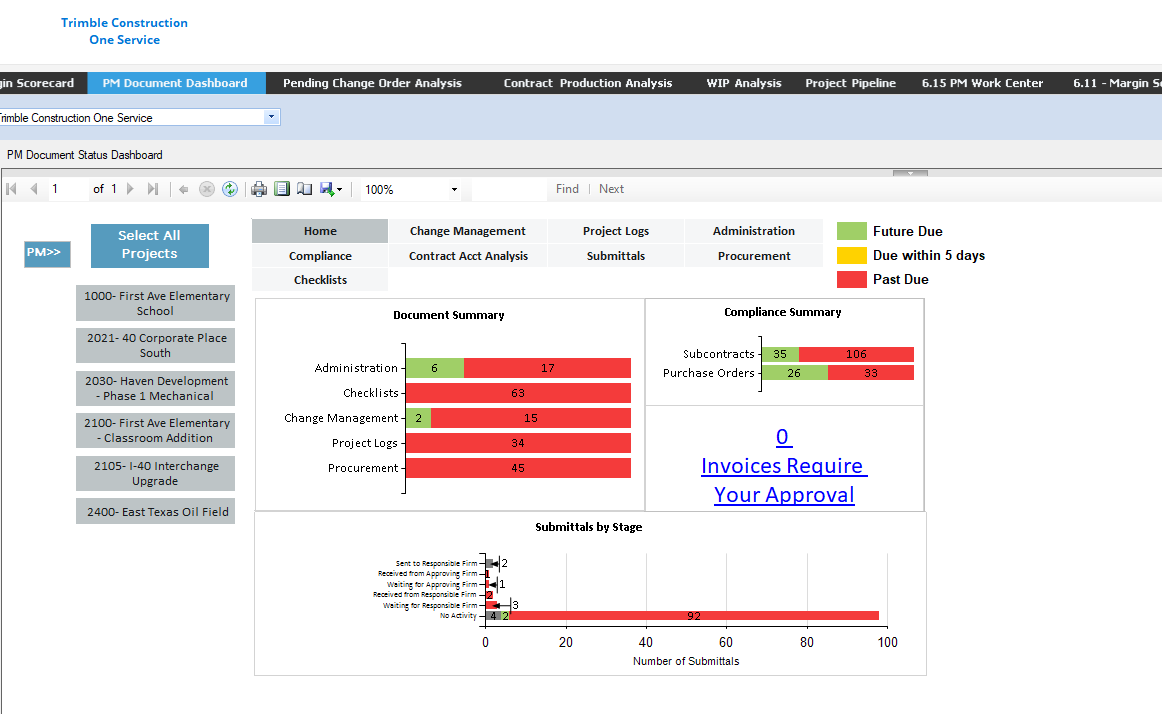

<ul>
	<li><span style="font-size:12px;">How to add SQL to Crystal Reports, SSRS and Power BI (PDF)</span></li>
	<li><span style="font-size:12px;">SQL Queries for Vista Reporting (PDF)</span></li>
	<li><span style="font-size:12px;">Labor Production Crystal Reports Pack (Zip)</span>
	<ul>
		<li><span style="font-size:12px;">Custom JC Job Labor Production Analysis by Phase w/ Period - Legal (Crystal - .rpt)</span></li>
		<li><span style="font-size:12px;">Custom JC Labor Production Factor Trends by Job Range (Crystal - .rpt)</span></li>
		<li><span style="font-size:12px;">Custom JC Labor Production Factor Trends by PM (Crystal - .rpt)</span></li>
	</ul>
	</li>
	<li><span style="font-size:12px;">Conceptual Report Packs - Crystal Reports (PDF)</span></li>
</ul>

<h4>BI Module Non-Standard (Custom) Reports (5 Files)</h4>

<ul>
	<li><span style="font-size:12px;">Labor Production Reports Pack (Zip)</span>

	<ul>
		<li><span style="font-size:12px;">CREATE View [dbo].[JCJobAnalysisCostTypeRPT] (SQL)</span></li>
		<li><span style="font-size:12px;">CREATE View [dbo].[JCJobAnalysisJobRPT] (SQL)</span></li>
		<li><span style="font-size:12px;">JC Labor Production Factor Analysis Standalone Top (SSRS - .rdl)</span></li>
		<li><span style="font-size:12px;">JC Labor Production Todate by Job Cost Tier SSRS - .rdl)</span></li>
		<li><span style="font-size:12px;">JC Labor Production Todate by Job (SSRS - .rdl)</span></li>
		<li><span style="font-size:12px;">JC Labor Production Todate by Phase (SSRS - .rdl)</span></li>
	</ul>
	</li>
	<li><span style="font-size:12px;">Deployment Instructions-BI Module reports (PDF)</span></li>
	<li><span style="font-size:12px;">Concenptual Report Packs-BI Module (PDF)</span></li>
	<li><span style="font-size:12px;">Operational Reports Pack (Zip)</span>
	<ul>
		<li><span style="font-size:12px;">Contract Margin Scorescard (Folder - Multiple Reports)</span>
		<ul>
			<li><span style="font-size:12px;">ContractAnalysis-DDBilledAmt (SSRS - .rdl)</span></li>
			<li><span style="font-size:12px;">ContractAnalysis-DDLevel1MarginSC (SSRS - .rdl)</span></li>
			<li><span style="font-size:12px;">JCProfitDD (SSRS - .rdl)</span></li>
		</ul>
		</li>
		<li><span style="font-size:12px;">PM Document Status Dashboard (Folder - Multiple Reports)</span>
		<ul>
			<li><span style="font-size:12px;">PMDocStatus-Compliance (SSRS - .rdl)</span></li>
			<li><span style="font-size:12px;">PMDocStatus-Detail (SSRS - .rdl)</span></li>
			<li><span style="font-size:12px;">PMDocStatus-Related (SSRS - .rdl)</span></li>
			<li><span style="font-size:12px;">PMDocStatus-RelatedSum (SSRS - .rdl)</span></li>
			<li><span style="font-size:12px;">PMDocStatus-Submittals Detail (SSRS - .rdl)</span></li>
			<li><span style="font-size:12px;">PMDocStatus-Submittals Summary (SSRS - .rdl)</span></li>
			<li><span style="font-size:12px;">PMDocStatus-Submittals Tab (SSRS - .rdl)</span></li>
			<li><span style="font-size:12px;">PMDocStatus-Top (SSRS - .rdl)</span></li>
			<li><span style="font-size:12px;">PMSubmittals (SSRS - .rdl)</span></li>
		</ul>
		</li>
		<li><span style="font-size:12px;">Project Log Dashboard</span>
		<ul>
			<li><span style="font-size:12px;">PMDashboard-Compliance (SSRS - .rdl)</span></li>
			<li><span style="font-size:12px;">PMDashboard-Detail-Person (SSRS - .rdl)</span></li>
			<li><span style="font-size:12px;">PMDashboard-Detail (SSRS - .rdl)</span></li>
			<li><span style="font-size:12px;">PMDashboard-Related (SSRS - .rdl)</span></li>
			<li><span style="font-size:12px;">PMDashboard-RelatedSum (SSRS - .rdl)</span></li>
			<li><span style="font-size:12px;">PMDashboard (SSRS - .rdl)</span></li>
		</ul>
		</li>
	</ul>
	</li>
	<li><span style="font-size:12px;">Financial Reports Pack (Zip)</span>
	<ul>
		<li><span style="font-size:12px;">AR Analysis Dashboard (Folder - Multiple Reports)</span>
		<ul>
			<li><span style="font-size:12px;">ARAnalysisAging (SSRS - .rdl)</span></li>
			<li><span style="font-size:12px;">ARAnalysisBalances (SSRS - .rdl)</span></li>
			<li><span style="font-size:12px;">ARAnalysisCustomer (SSRS - .rdl)</span></li>
			<li><span style="font-size:12px;">ARAnalysisTop (SSRS - .rdl)</span></li>
		</ul>
		</li>
		<li><span style="font-size:12px;">Essential Financial Statements</span>
		<ul>
			<li><span style="font-size:12px;">FR Viewpoint Access (SSRS - .rdl)</span></li>
			<li><span style="font-size:12px;">FRBalanceSheet Graph (SSRS - .rdl)</span></li>
			<li><span style="font-size:12px;">FRBalanceSheet (SSRS - .rdl)</span></li>
			<li><span style="font-size:12px;">FRDetail (SSRS - .rdl)</span></li>
			<li><span style="font-size:12px;">FRIncomeStatement (SSRS - .rdl)</span></li>
			<li><span style="font-size:12px;">FRStatement-Top (SSRS - .rdl)</span></li>
			<li><span style="font-size:12px;">FRStatementofCashFlows (SSRS - .rdl)</span></li>
		</ul>
		</li>
		<li><span style="font-size:12px;">GL Ledger Close Summary</span>
		<ul>
			<li><span style="font-size:12px;">GLLedgerCloseSummary (SSRS - .rdl)</span></li>
		</ul>
		</li>
		<li><span style="font-size:12px;">VP Weekly Cash Flows</span>
		<ul>
			<li><span style="font-size:12px;">Weekly Cash Flows (SSRS - .rdl)</span></li>
		</ul>
		</li>
	</ul>
	</li>
</ul>
<br />
One of my favorite report packs is the <strong>PM Document Status Dashboard</strong>!<br />
<img height="714" src="https://fluxconsole.com/files/item/882/161257/image.png" width="1162" />Stay tuned!<br />
We will dive into these report packs deeper in upcoming Tip Tuesday segments.<br />
<br />
Get started downloading and deploying reports!<br />
<span style="font-size:12px;">(All you need is your Viewpoint Customer Portal login)</span><br />
Link:&nbsp;<a href="https://support.viewpoint.com/s/downloads?boxId=x93606192af5ia3gyx4he0nptzf5omfb"><span style="color:#0000ff;">Conceptual Report Package</span></a><br />
<br />
Don&rsquo;t know how to deploy custom reports?<br />
Stay tuned for an upcoming tip or reach out to us for help!
<div><span style="font-size:20px;"><span style="color:#0000ff;">consulting@constructech.io</span></span></div>]]>
            </content>
                          <enclosure url="https://fluxconsole.com/files/image/223404" length="0" type="image/png" />
                                    <updated>2022-12-06T11:35:45-06:00</updated>
        </entry>
            <entry>
            <title><![CDATA[Regular Expressions]]></title>
            <link rel="alternate" href="https://www.constructech.io/blog/regular-expressions" />
            <id>https://constructech.modihost.com/160891</id>
            <author>
                <name> <![CDATA[XXX Website Cemetery / Graveyard]]></name>
            </author>
            <summary type="html">
                <![CDATA[Using Regular Expressions to standardize Vista data Bringing together construction and technology]]>
            </summary>
            <content type="html">
                <![CDATA[<h3><span style="color:#3399ff;">Using Regular Expressions to standardize Vista data</span></h3>
Regular Expressions, or Regex, can be used to help validate and standardize data entry fields in Vista.&nbsp; If your business rules require upper case text for names and addresses or perhaps only allow certain characters in data fields. Regex can help keep things tidy.&nbsp; Regex has been around since the 1950&rsquo;s and was designed for text processing on Unix systems.&nbsp; Vista can also leverage Regex to &ldquo;process text&rdquo; into a desired format.&nbsp;<br />
<br />
This quick tip will show you how to access Regex in Vista.&nbsp;
<hr />
<ul>
	<li>Access Vista&#39;s Field Properties from a field, in this case the Employee Last Name field, by pressing F3 or the Checkbox Icon.</li>
</ul>
<img height="259" src="https://fluxconsole.com/files/item/882/160954/image.png" width="425" />
<ul>
	<li>From the Field Properties window, select the desired level of validation (ie, allow save with a warning, or don&rsquo;t allow saves at all).&nbsp; Then enter an expression and an error message if the text entered does not match the expression.&nbsp; This rule will only allow uppercase characters, periods, and spaces.&nbsp; Click OK or Apply</li>
</ul>
<img height="491" src="https://fluxconsole.com/files/item/882/160955/image.png" width="745" />
<ul>
	<li>Test and Validate that undesired lowercase characters aren&#39;t accepted.</li>
</ul>
<img height="267" src="https://fluxconsole.com/files/item/882/160956/image.png" width="695" />
<ul>
	<li>Test and Validate that only uppercase, periods, and spaces were not accepted.</li>
</ul>
<img height="189" src="https://fluxconsole.com/files/item/882/160957/image.png" width="558" />
<hr />
<p>This&nbsp;very simple example will&nbsp;help enforce data formatting for users that conform to an established business rule.&nbsp; Regular Expressions can also be used for very sophisticated situations such as Social Security Numbers. Here is a more sophisticated expression&nbsp;for validating social security data before saving in Vista.&nbsp;<em> (Google is your friend here).</em><br />
<br />
A valid SSN (Social Security Number) must satisfy the following conditions:&nbsp;</p>

<ul>
	<li>It should have 9 digits.</li>
	<li>It should be divided into 3 parts by hyphen (-).</li>
	<li>The first part should have 3 digits and should not be 000, 666, or between 900 and 999.</li>
	<li>The second part should have 2 digits and it should be from 01 to 99.</li>
	<li>The third part should have 4 digits and it should be from 0001 to 9999.</li>
</ul>
And the Regex to enforce that rule:

<ul>
	<li>^(?!666|000|9d{2})d{3}-(?!00)d{2}-(?!0{4})d{4}$</li>
</ul>
<span style="font-size:12px;"><span style="color:#800080;">(Click </span><a href="https://www.geeksforgeeks.org/how-to-validate-ssn-social-security-number-using-regular-expression/"><span style="color:#800080;">here </span></a><span style="color:#800080;">for the source website when I googled &quot;regular expression social security&quot;)</span></span>

<hr />If you consume information by video, this 100 second YouTube video quickly explains regex.&nbsp; A search on Youtube for Regular Expression will yield many results.<br />
<iframe 560="" align="middle" frameborder="1" height="315" longdesc="https://www.youtube.com/watch?v=sXQxhojSdZM&amp;ab_channel=Fireship" name="Regular Expression (RegEx) in 100 Seconds" scrolling="yes" src="https://www.youtube.com/embed/sXQxhojSdZM" width="560"></iframe>

<hr />
<p>While this may look very complicated, it become easy to understand with just a little bit of study.&nbsp; Believe me, it will be easier to create a regular expression than it will be to train each employee on the proper way to enter data.<br />
<br />
For more information, you can press F1 while in the Expression field to reach Vista&#39;s online help manual or click <a href="https://help.viewpoint.com/en/vista/2022-r2/system-tools/user-interface-guide/system-forms/about-the-field-properties-form/field-definitions-field-properties-form">here</a>&nbsp;to see the same help screen.&nbsp; You may need to scroll down and find the section titled <strong>System Overrides: Expression</strong><br />
<br />
The online manual also has additional helpful links to learn more about regular expressions.</p>

<hr />
<p>Regular Expressions are a great tool to help standardize your data formats so it can be more easily analyzed later.&nbsp; Clean data is essential when analyzing it to&nbsp;determine if your business is meeting goals or to help find trends.<br />
<br />
Feel free to contact us on our home page if you would like assistance or more information on regular expressions and ideas on how it can benefit you and your business data.</p>]]>
            </content>
                          <enclosure url="https://fluxconsole.com/files/image/223243" length="0" type="image/png" />
                                    <updated>2022-11-30T11:35:45-06:00</updated>
        </entry>
    </feed>